
UGREEN 35371UK
Contents
UGREEN 6 Port POE Ethernet Splitter User Manual
Model: 35371UK
1. Introduction
This manual provides detailed instructions for the installation, operation, and maintenance of the UGREEN 6 Port POE Ethernet Splitter. This device is designed to expand your network connectivity with Power over Ethernet (PoE) capabilities, suitable for various applications including IP cameras, access points, and other network devices.
2. Product Overview
The UGREEN 6 Port POE Ethernet Splitter is a robust network switch featuring a metal case for enhanced heat dissipation and durability. It offers a combination of PoE+ and standard Gigabit Ethernet ports for versatile connectivity.
2.1 Key Features
- Full Gigabit Ports: Includes 4 PoE Gigabit ports and 2 standard Gigabit auto-negotiating ports, backward compatible with 10/100/1000Mbps.
- Industrial-strength PoE Power: 60W total power budget with up to 30W per PoE port (802.3af/at compliant).
- Extended PoE Transmission: Supports long-distance mode up to 250m for PoE++ power supply.
- Robust Protection: Features 6kV lightning protection and VLAN virtual isolation.
- Versatile Applications: Suitable for desktop and wall-mounting, compatible with various network devices.
- Plug & Play: No configuration required for immediate use.
2.2 Package Contents
Verify that all items are present in the package:
- 1 x UGREEN 6 Port POE Ethernet Splitter
- 1 x Power Adapter (UK plug)
- 1 x User Manual
- Cable tags (plastic adhesive tags in green and yellow)
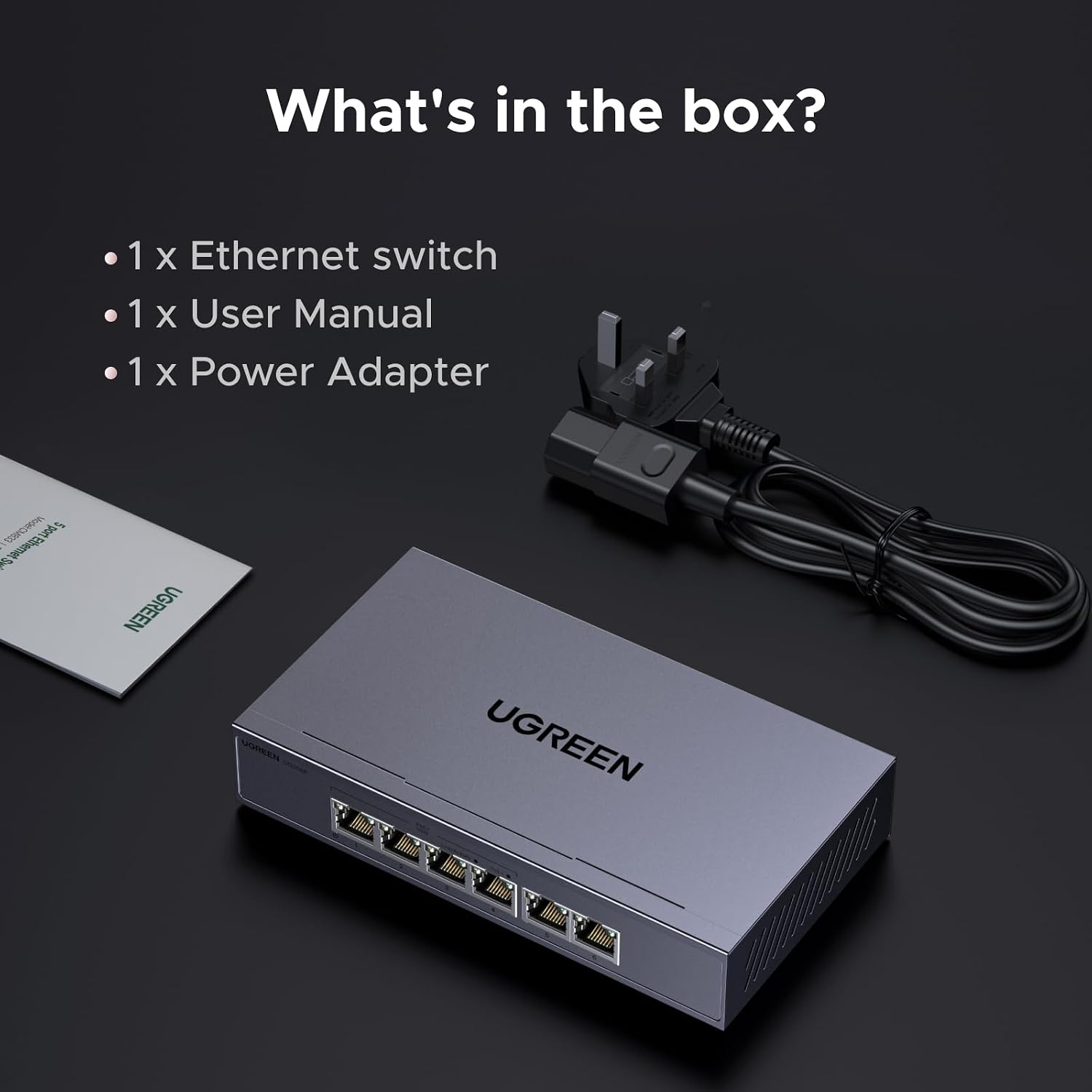
Image: Contents of the product box, showing the UGREEN 6 Port POE Ethernet Splitter, a power adapter with a UK plug, and a user manual.
3. Setup
The UGREEN 6 Port POE Ethernet Splitter is designed for plug-and-play operation, requiring minimal setup.
3.1 Initial Connection
- Power Connection: Connect the provided power adapter to the power input port on the switch and then plug it into a power outlet.
- Network Uplink: Connect your router or main network device to one of the non-PoE Gigabit Ethernet ports (ports 5 or 6) using a standard Ethernet cable.
- Device Connection: Connect your PoE-enabled devices (e.g., IP cameras, access points) to the PoE Gigabit Ethernet ports (ports 1-4). For non-PoE devices, use the remaining standard Gigabit Ethernet ports.

Image: A diagram illustrating the plug-and-play setup of the UGREEN 6 Port POE Ethernet Splitter, showing connections to a router, security cameras, printer, laptop, and NAS.
3.2 Wall Mounting (Optional)
The switch supports wall mounting. Locate the two mounting holes on the back of the device. Use appropriate screws (not included) to secure the switch to a wall or suitable surface.

Image: A composite image highlighting the side vent design for cooling, the switch for selecting between Standard, VLAN, and Extended working modes, and the mounting holes for wall installation.
4. Operating Modes
The UGREEN 6 Port POE Ethernet Splitter offers three distinct operating modes, selectable via a physical switch on the device:
- Standard Mode: This is the default mode. All ports operate as a standard unmanaged switch, allowing all connected devices to communicate freely at Gigabit speeds.
- VLAN Mode: In this mode, ports 1-4 are isolated from each other and can only communicate with ports 5 and 6 (uplink ports). This creates independent virtual networks, enhancing security and suppressing network storms, ideal for isolating surveillance or IoT traffic.
- Extended Mode: Designed for long-distance PoE transmission. In this mode, Ethernet signals can travel up to 250 meters. Note that enabling Extended mode will reduce the port speed to 10Mbps. This mode is beneficial for widespread camera deployment where long cable runs are necessary.

Image: A diagram showing how Intelligent VLAN Isolation works, where ports 1-4 (connected to devices like laptops, desktops, game consoles, security cameras) are isolated from each other and only communicate with ports 5-6 (connected to a router, network video recorder, or NAS).

Image: An illustration depicting the extended reach capability of the switch, allowing PoE transmission up to 250 meters, suitable for large installations like a building with security cameras.
5. Maintenance
To ensure optimal performance and longevity of your UGREEN 6 Port POE Ethernet Splitter, follow these maintenance guidelines:
- Cleaning: Use a soft, dry cloth to clean the exterior of the device. Do not use liquid cleaners or aerosol sprays.
- Ventilation: Ensure that the side vents are not obstructed to allow for proper heat dissipation. The metal casing is designed to aid in cooling.
- Environment: Operate the switch in a well-ventilated area, away from direct sunlight, excessive heat sources, and moisture.
- Cable Management: Keep network cables organized and free from kinks or excessive bending to prevent signal degradation.
6. Troubleshooting
If you encounter issues with your UGREEN 6 Port POE Ethernet Splitter, refer to the following common problems and solutions:
| Problem | Possible Cause | Solution |
|---|---|---|
| No power indicator light | Power adapter not connected or faulty; power outlet issue. | Ensure the power adapter is securely connected to the switch and a working power outlet. Try a different outlet. |
| Device not receiving power via PoE | Device is not PoE-compatible; cable issue; power budget exceeded. | Verify the device is 802.3af/at compliant. Check Ethernet cable for damage. Ensure total power consumption of connected PoE devices does not exceed 60W. |
| No network connectivity | Incorrect cable connection; faulty cable; incorrect operating mode. | Ensure Ethernet cables are securely connected to the correct ports. Test with a different cable. Check the mode switch (Standard/VLAN/Extended) and ensure it is set appropriately for your network configuration. |
| Slow network speed | Extended mode enabled; cable quality issue. | If not requiring long-distance transmission, switch to Standard or VLAN mode. Ensure you are using Cat5e or higher quality Ethernet cables for Gigabit speeds. |
7. Specifications
| Feature | Detail |
|---|---|
| Model Number | 35371UK |
| Ports | 4 x Gigabit PoE+ Ports (802.3af/at), 2 x Gigabit Ethernet Ports |
| PoE Power Budget | 60W Total, up to 30W per PoE port |
| Data Transfer Rate | 10/100/1000Mbps (Gigabit) |
| PoE Transmission Distance | Up to 250m (in Extended Mode, speed drops to 10Mbps) |
| Protection | 6kV Lightning Protection |
| Operating Modes | Standard, VLAN, Extended |
| Housing Material | Metal Case |
| Dimensions | 20.1 x 16.1 x 6.2 cm |
| Weight | 840 g |
| Compatible Devices | IP Cameras, Access Points, Routers, PCs, TV boxes, Smart TVs, Laptops, Printers, PS5, etc. |
8. Warranty and Support
UGREEN products are designed with quality and reliability in mind. For warranty information and technical support, please refer to the official UGREEN website or contact their customer service directly. Keep your purchase receipt for warranty claims.
UGREEN Official Website: www.ugreen.com
Ask a question about this manual
Ask about setup, troubleshooting, compatibility, parts, safety, or missing instructions. Manuals+ will review the question and use this page’s manual context to help answer it.