
1. Introduction
Thank you for choosing the NETVIP AC600 Dual Band USB WiFi Adapter. This device is designed to provide high-speed wireless connectivity to your desktop PC or laptop, enabling access to both 2.4GHz and 5GHz Wi-Fi networks. Its compact design and plug-and-play functionality for modern Windows operating systems make it an ideal solution for upgrading your device's wireless capabilities.

2. Product Features
- CD-Free Installation: Features a built-in driver, eliminating the need for a CD disk for installation. True plug-and-play for Windows 11/10.
- High Speed Dual Band: Supports 600Mbps performance (433Mbps on 5GHz and 150Mbps on 2.4GHz) for faster streaming and gaming.
- Mini Design with Removable Antenna: Compact size with a 5dBi high-gain detachable antenna for improved signal reception and portability.
- Wide Compatibility: Fully compatible with Windows 11, 10, 8.1, 8, 7, Vista, and XP.
- Universal Router Support: Works seamlessly with all wireless network routers from any brand.
- AP Mode Support: Allows your computer to create a Wi-Fi hotspot for sharing internet access when connected via wired Ethernet.


3. Setup Guide
3.1 What's in the Box
- 1 x NETVIP AC600 USB WiFi Adapter
3.2 Installation Steps
- Attach the Antenna: Gently screw the provided 5dBi antenna onto the adapter's connector until it is secure.
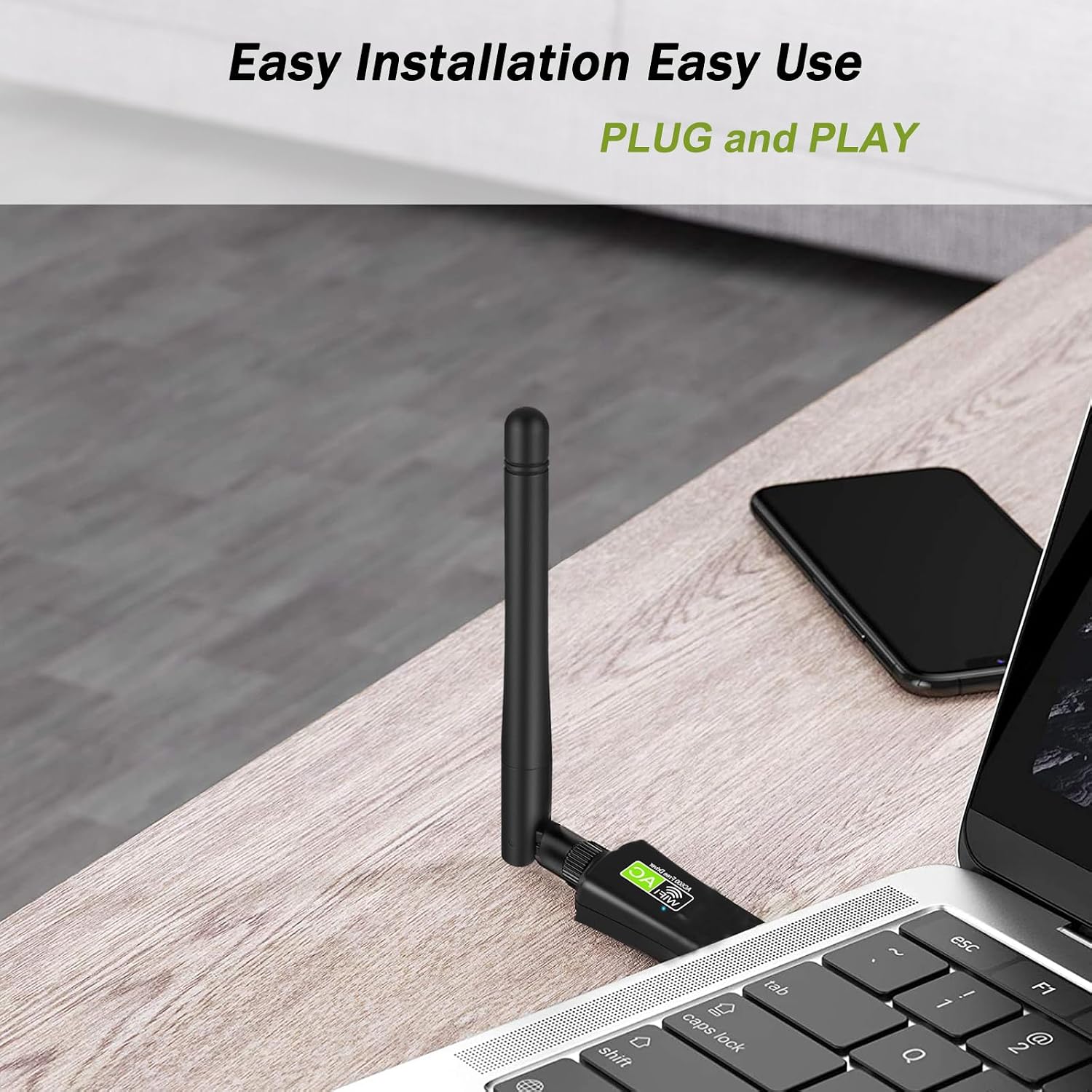
- Connect to USB Port: Insert the USB WiFi adapter into an available USB port on your desktop PC or laptop.
- Driver Installation (Windows 11/10): For Windows 11 and Windows 10, the adapter features a built-in driver and is plug-and-play. The system should automatically detect and install the necessary drivers. Wait for the installation to complete.
- Driver Installation (Older Windows OS - 8.1/8/7/Vista/XP): For older Windows versions, if the driver does not install automatically, you may need to manually install it. The adapter contains an internal driver. Access 'This PC' or 'My Computer', locate the virtual CD-ROM drive that appears (often labeled 'REALTEK' or similar), and run the setup executable. Follow the on-screen prompts to complete the installation.
- Verify Installation: Once the driver is installed, the adapter's indicator light should illuminate, and you should see available Wi-Fi networks in your system's network settings.


4. Operating Instructions
4.1 Connecting to a Wi-Fi Network
- Ensure the adapter is properly installed and recognized by your operating system.
- Click on the Wi-Fi icon in your system tray (usually in the bottom-right corner of the screen on Windows).
- A list of available Wi-Fi networks will appear. Select your desired network.
- If prompted, enter the network security key (password) and click 'Connect'.
- Once connected, the Wi-Fi icon will indicate a successful connection, and you can begin browsing the internet.
4.2 Using AP Mode (Hotspot Function)
The AP (Access Point) mode allows your computer, when connected to the internet via a wired Ethernet connection, to act as a Wi-Fi hotspot. This enables other wireless devices to connect to your computer's internet connection.
- Ensure your computer is connected to the internet via an Ethernet cable.
- Open your network settings (e.g., 'Network & Internet' settings in Windows).
- Navigate to the 'Mobile hotspot' or 'Hotspot' section.
- Turn on the mobile hotspot feature. You may need to select the internet connection to share (your Ethernet connection) and configure the network name (SSID) and password for your new Wi-Fi hotspot.
- Other devices can now search for your computer's Wi-Fi hotspot and connect using the password you set.
5. Maintenance and Care
- Keep the adapter clean and free from dust. Use a soft, dry cloth for cleaning.
- Avoid exposing the adapter to extreme temperatures, humidity, or direct sunlight.
- Do not attempt to disassemble or repair the adapter yourself. This will void the warranty.
- Ensure the antenna is securely attached but do not overtighten it.
6. Troubleshooting
| Issue | Possible Solution |
|---|---|
| Adapter not detected / No Wi-Fi networks visible. |
|
| Slow Wi-Fi speed or frequent disconnections. |
|
| Cannot connect to a specific Wi-Fi network. |
|
7. Specifications
| Feature | Detail |
|---|---|
| Model Number | AC600 |
| Hardware Interface | USB 2.0 |
| Data Link Protocol | IEEE 802.11ac, IEEE 802.11b, IEEE 802.11g, IEEE 802.11n |
| Data Transfer Rate | 600 Megabytes Per Second (433Mbps 5GHz, 150Mbps 2.4GHz) |
| Antenna Gain | 5dBi (Detachable) |
| Compatible Devices | Laptop, Desktop |
| Operating System Compatibility | Windows 11, 10, 8.1, 8, 7, Vista, XP |
| Item Weight | 0.705 ounces (20 Grams) |
| Package Dimensions | 5.24 x 3.15 x 0.87 inches |
| Country of Origin | China |
8. Warranty Information
This NETVIP product is covered by a standard manufacturer's warranty. Please refer to the product packaging or the official NETVIP website for specific warranty terms and conditions. Keep your purchase receipt as proof of purchase for warranty claims.
9. Support and Contact
For technical support, troubleshooting assistance, or any inquiries regarding your NETVIP AC600 USB WiFi Adapter, please visit the official NETVIP website or contact their customer service through the channels provided on their website or product packaging. When contacting support, please have your product model number (AC600) and purchase details ready.