Introduction
This user manual provides comprehensive instructions for setting up, operating, and maintaining your Samsung 55-Inch Class Neo QLED 4K QN80F Series Smart TV. Samsung Vision AI enhances amazingly detailed picture powered by individual mini-LED zones, multi-dimensional sound that tracks to the action, and breakthrough TV experiences. Enjoy vivid color and motion handling for 4K clarity without compromise.
Note: AI-Based formulas are utilized to upscale to 4K resolution. Resulting picture may vary based on source content. 4K 144Hz is only available with PC connected games that support such specifications (PC graphic card required). Performance may vary.
What's in the Box
Verify that all components are present in your product packaging:
- Power Cable
- User Manual
- Remote Control (SolarCell™ Remote TM2560E)
- Stand

Figure 1: Package Contents and TV Dimensions. This image illustrates the physical dimensions of the 55-inch Samsung QN80F TV with and without its stand, along with a visual representation of the items included in the box: the TV unit, user manual, SolarCell remote control, and power cable.
Setup
1. Assembling the Stand (Optional)
If you are not wall-mounting your TV, attach the included stand. Ensure the stand is securely fastened to the TV following the instructions provided in the physical user manual. Place the TV on a stable, level surface.
2. Connecting External Devices
Connect your external devices such as cable boxes, Blu-ray players, gaming consoles, and sound systems to the appropriate ports on the back of your TV.

Figure 2: Rear Panel Connections. This diagram details the various input and output ports available on the back of the Samsung QN80F TV, including USB-A for power or media playback, Audio Out (Optical) for soundbars, HDMI 1, 2, 3 (eARC), and 4 (all 4K@144Hz for gaming), Ethernet for wired internet, EX-Link for service, and Cable/ANT for antenna signals.
- HDMI Ports (1, 2, 3, 4): Connect devices like gaming consoles (HDMI 3 and 4 support 4K@144Hz, HDMI 3 supports eARC), Blu-ray players, or set-top boxes.
- USB Ports: For connecting USB storage devices for media playback or powering small accessories.
- Ethernet (LAN) Port: For a wired internet connection, providing stable streaming and updates.
- Optical Digital Audio Out: For connecting to a soundbar or audio receiver.
- Antenna/Cable In: For connecting an antenna or cable TV feed.
3. Power Connection
Plug the power cable into the TV's power input, then plug the other end into a wall outlet. The TV will automatically power on or enter standby mode.
Operating the TV
Remote Control
The Samsung 55QN80F comes with a SolarCell™ Remote (TM2560E). This remote can be charged by indoor lighting or USB-C. Familiarize yourself with the button layout for navigation, volume, channel control, and smart hub access.
Smart Features and Picture Quality
Your Samsung Neo QLED TV is equipped with advanced technologies for an immersive viewing experience.

Figure 3: Overview of Key Features. This image highlights the core technologies of the Samsung QN80F TV, such as the NQ4 AI Gen2 Processor for enhanced clarity, Quantum Matrix Technology with Mini LED for precise contrast, 4K AI Upscaling, Dolby Atmos for immersive sound, Motion Xcelerator 144Hz for smooth motion, and Auto HDR Remastering for improved picture quality.
- NQ4 AI Gen2 Processor: Utilizes 20 neural networks to enhance picture quality to 4K and optimize sound.

Figure 4: NQ4 AI Gen2 Processor. This image shows the NQ4 AI Gen2 Processor, which powers AI-enhanced clarity and 4K upscaling for superior picture and sound performance.
- Quantum Matrix Technology Core with Mini LED: Concentrated zones of Mini LEDs provide increased contrast and brightness for vivid viewing.

Figure 5: Quantum Matrix Technology Core. This image illustrates the Quantum Matrix Technology Core, which uses concentrated zones of proprietary Quantum Mini LEDs to deliver increased contrast and brightness for an extra vivid viewing experience.
- 4K AI Upscaling: Boosts content to captivating 4K resolution using AI neural networks.
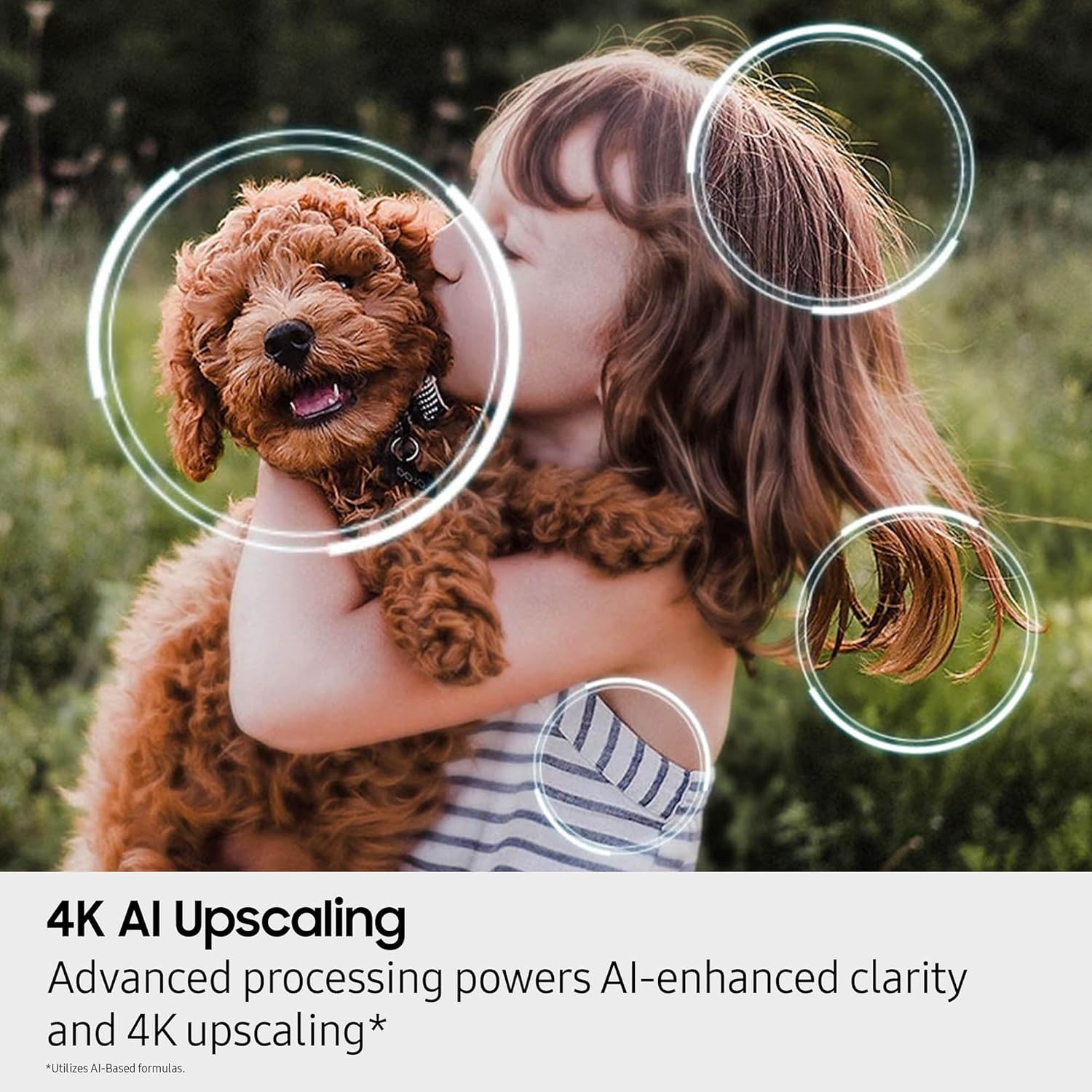
Figure 6: 4K AI Upscaling. This image visually represents the 4K AI Upscaling feature, which enhances content to a captivating 4K resolution, ensuring sharp and smooth picture quality.
- Dolby Atmos®: Provides theatrical multidimensional sound that puts you at the center of the action.

Figure 7: Dolby Atmos. This image depicts the immersive audio experience provided by Dolby Atmos, delivering theater-style 3D sound from around and above the viewer for next-level immersion.
- Motion Xcelerator 144Hz: Ensures smooth visuals for sports and tear-free gaming.

Figure 8: Motion Xcelerator 144Hz. This image illustrates the Motion Xcelerator 144Hz feature, which brings smooth motion to sports and tear-free gaming, ensuring crisp visuals and ultra-smooth performance.
- Auto HDR Remastering: Intelligently transforms SDR content to HDR-like quality with brighter highlights, more vibrant colors, and clearer details.

Figure 9: Auto HDR Remastering. This image demonstrates the Auto HDR Remastering feature, which intelligently transforms SDR content to HDR-like quality, resulting in brighter highlights, more vibrant colors, and clearer details for a dazzling picture.
- Samsung Gaming Hub: Access thousands of games without a console.

Figure 10: Samsung Gaming Hub. This image displays the Samsung Gaming Hub interface, allowing users to access a wide variety of games and streaming services directly from their TV without needing a separate console.
- Endless Free Content (Samsung TV Plus): Stream over 2,700 free channels.

Figure 11: Endless Free Content. This image shows the Samsung TV Plus interface, highlighting the availability of over 2,700 free channels and a wide range of content for streaming.
Maintenance
To ensure the longevity and optimal performance of your Samsung TV, follow these maintenance guidelines:
- Cleaning the Screen: Gently wipe the screen with a soft, dry microfiber cloth. For stubborn smudges, lightly dampen the cloth with water or a screen-specific cleaning solution (never spray directly onto the screen).
- Cleaning the Frame and Stand: Use a soft, dry cloth to wipe dust from the TV frame and stand.
- Ventilation: Ensure proper ventilation around the TV. Do not block the ventilation openings on the back of the TV.
- Power Cord: Regularly check the power cord for any damage. If damaged, replace it immediately with an authorized Samsung part.
Troubleshooting
If you encounter issues with your TV, refer to the following common troubleshooting tips:
| Problem | Possible Solution |
|---|---|
| No Power | Check if the power cable is securely connected to both the TV and the wall outlet. Try a different outlet. |
| No Picture/Sound | Verify the correct input source is selected. Check all cable connections (HDMI, etc.). Restart connected devices. |
| Remote Control Not Working | Ensure the SolarCell remote is charged. Point the remote directly at the TV's remote sensor. |
| Poor Picture Quality | Adjust picture settings (brightness, contrast, sharpness). Check the source content resolution. Ensure cables are high-quality. |
| No Internet Connection | Check Wi-Fi settings or Ethernet cable connection. Restart your router and modem. |
For more detailed troubleshooting, refer to the full user manual PDF or Samsung's official support website.
Specifications
| Feature | Detail |
|---|---|
| Brand | Samsung |
| Model Number | QN55QN80FAFXZA |
| Screen Size | 55 Inches |
| Display Technology | QLED |
| Resolution | 4K |
| Refresh Rate | 120 Hz (up to 144Hz for PC connected games) |
| Product Dimensions (D x W x H) | 9.7"D x 48.3"W x 30.1"H |
| Item Weight | 37.9 Pounds |
| Color Name | Titan Black |
| Special Features | Built-In Speaker, Game Mode, Vision AI, Mini LED, Neo Quantum HDR, Object Tracking Sound Lite, NQ4 AI Gen2 Processor, Alexa Built-in |
| Connectivity Technology | Bluetooth, Ethernet, HDMI, USB, Wi-Fi |
| Included Components | Power Cable, Remote Control, Stand, User Manual |
| Batteries Required | 2 AAA batteries (for remote) |
| On-mode power consumption | 175 watts |
| Visible screen diagonal | 55" / 140 cm |
Warranty and Support
For detailed warranty information, please refer to the warranty card included with your product or visit the official Samsung support website.
Download Full User Manual (PDF)
For further assistance, technical support, or service inquiries, please contact Samsung Customer Support or visit their official website.


