
1. Introduction
The ORGSTA S001 is a compact and portable mini thermal label printer designed for various labeling needs in home, office, and school environments. It utilizes Bluetooth connectivity for easy operation via a smartphone app and features a 2000 mAh rechargeable battery for extended use. This printer supports monochromatic printing with a resolution of 203 dpi, ensuring clear and crisp labels.

Image: The ORGSTA S001 Mini Bluetooth Thermal Label Printer, showcasing its compact design.
2. What's in the Box
Please check the package contents upon unboxing to ensure all items are present:
- 1 x ORGSTA S001 Label Printer
- 1 x Roll of Label Tape
- 1 x Type-C Cable
- 1 x Metal Clip
- 1 x User Manual

Image: A visual representation of the ORGSTA S001 label printer and its included accessories: the printer, a roll of label tape, a Type-C charging cable, a metal clip, and the user manual.
3. Setup Guide
Follow these steps to set up your ORGSTA S001 label printer for first-time use:
- Charge the Device: Connect the printer to a power source using the provided Type-C cable. The LED indicator will show charging status.
- Load Label Roll: Open the printer cover and insert the label roll according to the diagram inside the printer. Ensure the labels feed smoothly through the output slot.
- Download the App: Search for the dedicated ORGSTA label printing app on your smartphone's app store (e.g., "Snap & Tag"). Install the application.
- Connect via Bluetooth:
- Step 1: Enable Bluetooth on your smartphone.
- Step 2: Open the ORGSTA app and follow the on-screen prompts to connect to your S001 printer.
- Step 3: Once connected, you are ready to start printing.

Image: A visual guide demonstrating the three steps for easy setup: enabling Bluetooth, connecting the device through the app, and initiating printing.
4. Operating Instructions
The ORGSTA S001 printer is operated through its dedicated smartphone application, offering a wide range of customization options.
4.1 Creating Labels with the App
- Template Selection: The app provides over 190 preset templates for various uses, including home organization, office tasks, and special events.
- Customization: Utilize over 300 symbols, multiple fonts, and editing tools to personalize your labels. You can add text, tables, timestamps, handwritten notes, barcodes, QR codes, and images.
- Printing: Once your design is complete, send it to the printer via Bluetooth. The S001 prints in monochromatic (black and white) output. For colored designs, use pre-patterned label tapes.

Image: The ORGSTA S001 label printer connected via Bluetooth, with a smartphone displaying the app's interface for creating labels, including options for text, frames, stickers, time, images, QR codes, and barcodes.
4.2 Supported Label Sizes
The printer supports various label dimensions, including kiss-cut labels and continuous length tapes. Ensure you use compatible label rolls for optimal performance.

Image: An illustration detailing the different types and sizes of labels supported by the ORGSTA S001, including kiss-cut labels (e.g., 1.57 inches x 0.47 inches) and continuous length tapes (e.g., 0.59 inches width), with examples of their application.
4.3 Battery Information
The ORGSTA S001 is equipped with a 2000 mAh high-capacity rechargeable battery, providing long-lasting power for portable use. The low power consumption of the thermal printing technology further extends battery life.
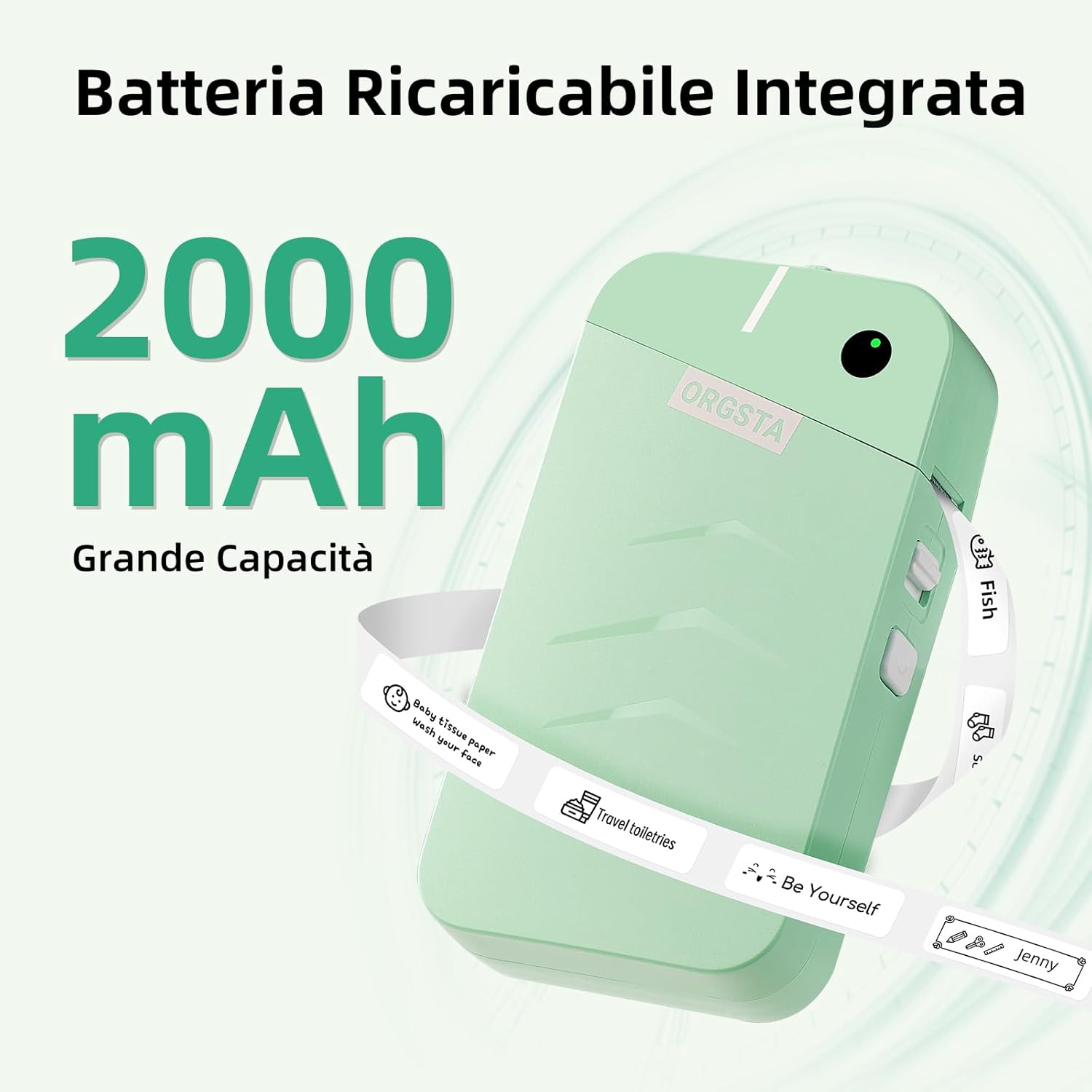
Image: The ORGSTA S001 printer with text indicating its 2000 mAh integrated rechargeable battery and large capacity.
5. Maintenance
To ensure the longevity and optimal performance of your ORGSTA S001 label printer, follow these maintenance guidelines:
- Cleaning: Regularly clean the print head with a soft, lint-free cloth moistened with isopropyl alcohol. Ensure the printer is turned off and disconnected from power before cleaning.
- Storage: Store the printer in a cool, dry place away from direct sunlight and extreme temperatures.
- Label Rolls: Use only genuine ORGSTA label rolls to prevent damage to the print head and ensure print quality.
6. Troubleshooting
If you encounter issues with your ORGSTA S001, refer to the following common troubleshooting steps:
- Printer Not Connecting:
- Ensure Bluetooth is enabled on your smartphone and the printer is powered on.
- Restart both the printer and your smartphone.
- Check if the app is updated to the latest version.
- Poor Print Quality:
- Clean the print head as described in the Maintenance section.
- Ensure the label roll is correctly inserted and not damaged.
- Check the battery level; low battery can affect print quality.
- Printer Not Responding:
- Verify the printer is charged.
- Perform a factory reset if available (refer to the in-app user guide for specific instructions).
7. Specifications
| Brand | ORGSTA |
| Model Name | S001 |
| Connectivity Technology | Bluetooth, USB-C |
| Printing Technology | Thermal |
| Special Feature | Portable |
| Printer Output | Monochromatic (Black Ink) |
| Max Print Speed (Black & White) | 15 Pages per minute (15 mm/s) |
| Max Print Resolution | 203 dpi |
| Product Dimensions | 3.1P x 7L x 13.5H cm |
| Battery Capacity | 2000 mAh |
| Compatible Devices | Smartphone |
| Control Method | App |
| Power Consumption | 5 Watts |
| Country of Origin | China |
8. Warranty and Support
The ORGSTA S001 label printer comes with a limited warranty. For specific details regarding warranty coverage and duration, please refer to the warranty card included in your package or contact ORGSTA customer support.
For technical assistance, troubleshooting, or any product-related inquiries, please visit the official ORGSTA website or contact their customer service department. Keep your purchase receipt and product model number (S001) handy when seeking support.


