
Introduction
This manual provides essential information for the setup, operation, maintenance, and troubleshooting of your Samsung 55-Inch Class OLED 4K S85F Series Smart TV. This television features self-illuminating pixels for vibrant color and dramatic contrast, powered by an advanced AI processor. It offers enhanced brightness and depth within a sleek design. Enjoy multi-dimensional audio with Object Tracking Sound Lite and Dolby Atmos.

Image: Front view of the Samsung 55-Inch Class OLED 4K S85F Series Smart TV.
What's in the Box
Verify that all the following items are included with your Samsung S85F Series TV:
- Samsung 55-Inch Class OLED 4K S85F Series Smart TV
- Power Cable
- SolarCell™ Remote Control (TM2560E)
- TV Stand Components
- User Manual (this document)

Image: Diagram illustrating the TV dimensions and the contents of the box, including the TV, remote, power cable, and user manual.
Setup
1. Physical Installation
Carefully unpack the TV and all components. Place the TV on a stable, flat surface or mount it to a wall using a compatible VESA mount (sold separately). If using the included stand:
- Attach the stand components to the TV following the instructions provided in the separate stand assembly guide.
- Ensure all screws are securely fastened.
- Place the TV in its desired location, ensuring adequate ventilation around the unit.
2. Connecting Peripherals
Connect your external devices to the TV's ports. Refer to the image below for port locations.

Image: Detailed view of the TV's rear connectivity panel, highlighting various ports.
- HDMI Ports (1-4): Connect devices such as Blu-ray players, game consoles, or set-top boxes. HDMI 3 (eARC) supports enhanced audio return for high-quality sound systems. HDMI 4 is optimized for 4K@120Hz gaming.
- USB-A Ports: For power or media playback from USB storage devices.
- Audio Out (Optical): Connects to soundbars or receivers for digital audio output.
- Ethernet (LAN): For a wired internet connection.
- Cable/ANT: Connects to an over-the-air antenna or cable TV signal.
- EX-Link: Samsung service port for external control and diagnostics.
3. Initial Power-On
- Plug the power cable into the TV and then into a wall outlet.
- Press the Power button on the remote control to turn on the TV.
- Follow the on-screen instructions to complete the initial setup, including language selection, network connection, and channel scanning.
Operating the TV
1. Remote Control
The included SolarCell™ Remote Control (TM2560E) allows you to navigate the TV's features. It can be charged by exposing its solar panel to light or via a USB-C cable.
2. Smart Hub & Navigation
Your Samsung Smart TV runs on the Tizen operating system, providing access to a wide range of apps, streaming services, and smart features. Press the Home button on your remote to access the Smart Hub.

Image: The Samsung Smart Hub interface displaying a variety of streaming applications and content options.
3. Picture & Sound Features
- NQ4 AI Gen2 Processor: This advanced processor uses AI with 20 neural networks to enhance picture quality to 4K resolution and optimize sound for an improved viewing experience.
- 4K AI Upscaling: The AI processor upscales content to near 4K resolution, ensuring sharp and smooth picture quality from various sources.
- OLED HDR: Self-illuminating pixels provide optimized brightness and deep, inky blacks, revealing hidden details and dynamic contrast in every scene.
- Pantone Validated Color: Experience realistic colors and accurate skin tones, validated by Pantone experts, for a vibrant and true-to-life picture.
- Color Booster Pro: AI analyzes each scene to enhance hues, providing a more vibrant and dynamic color experience.
- Object Tracking Sound Lite with Dolby Atmos: Enjoy multi-dimensional audio that moves with the on-screen action, creating an immersive sound experience.

Image: An illustration of the NQ4 AI Gen2 Processor chip, representing its role in advanced picture and sound processing.

Image: A visual representation of 4K AI Upscaling, showing enhanced detail around a child and a dog.
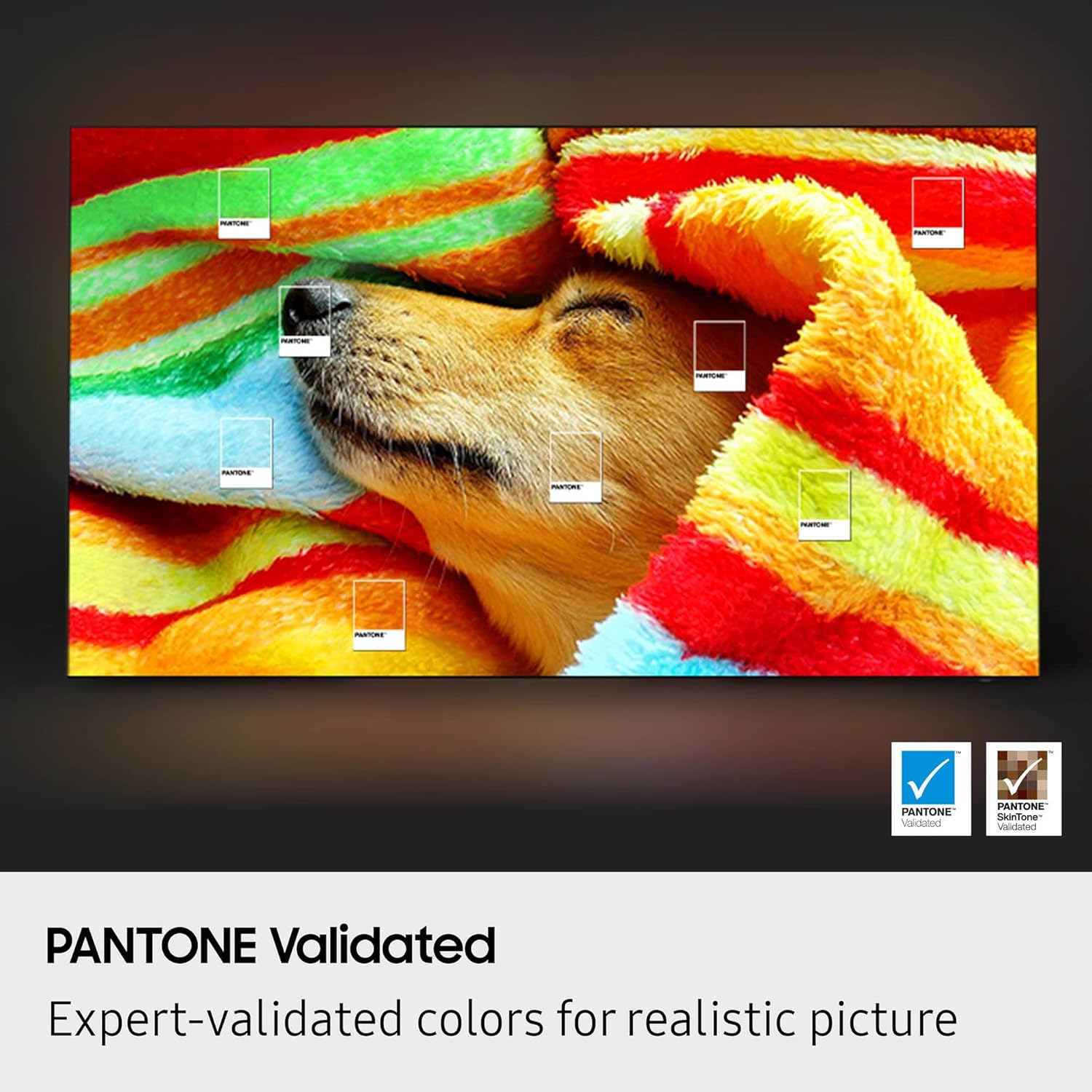
Image: A cave scene illustrating the dynamic brightness and contrast capabilities of OLED HDR.

Image: A visual demonstrating Pantone Validated colors, with color swatches overlaid on an image of a dog.

Image: A side-by-side comparison showing the visual difference with Color Booster Pro turned OFF and ON, highlighting enhanced vibrancy.
4. Gaming Features
- Motion Xcelerator 120Hz: Provides smooth motion for games and sports, reducing blur and enhancing clarity during fast-paced scenes.
- Game Mode: Optimizes settings for gaming, reducing input lag and enhancing visual performance.
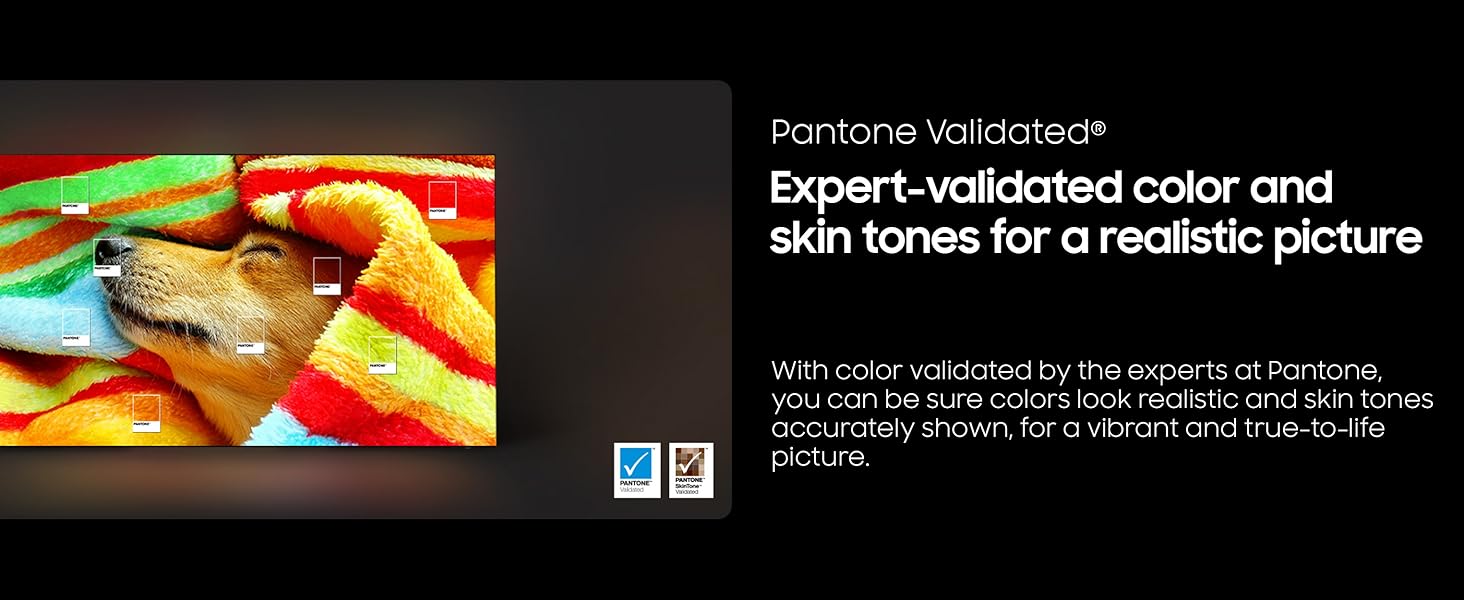
Image: A dynamic image of a racing car, illustrating the smooth motion provided by Motion Xcelerator 120Hz.
5. Voice Assistant
The TV includes Alexa Built-in, allowing you to control your TV and smart home devices using voice commands.
Maintenance
- Cleaning the Screen: Gently wipe the screen with a soft, dry microfiber cloth. For stubborn smudges, lightly dampen the cloth with water or a screen-cleaning solution specifically designed for electronics. Avoid harsh chemicals or abrasive materials.
- Cleaning the TV Body: Use a soft, dry cloth to wipe the TV's frame and back panel.
- Software Updates: Ensure your TV's software is up to date for optimal performance and security. You can usually find this option in the TV's settings menu under Support > Software Update.
- Remote Control Care: Keep the SolarCell™ Remote Control exposed to light for charging. If needed, charge via the USB-C port. Avoid exposing the remote to extreme temperatures or moisture.
Troubleshooting
If you encounter issues with your TV, try the following common solutions:
- No Power: Ensure the power cable is securely connected to both the TV and the wall outlet. Test the outlet with another device.
- No Picture/Sound: Check that the correct input source is selected. Verify all cable connections (HDMI, antenna, etc.) are secure. Restart connected devices.
- Remote Not Working: Ensure the remote is charged. Point the remote directly at the TV.
- Network Connection Issues: Check your Wi-Fi router or Ethernet cable connection. Restart your router and TV.
- Picture Quality Issues: Adjust picture settings (brightness, contrast, color) in the TV menu. Ensure the content source is high quality.
For more detailed troubleshooting or persistent issues, refer to the comprehensive e-Manual accessible through your TV's settings or visit the official Samsung support website.
Specifications
| Feature | Detail |
|---|---|
| Brand | SAMSUNG |
| Model Number | QN55S85FAFXZA |
| Screen Size | 55 Inches (140 cm diagonal) |
| Display Technology | OLED |
| Resolution | 4K (3840 x 2160) |
| Refresh Rate | 120 Hz |
| Aspect Ratio | 16:9 |
| Product Dimensions (with stand) | 48.2"W x 30.1"H x 9.3"D |
| Product Dimensions (without stand) | 48.2"W x 27.8"H x 1.3"D |
| Item Weight | 27.8 Pounds |
| Color | Graphite Black |
| Connectivity Technology | Bluetooth, Ethernet, HDMI, USB, Wi-Fi |
| Special Features | Built-In Speaker, Game Mode, Alexa Built-in |
Warranty and Support
Your Samsung TV is covered by a limited warranty. For specific warranty terms and conditions, please refer to the warranty card included with your product or visit the official Samsung website. For technical support, product registration, or service inquiries, please visit Samsung Support or contact their customer service directly.