
Samsung QN98QN90FAFXZA
Samsung 98-Inch Class Neo QLED 4K QN90F Series Smart TV User Manual
Model: QN98QN90FAFXZA
Introduction
This manual provides comprehensive instructions for the setup, operation, maintenance, and troubleshooting of your Samsung 98-Inch Class Neo QLED 4K QN90F Series Smart TV. Please read this manual thoroughly before using your television to ensure proper and safe operation.

Image: Front view of the Samsung 98-Inch Neo QLED 4K QN90F Series Smart TV.
What's in the Box
Verify that all components are present before beginning the setup process.
- Samsung 98-Inch Neo QLED 4K QN90F Series Smart TV
- Power Cable
- Remote Control (SolarCell™ Remote TM2560E)
- TV Stand Components
- User Manual (this document)

Image: Diagram illustrating the TV dimensions and the contents of the product box, including the TV, remote, power cable, and user manual.
Setup Guide
1. Physical Installation
Choose a suitable location for your TV. Ensure adequate ventilation around the unit. You can either use the included stand or a compatible VESA wall mount (sold separately).
- Stand Installation: Follow the instructions provided in the separate stand assembly guide. Ensure all screws are securely fastened.
- Wall Mount Installation: Refer to the wall mount manufacturer's instructions. Use appropriate wall anchors and ensure the mount can support the TV's weight (approximately 155.6 pounds).
2. Connecting External Devices
Connect your external devices such as Blu-ray players, game consoles, soundbars, and antennas to the appropriate ports on the back of the TV.

Image: Detailed view of the TV's rear connection panel, showing various input and output ports.
- HDMI Ports (1-4): Connect high-definition devices. HDMI 3 supports eARC for enhanced audio return. HDMI 4 supports 4K@165Hz for gaming.
- USB-A Ports: For power or media playback from USB storage devices.
- Audio Out (Optical): Connect to soundbars or receivers for digital audio.
- Ethernet (LAN): For wired internet connection.
- Cable/ANT: Connect an antenna or cable TV signal.
- EX-Link: Samsung service port for external control and diagnostics.
3. Power Connection & Initial Setup
- Connect the power cable to the TV and then to a wall outlet.
- Press the Power button on the remote control to turn on the TV.
- Follow the on-screen instructions to complete the initial setup, including language selection, network connection (Wi-Fi or Ethernet), and channel scanning.
Operating the TV
Remote Control
Your TV comes with a SolarCell™ Remote (TM2560E). This remote can be charged by indoor lighting or USB-C. Familiarize yourself with its buttons for navigation, volume, channel, and smart features.
Smart TV Features
The Samsung QN90F Series TV offers a range of smart features powered by the Tizen operating system.
- Samsung Gaming Hub: Access cloud gaming services and connect your controllers directly to the TV.
- Streaming Apps: Enjoy popular streaming services like Netflix, Hulu, Disney+, and more.
- Samsung TV Plus: Access over 2,700 free channels, including 400+ premium channels.
- SmartThings: Connect and control compatible smart home devices.
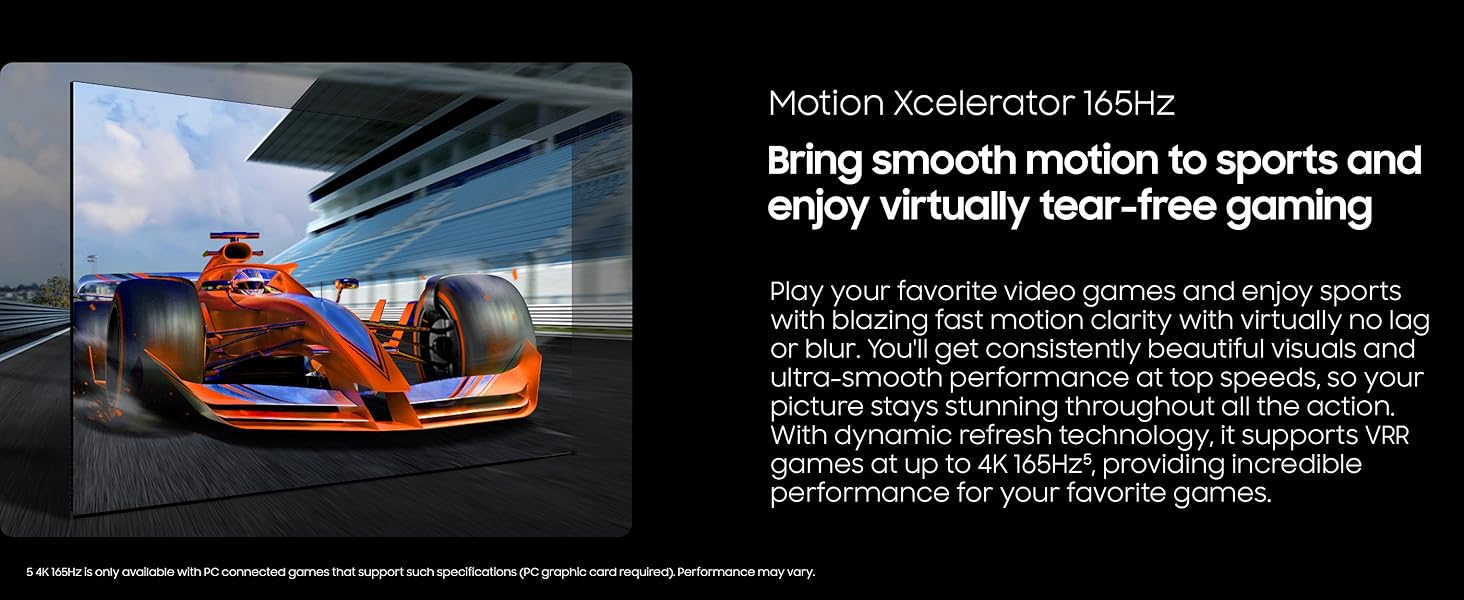
Image: Screenshot of the Samsung Gaming Hub, displaying various game titles and platforms.
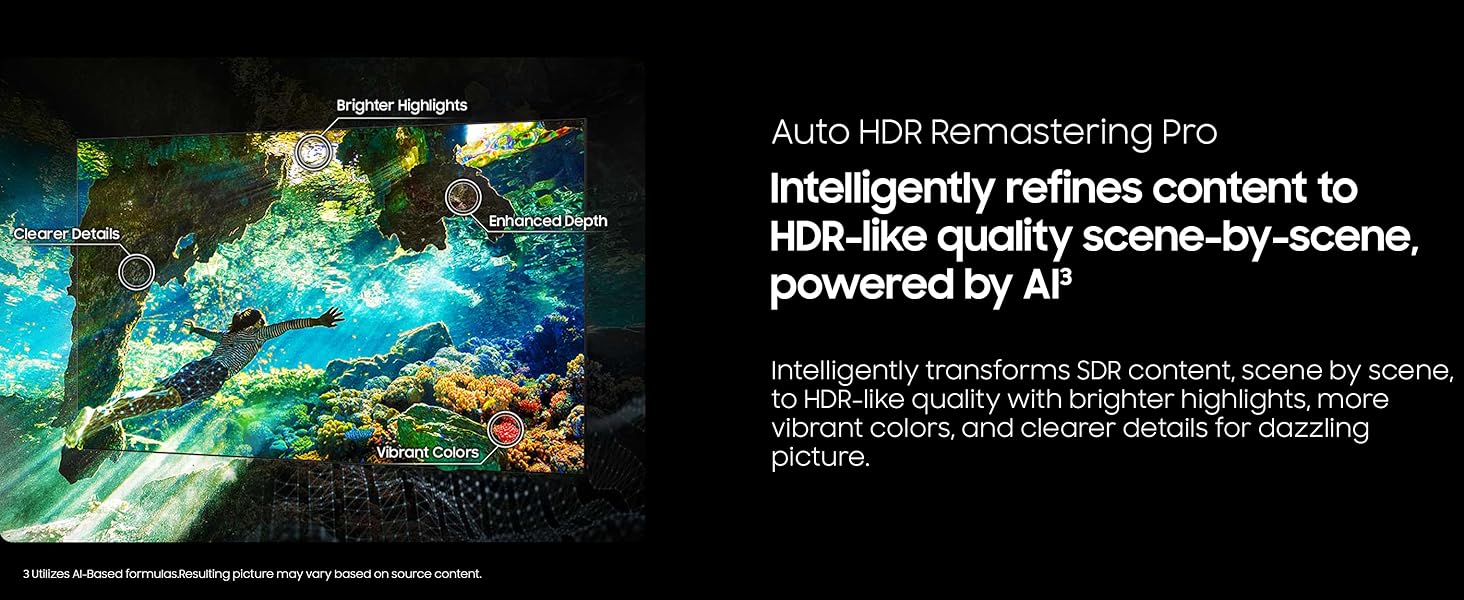
Image: Screenshot of the Samsung Smart TV home screen, featuring various streaming applications and content options.
Picture and Sound Settings
Access the TV's menu to adjust picture modes (Standard, Dynamic, Movie, Filmmaker Mode), brightness, contrast, color, and sound settings (Sound Mode, Equalizer, Dolby Atmos).
The TV features a NQ4 AI Gen3 Processor which enhances picture and sound quality using artificial intelligence.

Image: A visual representation of the NQ4 AI Gen3 Processor, highlighting its advanced capabilities.
- Neo Quantum HDR+: Provides elevated 4K viewing with superb brightness and vivid colors.
- Glare Free Screen: Reduces reflections for an optimal viewing experience in various lighting conditions.
- 4K AI Upscaling Pro: Transforms lower-resolution content to near-4K quality using 128 AI neural networks.
- Motion Xcelerator 165Hz: Ensures smooth motion for sports and gaming, reducing blur and tearing.
- AI Motion Enhancer Pro: Smooths fast-moving objects and text to maintain clarity during action scenes.
- Auto HDR Remastering Pro: Intelligently refines SDR content to HDR-like quality.

Image: Side-by-side comparison demonstrating the visual improvement from SDR to Neo Quantum HDR+.

Image: Visual comparison illustrating the effectiveness of the Glare Free screen technology.

Image: Example of 4K AI Upscaling Pro, highlighting improved clarity and detail in an image.

Image: Dynamic scene of a racing car, demonstrating the smooth motion provided by Motion Xcelerator 165Hz.
Maintenance
Cleaning the TV
- Screen: Gently wipe the screen with a soft, dry microfiber cloth. For stubborn marks, lightly dampen the cloth with water or a screen-cleaning solution specifically designed for electronics. Do not spray liquid directly onto the screen.
- Frame and Stand: Use a soft, dry cloth to wipe dust from the frame and stand.
- Remote Control: Wipe with a dry cloth. Avoid using harsh chemicals.
Software Updates
Ensure your TV's software is up to date for optimal performance and access to the latest features. You can usually check for updates through the TV's settings menu (Settings > Support > Software Update).
Troubleshooting
| Issue | Possible Solution |
|---|---|
| No power | Check if the power cable is securely connected to the TV and the wall outlet. Ensure the outlet is functional. |
| No picture, but sound is present | Verify the correct input source is selected. Check HDMI cable connections. Try a different HDMI port. |
| No sound, but picture is present | Check the TV's volume and mute settings. Ensure external audio devices (soundbar, receiver) are properly connected and powered on. |
| Remote control not working | Ensure the remote is charged (SolarCell™ Remote). Point the remote directly at the TV. Remove any obstructions. |
| Poor picture quality | Adjust picture settings (brightness, contrast, sharpness). Check the quality of the input source. Ensure the TV's software is updated. |
| Cannot connect to Wi-Fi | Restart your router and modem. Ensure the Wi-Fi password is correct. Move the TV closer to the router or use a wired Ethernet connection. |
For more detailed troubleshooting, refer to the online support resources or contact Samsung customer service.
Specifications
| Feature | Detail |
|---|---|
| Brand | Samsung |
| Model Number | QN98QN90FAFXZA |
| Screen Size | 98 Inches |
| Display Technology | Neo QLED |
| Resolution | 4K (3840 x 2160) |
| Refresh Rate | 120 Hz (up to 165Hz for PC gaming) |
| Processor | NQ4 AI Gen3 Processor |
| Special Features | Built-In Speaker, Game Mode, Glare Free, Neo Quantum HDR+, 4K AI Upscaling Pro, Motion Xcelerator 165Hz, Object Tracking Sound+ w/Dolby Atmos, Gaming Hub, Alexa Built-in |
| Connectivity | Bluetooth, Ethernet, HDMI (x4), USB (x2), Wi-Fi |
| Product Dimensions (with stand) | 86" W x 51.4" H x 14.4" D |
| Item Weight | 155.6 pounds |
| On-mode Power Consumption | 227 watts |
Warranty Information
Your Samsung TV is covered by a limited manufacturer's warranty. Please refer to the warranty card included with your product or visit the official Samsung website for detailed terms and conditions, including coverage period and service procedures. Keep your proof of purchase for warranty claims.
Support
For technical assistance, product registration, or to download the latest software and manuals, please visit the official Samsung support website:
You may also contact Samsung customer service directly:
- Phone: Refer to the contact information provided on the Samsung support website for your region.
- Online Chat: Available through the Samsung support website.
Related Documents - QN98QN90FAFXZA
 |
Samsung TV Unpacking and Installation Guide Step-by-step instructions for unpacking and installing your Samsung Neo QLED TV, including stand and wall mount setup. |
 |
Samsung 98-inch Neo QLED 4K TV Unpacking and Installation Guide Official Samsung guide for unpacking and installing your 98-inch Neo QLED 4K Mini LED Smart TV. Includes step-by-step instructions, VESA mounting specifications, and dimensions for models like QN90F. |
 |
Samsung TV User Guide: Features, Setup, and Troubleshooting Comprehensive user guide for Samsung TVs, covering setup, connectivity, smart features, picture and sound optimization, troubleshooting, and accessibility options. |
 |
Samsung QN90F Neo QLED 4K TV Series: Specs, Models, and Features | Value Electronics Explore the Samsung QN90F Neo QLED 4K TV series. Find detailed specifications, model variations (115" to 43"), features like Samsung Vision AI, Quantum Matrix Mini LEDs, Dolby Atmos, and gaming capabilities. Authorized dealer information. |
 |
Samsung TV Simple User Guide: Safety, Installation, and Operation This Samsung TV Simple User Guide provides essential information on safety instructions, installation, operation, and troubleshooting. Learn how to set up and use your Samsung television safely and effectively. Visit samsung.com for full manuals and support. |
 |
Samsung 98-inch Neo QLED QN90D Unpacking and Installation Guide Comprehensive guide for unpacking and installing the Samsung 98-inch Neo QLED QN90D television, covering stand setup and wall mounting procedures. |
Ask a question about this manual
Ask about setup, troubleshooting, compatibility, parts, safety, or missing instructions. Manuals+ will review the question and use this page’s manual context to help answer it.