1. Introduction
This user manual provides essential information for the safe and efficient operation of your Samsung 50-Inch Class QLED Q7F Series Smart TV. This television features a QLED display with Quantum HDR, Object Tracking Sound Lite, and is powered by the Q4 AI Gen1 Processor for 4K upscaling. It includes a Gaming Hub and Alexa Built-in for an enhanced entertainment experience. Please read this manual thoroughly before using your TV and keep it for future reference.

Image: Front view of the Samsung 50-Inch Class QLED Q7F Series Smart TV, showcasing its slim bezel and vibrant display.
2. What's in the Box
Verify that all components are present in your product packaging:
- Samsung 50-Inch Class QLED Q7F Series Smart TV
- Power Cable
- User Manual (this document)
- SolarCell™ Remote Control (TM2560E)
- TV Stand components

Image: A visual representation detailing the dimensions of the 50-inch Q7F TV and a list of items included in the box, such as the TV, user manual, SolarCell™ Remote, and power cable.
3. Setup Guide
3.1 Installing the Stand
- Carefully place the TV screen-down on a soft, flat surface to prevent damage.
- Align the stand components with the designated slots on the TV's bottom.
- Secure the stand using the provided screws. Ensure all screws are tightened firmly.
3.2 Connecting Power
Connect the power cable to the TV's power input port, then plug the other end into a wall outlet. The TV will enter standby mode.
3.3 Initial Setup
Upon first power-on, the TV will guide you through the initial setup process, including language selection, network connection (Wi-Fi or Ethernet), and channel scanning.
4. Connections
Your Samsung QLED TV offers various ports for connecting external devices.

Image: A detailed diagram illustrating the various input ports on the back of the Samsung Q7F TV, including USB-A, HDMI (eARC), HDMI 1, 2, Ethernet, and Cable/ANT connections.
- HDMI (High-Definition Multimedia Interface): Connect Blu-ray players, game consoles, and set-top boxes. This model features HDMI 3 with eARC for enhanced audio return and HDMI 1, 2 for standard connections.
- USB-A: For power or media playback from USB storage devices.
- Ethernet (LAN): For a wired internet connection, enabling streaming, updates, and smart features.
- Cable/ANT: Connect an antenna or cable TV signal for over-the-air broadcasts.
5. Operating the TV
5.1 Remote Control
The included SolarCell™ Remote (TM2560E) allows you to control all TV functions. Ensure it is charged via solar power or USB-C.
5.2 Smart TV Features
Your Samsung QLED TV is equipped with advanced smart features:
- Samsung Vision AI: Utilizes AI-based formulas to adjust color and sound for an optimized viewing experience based on content type.
- Gaming Hub: Access thousands of games without a console. Simply grab a compatible controller and dive into cloud gaming services.
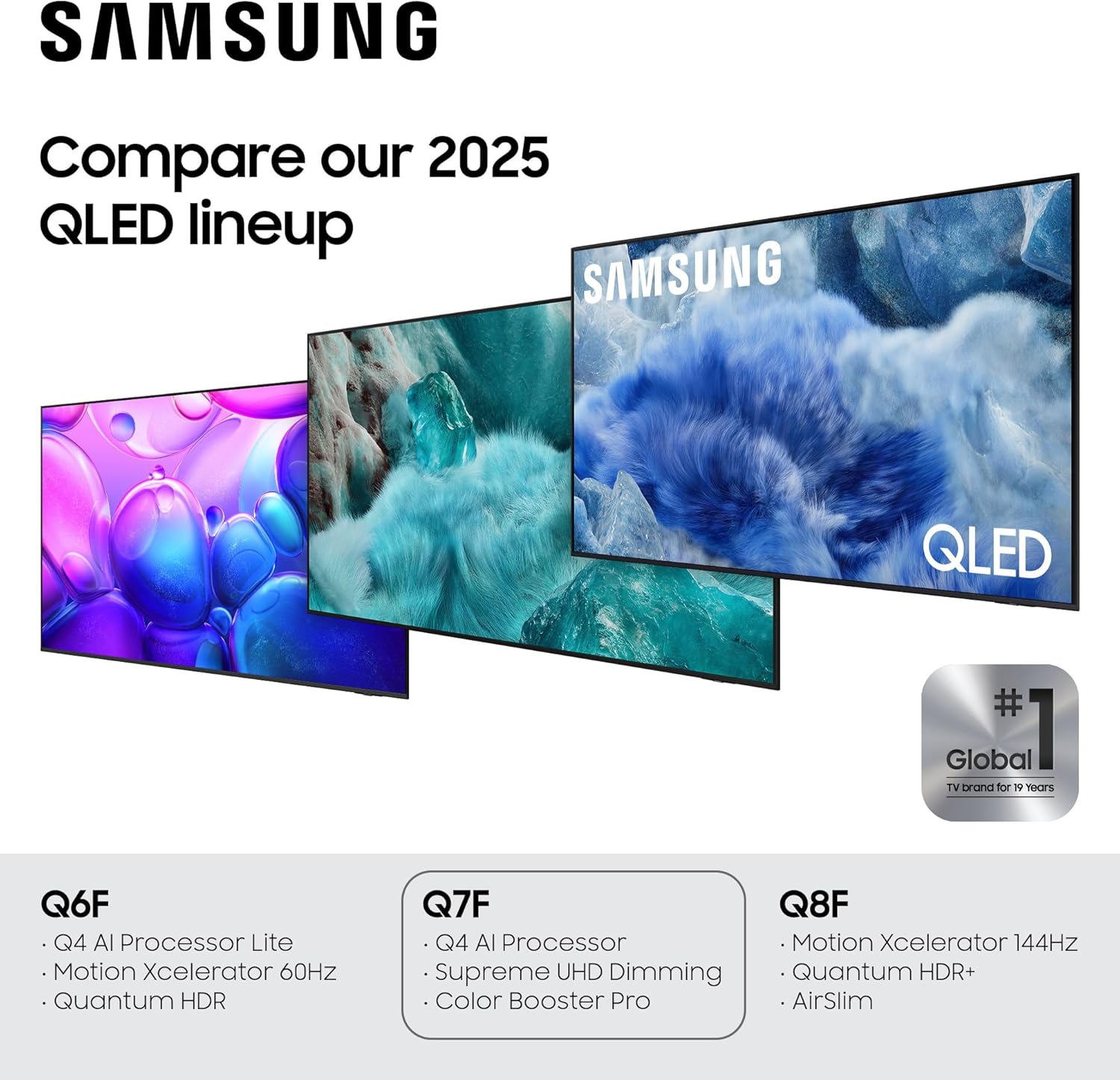
Image: A screenshot of the Samsung Gaming Hub interface, displaying various game titles and streaming services available directly on the TV.
- Endless Free Content (Samsung TV Plus): Watch over 2,700 free channels, including 400+ premium Samsung TV Plus channels, and access free streaming apps.

Image: A collage of diverse streaming content, illustrating the wide variety of movies, shows, and channels available through Samsung TV Plus.
- Alexa Built-in: Use voice commands to control your TV, search for content, and manage smart home devices.
- SmartThings: Connect and control compatible smart home devices directly from your TV.
5.3 Picture and Sound Optimization
Your TV incorporates advanced technologies for superior picture and sound quality:
- Q4 AI Processor: Powers dramatically clear color and sound, upscaling content to 4K resolution.

Image: A close-up rendering of the Samsung Q4 AI Processor chip, highlighting its intricate design and role in powering the TV's visual and audio capabilities.
- 100% Color Volume with Quantum Dot: Displays over a billion colors that remain true even in the brightest scenes, certified by Pantone for color accuracy.

Image: A vibrant image illustrating the concept of 100% Color Volume with Quantum Dot, showing a person in a swimming pool with water splashing, emphasizing the rich and accurate color reproduction.
- Quantum HDR: Enhances contrast with deep blacks and vibrant brights, revealing hidden details.

Image: A split image comparing Standard Dynamic Range (SDR) and High Dynamic Range (HDR) visuals, demonstrating how Quantum HDR enhances detail and contrast in a landscape scene with hay bales.
- Motion Xcelerator: Experience clear picture and smooth motion in fast-paced scenes like games and sports.

Image: A dynamic image showcasing Motion Xcelerator technology, with a motocross rider in motion, illustrating the TV's ability to render clear and smooth action scenes.
- 4K Upscaling: Upgrades lower-resolution content to crisp 4K clarity.
- Q-Symphony: Allows the TV and a compatible soundbar to work together in perfect harmony, enhancing the audio experience without muting the TV speakers.
5.4 Security
- Samsung Knox Security: Provides triple-layer protection for your personal data, defending against harmful apps and phishing sites, and securing sensitive information like PINs and passwords. It also safeguards IoT devices connected to your TV.
Image: A visual representation of Samsung Knox Security, showing a shield icon on a TV screen, symbolizing the triple-layer protection for personal data and connected IoT devices.
6. Maintenance
6.1 Cleaning the TV
- Screen: Gently wipe the screen with a soft, lint-free microfiber cloth. For stubborn marks, slightly dampen the cloth with distilled water or a screen-specific cleaning solution (do not spray directly on the screen).
- Body: Use a soft, dry cloth to wipe the TV frame and stand. Avoid abrasive cleaners or solvents.
6.2 Software Updates
Regularly check for and install software updates to ensure optimal performance and access to the latest features and security enhancements. You can usually find this option in the TV's settings menu under 'Support' or 'Software Update'.
7. Troubleshooting
If you encounter issues with your TV, refer to the following common solutions:
| Problem | Possible Solution |
|---|---|
| No Power | Ensure the power cable is securely connected to both the TV and the wall outlet. Test the outlet with another device. |
| No Picture / Black Screen | Check the input source (HDMI, Cable/ANT) is correctly selected. Verify external devices are powered on and connected properly. Try restarting the TV. |
| No Sound | Check the volume level and ensure the TV is not muted. Verify external audio devices (soundbar, receiver) are connected and configured correctly. |
| Remote Control Not Working | Ensure the remote is charged. Point the remote directly at the TV. Remove any obstructions between the remote and the TV. |
| Network Connection Issues | Restart your router and modem. Reconnect to the Wi-Fi network or check the Ethernet cable connection. Verify network settings in the TV menu. |
For more detailed troubleshooting, please refer to the full User Manual PDF or visit the Samsung support website.
8. Specifications
Key technical specifications for the Samsung 50-Inch Class QLED Q7F Series Smart TV:
| Feature | Detail |
|---|---|
| Brand | Samsung |
| Model Number | QN50Q7FAAFXZA |
| Screen Size | 50 Inches |
| Display Technology | QLED |
| Resolution | 4K (3840 x 2160) |
| Refresh Rate | 60 Hz |
| Product Dimensions (D x W x H) | 9.3"D x 44.1"W x 28.3"H |
| Item Weight | 20.9 Pounds |
| Connectivity Technology | Bluetooth, Ethernet, HDMI, USB, Wi-Fi |
| Special Features | Built-In Speaker, Game Mode, Alexa Built-in |
| Included Components | Power Cable, Remote Control, Stand, User Manual |
9. Warranty and Support
For detailed warranty information, please refer to the warranty card included with your product or visit the official Samsung website. Samsung offers customer support for product inquiries, technical assistance, and service requests.
You can find additional support resources, including the full User Manual and Installation Manual, at the following links:
For direct support, please visit the official Samsung support website or contact their customer service line.


