
1. Introduction
This manual provides instructions for the Lenovo IdeaPad 3 15.6" FHD Touchscreen Laptop. It covers initial setup, operation, maintenance, and troubleshooting to ensure optimal use of your device. The laptop features an Intel Core i5 processor, 20GB RAM, 2TB SSD, Wi-Fi 6, Bluetooth, and runs on Windows 11 Pro.

Figure 1: Lenovo IdeaPad 3 Laptop with Windows 11 Pro operating system.
2. Getting Started: Initial Setup
Follow these steps to set up your Lenovo IdeaPad 3 laptop for the first time:
- Unpack the Laptop: Carefully remove the laptop and all accessories from the packaging.
- Connect Power: Plug the power adapter into the laptop's power input port and then into a wall outlet.
- Initial Power On: Open the laptop lid and press the power button. The laptop will boot up and guide you through the Windows 11 Pro setup process.
- Windows Setup: Follow the on-screen instructions to select your region, language, connect to a Wi-Fi network, and create a user account.
3. Hardware Overview
Familiarize yourself with the various ports and components of your IdeaPad 3 laptop.

Figure 2: Port and Slot Layout of the Lenovo IdeaPad 3.
Left Side Ports:
- SD Card Reader: For inserting SD memory cards.
- USB-A 3.2 Gen 1 Port: For connecting USB 3.2 compatible devices.
Right Side Ports:
- Power Input: Connect the power adapter here.
- USB-A 2.0 Port: For connecting USB 2.0 compatible devices.
- HDMI Port: For connecting to external displays or projectors.
- USB-C 3.2 Gen 1 Port: For connecting USB-C compatible devices.
- Headphone/Microphone Combo Jack: For connecting headphones or a headset with a microphone.

Figure 3: Left side of the laptop, highlighting the SD card reader and USB-A port.

Figure 4: Right side of the laptop, showing various connectivity ports.
4. Operating Your Laptop
4.1 Keyboard and Touchpad
The laptop features a full-size keyboard and a precision touchpad for navigation. Use the touchpad for cursor control and multi-touch gestures. Refer to Windows 11 settings for customizing touchpad gestures.
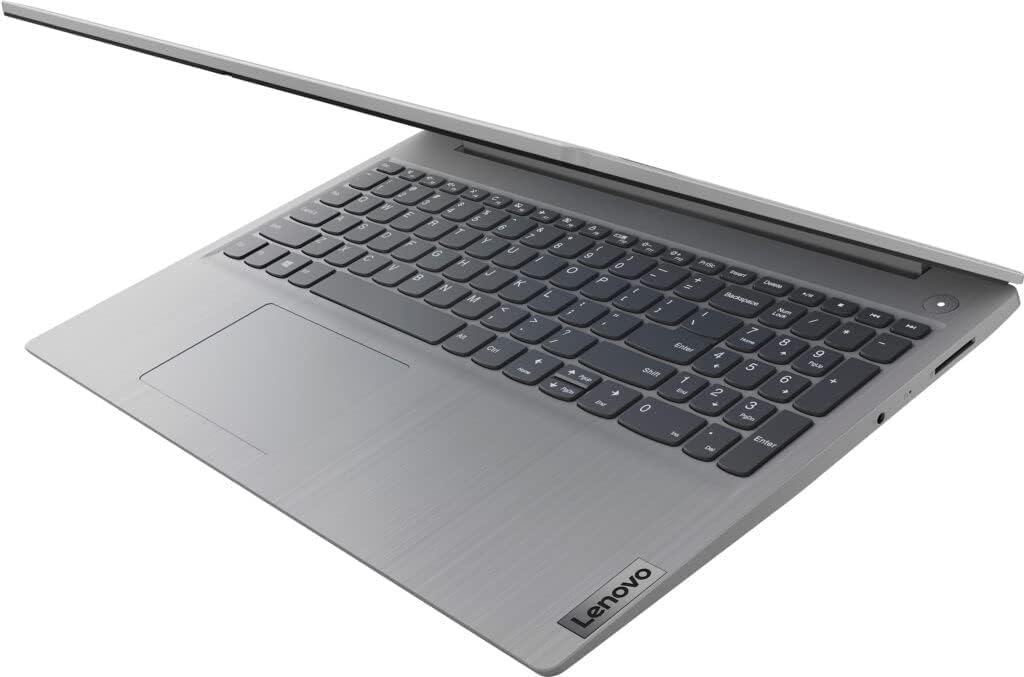
Figure 5: Keyboard and Touchpad layout.
4.2 Touchscreen Functionality
The 15.6" Full HD display supports touch input, allowing for direct interaction with Windows 11. Use gestures such as tap, swipe, pinch-to-zoom, and scroll directly on the screen.
4.3 Webcam and Privacy Shutter
The integrated webcam is located at the top center of the display. For privacy, a physical shutter can be slid to cover the camera lens when not in use.

Figure 6: Webcam with privacy shutter for enhanced security.
4.4 Cooling System
The IdeaPad 3 features an intelligent cooling system designed to maintain optimal performance and prevent overheating during extended use.

Figure 7: Laptop cooling system and battery life indication.
5. Maintenance and Care
5.1 Cleaning the Laptop
- Screen: Use a soft, lint-free cloth lightly dampened with water or a screen cleaner. Do not spray liquid directly onto the screen.
- Keyboard and Chassis: Use a soft, dry cloth. For stubborn dirt, a slightly damp cloth can be used. Avoid harsh chemicals.
- Ports: Use compressed air to gently clear dust from ports.
5.2 Battery Care
- Avoid fully discharging the battery frequently.
- Store the laptop in a cool, dry place if not used for extended periods.
- For optimal battery longevity, avoid exposing the laptop to extreme temperatures.
6. Troubleshooting
This section addresses common issues you might encounter with your laptop.
| Problem | Possible Solution |
|---|---|
| Laptop does not power on | Ensure the power adapter is securely connected to both the laptop and a working power outlet. Check if the battery is charged. |
| Screen is blank | Press the power button to wake the laptop. Check display settings if an external monitor is connected. Ensure the laptop is not in sleep or hibernate mode. |
| Wi-Fi connection issues | Verify Wi-Fi is enabled in Windows settings. Restart your router and the laptop. Check for updated network drivers. |
| Touchscreen unresponsive | Restart the laptop. Ensure display drivers are up to date. Clean the screen for any obstructions. |
| Slow performance | Close unnecessary applications. Check for background processes. Ensure sufficient free space on the SSD. Run a system scan for malware. |
7. Specifications
Key technical specifications for the Lenovo IdeaPad 3 laptop:
- Display: 15.6-inch Full HD (1920x1080) Touchscreen, IPS Technology
- Processor: Intel Core i5 (up to 4.1 GHz)
- RAM: 20GB DDR4
- Storage: 2TB PCIe NVMe M.2 Solid State Drive (SSD)
- Graphics: Integrated Intel Graphics
- Operating System: Windows 11 Pro
- Wireless Connectivity: Wi-Fi 6, Bluetooth
- Ports: 1x USB-A 3.2 Gen 1, 2x USB-A 2.0, 1x USB-C 3.2 Gen 1, 1x HDMI, 1x SD Card Reader, 1x Headphone/Microphone Combo Jack, Power Input
- Webcam: Integrated 720p HD with Privacy Shutter
- Audio: Dolby Audio, Built-in Microphone
- Battery Life: Up to 12 hours (actual battery life varies with usage)
- Dimensions (LxWxH): 14.14 x 9.31 x 0.78 inches
- Weight: Approximately 5 pounds
8. Safety Information
- Do not expose the laptop to extreme temperatures, direct sunlight, or high humidity.
- Avoid placing heavy objects on the laptop.
- Use only the provided power adapter or a Lenovo-approved replacement.
- Keep liquids away from the laptop to prevent damage.
- Do not attempt to disassemble or repair the laptop yourself. Refer to qualified service personnel.
9. Warranty and Support
Your Lenovo IdeaPad 3 laptop comes with a standard manufacturer's warranty. For detailed warranty terms and conditions, please refer to the warranty card included with your product or visit the official Lenovo support website. For technical assistance, driver downloads, or service requests, please contact Lenovo customer support.
Lenovo Support Website: support.lenovo.com