1. Introduction
The USRIXITECH Smart Tracker Tag is a versatile global locator designed to help you keep track of your valuable belongings. Compatible with both Android and iOS devices, this tracker allows you to locate items such as keys, wallets, luggage, and bags using a dedicated application. It leverages a broad network for extended tracking capabilities and provides features like nearby item finding and movement history.
This manual provides detailed instructions for setting up, operating, maintaining, and troubleshooting your Smart Tracker Tag to ensure optimal performance.
2. Setup Guide
2.1 Package Contents
- Smart Tracker Tag(s)
- Keychain attachment(s)
- CR2032 battery(s) (pre-installed or included)

Image: Four black USRIXITECH Smart Tracker Tags, each with a silver keychain ring, ready for attachment to items.
2.2 Battery Activation/Installation
- If a plastic tab is present, gently pull it out from the side of the tracker to activate the pre-installed CR2032 battery.
- If installing a new battery, carefully twist the top (grooved part) of the tracker counter-clockwise while holding the lower part to open the casing.
- Insert a CR2032 battery with the positive (+) side facing up.
- Align the top and bottom parts, then twist clockwise to securely close the casing. Ensure a tight seal for water resistance.
2.3 App Download and Pairing
- Download the omyTag APP from your device's app store (available for Android and iOS).
- Open the omyTag APP and follow the on-screen instructions to create an account or log in.
- Enable Bluetooth on your smartphone or tablet.
- Within the omyTag APP, select the option to 'Add Device' or 'Pair New Tracker'.
- Place the Smart Tracker Tag close to your device. The app will detect the tracker.
- Follow the prompts to complete the pairing process. You may be asked to register a phone number or email address for each tracker.
3. Operating Instructions
3.1 Global Tracking
The Smart Tracker Tag utilizes the network of millions of Apple devices (for iOS users) and its own network (for Android users) to provide global tracking capabilities. This allows you to locate your items even when they are far from your current location.
- Open the omyTag APP.
- Select the desired tracker from your device list.
- The app will display the last known location of your item on a map.
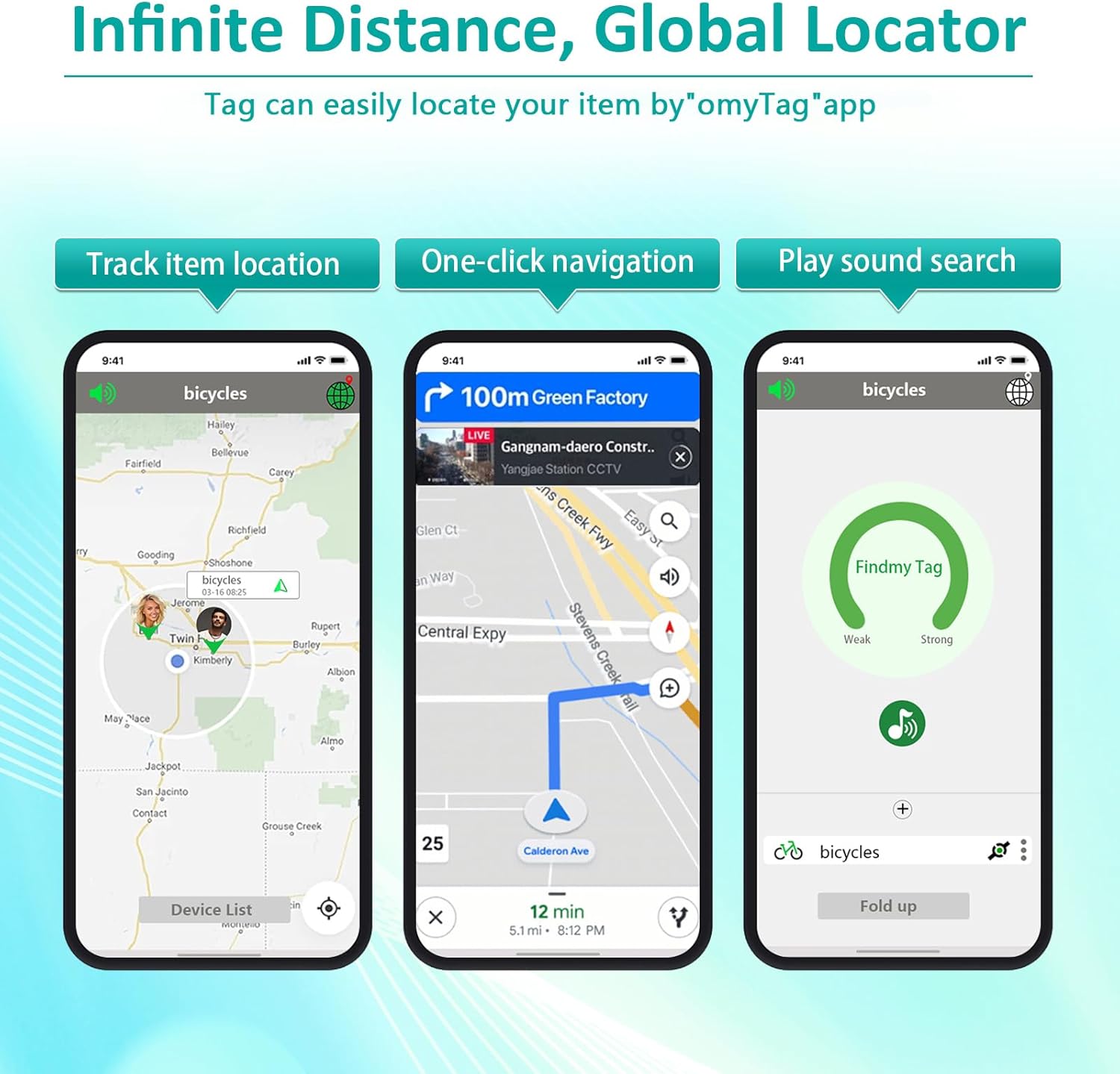
Image: The omyTag application interface demonstrating three key functions: tracking an item's location on a map, providing one-click navigation to the item, and initiating a sound search when nearby.
3.2 Finding Nearby Items (Bluetooth Range)
When your tracker is within Bluetooth range (up to 200ft/60m), you can use the app to make it emit a sound, helping you pinpoint its exact location.
- Open the omyTag APP.
- Select the tracker you wish to locate.
- Tap the 'Play Sound' or 'Ring' button within the app.
- The tracker will emit a sound (80-100 dB) for a short duration. Listen carefully to locate your item. Note that the sound may be quiet and short-lived, requiring multiple activations in some environments.

Image: A Smart Tracker Tag resting on a couch, visually represented as emitting sound waves, alongside a smartphone displaying the omyTag app's 'Findmy Tag' interface, indicating a strong signal for locating the device.
3.3 Viewing Movement History
The omyTag APP allows you to access historical data of your lost items, showing up to three past locations along with timestamps. This feature provides insights into where your possessions may have been.
- In the omyTag APP, select the desired tracker.
- Look for an option like 'Location History' or 'Movement History'.
- The app will display a timeline or map with previous locations.

Image: A Smart Tracker Tag clipped to a green backpack, positioned on a desk with school supplies. A hand holds a smartphone displaying the omyTag app, which shows the tracker's location on a map, illustrating how to view recent locations when the item is far away.

Image: A Smart Tracker Tag attached to a black wallet resting on a wooden park bench. A hand holds a smartphone displaying the omyTag app, which shows a navigation route to the tracker's location, indicating uninterrupted tracking.
3.4 Important Usage Notes
- The tracker tag provides location information on a horizontal plane and cannot determine height.
- Precise location within 50 meters may not always be possible through GPS alone. Within this range, utilize the omyTag app's sound feature to pinpoint the exact location.
4. Maintenance
4.1 Battery Replacement
The Smart Tracker Tag uses a replaceable CR2032 coin cell battery. The battery life is designed for extended use (beyond 365 days+).
- When the battery is low, the app may notify you, or you may notice reduced performance.
- To replace the battery, carefully twist the top (grooved part) of the tracker counter-clockwise while holding the lower part. A rubber gripper may be helpful if the cap is tight.
- Remove the old CR2032 battery and insert a new one with the positive (+) side facing up.
- Align the top and bottom parts, then twist clockwise to securely close the casing. Ensure the cap is tightly sealed to maintain IP67 water resistance. This step may require firm pressure.
4.2 Cleaning
Wipe the tracker with a soft, dry cloth. Avoid using harsh chemicals or abrasive materials.
4.3 Water Resistance
The Smart Tracker Tag is IP67 waterproof, meaning it is protected from dust and can withstand immersion in water up to 1 meter for up to 30 minutes. Ensure the battery compartment is securely closed to maintain water resistance.

Image: A close-up view of a single black Smart Tracker Tag, highlighting its compact design. Below the tag, four icons illustrate key features: 80-100 dB loud sound, up to 200ft/60m Bluetooth range, IP67 waterproof rating, and a replaceable battery.
5. Troubleshooting
5.1 Tracker Not Connecting/Detecting
- Check Bluetooth: Ensure Bluetooth is enabled on your smartphone and the tracker is within range.
- App Permissions: Verify that the omyTag APP has necessary location and Bluetooth permissions enabled in your phone's settings.
- App Refresh: Close and reopen the omyTag APP. For Android devices, you may need to specifically direct the app to detect tags.
- Battery Check: Confirm the battery is properly installed and has sufficient charge. Try replacing the CR2032 battery.
- Restart Device: Restart your smartphone and try pairing again.
5.2 Sound Too Quiet or Short
- The tracker's beep is designed to be audible but may be quiet in noisy environments or if the tracker is muffled.
- The sound typically plays for a few short bursts. If you don't locate it immediately, activate the sound feature multiple times.
- Ensure there are no obstructions directly covering the tracker's speaker.
5.3 Inaccurate Location
- The tracker provides location on a horizontal plane and does not account for height.
- Precise location within 50 meters can be challenging. When within this range, use the 'Play Sound' feature in the omyTag app for exact pinpointing.
- Location accuracy relies on the density of nearby compatible devices (for global tracking) or your phone's Bluetooth range (for nearby finding).
5.4 App Functionality Issues
- Ensure your omyTag APP is updated to the latest version.
- Check your phone's operating system compatibility. Older OS versions (e.g., Android 11 or earlier) may experience limited functionality or compatibility issues.
- The app may not show how recently a tracker was detected at a location, and sharing tracker access may not be supported.
6. Specifications
| Brand | USRIXITECH |
| Model | Smart Tracker Tag |
| Connectivity Technology | Bluetooth |
| Supported Application | omyTag APP |
| Compatible Devices | Motorola, OnePlus, Pixel, Samsung, iPhone (Android and iOS) |
| Battery Type | 1 x CR2032 (included) |
| Item Weight | 2.08 ounces (0.06 Kilograms) |
| Package Dimensions | 4.88 x 2.6 x 0.55 inches |
| Color | Black |
| Water Resistance | IP67 Waterproof |
| Sound Level | 80-100 dB |
| Bluetooth Range | Up to 200ft / 60m |
7. Warranty and Support
7.1 Warranty Information
Specific warranty details for the USRIXITECH Smart Tracker Tag are typically provided with your purchase documentation or can be found on the official USRIXITECH website. Please refer to these resources for information regarding warranty coverage and terms.
7.2 Customer Support
For technical assistance, troubleshooting beyond this manual, or inquiries regarding your product, please contact USRIXITECH customer support. Contact information can usually be found on the product packaging, the official USRIXITECH website, or through your retailer.