
1. Introduction
This manual provides detailed instructions for the installation, operation, and maintenance of your Road Top 8.9 Inch Car Radio Wireless CarPlay Touchscreen. This device is designed to upgrade your vehicle's multimedia capabilities while retaining original car functions. Please read this manual thoroughly before installation and use.

The Road Top 8.9 Inch Car Radio Wireless CarPlay Touchscreen integrated into an Audi A5 dashboard.
2. Vehicle Compatibility
This unit is specifically designed for:
- Audi A5 models from 2009-2015 year.
- Vehicles equipped with the 3G MMI system.
Important Note: This unit is NOT compatible with 2G MMI systems, or Audi Q5/A4 models. Please verify your car's MMI system before purchase and installation.

Visual guide to identify your car's MMI system and knob position for compatibility verification. Ensure your vehicle matches the 'MMI 3G+' or 'MMI 3G Low/Basic' examples.
3. Product Features
The Road Top 8.9 Inch Car Radio offers a range of advanced features to enhance your driving experience:
- 8.9-inch Touchscreen Display: Replaces the factory screen with a vibrant 1920 x 720 HD resolution display for superior visual clarity.
- Wireless CarPlay & Android Auto: Seamlessly integrate your smartphone for navigation, hands-free calls, messaging, and access to your favorite music and apps.
- Mirrorlink Functionality: Supports wireless Airplay for iPhones and Autolink for Android phones, allowing you to mirror your smartphone's screen onto the car display.
- Retains Original Car Functions: Preserves the original car radio, amplifier function, original reversing camera, and other OEM features, ensuring no loss of existing functionality.
- Hand Touch Control: Provides intuitive direct interaction with the screen interface for ease of use.
- CANBUS Protocol Compatibility: Ensures full integration with the vehicle's existing electronic systems and controls.

Overview of the system's capabilities, including integration with the original car system and added smart features.

Illustration of the system's compatibility with the original CANBUS protocol, retaining essential OEM functions and adding hand touch control.
4. Package Contents
Please ensure all the following items are present in your package before beginning installation:
- 8.9-inch Car Screen (Linux System)
- Power Cable
- USB Cable
- AMI Cable
- Bracket
- Screws
- Iron Frame

Visual representation of the components included in your product package.
5. Installation Guide
Professional installation is highly recommended.
The installation process requires careful removal of parts of the car dashboard to connect the necessary wiring. It is crucial that no original wires are cut or modified. We advise confirming all features work before reassembling to avoid secondary disassembly.
Installation Steps:
- Preparation: Before starting, ensure your vehicle is turned off and the battery is safely disconnected to prevent electrical damage.
- Dashboard Disassembly: Carefully remove the necessary dashboard components to access the original car screen and wiring harness. Refer to your vehicle's service manual for specific instructions on dashboard removal.
- Wiring Connection: Connect the provided power cable, USB cable, and AMI cable to the appropriate ports on the new screen and the vehicle's existing wiring harness. Ensure all connections are secure and correctly seated.
- Screen Mounting: Install the new 8.9-inch screen into the dashboard opening using the provided bracket and iron frame. Secure it firmly with the supplied screws.
- Initial Testing: Before reassembling the dashboard, temporarily reconnect the battery and turn on the vehicle. Test all functions of the new screen, including CarPlay, Android Auto, audio output, and camera functionality. This step is crucial to identify and resolve any issues before final assembly.
- Final Assembly: Once all functions are confirmed to be working correctly, carefully reassemble the dashboard components, ensuring all panels and trim pieces are securely fastened.

A visual comparison demonstrating the appearance of the dashboard before and after the screen installation.
6. Operating Instructions
6.1. Wireless CarPlay and Android Auto
To utilize Apple CarPlay or Android Auto, connect your compatible smartphone wirelessly via Bluetooth and Wi-Fi, or through a wired USB connection. Once connected, you can access navigation, make hands-free calls, send and receive messages, and enjoy your favorite music and podcasts directly on the touchscreen display.

Visual examples of CarPlay, Android Auto, Mirrorlink, and Navigation interfaces in use.
6.2. Mirrorlink Function
The Mirrorlink feature supports wireless Airplay for iPhones and Autolink for Android phones. This enables you to mirror your smartphone's screen onto the 8.9-inch HD display, allowing you to view apps, videos, and photos from your device.
6.3. Camera Functions
The system supports the original factory reverse camera and most aftermarket reverse cameras. Please note that it does not support aftermarket front cameras or aftermarket 360-degree cameras.
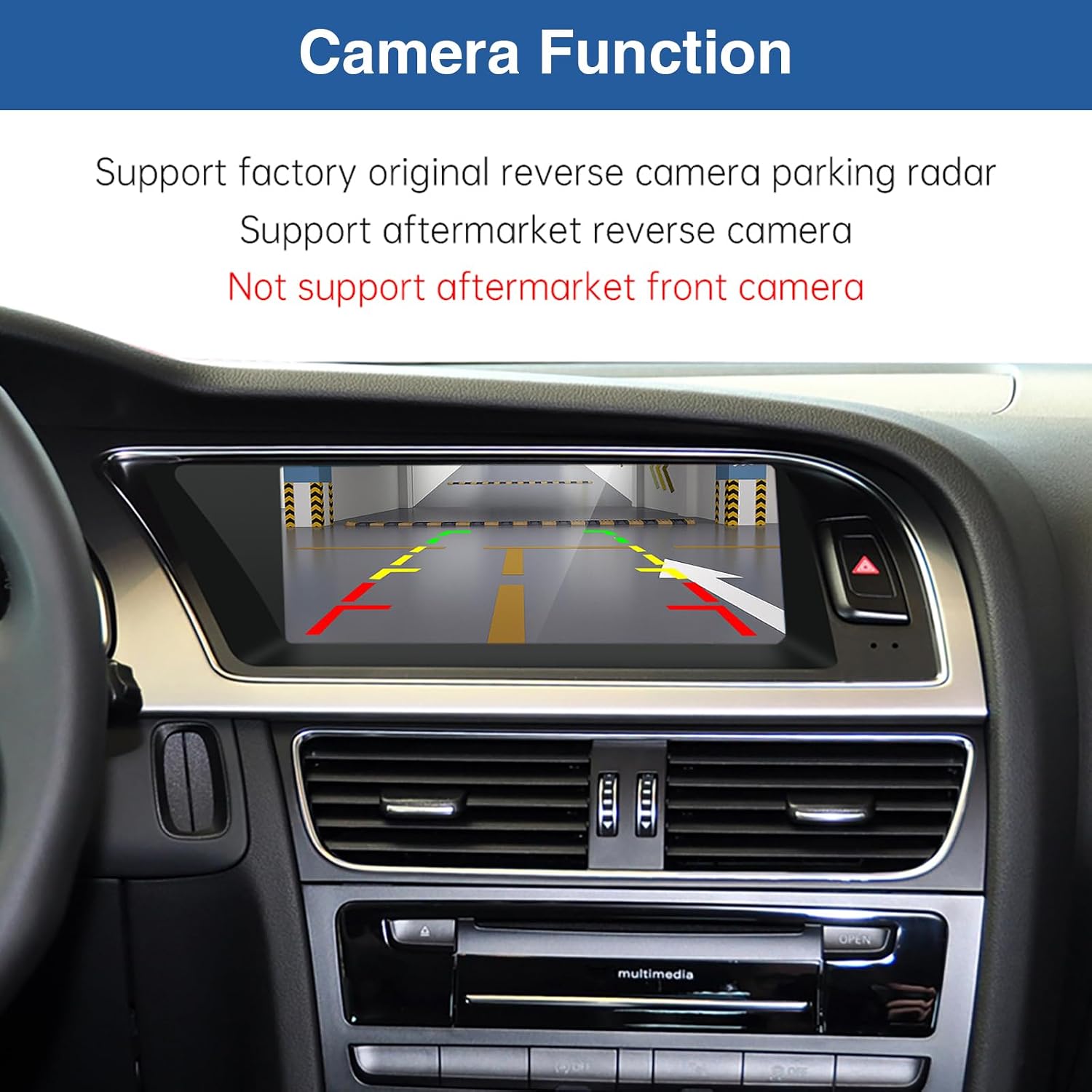
An illustration of the reverse camera display on the screen, showing parking guidelines.
6.4. Switching Between Systems
To switch between the new Linux system interface and your car's original OEM MMI system, press the designated "OEM" button on the homescreen menu of the Road Top unit. Once in the OEM system, you can typically use the touchscreen to return to the Linux system.

Visual guide for toggling between the new system and the original car interface.
7. Troubleshooting
Many common issues can be resolved by carefully checking cable connections and system settings. If you encounter problems, please review the following:
- No Audio: Ensure the AUX or Bluetooth channel is correctly selected and configured for audio output on both the Road Top unit and your vehicle's original MMI system. Verify all audio cables are securely connected.
- Screen Not Powering On: Check all power cable connections to the unit and the vehicle's power source. Ensure the vehicle's battery is properly connected and charged.
- Specific Features Not Working (e.g., CarPlay, Mirrorlink): Double-check all relevant cable connections, especially the USB and AMI cables. Review the system settings on the Road Top unit and your smartphone to ensure proper pairing and configuration.
- Touch Control Issues: If the touchscreen is unresponsive or inaccurate, ensure the screen is properly seated and its connections are secure. For some car models, original car buttons may not directly control the new screen; touch control is the primary method of interaction.
- Intermittent Connectivity: Ensure your smartphone's Bluetooth and Wi-Fi are enabled and not interfering with other devices. Try restarting both the car unit and your phone.
If issues persist after reviewing connections and settings, please contact customer support for further assistance.
8. Product Specifications
| Feature | Detail |
|---|---|
| Screen Size | 8.9 inches (23 cm visible diagonal) |
| Resolution | 1920 x 720 HD |
| Operating System | Linux |
| Connectivity | Wireless CarPlay, Wireless Android Auto, Mirrorlink, Bluetooth |
| Audio Output | Via AUX or Bluetooth channel |
| Compatible Devices | Smartphone |
| Item Weight | 4.39 pounds |
| Package Dimensions | 19.7 x 8.1 x 6.9 inches |
| Model Number | 69e48681-3663-4910-896d-692e601e8e88 |
9. Support & Warranty Information
9.1. Technical Support
Road Top offers 24-hour technical support to assist you with any installation or operational questions. For assistance, please contact us through the Amazon platform:
- Navigate to the product page on Amazon.
- Click on the "Road Top Direct" seller name.
- Select "Ask a question" to send a message directly to our support team.

Visual guide on how to access technical support via Amazon's seller contact feature.
9.2. Warranty
This product includes a 30-day refund/replacement policy from the date of purchase. For extended protection beyond this period, 2-year and 3-year protection plans are available for purchase separately through Amazon.