
1. Introduction
This manual provides essential information for setting up, operating, maintaining, and troubleshooting your Lenovo IdeaCentre AIO 3 All-in-One Desktop. Please read this manual thoroughly before using your device to ensure proper function and longevity.
2. Package Contents
Verify that all items are present in your product packaging:
- Lenovo IdeaCentre AIO 3 All-in-One Desktop
- Wired Keyboard
- Wired Mouse
- Power Adapter
- iCarp Type-C to HDTV 3-in-1 Adapter (HDTV+USB 3.0+Type-C PD)

Image 1: Front view of the Lenovo IdeaCentre AIO 3 All-in-One Desktop.

Image 2: The iCarp Type-C to HDTV 3-in-1 Adapter included with the package.
3. Setup
Follow these steps to set up your IdeaCentre AIO 3 desktop:
- Unpack the Device: Carefully remove the All-in-One desktop, keyboard, mouse, and power adapter from their packaging.
- Position the Desktop: Place the AIO desktop on a stable, flat surface. Ensure adequate ventilation around the device.
- Connect Keyboard and Mouse: Plug the wired keyboard and mouse into the available USB ports on the rear of the AIO desktop.
- Connect Power: Connect the power adapter to the power input port on the rear of the AIO desktop, then plug the power cord into a wall outlet.
- Power On: Press the power button, typically located on the side or bottom bezel of the display, to turn on the computer.

Image 3: The Lenovo IdeaCentre AIO 3 desktop with connected wired keyboard and mouse.

Image 4: Rear view of the AIO desktop, highlighting the various input/output ports.
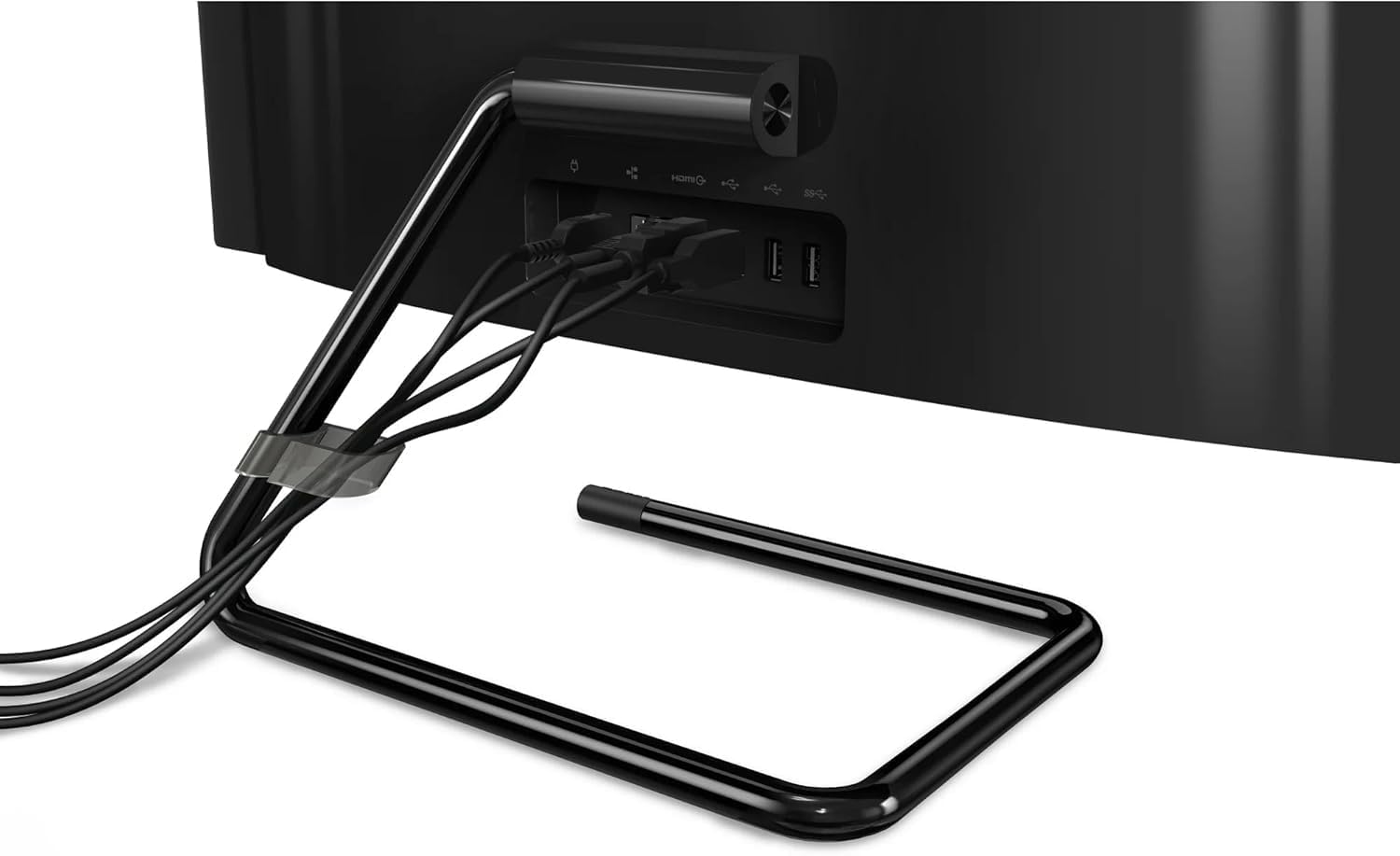
Image 5: A close-up view of cables properly connected to the rear ports.
4. Operating Instructions
4.1 Power On/Off
- To Power On: Press the power button. The system will boot into Windows 10.
- To Power Off: Click the Start button, then select Power > Shut down. Do not unplug the device directly without proper shutdown.
4.2 Initial Windows 10 Setup
Upon first boot, Windows 10 will guide you through the initial setup process, including region, language, network connection, and user account creation. Follow the on-screen prompts.
4.3 Connectivity
- Wi-Fi: Access network settings in Windows 10 to connect to a wireless network.
- Ethernet: Connect an Ethernet cable to the RJ45 port on the rear for a wired network connection.
- Bluetooth: The device supports Bluetooth 5.0 for connecting wireless peripherals. Enable and manage Bluetooth devices through Windows settings.
- USB Ports: Utilize the 2 x USB-A 3.1 and 2 x USB 2.0 ports for connecting external devices such as USB drives, printers, or other accessories.
- HDMI: The HDMI port allows you to connect an external display.
- Card Reader: Insert compatible memory cards into the 3-in-1 card reader for data transfer.
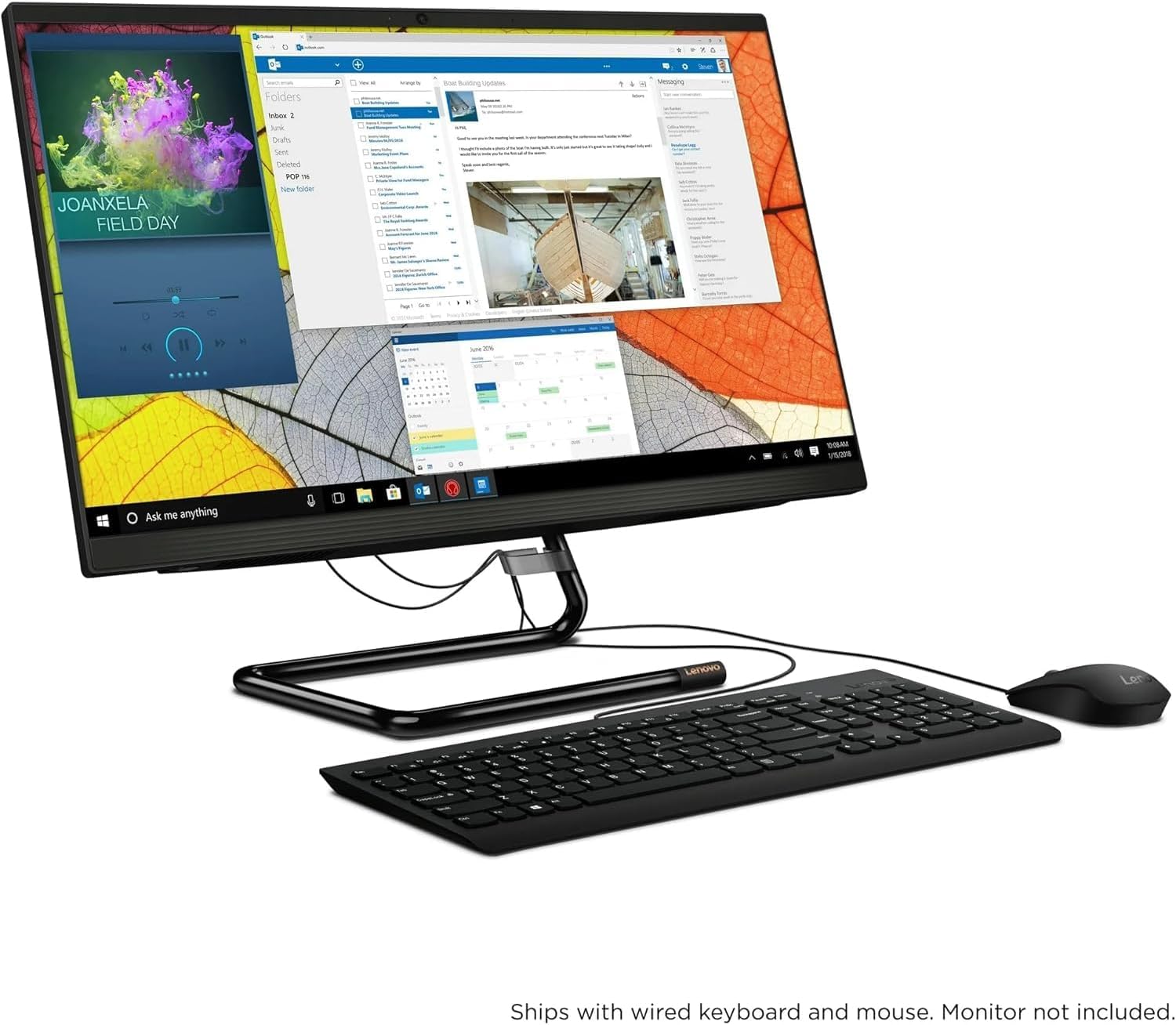
Image 6: Angled view of the AIO desktop, showcasing the display and slim profile.
5. Maintenance
Regular maintenance helps ensure the optimal performance and longevity of your AIO desktop:
- Cleaning: Use a soft, lint-free cloth to clean the screen and chassis. For the screen, a specialized screen cleaner can be used. Avoid harsh chemicals.
- Software Updates: Regularly check for and install Windows updates and driver updates to ensure system stability and security.
- Ventilation: Ensure that the ventilation openings are not blocked to prevent overheating.
- Data Backup: Periodically back up important data to an external drive or cloud storage to prevent data loss.
6. Troubleshooting
This section addresses common issues you might encounter:
| Issue | Possible Solution |
|---|---|
| No power | Check power cable connections to the AIO and the wall outlet. Ensure the power adapter is functioning. |
| No display | Ensure the AIO is powered on. If an external monitor is connected, check its power and cable. |
| No internet connection | For Wi-Fi, check network settings and router. For Ethernet, ensure the cable is securely connected and the router is working. |
| Keyboard/Mouse not responding | Verify USB connections. Try different USB ports. |
7. Specifications
| Feature | Detail |
|---|---|
| Processor | Intel Quad-core i3-10100T (3.0GHz Base, up to 3.8GHz Max Boost) |
| Memory (RAM) | 16GB DDR4 |
| Storage | 512GB SSD |
| Operating System | Microsoft Windows 10 Home |
| Display | 23.8" FHD (1920x1080) IPS Anti-glare |
| Graphics | Integrated Intel UHD Graphics 630 |
| Ports | 2x USB-A 3.1, 2x USB 2.0, 1x HDMI, 1x RJ45 Ethernet, 1x 3-in-1 Card Reader |
| Wireless Connectivity | Bluetooth 5.0 |
| Camera | 720p Camera |
| Dimensions (LxWxH) | 7.28 x 21.3 x 17.56 inches |
| Weight | 13 lbs |
8. Warranty and Support
Your Lenovo IdeaCentre AIO 3 desktop comes with a standard manufacturer's warranty. For detailed warranty information, please refer to the warranty card included in your product packaging or visit the official Lenovo support website. For technical assistance, driver downloads, or service requests, please contact Lenovo customer support.
Lenovo Support: https://support.lenovo.com


