
RunCam C-20T O4 PRO Version
RunCam C-20T 3-Axis FPV Camera Gimbal User Manual
Model: O4 PRO Version
Brand: RunCam
1. Introduction
The RunCam C-20T 3-Axis FPV Camera Gimbal is designed to provide advanced stabilization and an immersive first-person view experience for various platforms. This manual provides detailed instructions for the setup, operation, and maintenance of your C-20T O4 PRO Version gimbal.
2. Product Overview
The C-20T gimbal features a durable, lightweight aluminum-magnesium alloy body and a 3-axis nonorthogonal mechanical stabilization structure. It is equipped with high-torque motors to counteract extreme vibrations and high-speed air impacts, ensuring stable footage.
Key Features:
- Wide Compatibility: Supports digital FPV Camera systems such as DJI O3, Walksnail Avatar, Walksnail Moonlight, RunCam Link Wasp, and 19mm wide analog cameras.
- Immersive FPV Head Tracking: Equipped with Headtracker for enhanced first-person control.
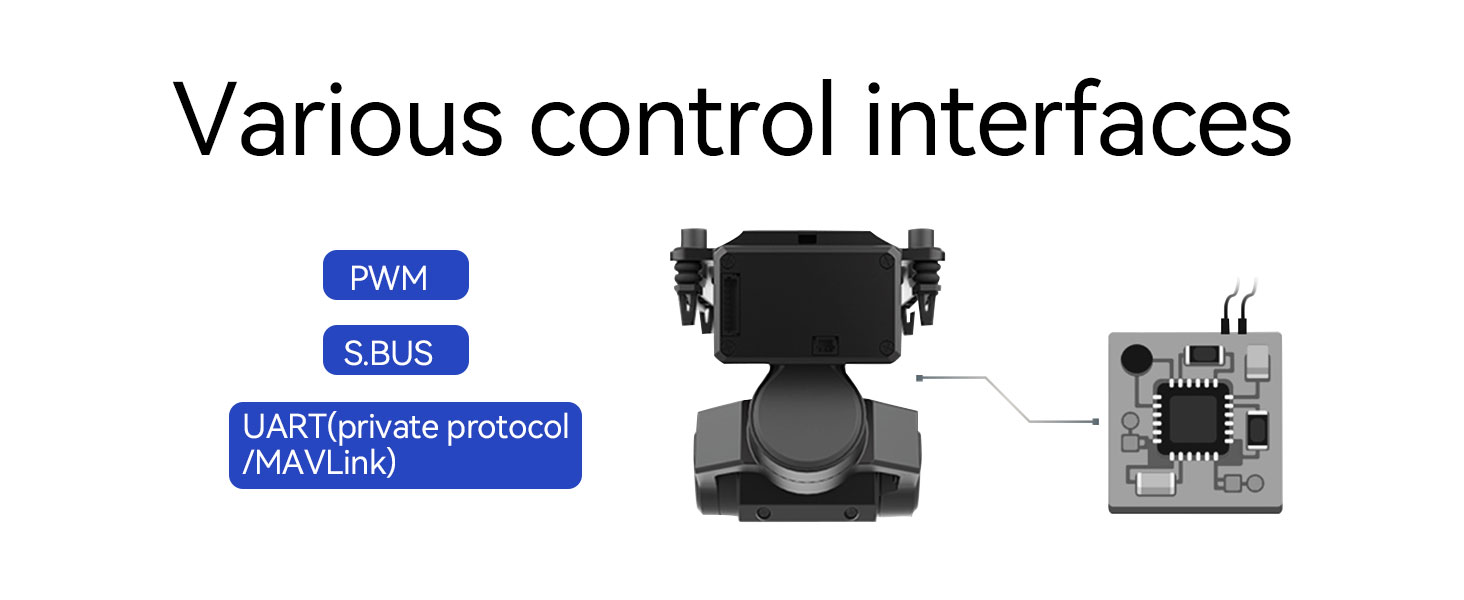
- Multiple Control Interfaces: Supports UART, PWM, S.BUS, private protocol, and MAVLink protocol.
- Durable & Lightweight Design: Crafted from aluminum magnesium alloy for compact size and minimal weight.
- Advanced Stabilization: 3-axis nonorthogonal mechanical stabilization and high-torque motors for vibration control.
- Versatile Use: Suitable for RC cars, RC crawlers, RC trucks, FPV airplanes, and FPV drones.
Product Views:


3. Specifications
| Feature | Detail |
|---|---|
| Package Dimensions | 3.11 x 2.6 x 2.52 inches |
| Item Weight | 3.52 ounces |
| Item Model Number | O4 PRO Version |
| Special Features | Shock Resistant |
| Compatible Devices | FPV Camera (DJI O3, Walksnail Avatar, Moonlight, RunCam Link Wasp, 19mm analog cameras) |
| Mounting Type | Seat Mount |
| Manufacturer | xf |
| Date First Available | February 18, 2025 |
4. Setup and Installation
Proper installation of your FPV camera into the C-20T gimbal is crucial for optimal performance. Follow these steps carefully.
4.1. Lens Module Installation (for specific camera types)
This procedure applies to cameras where the lens module needs to be separated and re-mounted.
- Step 1: Separate the front and rear housing of your camera.
- Step 2: Carefully remove the lens module from its original position.
- Step 3: Fix the lens module into the new lens mount provided with the gimbal.
- Step 4: Fix the camera assembly onto the gimbal.
- Step 5: Replace the coaxial cable from the air unit, ensuring a secure connection.

4.2. Camera Installation
General steps for mounting the camera onto the gimbal.
- Step 1: Separate the front and rear housing of your camera.
- Step 2: Replace the coaxial cable from the camera, if necessary, ensuring it is properly routed.
- Step 3: Fix the camera onto the gimbal securely.
- Step 4: Replace the coaxial cable from the air unit, making sure all connections are firm.

4.3. Connecting Control Interfaces
The gimbal supports various control interfaces for integration with your flight controller or remote control system.
- PWM: Pulse Width Modulation for direct control.
- S.BUS: Serial Bus protocol for simplified wiring.
- UART: Universal Asynchronous Receiver-Transmitter, supporting private protocol and MAVLink.
The gimbal control interface has reserved 4 PWM signal inputs, including gimbal mode, gimbal sensitivity, pointing rotation control, and pitch rotation control. No software settings are required for these basic functions. The gimbal automatically detects installation status and switches between upright or inverted modes upon power-on. If you need to change the installation mode later, you will need to power cycle the gimbal.
5. Operating Instructions
The C-20T gimbal offers multiple stabilization modes and head tracking capabilities to enhance your FPV experience.
5.1. Stabilization Modes
The gimbal supports the following stabilization modes:
- Horizon Mode: Keeps the image level stable, maintaining a consistent horizon regardless of aircraft tilt.
- Pitch-lock Mode: Roll and Yaw axes follow the carrier (e.g., drone), while the pitch axis remains locked or controlled independently.
- FPV Mode: Provides a 3D follow experience, where the camera movement closely mimics the operator's head movements.

5.2. 3-Axis Head Tracking Control
The integrated head tracking feature allows the gimbal to perfectly follow your head rotation angle, providing an intuitive and immersive control experience. The gimbal supports a wide range of motion:
- Pitch: ±120°
- Roll: ±60°
- Yaw: ±160°

5.3. Gimbal Sensitivity Adjustment
The sensitivity of the gimbal refers to the speed of its response to axis angle changes. Lower sensitivity results in a slower response, filtering out more fuselage shaking. Higher sensitivity leads to a quicker response, making it more susceptible to fuselage shaking. The C-20T supports gimbal sensitivity adjustment in real-time via the sensitivity PWM channel.
Examples of use cases:
- Fixed-wing aircraft: When taking off and landing, increase sensitivity for better control. When cruising, decrease sensitivity for smoother, cinematic video.
- Remote control car: Decrease sensitivity to filter out body shaking and achieve smoother footage.
6. Maintenance
To ensure the longevity and optimal performance of your RunCam C-20T gimbal, follow these general maintenance guidelines:
- Cleaning: Keep the gimbal clean and free from dust and debris. Use a soft, dry cloth for cleaning. Avoid using harsh chemicals or solvents.
- Storage: Store the gimbal in a dry, cool place away from direct sunlight and extreme temperatures.
- Inspection: Periodically inspect all connections and mounting points for any signs of wear or looseness.
- Water and Dust: The gimbal is not waterproof or dustproof. If it gets wet or dusty, clean it immediately. Avoid operating in wet or excessively dusty environments.
7. Troubleshooting
This section addresses common issues you might encounter with your C-20T gimbal.
- What cameras are compatible with the C-20T?
The C-20T is available in three versions: O3, Universal, and Analog. The O3 version is specifically designed for the DJI O3 video transmission system and can be equipped with an O3 camera. The universal version can be equipped with all small cameras (except Nano models), Caddex Vista cameras (camera width 19mm), and RunCam Link cameras (camera width 19mm). The analog version can be fitted with an analog FPV camera with a camera width of 19mm, such as the Caddex flathead, etc. - Can DJI's first-generation FPV Air Unit be installed?
If you cannot match your original DJI camera, you can replace it with a Caddex Vista or RunCam Link camera. - Does the C-20T gimbal need software settings?
The gimbal control interface has reserved 4 PWM signal inputs, including gimbal mode, gimbal sensitivity, pointing rotation control, and pitch rotation control. No need to set it in the software. In addition, the upright and upside installation of the gimbal does not require software settings, and after the gimbal is powered on, it will automatically determine the installation status and automatically switch between upright or inverted mode. However, if you need to switch the installation mode after that, you will need to power the gimbal back on. - What is gimbal sensitivity adjustment?
The sensitivity of the gimbal is the speed of the gimbal response in the mode of tracking the axis angle of the gimbal. When the sensitivity of the gimbal is lowered, the gimbal responds sluggishly to the shaking of the fuselage, and more fuselage shaking can be filtered out. When the sensitivity of the gimbal is increased, the gimbal responds sensitively to the shaking of the fuselage, and the gimbal filters out less fuselage shaking. The C-20T supports gimbal sensitivity, which can be adjusted in real-time through the sensitivity PWM channel. - After the gimbal is powered on, the picture is not level, and it is a little crooked, how to deal with it?
When the gimbal is powered on, the default working mode is follow mode. In this mode, the gimbal takes its own base as the coordinate system. If the gimbal base is not horizontal, the camera is not horizontal. When the gimbal switches the working mode to the roll lock mode, the earth is used as the coordinate system, and the camera remains horizontal. - When the plane disc rotates and bends, the picture is not level, how to deal with this?
When the aircraft or model car turns quickly or pans sideways, the gimbal roll axis will be offset at a certain angle, which is normal. - Is it normal for the gimbal to heat up on the surface after working for a period of time?
The gimbal IMU sensor has a constant temperature control, and there will be a certain amount of heat during normal operation, which will cause the surface of the gimbal body to heat up, which is normal. - Is the gimbal waterproof and dustproof?
The gimbal is not waterproof. If it rains or splashes water on the surface, it should be wiped clean in time to prevent water from entering the inside of the gimbal, resulting in the gimbal not working properly. The slight dust of the gimbal will not affect the use, but it should be avoided in places with a lot of fine sand and gravel to prevent sand and dust from entering the gimbal motor, causing the motor to fail to work normally, or the sand and dust on the surface of the gimbal should be blown off immediately after use. - When the gimbal is working stationary, the pointing axis slowly drifts and rotates, how to deal with this?
Use the software to recalibrate the gimbal gyroscope. Please refer to the gimbal manual for calibration instructions. - Does the gimbal control interface support S.Bus?
Later support through firmware upgrades. - Does the PTZ control interface support the CRSF protocol?
Later support through firmware upgrades.


8. Warranty and Support
For warranty information, technical support, or further assistance, please refer to the official RunCam website or contact their customer service directly. Keep your proof of purchase for warranty claims.
You can visit the RunCam Store on Amazon for more product information and updates.
Related documentsC-20T O4 PRO Version


Ask a question about this manual
Ask about setup, troubleshooting, compatibility, parts, safety, or missing instructions. Manuals+ will review the question and use this page’s manual context to help answer it.