
1. Introduction
The AutoSky Ai Box Lite Air is an innovative device designed to upgrade your in-car entertainment and connectivity. It seamlessly converts your vehicle's existing wired Apple CarPlay system into a wireless CarPlay or Android Auto experience. Additionally, it enables direct streaming of popular services like Netflix and YouTube on your car's infotainment screen.
Important Note: This device requires your vehicle to have a factory-installed wired CarPlay system. A mobile hotspot or Wi-Fi connection is necessary for streaming applications such as Netflix and YouTube. A valid subscription and account login are also required for these streaming services.

Image 1.1: The AutoSky Ai Box Lite Air, a compact device enabling in-car streaming and wireless connectivity.
2. Setup Guide
The AutoSky Ai Box Lite Air is designed for a simple plug-and-play installation. Follow these steps to get started:
- Verify Wired CarPlay: Ensure your vehicle is equipped with a functional wired Apple CarPlay system. This device utilizes the wired CarPlay protocol for connection.
- Connect the Device: Locate an available USB port in your vehicle (USB-A or USB-C). Connect the AutoSky Ai Box Lite Air to this port using the provided cable.
- Initial Boot-up: Once connected, the device will power on automatically. The AutoSky interface should appear on your car's infotainment screen within a few seconds.
- Establish Internet Connection (for Streaming): For access to streaming apps like Netflix and YouTube, you must connect the Ai Box Lite Air to a mobile hotspot or a Wi-Fi network. Navigate to the device's settings menu on your car screen to configure the Wi-Fi connection.
- Log In to Streaming Services: Open the desired streaming application (e.g., Netflix, YouTube) from the device's home screen and log in with your existing account credentials.

Image 2.1: Illustration emphasizing the requirement for an existing wired CarPlay system in the vehicle.

Image 2.2: The compact design of the AutoSky Ai Box Lite Air, highlighting its memory card port and versatile USB connectivity.
3. Operating Instructions
3.1. Navigating the Home Menu
Upon successful setup, the AutoSky Ai Box Lite Air will display its custom home menu on your car's screen. This menu provides access to various functions and applications.

Image 3.1: The AutoSky home menu, providing access to various features and applications.
3.2. Wireless CarPlay and Android Auto
To use wireless CarPlay or Android Auto:
- From the AutoSky home menu, select the 'CarPlay' or 'Android Auto' icon.
- On your smartphone, ensure Bluetooth and Wi-Fi are enabled.
- Pair your phone with the AutoSky device via Bluetooth (usually named 'AutoSky' or similar).
- Follow any on-screen prompts on your phone and car display to complete the connection.

Image 3.2: Accessing favorite applications through wireless CarPlay or Android Auto on the car's display.
3.3. Streaming Netflix and YouTube
Once connected to a Wi-Fi hotspot and logged into your accounts:
- Select the 'Netflix' or 'YouTube' icon from the AutoSky home menu.
- Browse and select your desired content.
- Playback will begin on your car's screen.
Note: For safety, video streaming functionality is typically restricted while the vehicle is in motion.
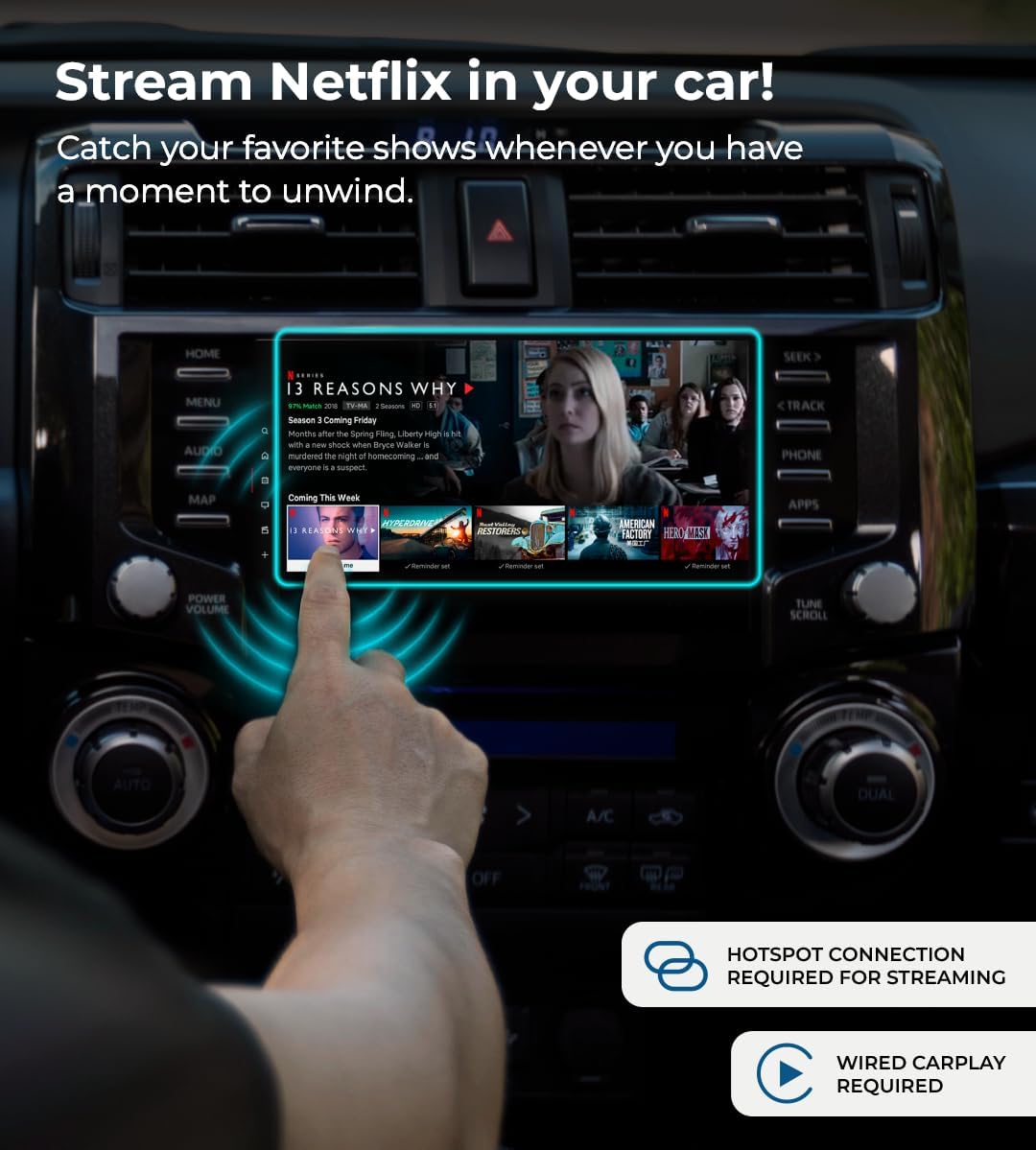
Image 3.3: Streaming Netflix content directly on the car's screen.

Image 3.4: Enjoying YouTube videos and channels on the car's display.
3.4. Navigation and Other Features
Through wireless CarPlay or Android Auto, you can utilize your phone's navigation applications directly on your car's screen. The device also supports hands-free calls and is compatible with most steering wheel controls for a seamless user experience.

Image 3.5: Navigating with freedom using the car's infotainment system via the AutoSky device.
4. Maintenance
To ensure optimal performance and longevity of your AutoSky Ai Box Lite Air, consider the following maintenance guidelines:
- Keep Clean: Regularly wipe the device with a soft, dry cloth to remove dust and debris. Avoid using harsh chemicals or abrasive materials.
- Temperature Control: Store and operate the device within recommended temperature ranges. Avoid prolonged exposure to extreme heat or cold, which can affect performance and lifespan.
- Software Updates (OTA): The device supports Over-The-Air (OTA) firmware updates. Periodically check for updates via the 'Update' option in the device's home menu to ensure you have the latest features and performance improvements. A stable internet connection is required for updates.
- Secure Connection: Ensure the USB connection to your vehicle is secure to prevent accidental disconnections.
5. Troubleshooting
If you encounter issues with your AutoSky Ai Box Lite Air, refer to the following common problems and solutions:
| Problem | Possible Cause | Solution |
|---|---|---|
| Device does not power on. | Loose USB connection, insufficient power from USB port. | Ensure the USB cable is securely connected to both the device and the car's USB port. Try a different USB port if available. |
| No display on car screen. | Wired CarPlay not active, incorrect input selected on car screen. | Confirm your car's infotainment system is set to the CarPlay input. Ensure wired CarPlay functions normally without the device. Restart the car and the device. |
| Streaming apps (Netflix/YouTube) not working. | No internet connection, weak Wi-Fi signal, incorrect login credentials. | Verify the device is connected to a stable mobile hotspot or Wi-Fi network. Check Wi-Fi signal strength. Ensure you are logged into your streaming accounts correctly. |
| Wireless CarPlay/Android Auto not connecting. | Bluetooth/Wi-Fi issues on phone, device pairing problem. | Ensure Bluetooth and Wi-Fi are enabled on your phone. Forget the device from your phone's Bluetooth settings and re-pair. Restart both your phone and the AutoSky device. |
| Lagging or slow performance. | Outdated firmware, network congestion, device overheating. | Check for and install any available OTA updates. Ensure a strong Wi-Fi signal. Allow the device to cool if it feels warm. Restart the device. |
6. Specifications
| Feature | Detail |
|---|---|
| Brand | AutoSky |
| Model Name | AutoSky Ai Box Lite Air |
| Item Model Number | WCPAA-1TA |
| Item Weight | 2.46 ounces (approx. 70 grams) |
| Package Dimensions | 4.33 x 3.9 x 0.87 inches (approx. 11 x 9.9 x 2.2 cm) |
| Color | Black |
| Connectivity Technology | Bluetooth, Wi-Fi |
| Connector Type | USB Type A, USB Type C |
| Video Output Resolution | Up to 2560x1440 (2K), also supports 1080p, 720p |
| Supported Internet Services | Netflix, YouTube |
| Compatible Devices | Smartphone, Car Infotainment System (with wired CarPlay) |
| Special Features | Hands-Free Calls, Steering Wheel Compatible, In-car Streaming (Netflix/YouTube) |
7. Warranty and Support
For detailed warranty information, please refer to the documentation included with your purchase or visit the official AutoSky website. Warranty terms and conditions may vary by region and retailer.
For technical support, frequently asked questions, or further assistance, please visit the AutoSky support page or contact their customer service directly. Contact information can typically be found on the product packaging or the official AutoSky website.


