1. Introduction
This manual provides essential instructions for the installation, operation, and maintenance of your VIMIN 6-Port 2.5G/10G Unmanaged Ethernet Switch. Please read this manual thoroughly before using the device to ensure proper functionality and to prevent damage.
The VIMIN 6-Port Unmanaged Ethernet Switch is designed to provide high-speed network connectivity with its 4x 2.5 Gigabit RJ45 ports and 2x 10 Gigabit RJ45 uplink ports. It offers a 60Gbps switching capacity, making it suitable for bandwidth-intensive applications such as NAS, PC gaming, and high-speed wireless access points.

Image 1.1: VIMIN 6-Port 2.5G/10G Unmanaged Ethernet Switch with its retail packaging.
2. Package Contents
Verify that all items are present and in good condition upon opening the package. If any items are missing or damaged, please contact your vendor.
- 1x VIMIN 6-Port 2.5G/10G Unmanaged Ethernet Switch
- 1x Power Cable
- 1x User Manual (this document)
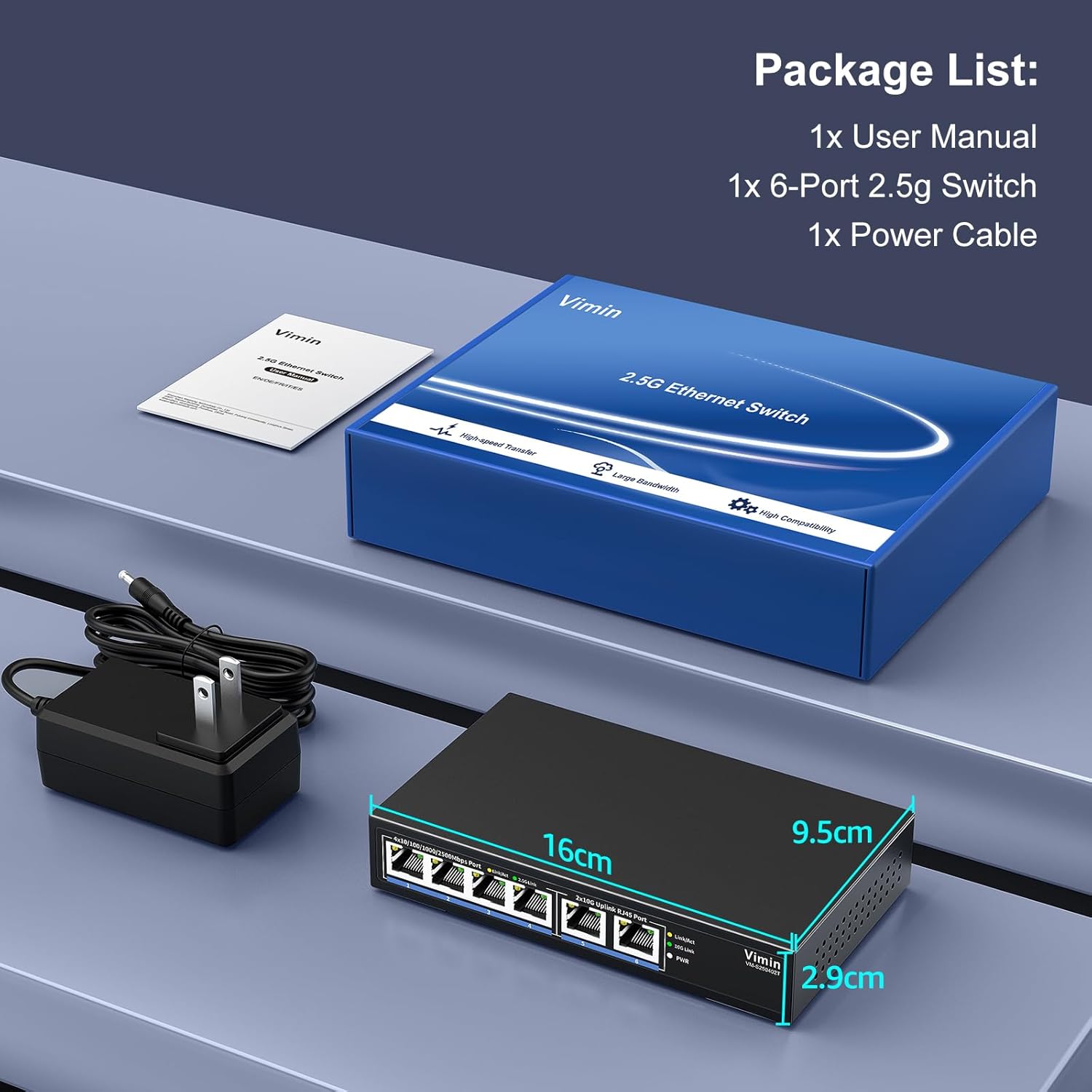
Image 2.1: Contents of the VIMIN 6-Port 2.5G/10G Unmanaged Ethernet Switch package.
3. Product Overview
3.1 Front Panel
The front panel of the switch features the RJ45 ports and LED indicators for monitoring network activity and status.

Image 3.1: Front and rear panel layout with port and LED indicator details.
- Ports 1-4: 10/100/1000/2500Mbps RJ45 ports. These ports support auto-negotiation for various speeds.
- Ports 5-6: 2x 10Gbps RJ45 Uplink ports. These ports support 10/100/1000/2500/5000/10000Mbps auto-negotiation.
3.2 LED Indicators
The LED indicators provide visual feedback on the switch's operational status.
| LED | Status | Description |
|---|---|---|
| PWR (Power) | On (Green) | The switch is powered on. |
| Off | The switch is powered off. | |
| Link/Act (Ports 1-4) | On (Yellow/Green) | A network link is established at 10/100/1000/2500Mbps. |
| Flickering | Data transfer is active. | |
| Off | No network link is available. | |
| 2.5G Link (Ports 1-4) | On (Green) | A 2.5Gbps network link is established. |
| Off | The link is not 2.5Gbps. | |
| Link/Act (Ports 5-6) | On (Yellow/Green) | A network link is established at 10/100/1000/2500/5000/10000Mbps. |
| Flickering | Data transfer is active. | |
| Off | No network link is available. | |
| 10G Link (Ports 5-6) | On (Green) | A 10Gbps network link is established. |
| Off | The link is not 10Gbps. |
3.3 Rear Panel
The rear panel typically contains the power input and a reset button.
- Power Input: Connect the provided power cable here. The switch operates on DC 12V 1A, compatible with AC 100-240V power sources.
- Reset Button: Used to restore the switch to its factory default settings. (Note: This is an unmanaged switch, so a reset typically clears any learned MAC addresses but does not involve complex configurations.)
4. Setup
The VIMIN 6-Port 2.5G/10G Unmanaged Ethernet Switch is designed for plug-and-play operation, requiring no complex configuration.

Image 4.1: The switch supports plug-and-play connectivity for various devices.
- Placement: Place the switch on a stable, flat surface or mount it to a wall using appropriate hardware (not included). Ensure adequate ventilation around the device.
- Connect Devices: Connect your network devices (e.g., NAS, PC, Wireless AP, Router) to any of the RJ45 ports (1-6) using standard Ethernet cables. For optimal performance, especially for 2.5G and 10G connections, use Category 6A or Category 7 Ethernet cables. Category 5e or Category 6 cables may support 2.5G over shorter distances, but 10G requires higher category cables.
- Power On: Connect the provided power cable to the switch's power input port and then plug the other end into a standard electrical outlet. The PWR LED will illuminate, indicating the switch is powered on.
- Verify Connection: Once devices are connected, observe the Link/Act and speed indicator LEDs (2.5G Link, 10G Link) on the front panel. A solid light indicates a successful link, and flickering indicates data activity.
4.1 Cable Compatibility
The performance of your network connections depends on the type and quality of Ethernet cables used.

Image 4.2: Ethernet cable type and speed compatibility chart.
- For 10Mbps/100Mbps/1Gbps connections, Category 5e or higher cables are generally sufficient.
- For 2.5Gbps connections, Category 5e or Category 6 cables can be used, with Category 6 offering better performance over longer distances.
- For 10Gbps connections, Category 6A or Category 7 cables are recommended to ensure full speed and reliability, especially for cable runs exceeding 55 meters.
5. Operating Instructions
The VIMIN switch operates automatically once powered on and connected to network devices.
5.1 Auto-Negotiation
All ports on the switch support auto-negotiation, which automatically detects the speed and duplex mode of the connected device and adjusts accordingly. This ensures compatibility with a wide range of Ethernet devices (10Mbps, 100Mbps, 1Gbps, 2.5Gbps, 10Gbps).

Image 5.1: The switch's self-negotiation function automatically adjusts transmission speed.
5.2 Flow Control
The switch supports IEEE 802.3x flow control for full-duplex mode and backpressure for half-duplex mode. This mechanism prevents data packet loss during periods of high network traffic by temporarily pausing data transmission from congested devices, ensuring reliable data transfer.
6. Maintenance
The VIMIN 6-Port 2.5G/10G Unmanaged Ethernet Switch is designed for minimal maintenance.
- Cleaning: Use a soft, dry cloth to clean the exterior of the switch. Do not use liquid or aerosol cleaners.
- Ventilation: Ensure that the ventilation holes on the sides of the switch are not obstructed to allow for proper heat dissipation. The fanless design relies on natural convection.
- Environment: Operate the switch in a cool, dry environment, away from direct sunlight, heat sources, and excessive moisture.
- Firmware: As an unmanaged switch, no user-upgradable firmware is typically available or required.
7. Troubleshooting
If you encounter issues with your VIMIN Ethernet switch, refer to the following common troubleshooting steps:
- No Power:
- Ensure the power cable is securely connected to both the switch and a working electrical outlet.
- Verify the power outlet is functional by plugging in another device.
- No Link Light:
- Check that the Ethernet cable is securely plugged into both the switch port and the connected device.
- Try a different Ethernet cable.
- Ensure the connected device is powered on and its network adapter is enabled.
- Verify the cable type is appropriate for the desired speed (e.g., Cat6A for 10G).
- Slow Connection Speed:
- Confirm that both the connected device's network adapter and the cable support the desired speed (e.g., 2.5G or 10G).
- Check the speed indicator LEDs on the switch to confirm the negotiated link speed.
- Ensure there are no excessive cable lengths or poor-quality cables.
- Intermittent Connection:
- Inspect Ethernet cables for damage.
- Ensure the switch is placed in a well-ventilated area to prevent overheating.
- Temporarily disconnect other devices to isolate the issue.
If problems persist after following these steps, please contact VIMIN customer support.
8. Specifications
Detailed technical specifications for the VIMIN 6-Port 2.5G/10G Unmanaged Ethernet Switch.
| Feature | Specification |
|---|---|
| Brand | VIMIN |
| Model Number | 2x10G Ethernet (Unmanaged) |
| Number of Ports | 6 (4x 2.5G RJ45, 2x 10G RJ45) |
| Interface Type | RJ45 |
| Data Transfer Rate | 60 Gigabits Per Second (Switching Capacity) |
| Forwarding Rate | 44.64 Mpps |
| MAC Address Table Size | 4K |
| Protocol Standard | IEEE 802.3u, 802.3ab, 802.3bz, 802.3z |
| Flow Control | IEEE 802.3x (full-duplex), Backpressure (half-duplex) |
| Power Input | DC 12V 1A (AC 100-240V adapter included) |
| Item Weight | 0.58 Kilograms (1.28 pounds) |
| Package Dimensions | 7.05 x 6.3 x 2.83 inches |
| Color | Black |
| Compatible Devices | Desktop, Gaming Console, PC, NAS, Wireless AP |
| Features | Unmanaged, Fanless Design, Metal Case, Desktop/Wall Mount |
9. Warranty and Support
VIMIN products are designed for reliability and performance. For specific warranty information, please refer to the warranty card included with your product or visit the official VIMIN website.
For technical support, troubleshooting assistance, or inquiries regarding your VIMIN 6-Port 2.5G/10G Unmanaged Ethernet Switch, please contact VIMIN customer service through the contact information provided on the official VIMIN website or your purchase platform.
Online Resources:
- Visit the VIMIN Store on Amazon for product information and updates.


