
Camcamp BC894
CAMCAMP Wireless Security Camera User Manual
Model: BC894
Brand: Camcamp
1. Introduction
This user manual provides comprehensive instructions for the installation, operation, and maintenance of your CAMCAMP Wireless Security Camera. This 2K 360° View Pan/Tilt Outdoor Wireless Security Camera is designed to provide reliable surveillance for your home, featuring auto human tracking, multiple night vision modes, two-way talk, and easy installation with 5G & 2.4G WiFi support and SD card storage capability.

Figure 1: CAMCAMP Wireless Security Camera Overview
This image displays the main unit of the CAMCAMP wireless security camera, highlighting its dual antennas and the camera lens with integrated LED lights. It also shows a smartphone screen displaying the camera's 5G and 2.4G WiFi capabilities, indicating its connectivity features.
2. What's in the Box
Please verify that all items are present and in good condition upon unboxing:
- 1x Wireless Security Camera
- 1x Charging Adapter
- 1x User Manual
3. Setup Guide
3.1 Physical Installation
Before mounting, ensure the camera is within range of your Wi-Fi network and a power outlet. The camera is designed for both indoor and outdoor use, with IP66 weatherproof rating.
- Choose a suitable location for optimal surveillance coverage.
- Mount the camera securely using the provided mounting hardware.
- Connect the camera to the power supply using the included charging adapter.

Figure 2: IP66 Weatherproof Design
This image illustrates the camera's IP66 weatherproof rating, showing it functioning in various weather conditions like rain and snow, and suitable for diverse environments such as courtyards, homes, stores, and warehouses.
3.2 App Installation & Account Creation
Download the official CAMCAMP application from your smartphone's app store (iOS App Store or Google Play Store). Follow the on-screen prompts to create a new account or log in if you already have one.
3.3 Network Configuration & Initial Pairing
The camera supports both 2.4G and 5G Wi-Fi networks for flexible connectivity.
- Power on the camera. It will emit a voice prompt "Please configure the network."
- Open the CAMCAMP app and select "Add Device."
- Follow the in-app instructions to connect the camera to your Wi-Fi network. This typically involves scanning a QR code displayed on your phone with the camera or entering Wi-Fi credentials.
- Once connected, the camera will confirm successful pairing.
4. Operating Instructions
4.1 Live View & Pan/Tilt Control
Access the live feed of your camera through the CAMCAMP app. Use the on-screen controls to remotely pan (355°) and tilt (90°) the camera lens to adjust the viewing angle and eliminate blind spots.

Figure 3: Pan and Tilt Adjustment
This image demonstrates the camera's 355° pan and 90° tilt capabilities, illustrating how it can track moving subjects across a wide area, ensuring no blind spots in surveillance.
4.2 Two-Way Audio
The camera features a built-in microphone and speaker, enabling real-time two-way communication. Tap the microphone icon in the app to speak through the camera, and listen to audio from the camera's location.

Figure 4: Real-Time Two-Way Audio
This image shows a user interacting with a delivery person via the camera's two-way audio feature, demonstrating its utility for remote communication.
4.3 Night Vision Modes
The camera offers three distinct night vision modes for optimal visibility in low-light conditions:
- Intelligent Night Vision: Automatically switches between black and white and full-color vision when motion is detected.
- Infrared Night Vision: Provides clear black and white images in complete darkness using infrared LEDs.
- Full-Color Night Vision: Utilizes built-in spotlights to provide full-color video even at night.

Figure 5: Three Night Vision Modes
This image visually compares the three night vision modes: Smart Night Vision, Full Color Night Vision, and Infrared Night Vision, demonstrating their different visual outputs in dark environments.
4.4 Motion Detection & Alerts
The camera employs advanced AI technology for human detection, reducing false alarms. When an intruder is detected, the camera can trigger a spotlight, siren, and send an immediate notification to your app.

Figure 6: Intruder Warning and Instant Alert
This image depicts the camera's intruder warning system in action, showing a spotlight illuminating a detected person and a smartphone displaying an alert notification.
4.5 Recording & Playback
The camera supports 24/7 continuous recording and smart playback. You can store footage locally on an SD card (up to 128GB, not included) or utilize cloud storage services (subscription may be required).
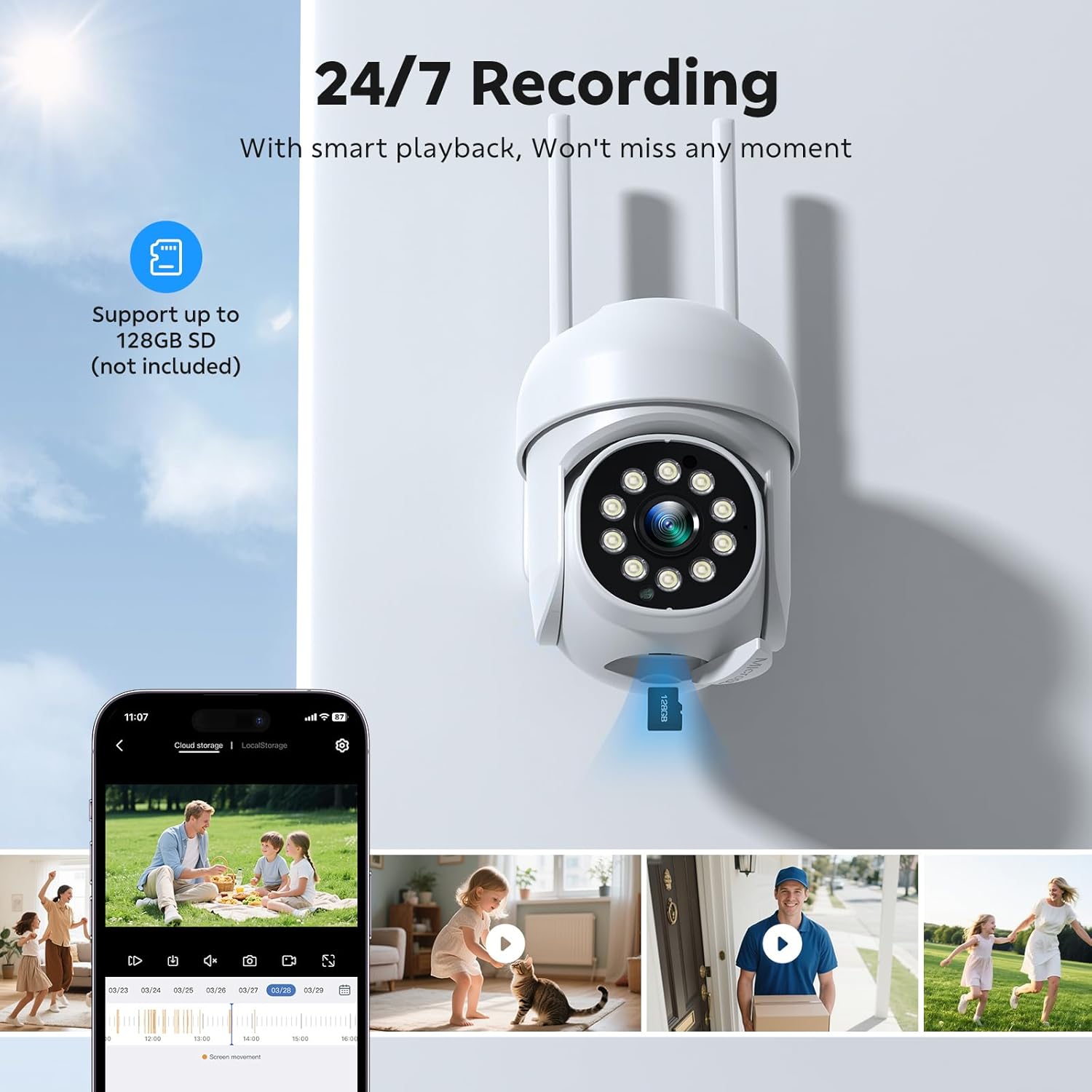
Figure 7: 24/7 Recording and Smart Playback
This image highlights the camera's continuous recording capability and smart playback feature, showing a smartphone interface for reviewing recorded footage and the camera's SD card slot.
4.6 Multi-Device Sharing
The CAMCAMP app allows you to share camera access with family members or trusted individuals, enabling multiple users to view the live feed and recordings simultaneously.

Figure 8: Multi-Device Sharing
This image illustrates the multi-device sharing feature, showing several individuals connected to and viewing the camera feed on their respective smartphones.
5. Maintenance
- Cleaning: Regularly wipe the camera lens and body with a soft, dry cloth to remove dust and smudges. Do not use harsh chemicals or abrasive cleaners.
- Firmware Updates: Check the CAMCAMP app periodically for available firmware updates. Keeping your camera's firmware up-to-date ensures optimal performance and security.
- Storage Management: If using an SD card, periodically review and delete old footage to free up space. For cloud storage, manage your subscription and storage limits through the app.
6. Troubleshooting
If you encounter issues with your CAMCAMP Wireless Security Camera, please refer to the following common solutions:
- Camera Offline:
- Check if the camera is properly powered on and connected to a stable power source.
- Verify your Wi-Fi network is active and the camera is within range.
- Restart the camera and your Wi-Fi router.
- Ensure the camera is connected to a 2.4GHz or 5GHz Wi-Fi network as supported.
- Poor Video Quality:
- Ensure the camera lens is clean and free from obstructions.
- Check your Wi-Fi signal strength; a weak signal can affect video quality.
- Adjust the video resolution settings in the app if available.
- False Motion Alerts:
- Adjust the motion detection sensitivity settings in the app.
- Ensure the camera is not pointing at areas with frequent, non-threatening movement (e.g., tree branches, busy roads).
- Utilize the human detection feature to filter out non-human movements.
- Two-Way Audio Issues:
- Check the volume settings on your smartphone and in the app.
- Ensure there are no obstructions blocking the camera's microphone or speaker.
- Verify your internet connection stability.
For further assistance, please contact CAMCAMP Customer Support.
7. Specifications
| Feature | Detail |
|---|---|
| Brand | Camcamp |
| Connectivity Technology | Wireless |
| Video Capture Resolution | 1080p |
| Special Features | 360° Pan & Tilt, Automatic Tracking, 2MP, Color Night Vision, 2 Way Audio, Weatherproof, Smart Playback, App Control, Dual Antenna Enhance, Human Detection, Siren Alarm |
| Number of Channels | 1 |
| Memory Storage Capacity | 500 GB (Note: This refers to system capacity, not necessarily included SD card) |
| Color | White |
| Power Source | Corded Electric |
| Item Dimensions L x W x H | 3 x 2 x 2 inches |
| Recommended Uses For Product | Indoor, Outdoor |
| Compatible Devices | Smartphones |
| Signal Format | Digital |
| Low light technology | Night Color |
| Night Vision Range | 65 Feet |
| Antenna Type | Fixed |
| Frame Rate | 15 fps |
| Recording Mode | Event |
| Optical Sensor Technology | CMOS |
| Hardware Interface | 802.11 ac/b/g/n |
| Lens Type | Wide Angle |
| Video Input | BNC, RJ45, CVBS |
| Viewing Angle | 355 Degrees |
| Manufacturer | CAMCAMP |
| Item Weight | 15.8 ounces |
| Model Number | BC894 |
| Batteries | 1 A batteries required. (included) |
| First Available | February 18, 2025 |
8. Warranty and Support
CAMCAMP offers comprehensive support for its products:
- Warranty: 1-year warranty. Only Replace, No Repair.
- Money Back Guarantee: 3 months no reason free return.
- Technical Support: Lifetime Professional Technical Support.
If you have any questions or require assistance, please contact CAMCAMP Customer Support:
- Phone: +1(626)420-9375 (9 AM - 5 PM GMT, Mon-Fri)
- Email: SC@yooomail.com
Related documentsBC894


Ask a question about this manual
Ask about setup, troubleshooting, compatibility, parts, safety, or missing instructions. Manuals+ will review the question and use this page’s manual context to help answer it.