
1. Introduction
The MARVO KG955W Shogo 63 is a compact 60% mechanical gaming keyboard designed for versatility and performance. It features tri-mode connectivity (wired, 2.4GHz wireless, and Bluetooth), yellow linear pre-lubed switches, customizable RGB backlighting, and full-key anti-ghosting. This manual provides instructions for setting up, operating, and maintaining your keyboard.
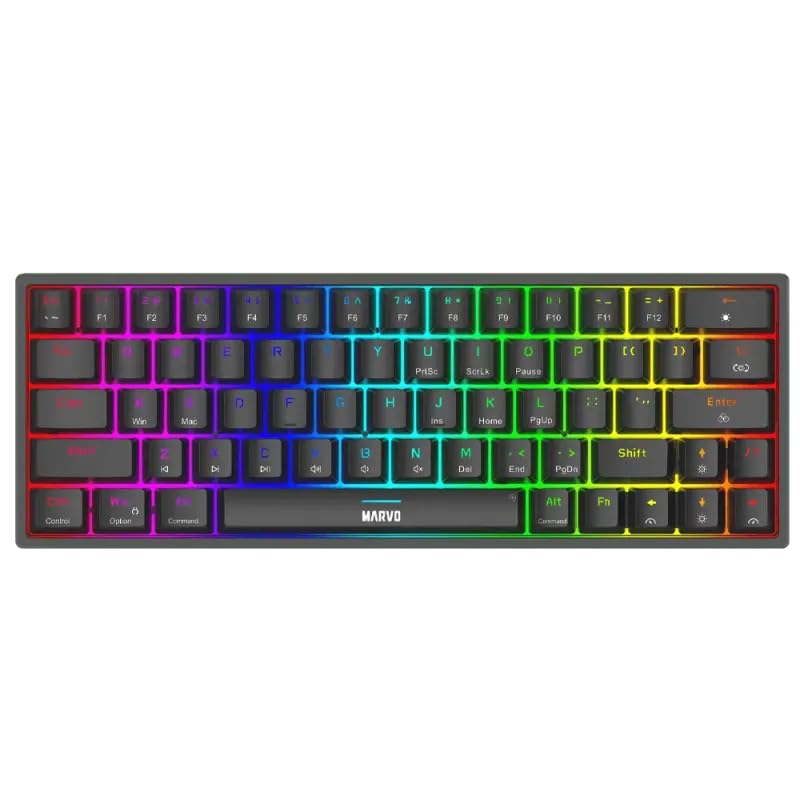
Image 1.1: Top-down view of the MARVO KG955W keyboard showcasing its compact 60% layout and vibrant RGB backlighting.
2. Package Contents
Please check the package for the following items:
- MARVO KG955W Shogo 63 Wireless Mechanical Gaming Keyboard
- Detachable 1.6m braided Type-C USB Cable
- 2.4GHz Wireless Receiver (USB dongle)
- User Manual (this document)
3. Setup and Connectivity
The KG955W keyboard offers three connectivity modes: Wired, 2.4GHz Wireless, and Bluetooth.
3.1. Wired Connection
- Connect the detachable Type-C USB cable to the keyboard's USB-C port.
- Connect the other end of the USB cable to an available USB port on your computer.
- The keyboard will automatically be detected and ready for use. The keyboard will also charge in wired mode.
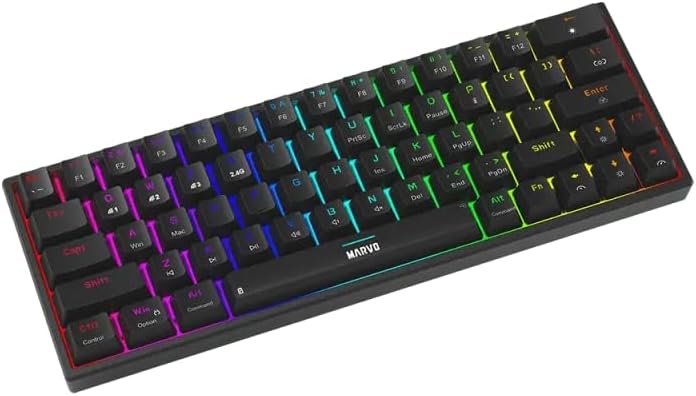
Image 3.1: Side view of the keyboard showing the USB-C port for wired connection and charging.
3.2. 2.4GHz Wireless Connection
- Locate the 2.4GHz USB receiver (dongle) in the package.
- Plug the 2.4GHz USB receiver into an available USB port on your computer.
- On the keyboard, switch the mode selector (usually on the back or side) to the 2.4G wireless mode.
- The keyboard should connect automatically. If not, press Fn + R to initiate pairing.
3.3. Bluetooth Connection
- On the keyboard, switch the mode selector to Bluetooth mode.
- Press and hold Fn + Q, Fn + W, or Fn + E for 3-5 seconds to enter pairing mode for Bluetooth device 1, 2, or 3 respectively. The indicator light will flash rapidly.
- On your computer or device, enable Bluetooth and search for new devices.
- Select "MARVO KG955W" (or similar name) from the list of available devices to pair.
- Once paired, the indicator light on the keyboard will stop flashing and remain solid.
The keyboard can store up to three Bluetooth profiles, allowing quick switching between devices using Fn + Q/W/E.
4. Operating Instructions
The KG955W is a 60% compact keyboard, meaning some functions are accessed via the Fn key combinations.
4.1. Function Key Combinations (Fn Key)
Hold down the Fn key and press the corresponding key for secondary functions:
- Fn + 1-0, -, =: F1-F12 functions (check keycaps for specific mappings).
- Fn + P: Print Screen
- Fn + [ {: Home
- Fn + ] }: End
- Fn + ; :: Page Up
- Fn + ' ": Page Down
- Fn + Arrow Keys: Media controls (e.g., volume up/down, play/pause, next/previous track). Refer to keycap legends.
- Fn + Win: Lock/Unlock Windows key.
4.2. RGB Backlighting Control
The keyboard features customizable RGB backlighting. Use the following combinations to control the lighting effects:
- Fn + \ |: Change lighting mode.
- Fn + ↑: Increase brightness.
- Fn + ↓: Decrease brightness.
- Fn + ←: Decrease lighting speed.
- Fn + →: Increase lighting speed.
- Fn + Spacebar: Change backlight color (for static modes).
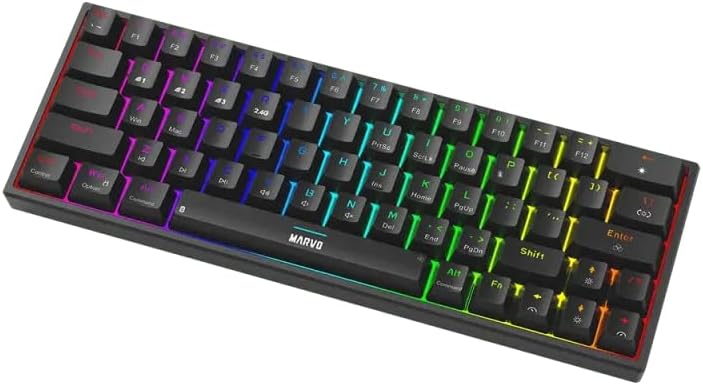
Image 4.1: The keyboard displaying its customizable RGB backlighting in a dynamic pattern.
4.3. Battery Status
The keyboard has an integrated battery for wireless operation. An indicator light will typically show low battery status or charging status. Refer to the specific LED indicators on your keyboard for details.
5. Maintenance
Proper maintenance ensures the longevity and performance of your keyboard.
- Cleaning: Use a soft, dry cloth to wipe the keyboard surface. For deeper cleaning, use compressed air to remove dust and debris from between the keycaps. Avoid using harsh chemicals or abrasive materials.
- Storage: Store the keyboard in a cool, dry place away from direct sunlight and extreme temperatures.
- Cable Care: Handle the detachable USB-C cable carefully. Avoid bending or twisting it excessively.

Image 5.1: Illustration of a hot-swappable switch, demonstrating the ease of maintenance and customization for individual key switches.
6. Troubleshooting
If you encounter issues with your MARVO KG955W keyboard, refer to the following common solutions:
| Problem | Solution |
|---|---|
| Keyboard not responding (Wired) |
|
| Keyboard not responding (2.4GHz Wireless) |
|
| Keyboard not responding (Bluetooth) |
|
| RGB lighting not working or incorrect |
|
| Keys are not registering or double-typing |
|
7. Specifications
| Feature | Detail |
|---|---|
| Model Name | MARVO KG955W Shogo 63 |
| Keyboard Type | Mechanical, 60% TKL (Tenkeyless) |
| Switches | Yellow Linear, Pre-lubed, Hot-swappable |
| Connectivity | Wired (USB-C), 2.4GHz Wireless, Bluetooth (Tri-mode) |
| Anti-Ghosting | Full-key Anti-Ghosting |
| Backlighting | Customizable RGB |
| Cable | Detachable 1.6m braided Type-C USB |
| Material | Plastic |
| Weight | 460 grams |
| Compatible OS | Windows (also compatible with other systems via Bluetooth/2.4G) |
| Number of Keys | 63 |
8. Warranty Information
The MARVO KG955W Shogo 63 Wireless Mechanical Gaming Keyboard comes with a 6 months warranty from the date of purchase. This warranty covers manufacturing defects and malfunctions under normal use. It does not cover damage caused by misuse, accidents, unauthorized modifications, or normal wear and tear. Please retain your proof of purchase for warranty claims.
9. Support
For technical support, troubleshooting assistance beyond this manual, or warranty inquiries, please contact MARVO customer service through their official website or the retailer where the product was purchased. Please have your product model number (KG955W) and proof of purchase ready when contacting support.


