
1. Introduction
This manual provides detailed instructions for the setup, operation, maintenance, and troubleshooting of your SMACKAPE WLMOUSE Beast X Mini Pro Ultra-Light Magnesium Gaming Mouse. Please read this manual thoroughly to ensure proper use and to maximize your gaming experience.
2. Package Contents
Verify that all items listed below are included in your package:
- Wireless Mouse (1)
- USB-C Cable (1)
- 8K Dongle (1)
- Nano 1K Dongle (1)
- User Manual (1)
- PTFE Skates (1 set)
- Mouse Grip Tape (1 set)
- Carrying Case (1)
3. Product Overview
The WLMOUSE Beast X Mini Pro is an ultra-lightweight gaming mouse designed for high performance. It features a magnesium alloy chassis, a high-precision PAW3950 HS sensor, and offers both 2.4GHz wireless and USB-C wired connectivity.

Image: The WLMOUSE Beast X Mini Pro gaming mouse in Milky White, showcasing its lightweight, open-frame design.

Image: Infographic detailing key features including magnesium alloy, 34g weight, Nordic 52840 MCU, PAW3950HS sensor, 125-8000Hz adjustable polling rate, OM Optical switches, and 220mAh Lithium-Ion battery.

Image: A promotional banner highlighting the mouse's featherlight magnesium construction and speed capabilities.

Image: A graphic illustrating the PAW3950HS sensor, emphasizing its precision and zero-lag tracking capabilities.
4. Setup
4.1 Charging the Mouse
Before first use, connect the mouse to your computer using the provided USB-C cable to charge the internal battery. The mouse can be used in wired mode while charging.
4.2 Wireless Connection (2.4GHz)
- Locate the 8K Dongle or Nano 1K Dongle from the package.
- Plug the dongle into an available USB port on your computer.
- Turn on the mouse using the power switch located on the underside.
- The mouse should automatically connect to the dongle. If not, refer to the troubleshooting section.
4.3 Wired Connection
Connect the USB-C end of the provided cable to the mouse and the USB-A end to your computer. The mouse will function in wired mode and charge simultaneously.

Image: Front view of the WLMOUSE Beast X Mini Pro, showing the USB-C port for wired connection and charging.
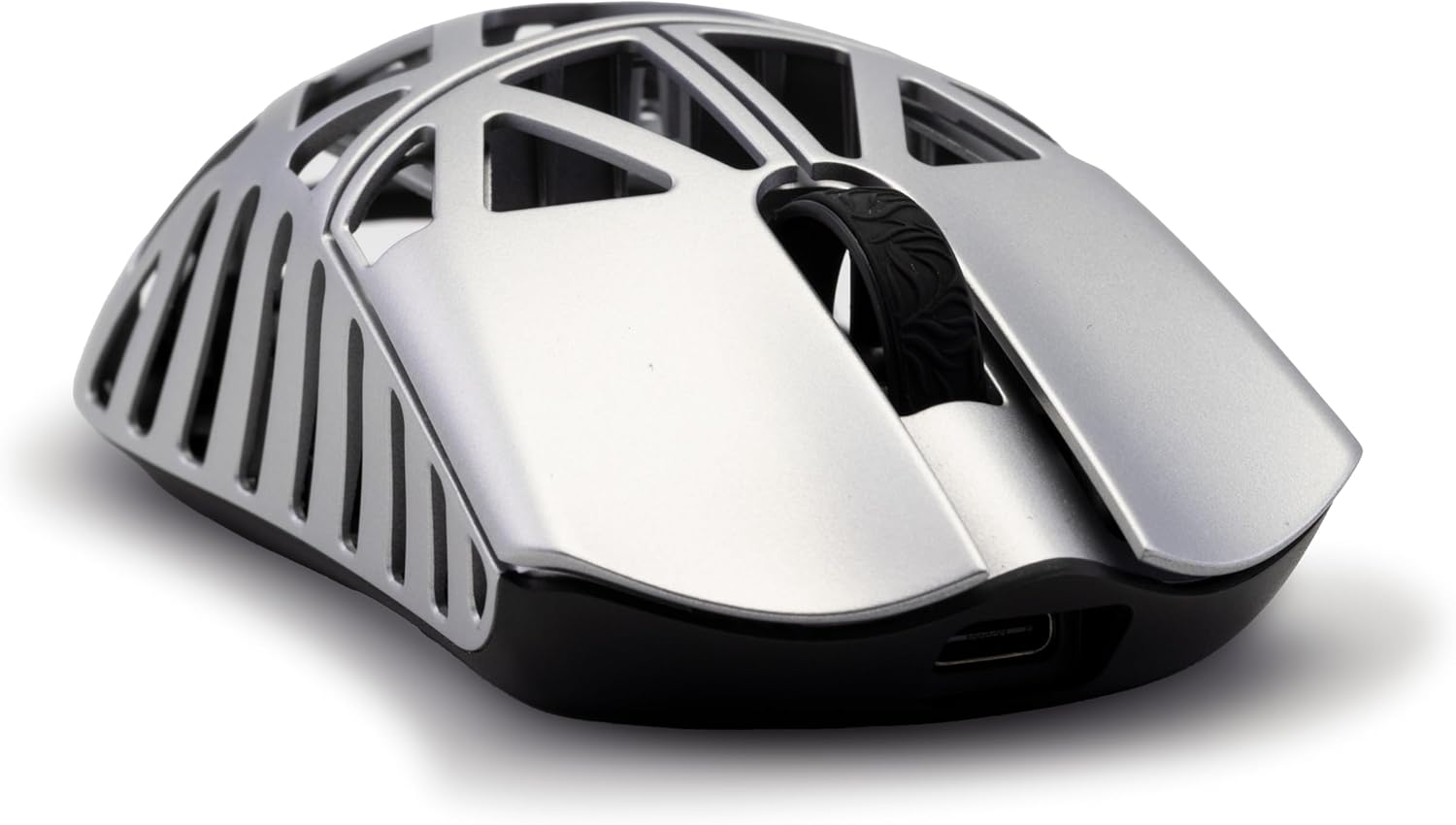
Image: Side view of the WLMOUSE Beast X Mini Pro, highlighting the USB-C port.
5. Operating Instructions
5.1 Basic Functions
- Left Click: Primary action.
- Right Click: Secondary action/context menu.
- Scroll Wheel: Scroll up/down, middle click.
- Side Buttons: Forward/Backward navigation (default). Functions can be customized via software.
5.2 DPI Adjustment
The mouse's DPI (Dots Per Inch) can be adjusted to change cursor sensitivity. Specific DPI levels and their cycling can be configured through the web-based customization software.
5.3 Polling Rate
The polling rate determines how often the mouse reports its position to the computer. The Beast X Mini Pro supports up to 8KHz (8000Hz) polling rate in wireless mode and 1KHz (1000Hz) in wired mode. This setting is configurable via the web-based software.

Image: A graphic displaying adjustable DPI (50-30000), 8000Hz wireless polling rate, 1000Hz wired polling rate, 750 IPS tracking rate, and 50G acceleration.
6. Customization
6.1 Customizable Side Panels
The Beast X Mini Pro allows for interchangeable side panels. Your mouse may come with side slits for enhanced airflow or solid side panels for a smooth grip. These can be swapped to suit your preference.

Image: Illustration showing two customizable side panel options: side slits for airflow and solid sides for a smooth grip.
6.2 Switch Options
The mouse is available with two types of switches:
- OM Optical Switches: Offer light actuation for fast, responsive clicks and long-lasting durability.
- TTC Nihil Mechanical Switches: Provide crisp, tactile feedback with a higher actuation force for a precise, responsive feel.

Image: An exploded view of the mouse highlighting the internal switches, with text describing the OM Optical and TTC Nihil Mechanical switch options.
6.3 Web-Based Customization Software
The Beast X Mini Pro utilizes a web-based software for comprehensive customization. This allows you to:
- Adjust DPI settings.
- Fine-tune lighting effects.
- Set up macros for complex commands.
- Update firmware directly from your browser.
Access the software through your web browser (Edge or Chrome recommended) to personalize your mouse settings without needing to download and install desktop applications.

Image: Screenshots of the web-based customization software interface, showing options for adjusting mouse settings.
7. Maintenance
7.1 Cleaning
To maintain optimal performance, regularly clean your mouse. Use a soft, dry cloth to wipe the surface. For stubborn dirt, a slightly damp cloth can be used, ensuring no moisture enters the internal components. Avoid harsh chemicals or abrasive materials.
7.2 Battery Care
The mouse is equipped with a Lithium-Ion battery. For best battery life, avoid fully discharging the mouse frequently. Charge the mouse when the battery indicator suggests low power. Store the mouse in a cool, dry place when not in use for extended periods.
8. Troubleshooting
- Mouse not responding: Ensure the mouse is powered on. For wireless mode, check that the dongle is securely plugged in and the mouse is within range. For wired mode, ensure the USB-C cable is properly connected to both the mouse and the computer.
- Cursor erratic or not tracking: Clean the mouse sensor on the underside of the mouse. Ensure you are using the mouse on a suitable surface (e.g., a mouse pad).
- Connectivity issues: Try plugging the dongle into a different USB port. Ensure there are no strong wireless interference sources nearby.
- Buttons not working: Check software settings to ensure buttons are not unbound or assigned to conflicting functions.
- Battery life shorter than expected: Ensure the mouse is fully charged. High polling rates (e.g., 8KHz) consume more power. Adjust polling rate settings in the software if extended battery life is desired.
If issues persist, consult the manufacturer's support resources or contact customer service.
9. Specifications
| Feature | Detail |
|---|---|
| Product Dimensions | 4.57 x 2.28 x 1.38 inches (116 x 58 x 35 mm) |
| Item Weight | 1.2 ounces (34g) |
| ASIN | B0DXFD86F5 |
| Item Model Number | Milky White(OM Switch-Side Slits) |
| Batteries | 1 Lithium Ion battery required (included) |
| Brand | SMACKAPE |
| Color | White |
| Connectivity Technology | 2.4GHz Wireless, USB-C Wired |
| Special Feature | Lightweight Magnesium Alloy Construction |
| Movement Detection Technology | Optical (PAW3950 HS Sensor) |
| Polling Rate | Up to 8KHz (Wireless), 1KHz (Wired) |
| DPI | Adjustable 50-30000 |
| Switches | OM Optical & TTC Nihil Mechanical |

Image: A hand size guide illustrating how to measure hand length and determine the appropriate mouse size for the Beast X series.

Image: Detailed dimensions of the WLMOUSE Beast X Mini Pro mouse (4.57 inches / 116mm length, 2.28 inches / 58mm width, 1.38 inches / 35mm height).
10. Warranty and Support
The WLMOUSE Beast X Mini Pro is covered by a manufacturer's warranty. Please refer to the warranty card included in your package or visit the official SMACKAPE website for detailed warranty terms and conditions.
For technical support, troubleshooting assistance, or warranty claims, please contact SMACKAPE customer service through their official channels. Contact information can typically be found on the product packaging or the brand's website.


