1. Introduction
The OTTOCAST Play2Video Pro is a versatile adapter designed to convert your car's existing wired CarPlay system into a wireless CarPlay and Android Auto experience. It also features a built-in Android system with pre-installed streaming applications such as YouTube, Netflix, Spotify, and IPTV, enhancing your in-car entertainment. This manual provides detailed instructions for setup, operation, maintenance, and troubleshooting.
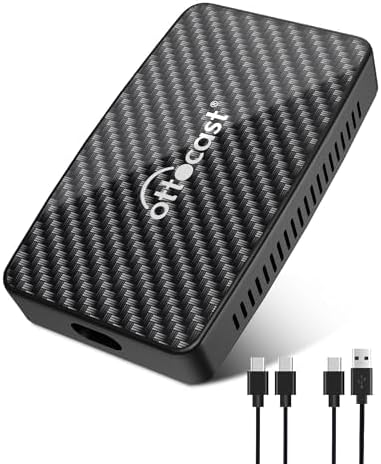
Figure 1: The OTTOCAST Play2Video Pro device with included USB-A to USB-C and USB-C to USB-C cables.
2. Compatibility Requirements
To ensure proper functionality, your vehicle and mobile device must meet the following criteria:
- Your car must have OEM wired CarPlay enabled.
- For iPhone users: iPhone 6 or later running iOS 10+.
- For Android phone users: Device running Android 11+.
- Your car's infotainment system must have a touchscreen.
Important Notes:
- This device supports wired to wireless conversion only.
- It does not support downloading additional applications beyond the pre-installed ones.
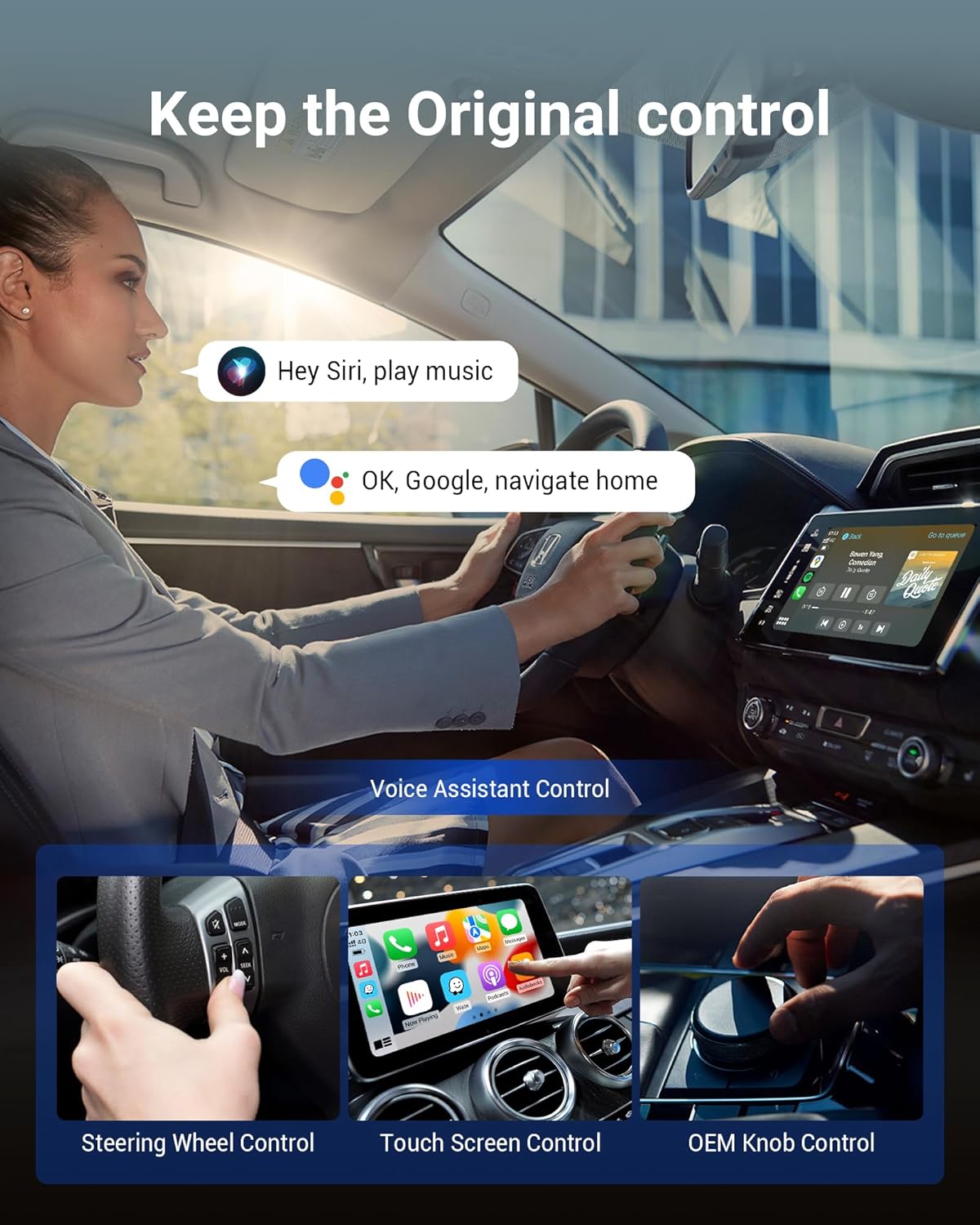
Figure 2: An in-car display showing various app icons, with text indicating compatibility requirements for factory-installed CarPlay/Android Auto, wired to wireless conversion only, and no app downloads.
3. Package Contents
Please verify that all items are present in your package:

Figure 3: Contents of the OTTOCAST Play2Video Pro package, including the device, USB-C to USB-A cable, USB-C to USB-C cable, and user manual.
- OTTOCAST Play2Video Pro Device
- USB Cable (Type-C to A)
- USB Cable (Type-C to C)
- User Manual
4. Setup Instructions
4.1 Initial Connection
- Connect the OTTOCAST Play2Video Pro to your car's USB port. Use the USB port typically designated for wired CarPlay or Android Auto.
- Wait for the device to boot up. The OTTOCAST interface should appear on your car's screen.
- On your smartphone, ensure both Bluetooth and Wi-Fi are enabled.
- On your phone, search for Bluetooth devices and pair with the OTTOCAST device (e.g., "OTTOCAST-XXXX").
- Follow any on-screen prompts on your car's display or phone to complete the wireless CarPlay or Android Auto connection.

Figure 4: A car interior showing an iPhone connected wirelessly to CarPlay via the OTTOCAST Play2Video Pro device, which is placed in the center console.

Figure 5: A car interior showing an Android phone connected wirelessly to Android Auto via the OTTOCAST Play2Video Pro device, which is placed in the center console.
4.2 Automatic Connection
Once initially paired, the OTTOCAST Play2Video Pro is designed to automatically connect to your phone when you start your vehicle, eliminating the need for repeated manual connections.

Figure 6: A woman approaching her car, which automatically connects to the OTTOCAST Play2Video Pro as she turns on the vehicle, illustrating the auto-connect feature.
4.3 Faster Connection
The device features a plastic housing designed to prevent signal blocking, contributing to a faster and more stable connection between your phone and the adapter.

Figure 7: An illustration showing a smartphone's Bluetooth settings connected to 'OTTOCAST-XXXX', with the OTTOCAST device positioned in a car's center console, highlighting its plastic housing for better signal.
5. Operating Instructions
5.1 Using Wireless CarPlay/Android Auto
Once connected, your car's display will show the familiar CarPlay or Android Auto interface. You can navigate and control functions using your car's:
- Touchscreen
- Steering wheel controls
- OEM knob controls
5.2 Accessing Pre-installed Apps (YouTube, Netflix, Spotify, IPTV)
The Play2Video Pro comes with several streaming applications pre-installed. To use them:
- Ensure the Play2Video Pro is connected to your car's Wi-Fi or a mobile hotspot from your phone.
- Select the desired app icon (e.g., YouTube, Netflix) from the device's main interface on your car screen.
- Log in to your respective accounts if prompted.

Figure 8: A car's infotainment screen displaying icons for Netflix, YouTube, Spotify, and IPTV, indicating access to streaming services.
5.3 Voice Assistant Control
Utilize your preferred voice assistant for hands-free control:
- For Apple devices: Say "Hey Siri" to activate Siri.
- For Android devices: Say "Hey Google" to activate Google Assistant.

Figure 9: A woman in a car interacting with a voice assistant, with speech bubbles showing 'Hey Siri, play music' and 'OK, Google, navigate home', demonstrating voice control.
5.4 TF Card Playback
The device supports TF (microSD) cards up to 128GB for local media playback. Insert a TF card containing your downloaded movies or music into the designated slot on the Play2Video Pro. You can then access and play the content directly from the device's interface on your car screen.

Figure 10: The OTTOCAST Play2Video Pro device with a USB flash drive inserted, surrounded by various media content thumbnails, illustrating support for U-disk playback.
6. Maintenance
6.1 Software Updates (OTA)
The Play2Video Pro supports Over-The-Air (OTA) updates. These updates provide system improvements, bug fixes, and enhancements for pre-installed applications. It is recommended to regularly check for and install available updates to ensure optimal performance and compatibility.

Figure 11: An illustration of cloud-based OTA updates for the system and pre-installed apps like YouTube, Netflix, Spotify, and IPTV, indicating fast problem resolution.
6.2 Cleaning
To clean the device, gently wipe it with a soft, dry cloth. Avoid using liquid cleaners, solvents, or abrasive materials, as these can damage the device.
6.3 Heat Dissipation
The Play2Video Pro is designed with porous heat dissipation features to maintain optimal operating temperatures and ensure stable performance during extended use.

Figure 12: A close-up of the OTTOCAST Play2Video Pro device's side, showing ventilation holes with blue airflow lines, indicating porous heat dissipation.
7. Troubleshooting
If you encounter issues with your OTTOCAST Play2Video Pro, please refer to the following common problems and solutions:
- Disconnection or Call Delays: If you experience frequent disconnections or delays during calls, contact customer support. They may recommend an adapter upgrade or specific troubleshooting steps.
- Device Not Connecting:
- Ensure your car has OEM wired CarPlay enabled.
- Verify that the USB cable is securely connected to both the Play2Video Pro and your car's USB port.
- Confirm that your phone's Bluetooth and Wi-Fi are both active.
- Try restarting the Play2Video Pro device and your smartphone.
- Pre-installed Apps Not Working:
- Check that the Play2Video Pro has a stable internet connection (via your car's Wi-Fi or a mobile hotspot).
- Verify your login credentials for streaming services like Netflix or YouTube.
- Remember that the device does not support downloading new apps.
- Crashes or Instability: Check for available OTA software updates in the device settings. Installing the latest firmware can resolve many performance issues.
For further assistance, please refer to the "Customer Support" section.
8. Specifications
| Brand | OTTOCAST |
| Model | CA400-S |
| RAM | 2GB DDR3 |
| ROM | 16GB eMMC |
| Connectivity | 5GHz WiFi, Bluetooth, USB |
| Supported OS | iOS 10+, Android 11+ |
| TF Card Support | Up to 128GB |
| Dimensions | 3.35 x 1.89 inches (approx. 8.5 x 4.8 cm) |
| Item Weight | 5 ounces |
| Color | Black |
9. Warranty Information
The OTTOCAST Play2Video Pro includes a one-year global warranty. Additionally, the product is covered by a 2-year hassle-free replacement policy. To claim a replacement, proof of purchase is required.

Figure 13: A graphic illustrating a 2-year protection plan, extending beyond the standard 1-year, with text 'Hassle-free replacement for 2 years. Proof of purchase needed'.
10. Customer Support
OTTOCAST provides lifetime technical support for the Play2Video Pro. If you require assistance, please use one of the following methods:
10.1 Contact via Amazon
On the product page on Amazon, locate and click on the "OTTOCAST Store" link. From there, you can click "Ask a Question" to send a message to our support team, or call the provided service number.
10.2 After Sales App (OttoPilot)
For comprehensive support, including troubleshooting assistance, online upgrades, and submitting bug reports or support requests, download the official OTTOCAST After Sales App (OttoPilot).

Figure 14: Two methods for contacting support: Method 1 shows how to find the 'Ask a Question' link on Amazon, and Method 2 shows the After Sales App with a QR code for download.
Download the After Sales App here: http://otto-cast.com/app/QRCode/download.html


