
1. Introduction
This manual provides instructions for the installation, operation, and maintenance of your Elo Touch Solutions 1902L 19-inch LCD Touchscreen Monitor, model E351388. The 1902L is part of the Elo 02-Series, designed for various commercial applications including point-of-sale, information kiosks, signage, and hospitality. It features a 19-inch square aspect ratio display with Elo's TouchPro PCAP technology, offering wide viewing angles, clear image quality, and up to 10-point multi-touch capabilities for a tablet-like interactive experience.
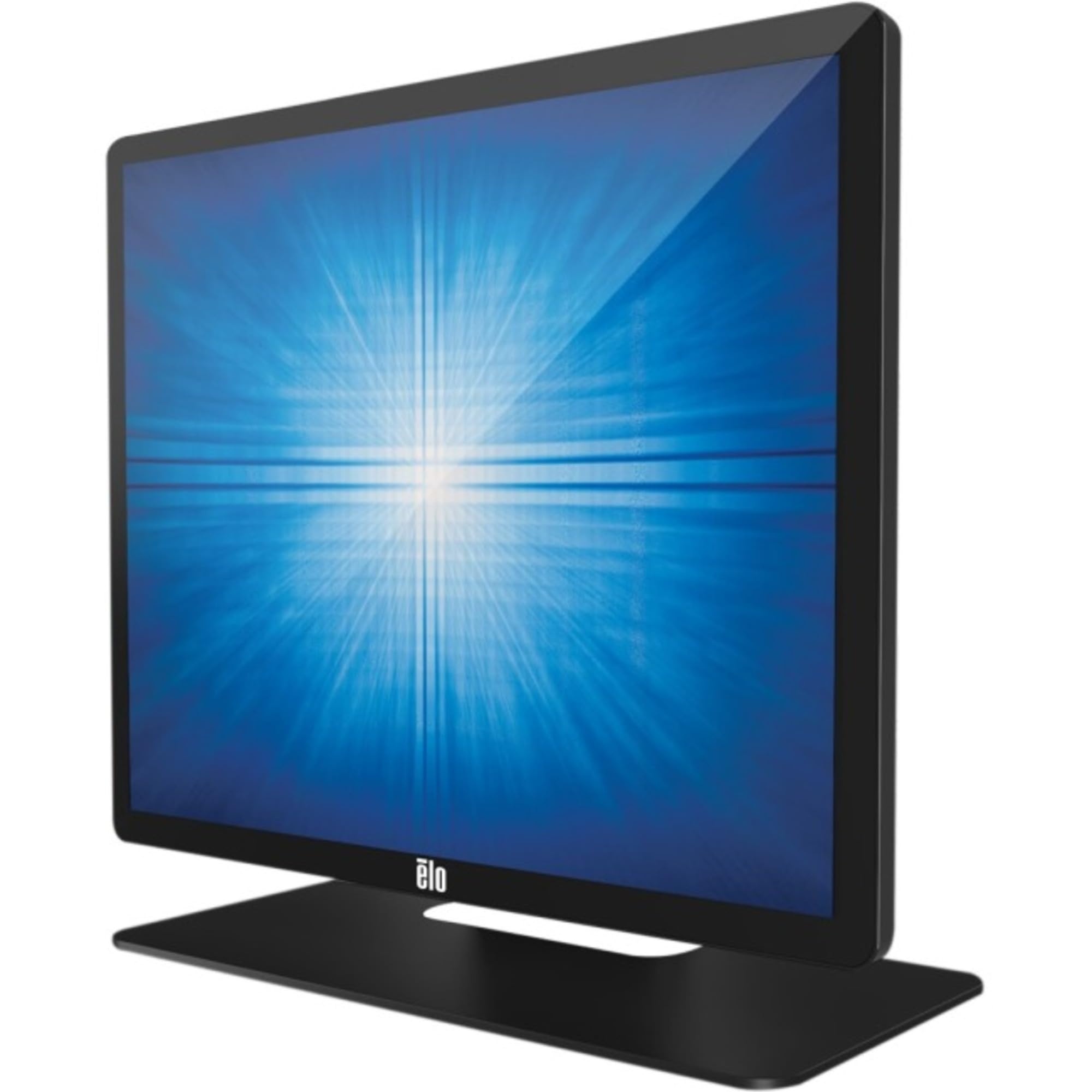
Figure 1: Elo 1902L 19-inch Touchscreen Monitor.
2. Package Contents
Verify that all items are present in the package before proceeding with installation. If any items are missing or damaged, contact your vendor.
- Elo 1902L Touchscreen Monitor
- Power Adapter and Power Cord
- USB Cable (for touch functionality)
- Video Cable (e.g., HDMI, DisplayPort, or VGA, depending on model)
- Quick Installation Guide
- Resource CD (contains drivers and documentation)
3. Setup Instructions
3.1 Unpacking and Placement
- Carefully remove the monitor and all accessories from the packaging.
- Place the monitor on a stable, flat surface. Ensure adequate ventilation around the monitor.
3.2 Attaching the Stand (if applicable)
If your monitor includes a separate stand, follow the instructions provided with the stand to securely attach it to the monitor. Typically, this involves aligning the stand with the VESA mounting holes on the back of the monitor and securing it with screws.
3.3 Connecting Cables
- Power Connection: Connect the power adapter to the monitor's power input, then plug the power cord into the adapter and a wall outlet.
- Video Connection: Connect one end of the video cable (e.g., HDMI, DisplayPort, or VGA) to the corresponding port on the monitor and the other end to your computer's video output port.
- USB Touch Connection: Connect the USB cable from the monitor's USB upstream port to an available USB port on your computer. This connection is essential for the touchscreen functionality.
3.4 Powering On and Driver Installation
- Press the power button on the monitor.
- Turn on your computer. The monitor should automatically detect the video signal.
- Driver Installation: For full touchscreen functionality, especially multi-touch and calibration, install the necessary drivers from the included Resource CD or download the latest drivers from the Elo Touch Solutions official website. Follow the on-screen instructions for installation.
4. Operating Instructions
4.1 Basic Operation
- Power On/Off: Press the power button located on the monitor bezel to turn the monitor on or off.
- Automatic Input Detection: The monitor will automatically detect the active video input. If multiple inputs are connected, you may need to select the desired input via the On-Screen Display (OSD) menu.
4.2 Touchscreen Usage
- Single Touch: Use a single finger to tap, drag, and select items, similar to a mouse click.
- Multi-Touch Gestures: The monitor supports up to 10-point multi-touch. Common gestures include pinch-to-zoom, two-finger scrolling, and rotation, depending on your operating system and application support.
- Calibration: If touch accuracy is an issue, perform a touch calibration through your operating system's tablet PC settings or the Elo Touch Solutions driver utility.
4.3 On-Screen Display (OSD) Menu
The OSD menu allows you to adjust various display settings. Access the OSD menu using the buttons located on the monitor. Typical settings include:
- Brightness/Contrast: Adjust the display's luminosity and contrast levels.
- Input Selection: Manually select the video input source (e.g., HDMI, DisplayPort, VGA).
- Color Settings: Fine-tune color temperature and individual RGB levels.
- Image Position/Phase: Adjust for analog video inputs to optimize image clarity.
- OSD Settings: Language, OSD timeout, and transparency.
4.4 Connecting Peripherals
The 1902L monitor is designed to be compatible with various Elo peripherals for enhanced functionality in commercial environments. These optional peripherals may include:
- Fingerprint Reader: For secure and quick user authentication.
- Magnetic Stripe Reader (MSR): For processing card payments.
- Barcode Scanner: For inventory management or checkout applications.
- NFC Adapter: For mobile payments and near-field communication.
Refer to the specific peripheral's instruction manual for installation and operation details.
5. Maintenance
5.1 Cleaning the Monitor
- Always power off the monitor and unplug the power cord before cleaning.
- Use a soft, lint-free cloth lightly dampened with a non-abrasive, ammonia-free glass cleaner or a specialized screen cleaning solution.
- Do not spray cleaner directly onto the screen or allow liquid to seep into the monitor's casing.
- Wipe the screen gently to remove dust, smudges, and fingerprints.
5.2 General Care
- Avoid placing heavy objects on the monitor or its cables.
- Do not expose the monitor to extreme temperatures, humidity, or direct sunlight.
- Ensure proper ventilation to prevent overheating.
6. Troubleshooting
If you encounter issues with your monitor, refer to the following common problems and solutions:
| Problem | Possible Cause | Solution |
|---|---|---|
| No display on screen | Monitor not powered on; video cable loose or disconnected; incorrect input selected. | Ensure power cable is securely connected and monitor is powered on. Check video cable connections. Use OSD to select correct input source. |
| Touchscreen not responding | USB touch cable disconnected; drivers not installed or corrupted; touch calibration needed. | Verify USB touch cable is connected to both monitor and computer. Install or reinstall touch drivers. Perform touch calibration. |
| Image is blurry or distorted | Incorrect resolution; analog signal interference (VGA); cable quality. | Set computer's display resolution to the monitor's native resolution. If using VGA, adjust phase/clock in OSD. Try a different video cable. |
| Monitor powers off randomly | Power saving settings; faulty power connection; overheating. | Check power saving settings on your computer. Ensure power cable is secure. Ensure adequate ventilation around the monitor. |
If the problem persists after trying these solutions, contact Elo Touch Solutions customer support.
7. Specifications
| Brand | Elo Touch Solutions |
| Model Number | E351388 |
| ASIN | B0DXD8ZJ3F |
| Product Dimensions | 2 x 17 x 14 inches |
| Display Size | 19 inches (Viewable) |
| Aspect Ratio | 5:4 |
| Response Time | 14 ms |
| Touch Technology | TouchPro PCAP (Projected Capacitive) |
| Color | Multicolor |
| UPC | 696449973489 |
| Manufacturer | Elo Touch Solutions |
8. Warranty Information
Specific warranty details for the Elo 1902L Touchscreen Monitor are not provided in this document. For comprehensive warranty terms and conditions, please refer to the warranty card included with your product or visit the official Elo Touch Solutions website. Keep your proof of purchase for warranty claims.
9. Customer Support
For technical assistance, troubleshooting beyond this manual, or service inquiries, please contact Elo Touch Solutions customer support. You can find contact information, FAQs, and additional resources on the official Elo Touch Solutions website:
Website: www.elotouch.com/support
Please have your monitor's model number (E351388) and serial number ready when contacting support.