
Introduction
This manual provides detailed instructions for setting up and using your BETTDOW Keyboard Case with Trackpad. This accessory is designed to enhance the functionality of your Samsung Galaxy Tab, transforming it into a versatile workstation. Please read this manual thoroughly before use to ensure optimal performance and longevity of your device.
Compatibility
The wireless keyboard case is compatible with the following Samsung Galaxy Tab 11-inch models:
- Samsung Galaxy Tab S10 Lite 10.9 inch (SM-X400/X406/X406B) 2025 Release
- Samsung Galaxy Tab S10 FE 5G 10.9 inch (Model SM-X520/X526B/X528U) 2025 Release
- Samsung Galaxy Tab S9 FE 11 inch 2023 (Model SM-X510 / SM-X516B)
- Samsung Galaxy Tab S9 11 inch 2023 (Model SM-X710 / SM-X716B / SM-X718U)
- Samsung Galaxy Tab S8 11 inch 2022 (Model SM-X700 / SM-X706)
- Samsung Galaxy Tab S7 11 inch 2020 (Model SM-T870 / SM-T875 / SM-T876)
Note: This product is not compatible with any other devices. Tablet and S-Pen are not included.
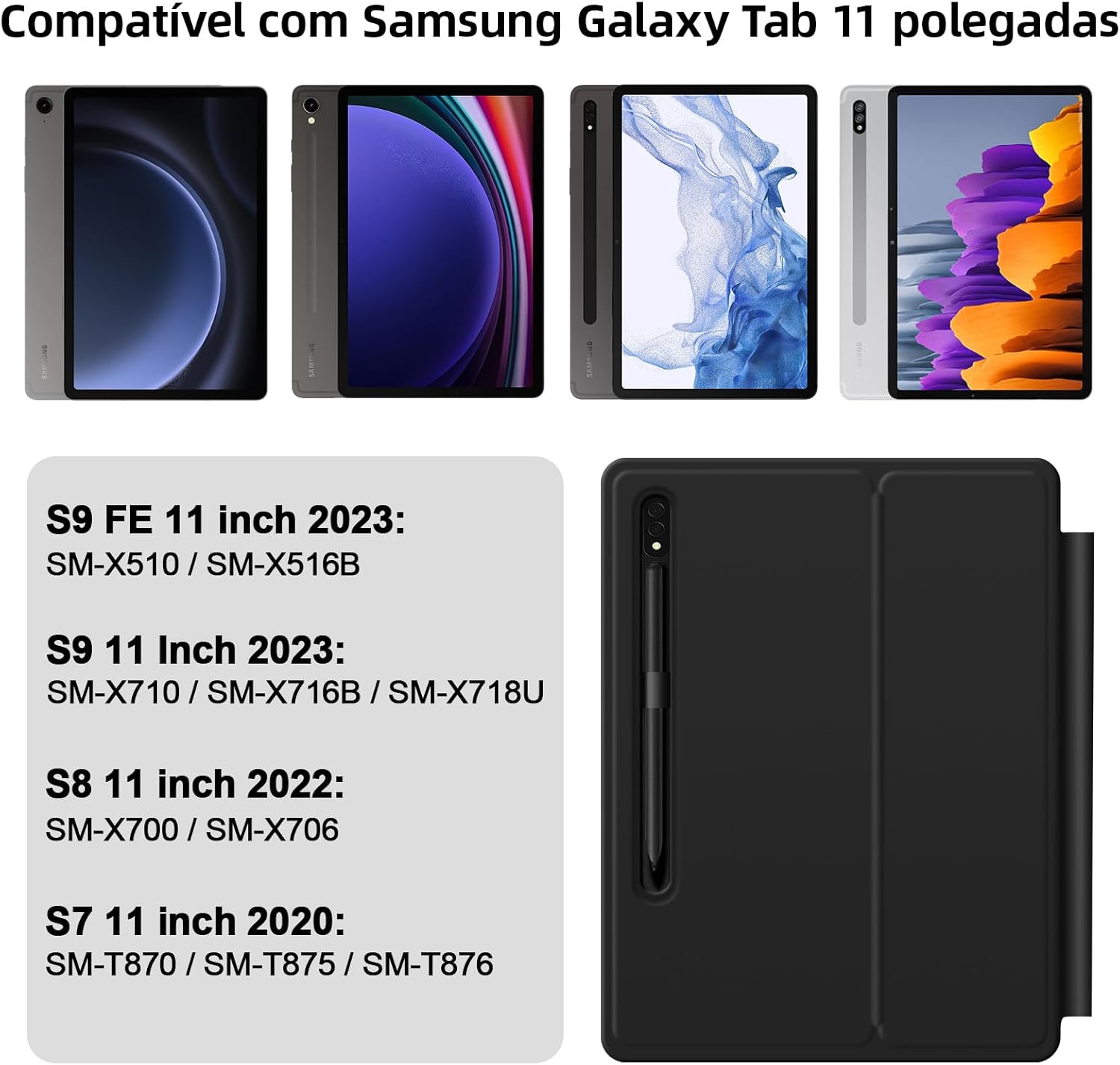
Image: Compatibility chart for BETTDOW Keyboard Case with Samsung Galaxy Tab 11-inch models.
Features
- Large and Precise Trackpad: The keyboard features an updated "Click-Anywhere" trackpad, allowing the entire surface to be clicked and pressed for intuitive navigation. Scroll, swipe, click, and press to enhance your tablet experience.
- Convenient LCD Digital Display: The wireless keyboard incorporates an LCD digital display to show key status information. This includes power status, Caps Lock status, charging status, and Bluetooth connection status, providing clear feedback during use.
- Reliable Protection and Lightweight Design: Constructed with a durable polycarbonate shell, rigid core, rubber edges, button covers, and corner bumpers, this case offers robust drop protection. Its lightweight design ensures easy portability, fitting conveniently into your bag.
- Easy-to-Install Floating Cantilever Support: Features a magnetic suspension design for strong magnetic suction, securely holding your tablet. It also includes a dedicated space for your S-Pen at the top. The cantilever design allows for an ideal viewing angle by simply opening the cover, instantly transforming your tablet into a laptop. The case supports automatic wake/sleep functionality for your tablet.
- 7-Color LED Backlit Keyboard with 3 Brightness Levels: The keyboard features adjustable 7-color LED backlighting with three brightness levels, allowing for comfortable typing in various lighting conditions.

Image: Responsive trackpad for enhanced tablet navigation.
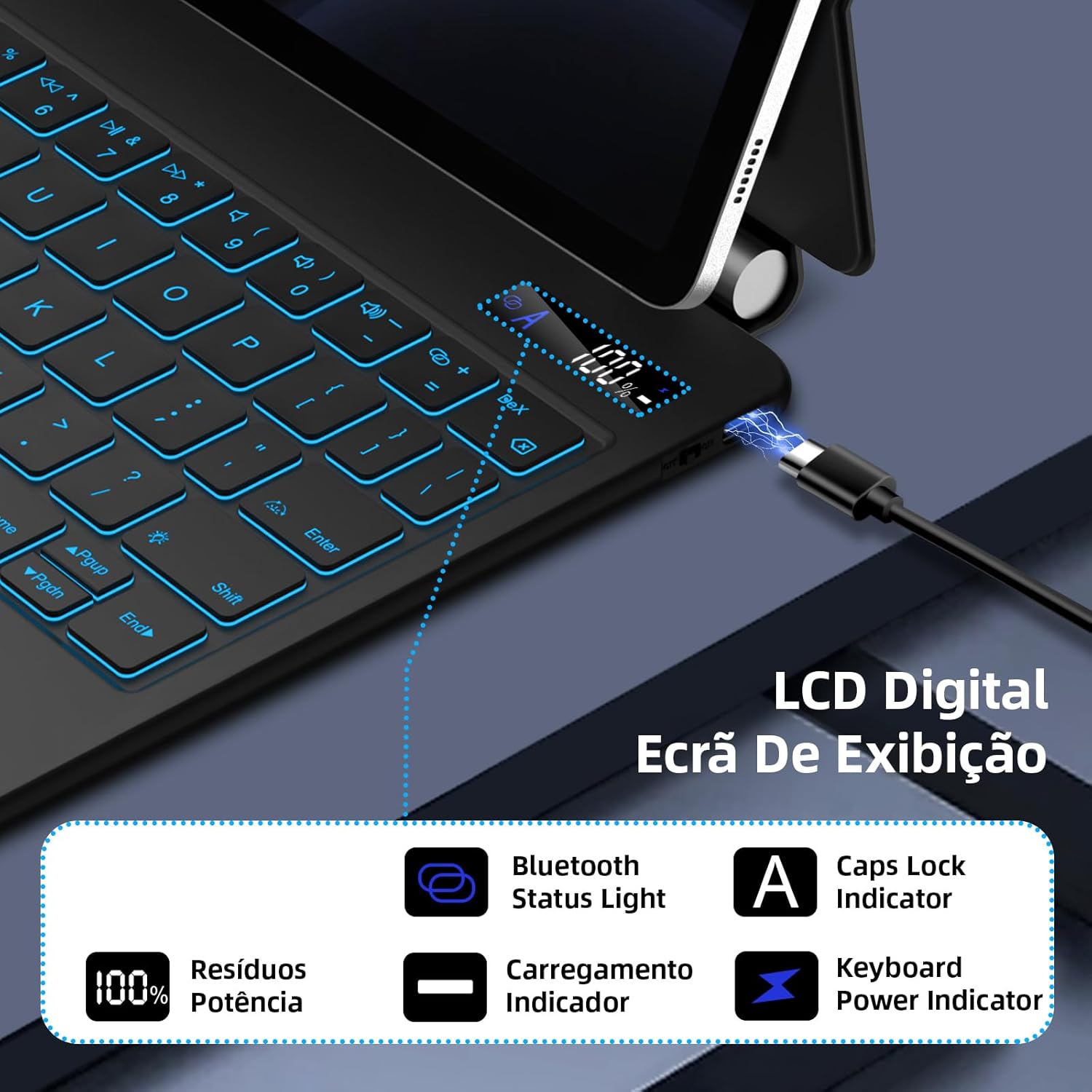
Image: LCD digital display showing keyboard status indicators.
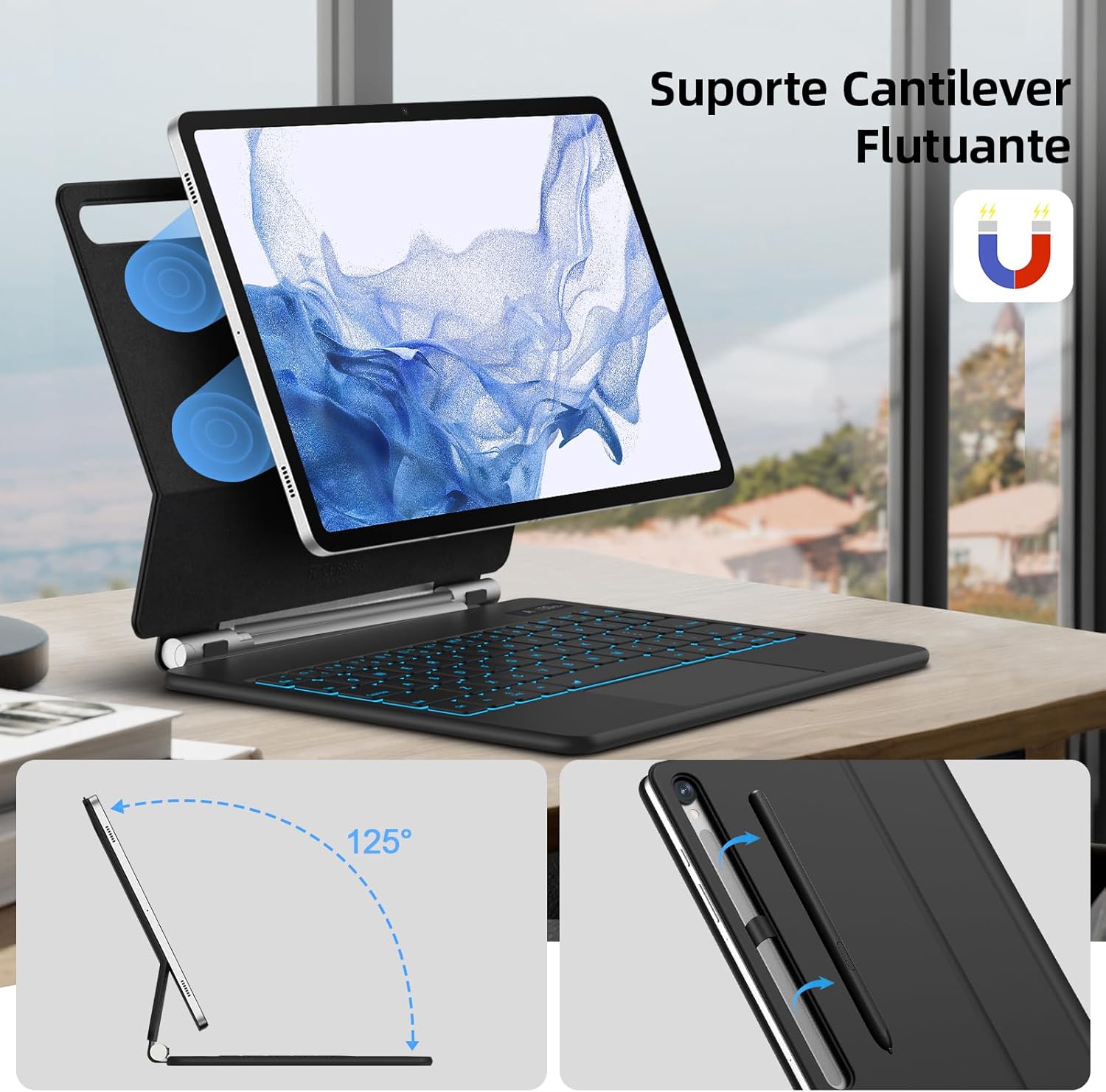
Image: Floating cantilever design with magnetic attachment and S-Pen holder.

Image: Backlit keyboard with adjustable LED colors and brightness.
Setup Instructions
- Charge the Keyboard: Before first use, fully charge the keyboard using the provided USB-C cable. The LCD display will indicate charging status.
- Insert Your Tablet: Carefully place your Samsung Galaxy Tab into the case. Ensure it is securely seated and the camera cutout aligns correctly.
- Attach Magnetically: The tablet will magnetically attach to the cantilever stand. Adjust the angle to your preference.
- Pair via Bluetooth:
- Turn on the keyboard by pressing the power button. The Bluetooth status light on the LCD display will blink.
- On your Samsung Galaxy Tab, go to Settings > Connections > Bluetooth.
- Turn on Bluetooth and search for available devices.
- Select "BETTDOW Keyboard" (or similar name) from the list.
- Follow any on-screen prompts to complete the pairing process. The Bluetooth status light on the keyboard's LCD display will become solid once connected.

Image: General view of the BETTDOW keyboard case with a Samsung Galaxy Tab.
Operating Instructions
Keyboard Functions
- Power On/Off: Press the power button to turn the keyboard on or off.
- Caps Lock: The LCD display will show the Caps Lock status.
- Backlight Control: Use the dedicated backlight key (often Fn + light icon) to cycle through 7 colors and 3 brightness levels.
- Shortcut Keys: Many function keys (F1-F12 or similar layout) can be used with the Fn key for quick access to media controls, volume, screen brightness, and other system functions. Refer to the key labels for specific shortcuts.

Image: Keyboard shortcut keys for quick access to functions.
Trackpad Gestures
The trackpad supports various multi-touch gestures for efficient navigation:
- Single Finger Tap: Left-click.
- Two Finger Tap: Right-click (context menu).
- Two Finger Scroll: Scroll up/down or left/right.
- Pinch to Zoom: Use two fingers to zoom in or out.
- Three Finger Swipe Up: Open recent applications.
- Three Finger Swipe Down: Return to the home screen.
- Three Finger Swipe Left/Right: Switch between open applications.
- Four Finger Tap: Screenshot.

Image: Trackpad gestures for efficient tablet control.
Maintenance
- Cleaning: Use a soft, dry cloth to clean the keyboard and case. For stubborn dirt, a slightly damp cloth can be used, but ensure no moisture enters the keyboard.
- Charging: Charge the keyboard when the LCD display indicates low battery. Avoid overcharging for extended periods.
- Storage: When not in use, close the case to protect your tablet and keyboard. Store in a cool, dry place away from direct sunlight.
- S-Pen Holder: Utilize the integrated S-Pen holder to keep your S-Pen secure and prevent loss.

Image: Integrated S-Pen holder for secure storage.
Troubleshooting
| Problem | Solution |
|---|---|
| Keyboard not turning on. | Ensure the keyboard is charged. Check the LCD display for battery status. |
| Keyboard not connecting via Bluetooth. |
|
| Trackpad not responding. |
|
| Keys are not responding. |
|
Specifications
- Brand: Bettdow
- Connectivity Technology: Bluetooth
- Keyboard Description: Flexible
- Special Features: Portable
- Power Source: AC/DC
- Minimum OS Requirement: Android 10.0
- Color: Black (Preto-11 variant)
- Manufacturer: bettdow
- Country of Origin: China
Warranty and Support
This product comes with a 6-month warranty against manufacturing defects. For warranty claims or technical support, please contact Bettdow customer service through the retailer where the product was purchased or visit the official Bettdow store on Amazon.
Amazon Store Link: Bettdow Official Store