
DOOGEE Tab E3 Pro
DOOGEE Tab E3 Pro Android Tablet User Manual
Model: Tab E3 Pro
1. Introduction
Welcome to the user manual for your new DOOGEE Tab E3 Pro Android Tablet. This guide provides detailed instructions on how to set up, operate, maintain, and troubleshoot your device. Please read this manual thoroughly to ensure optimal performance and longevity of your tablet.
The DOOGEE Tab E3 Pro is designed for a seamless and powerful user experience, featuring a large display, robust processor, and long-lasting battery, making it ideal for entertainment, productivity, and communication.
2. Package Contents
Please check the contents of your package. If any items are missing or damaged, contact your retailer or DOOGEE support.
- DOOGEE Tab E3 Pro Tablet
- USB-C Charging Cable
- Power Adapter
- SIM Eject Tool (if applicable)
- Quick Start Guide
- Warranty Card
3. Device Overview
Familiarize yourself with the physical components of your DOOGEE Tab E3 Pro.

Figure 3.1: Front view of the DOOGEE Tab E3 Pro tablet, showcasing its large 13-inch display with key features like Android 15, Helio G100 processor, Gemini AI, and 11000mAh battery capacity highlighted on the screen.
3.1. Buttons and Ports
- Power Button: Located on the side, used to turn the tablet on/off or wake/sleep the screen.
- Volume Buttons: Adjust the audio volume.
- USB-C Port: For charging and data transfer.
- 3.5mm Headphone Jack: For connecting wired headphones.
- SIM/MicroSD Card Slot: Insert your SIM card for cellular connectivity or a MicroSD card for expandable storage.

Figure 3.2: An illustration highlighting the Android 15 operating system, indicating its intelligent, seamless, and secure features, which is the core software of the DOOGEE Tab E3 Pro.
3.2. Cameras
- Rear Camera: 13MP main camera for high-quality photos and videos.
- Front Camera: 8MP camera for video calls and selfies.

Figure 3.3: A visual representation of the DOOGEE Tab E3 Pro's camera capabilities, showing the 13MP main camera and 8MP front camera, along with example photos taken by the tablet.
4. Initial Setup
4.1. Charging the Tablet
Before first use, fully charge your tablet. Connect the USB-C cable to the tablet's charging port and the other end to the power adapter. Plug the adapter into a wall outlet.
The DOOGEE Tab E3 Pro features an 11000mAh high-capacity battery with 18W fast charging support for extended usage.
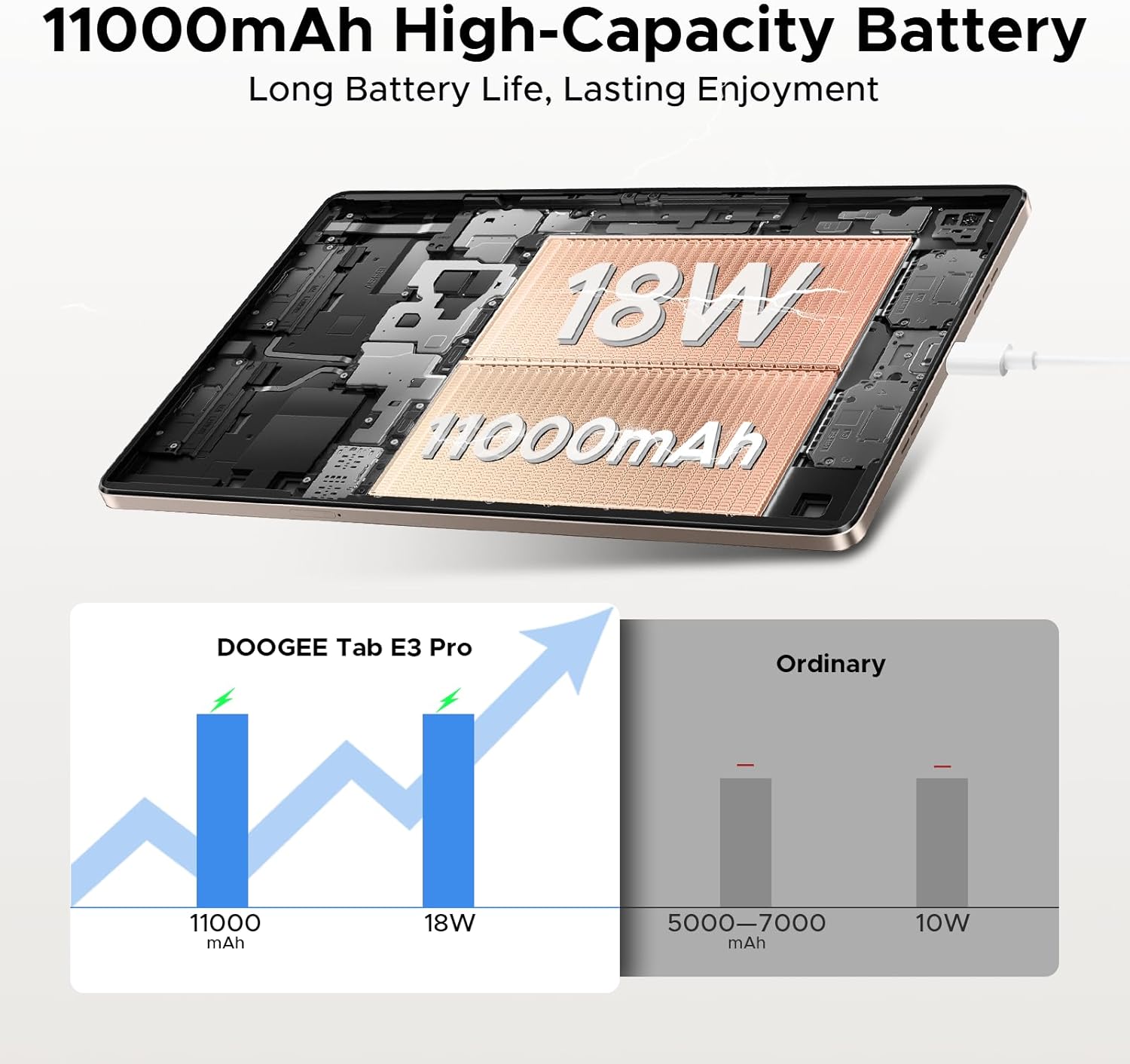
Figure 4.1: An illustration demonstrating the 11000mAh high-capacity battery of the DOOGEE Tab E3 Pro, highlighting its long battery life and 18W charging capability compared to ordinary tablets.
4.2. Powering On/Off
- To Power On: Press and hold the Power button until the DOOGEE logo appears.
- To Power Off: Press and hold the Power button until a power menu appears, then select "Power off".
- To Restart: From the power menu, select "Restart".
4.3. Initial Configuration
Upon first power-on, the tablet will guide you through the initial setup process:
- Select your preferred language.
- Connect to a Wi-Fi network.
- Sign in with your Google account or create a new one.
- Set up screen lock (PIN, pattern, password, or facial recognition).
- Review and accept terms and conditions.
5. Operating Your Tablet
5.1. Android 15 Operating System
Your DOOGEE Tab E3 Pro runs on the latest Android 15 system, offering an intelligent, seamless, and secure user experience with enhanced privacy features and improved performance.
5.2. Display and Visuals
Experience vibrant visuals on the 13-inch FHD+ 90Hz display. With a 1920x1200 resolution, 16:10 aspect ratio, and 84.6% screen-to-body ratio, content comes to life with 16.7 million screen colors.

Figure 5.1: A graphic illustrating the 13-inch FHD+ 90Hz display of the DOOGEE Tab E3 Pro, detailing its 1920x1200 resolution, 16:10 aspect ratio, 84.6% screen-to-body ratio, and 16.7 million screen colors.
5.3. Performance and Storage
Powered by the Helio G100 Octa-Core Processor, the tablet delivers boosted speed and efficiency with a 2.2GHz ultimate frequency and 6nm advanced process technology.

Figure 5.2: A detailed view of the MediaTek Helio G100 Octa-Core Processor, emphasizing its 2.2GHz ultimate frequency and 6nm advanced process technology, which powers the DOOGEE Tab E3 Pro.
The tablet comes with 8GB of basic RAM, expandable up to 32GB Max RAM, and 256GB of internal ROM, which can be expanded up to 2TB with a TF card (sold separately).

Figure 5.3: An illustration detailing the memory configuration of the DOOGEE Tab E3 Pro, showing 8GB Basic RAM + 24GB Extended RAM for a total of 32GB Max RAM, and 256GB ROM with 2TB expandable memory support.
5.4. Built-in Gemini AI
Leverage the built-in Gemini AI for enhanced productivity and convenience. Features include content creation, information retrieval & summarization, image analysis, code development, smart assistant functions, language learning, Gemini Live, and Gemini Deep Research.

Figure 5.4: A diagram showcasing the various functionalities of the Built-in Gemini AI on the DOOGEE Tab E3 Pro, including content creation, information retrieval, image analysis, and smart assistant features.
5.5. Audio Quality
Enjoy premium sound quality with the 1217 BOX Quad Speakers, housed within a stylish and sleek metal case, providing an immersive audio experience.

Figure 5.5: An image highlighting the sound quality and aesthetics of the DOOGEE Tab E3 Pro, featuring its Premium 1217 BOX Quad Speakers and stylish metal case.
6. Maintenance and Care
- Cleaning: Use a soft, lint-free cloth to clean the screen and body. Avoid abrasive cleaners or solvents.
- Software Updates: Regularly check for and install system updates to ensure your tablet has the latest features, security patches, and performance improvements. Go to Settings > System > System update.
- Battery Care: Avoid extreme temperatures. Do not let the battery fully drain frequently. For long-term storage, charge the battery to about 50%.
- Storage: Keep your tablet in a cool, dry place away from direct sunlight and extreme temperatures.
- Protection: Consider using a protective case and screen protector to prevent scratches and damage.
7. Troubleshooting
This section addresses common issues you might encounter with your DOOGEE Tab E3 Pro.
7.1. Tablet Will Not Turn On
- Ensure the battery is charged. Connect the charger and wait a few minutes before attempting to power on.
- Press and hold the Power button for at least 10-15 seconds to force a restart.
7.2. Wi-Fi Connectivity Issues
- Ensure Wi-Fi is enabled in Settings > Network & internet > Wi-Fi.
- Restart your Wi-Fi router.
- Forget the network and reconnect by re-entering the password.
- Check if other devices can connect to the same Wi-Fi network.
7.3. Slow Performance
- Close unused applications running in the background.
- Clear cache data for apps that are frequently used (Settings > Apps > [App Name] > Storage & cache > Clear cache).
- Ensure you have sufficient free storage space.
- Restart the tablet periodically.
- If issues persist, consider a factory reset (Settings > System > Reset options > Erase all data (factory reset)). Warning: This will erase all data on your tablet. Back up important data first.
7.4. Apps Crashing or Not Responding
- Force stop the app (Settings > Apps > [App Name] > Force stop).
- Clear the app's cache and data.
- Update the app from the Google Play Store.
- Uninstall and reinstall the app.
8. Specifications
Detailed technical specifications for the DOOGEE Tab E3 Pro.
| Feature | Specification |
|---|---|
| Model | DOOGEE Tab E3 Pro |
| Operating System | Android 15 |
| Display Size | 13 Inches |
| Display Resolution | 1920 x 1200 (FHD+) |
| Refresh Rate | 90Hz |
| Processor | Helio G100 Octa-Core (2.2GHz) |
| RAM | 8GB (expandable up to 32GB Max RAM) |
| Internal Storage (ROM) | 256GB |
| Expandable Storage | Up to 2TB (TF card, sold separately) |
| Rear Camera | 13 MP |
| Front Camera | 8 MP |
| Battery Capacity | 11000 mAh (Lithium Polymer) |
| Charging | 18W Fast Charging |
| Dimensions (LxWxH) | 11.89 x 7.78 x 0.31 inches |
| Item Weight | 14.7 ounces (418 Grams) |
| Connectivity | Wi-Fi, Bluetooth, Cellular (if applicable) |
| Audio | 1217 BOX Quad Speakers, 3.5mm Headphone Jack |
9. Warranty and Support
Your DOOGEE Tab E3 Pro is covered by a limited warranty. Please refer to the warranty card included in your package for specific terms and conditions, including warranty period and coverage details.
For technical support, troubleshooting assistance, or warranty claims, please contact DOOGEE customer service through their official website or the contact information provided in your warranty documentation.
You can visit the official DOOGEE store on Amazon for more information and support: DOOGEE Amazon Store
Related documentsTab E3 Pro


Ask a question about this manual
Ask about setup, troubleshooting, compatibility, parts, safety, or missing instructions. Manuals+ will review the question and use this page’s manual context to help answer it.