
DOOGEE Tab E3 Max 14 inch Tablet
DOOGEE Tab E3 Max 14-inch Tablet User Manual
Model: Tab E3 Max 14 inch Tablet
1. Introduction
Welcome to the user manual for your new DOOGEE Tab E3 Max 14-inch Tablet. This device is designed to provide a versatile and powerful experience for both work and entertainment. Featuring a large 14-inch FHD+ IPS display, a robust 13500mAh battery, and powered by the MediaTek Helio G100 octa-core processor with Android 15, this tablet offers exceptional performance and extended usage. This manual will guide you through the setup, operation, and maintenance of your tablet to ensure optimal performance and longevity.
2. Package Contents
Please verify that all items listed below are included in your package:
- 1 x DOOGEE Tab E3 Max Tablet
- 1 x Charger
- 1 x Type-C USB Cable
- 1 x Bluetooth Keyboard
- 1 x Bluetooth Mouse
- 1 x Stylus
- 1 x Leather Protective Cover
- 1 x Screen Protector (Tempered Film)
- 1 x Card Removal Needle
- 1 x User Manual
- 1 x Warranty Card

Image: The DOOGEE Tab E3 Max tablet shown with its accompanying accessories, including the Bluetooth keyboard, mouse, and stylus.
3. Product Overview
The DOOGEE Tab E3 Max features a sleek, ultra-thin metal body design, providing both durability and a premium feel. Its large 14-inch display is ideal for immersive viewing and productivity.
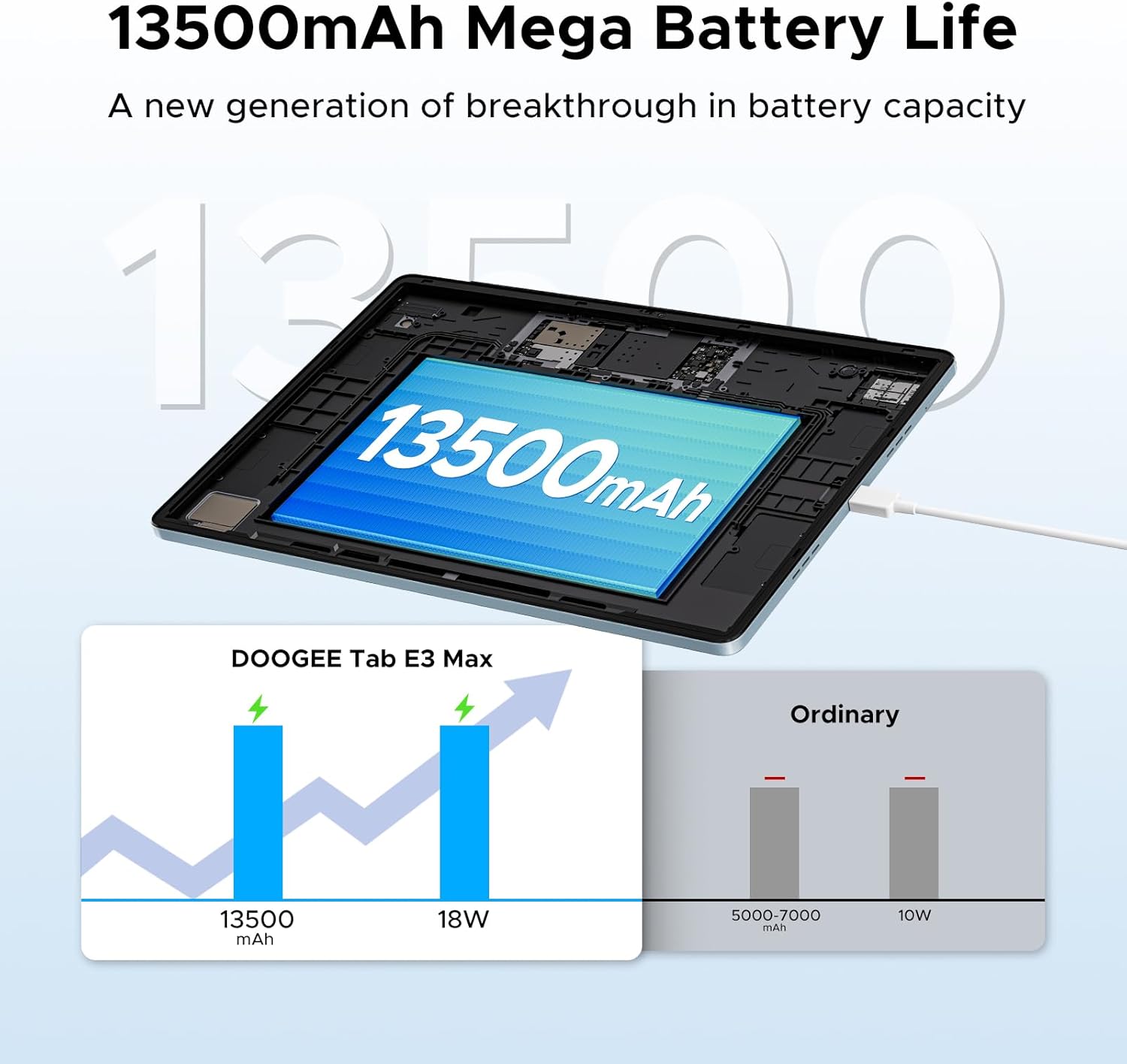
Image: A side profile of the DOOGEE Tab E3 Max, illustrating its slim 8.9mm thickness and elegant metal construction.
Key Components:
- Display: 14-inch FHD+ IPS screen (2160*1440 resolution).
- Cameras: 16MP Main Camera (rear), 8MP Front Camera, 2MP Macro Camera.
- Buttons: Power button, Volume up/down buttons.
- Ports: Type-C USB port, 3.5mm Audio Jack.
- Card Slot: Dual SIM card slot (supports 4G LTE) or 1 SIM + 1 TF card.
- Speakers: Premium 1217 BOX Quad Speakers.
4. Setup
4.1 Initial Charging
Before first use, fully charge your tablet using the provided charger and Type-C USB cable. Connect the cable to the tablet's Type-C port and the charger to a power outlet. The charging indicator will show the charging status.
4.2 Power On/Off
- To Power On: Press and hold the Power button until the DOOGEE logo appears.
- To Power Off: Press and hold the Power button until the power options menu appears, then select "Power off".
- To Restart: Press and hold the Power button until the power options menu appears, then select "Restart".
4.3 SIM Card and TF Card Installation
The tablet supports dual SIM cards for 4G LTE connectivity or one SIM card and one TF (microSD) card for expandable storage up to 2TB.
- Locate the SIM card tray on the side of the tablet.
- Insert the provided card removal needle into the small hole next to the tray to eject it.
- Place your Nano-SIM card(s) and/or TF card into the designated slots on the tray, ensuring correct orientation.
- Gently push the tray back into the tablet until it clicks into place.

Image: Illustration of the dual card slots, demonstrating how to insert SIM cards or a SIM card and a TF card.
4.4 Initial Configuration
Upon first power-on, follow the on-screen prompts to complete the initial setup:
- Select your preferred language.
- Connect to a Wi-Fi network.
- Sign in with your Google account or create a new one.
- Set up screen lock (PIN, pattern, password, or facial recognition).
5. Operating Your Tablet
5.1 Display and Visual Experience
The 14-inch FHD+ IPS display offers a resolution of 2160*1440 pixels, providing clear and vibrant visuals. It features eye-protection technology to reduce blue light and minimize eye fatigue during prolonged use.
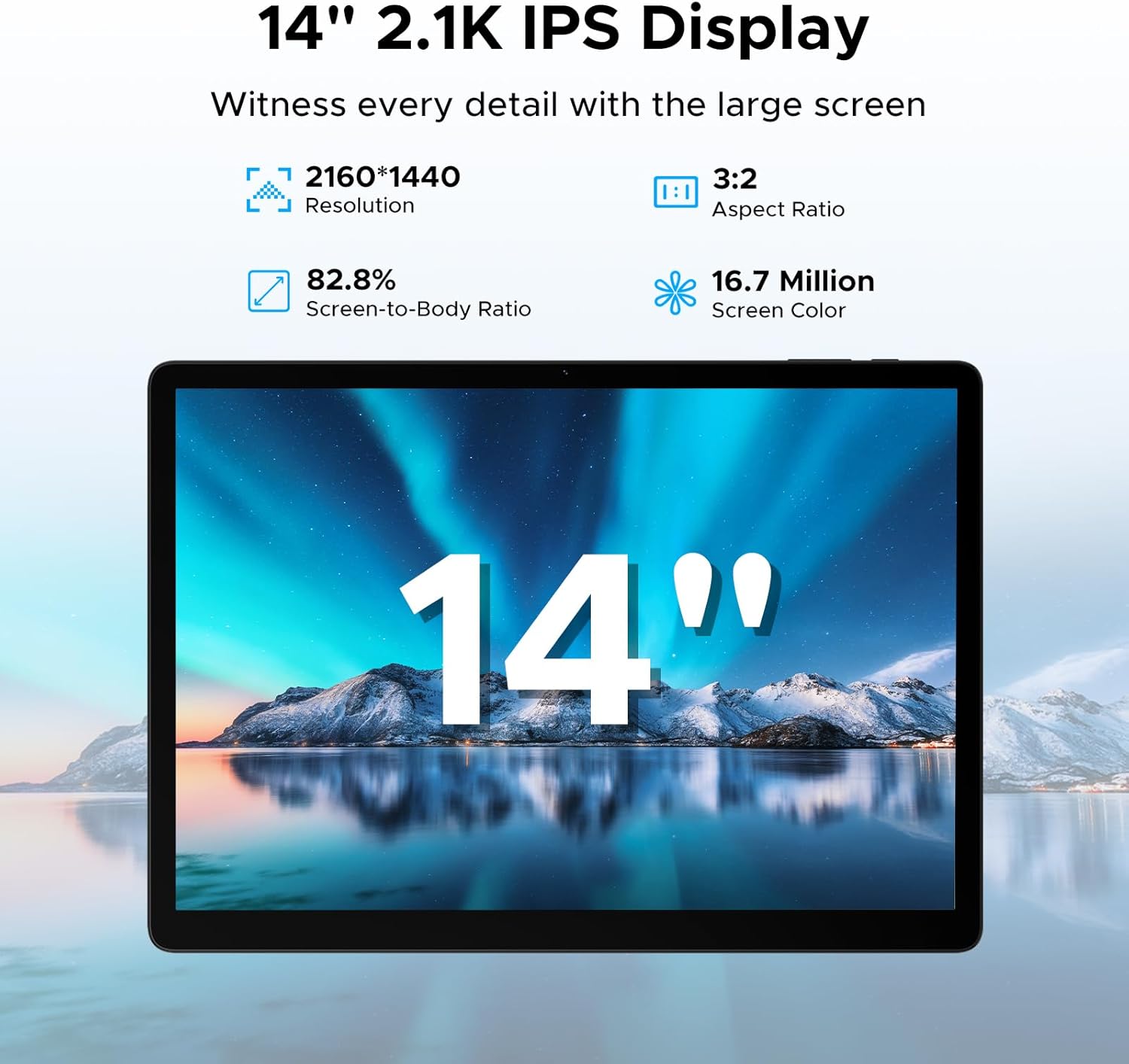
Image: The tablet's 14-inch 2.1K IPS display, highlighting its resolution, aspect ratio, screen-to-body ratio, and color depth.
5.2 Performance and Storage
Equipped with the MediaTek Helio G100 octa-core processor, the tablet delivers smooth performance for various tasks, from gaming to multitasking. It comes with 32GB of RAM (8GB physical + 24GB expandable) and 256GB of internal storage, expandable up to 2TB with a TF card.

Image: Visual representation of the MediaTek Helio G100 octa-core processor, emphasizing its 2.2GHz ultimate frequency and 6nm advanced process technology.

Image: A graphic detailing the tablet's 8GB RAM (expandable to 32GB) and 256GB ROM, with support for up to 2TB expandable memory.
5.3 Battery Life
The tablet features a large 13500mAh battery, providing extended usage times for music, movies, web browsing, and calls.

Image: An illustration demonstrating the 13500mAh mega battery life, comparing its capacity and 18W charging to ordinary tablets.
5.4 Connectivity
The Tab E3 Max supports dual-band Wi-Fi (2.4G/5GHz) for stable and fast internet access, and 4G LTE for mobile data and calls via dual SIM card support.
5.5 Cameras
Capture moments with the 16MP rear camera, take clear selfies and make video calls with the 8MP front camera, and explore intricate details with the 2MP macro camera.
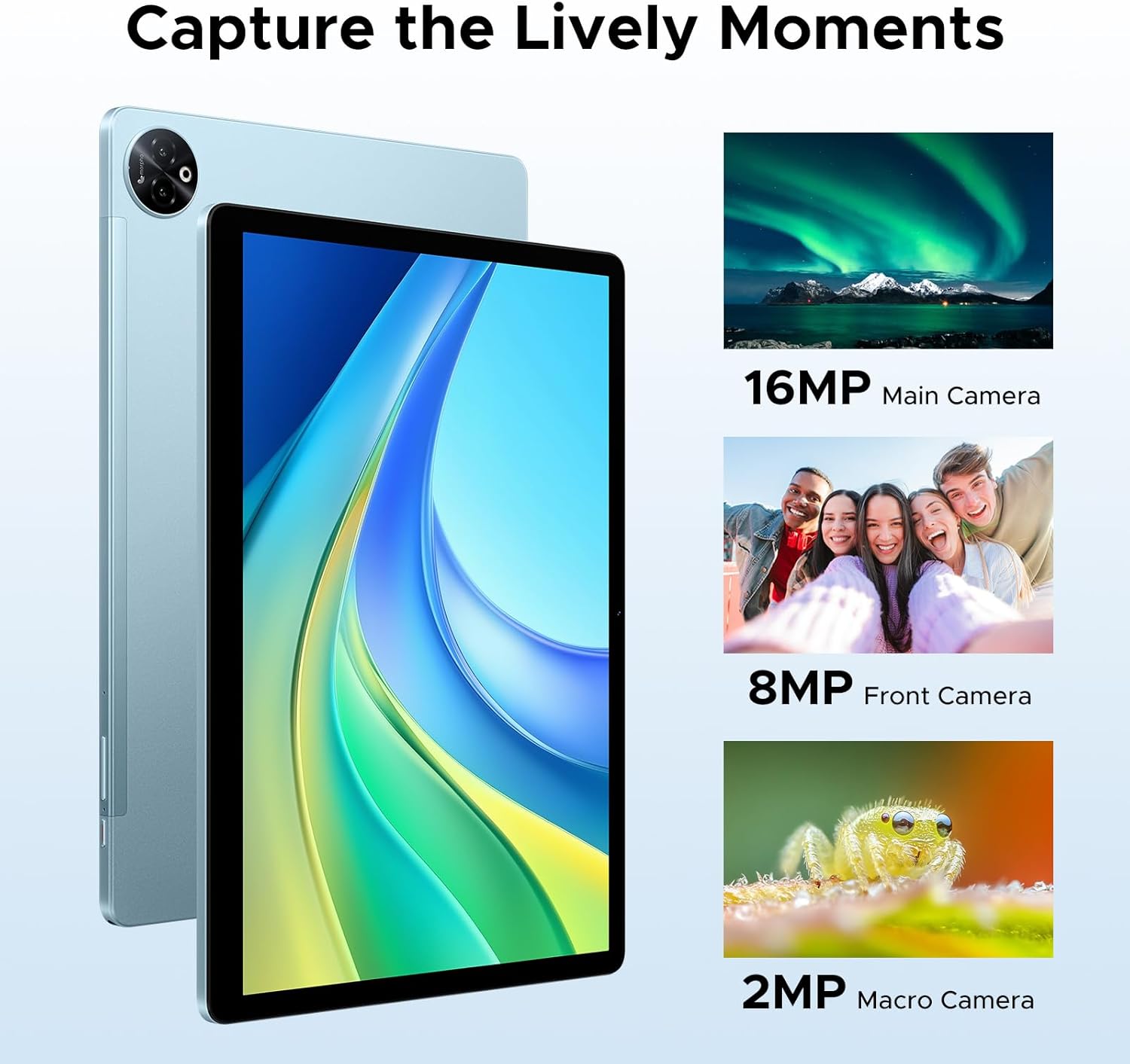
Image: Visual examples of photos taken with the tablet's 16MP main camera, 8MP front camera, and 2MP macro camera.
5.6 Built-in Gemini AI
The integrated Gemini AI enhances your tablet experience with features such as content creation, information retrieval and summarization, image analysis, code development, language learning, and smart assistance. Utilize Gemini Deep Research for in-depth analysis and insights.

Image: Various tablet screens showcasing the capabilities of the built-in Gemini AI, including content creation, information retrieval, and smart assistance.
5.7 Accessories and PC Mode
The included Bluetooth keyboard, mouse, and stylus allow you to transform your tablet into a portable workstation. Effortlessly switch to PC mode for a desktop-like experience, enhancing productivity for tasks like document editing and presentations. The protective case also functions as a stand for comfortable viewing and typing.
5.8 Audio Experience
The tablet is equipped with four premium 1217 BOX Quad Speakers, delivering crystal-clear sound for an enhanced audio experience. A standard 3.5mm audio jack is also available for private listening with headphones.
6. Maintenance
6.1 Cleaning
To clean your tablet, use a soft, lint-free cloth. For stubborn smudges, slightly dampen the cloth with water or a screen cleaner designed for electronics. Avoid using harsh chemicals, abrasive materials, or excessive moisture.
6.2 Battery Care
- Avoid exposing the tablet to extreme temperatures (hot or cold), as this can degrade battery life.
- Do not leave the tablet fully charged or completely drained for extended periods.
- Use only the original charger and cable provided with your device.
7. Troubleshooting
Common Issues and Solutions:
| Issue | Possible Solution |
|---|---|
| Tablet does not power on. | Ensure the battery is charged. Connect the charger and wait a few minutes before attempting to power on again. If unresponsive, press and hold the Power button for 10-15 seconds to force a restart. |
| Cannot connect to Wi-Fi. | Check if Wi-Fi is enabled in settings. Restart your Wi-Fi router. Forget the network and reconnect. Ensure you are entering the correct password. |
| Slow performance or apps crashing. | Close unused apps running in the background. Clear cache for problematic apps. Restart the tablet. Ensure sufficient storage space is available. |
| Bluetooth accessories not connecting. | Ensure Bluetooth is enabled on both the tablet and the accessory. Put the accessory in pairing mode. Restart both devices. Check accessory battery levels. |
| Screen unresponsive. | Restart the tablet. If the issue persists, perform a factory reset (note: this will erase all data). |
8. Specifications
| Feature | Detail |
|---|---|
| Model Name | Tab E3 Max 14 inch Tablet |
| Operating System | Android 15 |
| Display Size | 14 Inches |
| Display Resolution | 2160*1440 Pixels |
| Processor | MediaTek Helio G100 Octa-Core |
| RAM | 32 GB (8GB physical + 24GB expandable) |
| Internal Storage | 256 GB |
| Expandable Storage | Up to 2TB via TF card (sold separately) |
| Battery Capacity | 13500mAh |
| Rear Camera | 16MP |
| Front Camera | 8MP |
| Macro Camera | 2MP |
| Connectivity | 2.4G/5GHz Dual-Band Wi-Fi, 4G LTE (Dual SIM) |
| Audio Jack | 3.5 mm |
| Dimensions (L x W x H) | 12.55 x 0.35 x 8.89 inches |
| Item Weight | 4.6 pounds (approx. 992g) |
| Color | Blue (variant) |
9. Warranty and Support
DOOGEE is committed to providing excellent customer service and product support.
- 30-Day Money Back Guarantee: If you are not satisfied with your purchase, you may be eligible for a refund or return within 30 days.
- 2-Year Limited Warranty: Your DOOGEE Tab E3 Max is covered by a 2-year limited warranty against manufacturing defects. Please retain your proof of purchase for warranty claims.
- 24/7 Online Support: For any technical assistance or inquiries, please visit the official DOOGEE support website or contact their customer service team.
For more information and support, please visit the Official DOOGEE Store on Amazon.
Ask a question about this manual
Ask about setup, troubleshooting, compatibility, parts, safety, or missing instructions. Manuals+ will review the question and use this page’s manual context to help answer it.