
DOOGEE Tab E3
DOOGEE Tab E3 Android 15 Tablet User Manual
Model: Tab E3 | Brand: DOOGEE
1. Introduction
This manual provides essential information for setting up, operating, and maintaining your DOOGEE Tab E3 Android 15 Tablet. Please read this manual thoroughly before using your device to ensure proper functionality and safety.
2. What's in the Box
Verify that all items are present in your package:
- 1 x TAB E3 Android 15 Tablet
- 1 x Charger
- 1 x Type-C USB Cable
- 1 x Manual
- 1 x Warranty Card
- 1 x Card Removal Needle

Image: Contents of the DOOGEE Tab E3 retail package, including the tablet, charger, USB cable, manual, warranty card, and SIM ejector tool.
3. Setup
3.1 Initial Charging
Before first use, fully charge your DOOGEE Tab E3. Connect the provided Type-C USB cable to the tablet's charging port and the charger to a power outlet. The tablet supports 18W fast charging.

Image: The DOOGEE Tab E3 tablet being charged via its USB-C port, illustrating the 18W fast charging capability.
3.2 Power On/Off
- To power on: Press and hold the Power button until the DOOGEE logo appears.
- To power off: Press and hold the Power button, then select "Power off" from the options.
- To restart: Press and hold the Power button, then select "Restart" from the options.
3.3 Initial Setup Wizard
Upon first power-on, the tablet will guide you through the initial setup process. This includes selecting your language, connecting to Wi-Fi, setting up your Google account, and configuring security options like Face ID.
3.4 SIM Card and Storage Expansion
The DOOGEE Tab E3 supports dual SIM cards for 4G LTE connectivity and expandable storage up to 2TB via a TF card (sold separately). Use the provided card removal needle to open the SIM tray.

Image: Illustration of the dual card slots on the DOOGEE Tab E3, showing options for two SIM cards or one SIM card and one TF (microSD) card for storage expansion.
4. Operating Your Tablet
4.1 Display Features
The DOOGEE Tab E3 features an 11-inch FHD+ IPS display with a 90Hz refresh rate for smooth visuals. It includes eye-care and dark modes to reduce eye fatigue.
- Eye-Caring Mode: Reduces blue light emission to protect your eyes, especially during prolonged use.
- Dark Mode: Softens screen light for comfortable night-time viewing.

Image: A split image demonstrating the visual difference between standard display mode and Dark Mode on the DOOGEE Tab E3, highlighting eye comfort features.
4.2 Performance and Software
Powered by the Helio G100 Octa-Core processor and running Android 15, the tablet offers efficient performance for multitasking and various applications.
- Android 15: The latest operating system provides an intelligent, seamless, and secure user experience.
- Gemini AI: Integrated AI features for real-time translation, smart text suggestions, and enhanced multitasking.
- Multitasking: Utilize the efficient split-screen feature to run two applications simultaneously.
- WPS Office: Pre-installed for convenient document editing and review.

Image: The DOOGEE Tab E3 displaying two applications side-by-side in split-screen mode, demonstrating its multitasking capabilities.
Video: An official product video showcasing the features of the DOOGEE Tab E3 Android 15 Tablet, including its design, display, performance, and software capabilities.
4.3 Connectivity
- 4G LTE & Dual SIM: Stay connected on the go with cellular data and manage two numbers simultaneously.
- Dual-Band Wi-Fi (2.4G/5G): Ensures stable and fast internet connection.
- Bluetooth 5.2: For connecting wireless accessories like keyboards, mice, and headphones.
- GPS: Built-in precise navigation system supporting GPS, Glonass, Galileo, and Beidou.

Image: The DOOGEE Tab E3 displaying a navigation map, highlighting its precise GPS, Glonass, Galileo, and Beidou navigation capabilities.
4.4 Camera Features
The tablet is equipped with a 13MP main camera and a 5MP front camera for photos and video calls.
- 13MP Main Camera: For capturing sharp photos.
- 5MP Front Camera: Ideal for selfies and video calls.
- 2K Video Recording: Record high-resolution videos.
- Anti-Flicker Mode: Enhances visual comfort during camera use.

Image: The DOOGEE Tab E3 showcasing its 13MP main camera, with a view of the tablet's rear and a sample photo.
Image: The DOOGEE Tab E3 displaying a video call with multiple participants, illustrating the clarity of its 5MP front camera.
4.5 Audio and Battery
- Dual Speakers: Premium 1217 BOX dual speakers deliver crisp, room-filling sound.
- 3.5mm Headphone Jack: For wired audio connections with zero latency.
- 8800mAh Battery: Provides long-lasting usage, up to 14.2 hours of video playback.
- OTG Reverse Charging: Allows the tablet to act as a power bank for other devices.
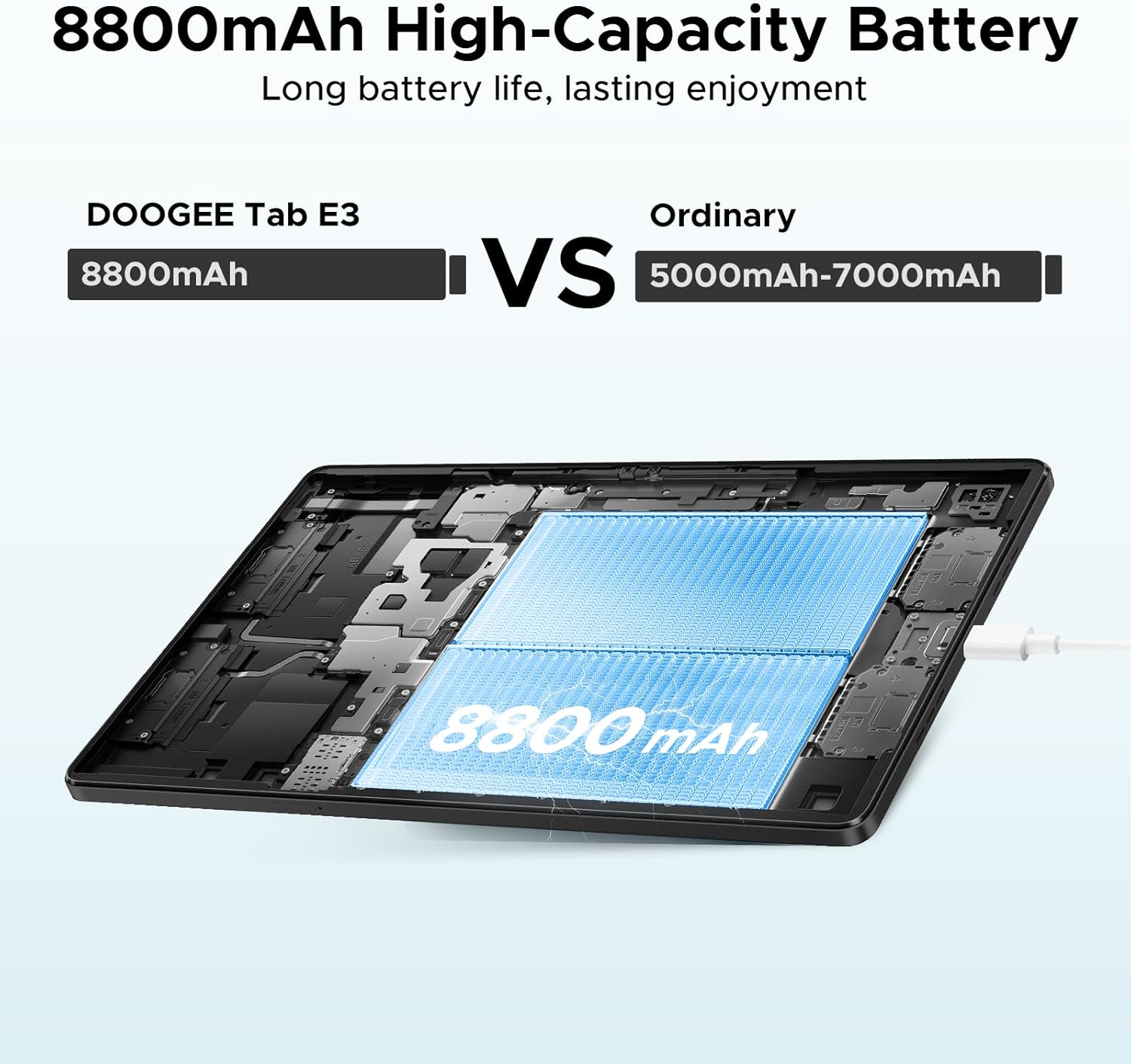
Image: An internal view of the DOOGEE Tab E3 highlighting its large 8800mAh battery, emphasizing long battery life.
4.6 Security
- Facial Recognition Unlock: Effortless and secure access to your device.
- Fortified Privacy Shield: Android 15 offers precision permission control, robust data encryption, timely security patches, and proactive app screening.

Image: A visual representation of the facial recognition unlock feature on the DOOGEE Tab E3, showing a user's face being scanned for access.
5. Maintenance
- Keep the tablet clean using a soft, lint-free cloth. Avoid abrasive materials or harsh chemicals.
- Protect the screen with a screen protector and use a protective case to prevent scratches and damage from drops.
- Avoid exposing the tablet to extreme temperatures, direct sunlight, or high humidity.
- Regularly back up your data to cloud storage or an external device.
- Keep the operating system and applications updated to ensure optimal performance and security.
- Avoid overcharging the battery; disconnect the charger once the tablet is fully charged.
6. Troubleshooting
| Issue | Possible Cause | Solution |
|---|---|---|
| Tablet won't turn on | Low battery; software crash | Charge the tablet for at least 30 minutes. Press and hold the Power button for 10-15 seconds to force restart. |
| Apps are slow or crashing | Too many apps running; insufficient RAM; outdated app | Close background apps. Clear app cache. Update apps from Google Play Store. Restart the tablet. |
| Wi-Fi connection issues | Incorrect password; router issue; tablet Wi-Fi bug | Forget the network and reconnect. Restart your Wi-Fi router. Toggle Wi-Fi off and on on the tablet. |
| Battery drains quickly | High screen brightness; background apps; poor signal | Reduce screen brightness. Close unused apps. Disable unnecessary features like GPS or Bluetooth when not in use. |
| Tablet not charging | Faulty cable/charger; dirty charging port | Try a different USB-C cable and charger. Clean the charging port gently with a dry, soft brush. |
7. Specifications
| Feature | Detail |
|---|---|
| Brand | DOOGEE |
| Model Name | Tab E3 |
| Operating System | Android 15 |
| Processor | Helio G100 Octa-Core |
| RAM | 32GB (8GB Basic + 24GB Extended) |
| Internal Storage | 256GB |
| Expandable Storage | Up to 2TB (TF Card) |
| Screen Size | 11 Inches |
| Max Screen Resolution | 1920*1200 Pixels (FHD+) |
| Refresh Rate | 90Hz |
| Battery Capacity | 8800mAh |
| Charging | 18W Fast Charging |
| Main Camera | 13MP |
| Front Camera | 5MP |
| Connectivity | 4G LTE, Dual SIM, Wi-Fi 2.4G/5G, Bluetooth 5.2, GPS |
| Dimensions (LxWxH) | 9.66 x 6.43 x 0.39 inches |
| Item Weight | 1.05 pounds |
| Color | Black |
8. Warranty and Support
Your DOOGEE Tab E3 comes with a standard manufacturer's warranty. Please refer to the included Warranty Card for specific terms and conditions regarding coverage and duration.
For technical support, troubleshooting assistance, or warranty claims, please contact DOOGEE customer service through their official website or the contact information provided on your Warranty Card.
You can also visit the official DOOGEE store on Amazon for product information and updates: DOOGEE Store
Related documentsTab E3


Ask a question about this manual
Ask about setup, troubleshooting, compatibility, parts, safety, or missing instructions. Manuals+ will review the question and use this page’s manual context to help answer it.