
Alwtniet HY310
Alwtniet HY310 Mini Projector User Manual
Model: HY310
Introduction
Thank you for purchasing the Alwtniet HY310 Mini Projector. This manual provides essential information for setting up, operating, and maintaining your projector. Please read it thoroughly before use to ensure proper function and to maximize your viewing experience. The HY310 is a portable smart projector featuring 1080P native resolution with 4K support, autofocus, automatic keystone correction, WiFi 6, Bluetooth 5.4, and an integrated 5W speaker, running on an Android operating system.
Important Safety Information
- Do not look directly into the projector lens when the lamp is on.
- Ensure proper ventilation around the projector to prevent overheating.
- Use only the provided power adapter.
- Keep the projector away from water or other liquids.
- Avoid placing the projector on unstable surfaces.
- Do not attempt to disassemble or repair the projector yourself. Contact customer support for assistance.
- Keep out of reach of children.
Package Contents
Verify that all items are present in your package:
- Alwtniet HY310 Mini Projector
- Remote Control (Air Mouse)
- Power Adapter
- User Manual (this document)

Image: The Alwtniet HY310 Mini Projector shown with its accompanying remote control, illustrating the main components included in the package.
Product Overview
Familiarize yourself with the projector's components and ports.
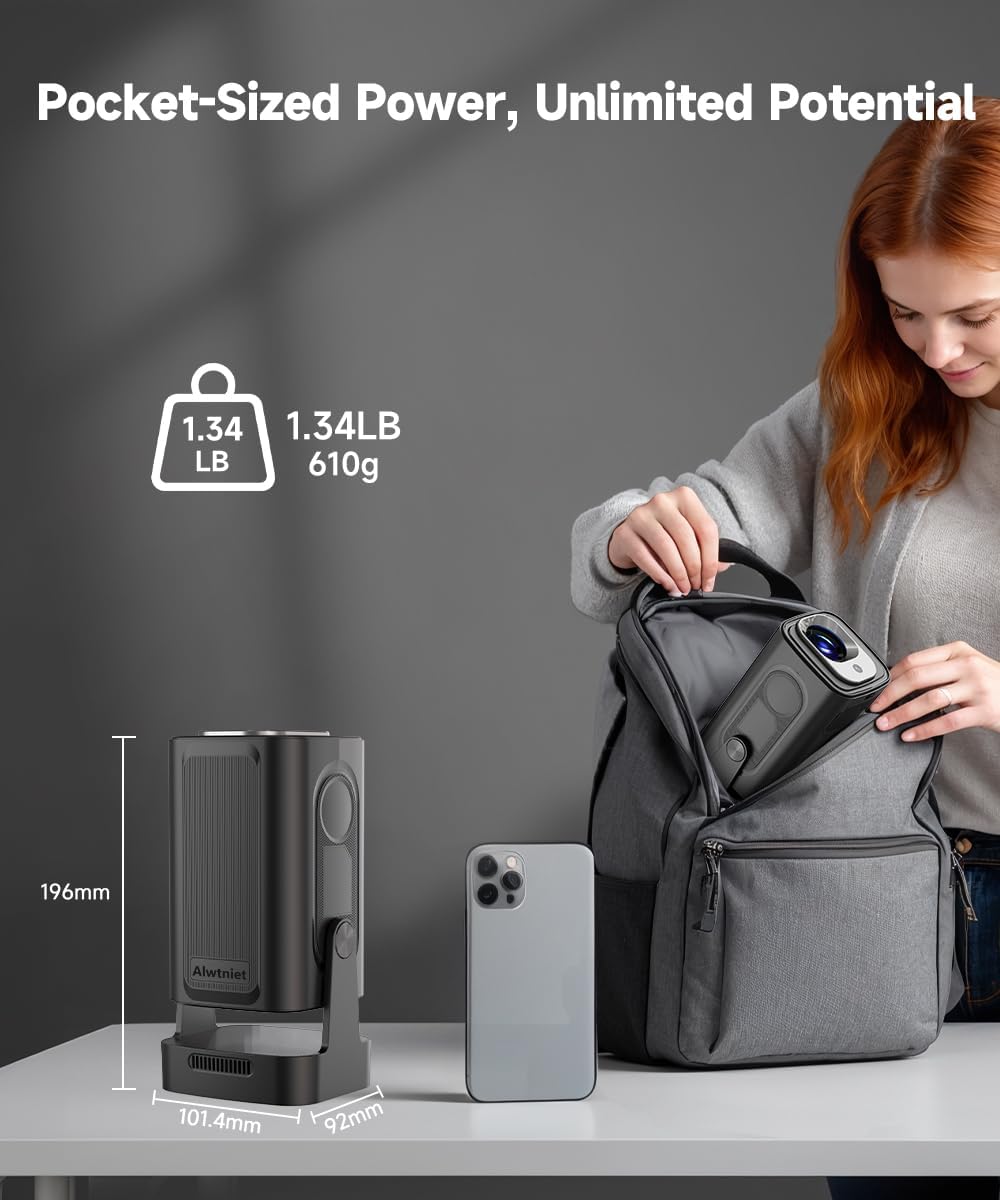
Image: A diagram showing the compact dimensions of the Alwtniet HY310 Mini Projector (10.14 x 9.2 x 19.6 cm; 610g), highlighting its portability.
Key Features:
- Projection Lens: Emits the image onto the screen.
- Ventilation Grilles: For heat dissipation. Do not obstruct.
- Power Port: Connects to the power adapter.
- HDMI Port: Connects to external devices like laptops, gaming consoles, or streaming sticks.
- USB Port: For connecting USB drives for media playback or external devices.
- Integrated Speaker: 5W speaker for audio output.
- Adjustable Stand: Allows for 180° rotation for flexible projection angles (e.g., ceiling projection).
Setup Guide
1. Placement
Position the projector on a stable, flat surface. The HY310 features a 180° rotatable stand, allowing projection onto walls, ceilings, or floors. For optimal viewing, a projection distance of approximately 4 feet (1.2 meters) is recommended for a 75-inch screen. The short-throw ratio of 0.8:1 allows for a larger image at a closer distance.

Image: A visual representation of recommended projection distances for various screen sizes (75", 100", 150") with the Alwtniet HY310 Mini Projector.
2. Power Connection
- Connect the power adapter to the projector's power port.
- Plug the power adapter into a wall outlet.
3. Initial Power On
Press the power button on the projector or the remote control to turn on the device. The projector will boot up and display the home screen.
4. Focus and Keystone Correction
The HY310 features automatic focus and automatic keystone correction. Upon startup or movement, the projector will automatically adjust the image for clarity and a rectangular shape. Manual adjustments can also be made via the settings menu if needed.

Image: Illustration of the Alwtniet HY310 Mini Projector's auto-adjustment features, including auto focus and auto vertical keystone correction, ensuring a clear and properly aligned image.
Operating Instructions
1. Remote Control (Air Mouse)
The included remote control functions as both a traditional remote and an Air Mouse. To activate Air Mouse mode, press the dedicated button (often an icon resembling a mouse cursor). Move the remote in the air to control the on-screen cursor. Press the OK button to select items. The remote also supports voice commands for hands-free operation.

Image: A user interacting with the Alwtniet HY310 Mini Projector using the Air Mouse remote, demonstrating voice command capabilities for navigation and control.
2. Connecting Devices
- HDMI: Connect a laptop, game console, or other HDMI-enabled device using an HDMI cable. Select the HDMI input source from the projector's menu.
- USB: Insert a USB flash drive into the USB port to play media files directly. Navigate to the "Files" or "Media Player" application on the projector's home screen.
- Bluetooth: Pair Bluetooth speakers or headphones for enhanced audio. Go to Settings > Bluetooth on the projector to search for and connect to devices. The projector supports Bluetooth 5.4.
- Wi-Fi: Connect to your home network for internet access and streaming. Go to Settings > Wi-Fi to select your network and enter the password. The projector supports Wi-Fi 6.
3. Using Built-in Android Apps
The HY310 runs on an Android operating system, providing access to various pre-installed applications and the ability to download more from the App Store. Navigate through the home screen to launch apps like streaming services (e.g., Prime Video, YouTube, HBO Max, Hulu) or media players.
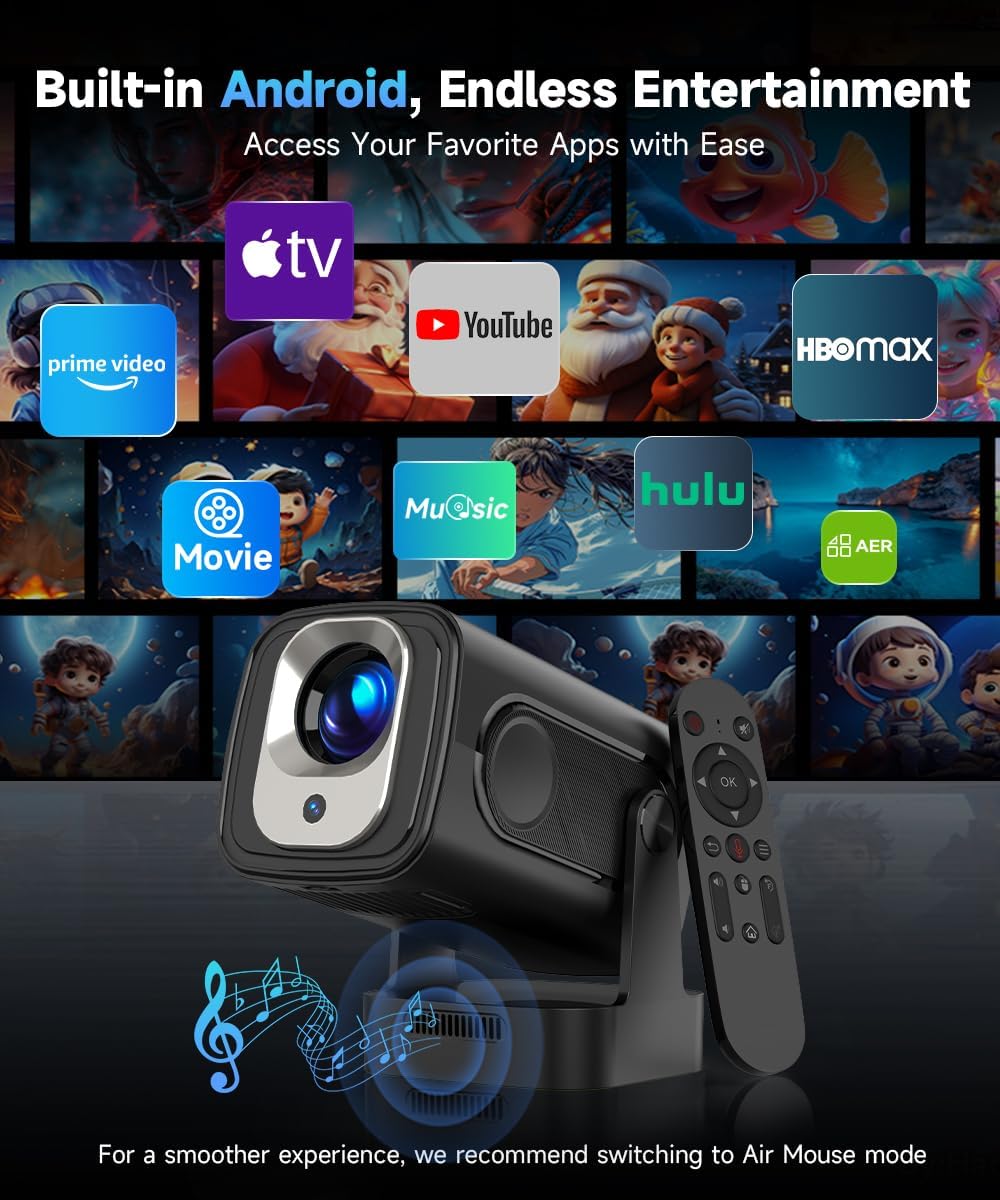
Image: The Alwtniet HY310 Mini Projector displaying its Android interface with various streaming and entertainment applications, demonstrating its smart capabilities.
Maintenance
- Lens Cleaning: Use a soft, lint-free cloth specifically designed for optical lenses to gently wipe the projector lens. Do not use abrasive cleaners or excessive force.
- Exterior Cleaning: Wipe the projector's exterior with a soft, dry cloth. For stubborn marks, a slightly damp cloth can be used, followed by a dry one.
- Ventilation: Ensure the ventilation grilles are free from dust and obstructions. Use a soft brush or compressed air to clear any buildup.
- Storage: When not in use for extended periods, store the projector in a cool, dry place, away from direct sunlight and extreme temperatures.
Troubleshooting
| Problem | Possible Cause / Solution |
|---|---|
| No image displayed |
|
| Image is blurry |
|
| Image is distorted (not rectangular) |
|
| No sound |
|
| Remote control not responding |
|
Technical Specifications
| Feature | Specification |
|---|---|
| Brand | Alwtniet |
| Model | HY310 |
| Display Technology | LCD |
| Display Type | LED |
| Native Resolution | 1280 x 720 Pixels (1080P supported) |
| Maximum Display Resolution | 3840 x 2160 Pixels (4K supported) |
| Brightness | 260 ANSI Lumens |
| Image Contrast Ratio | 10000:1 |
| Aspect Ratio | 16:9 |
| Connectivity Technology | Wi-Fi 6, Bluetooth 5.4 |
| Hardware Interface | HDMI, USB |
| Special Features | Auto Focus, Digital Keystone Correction, Portable, Wi-Fi Ready, 180° Rotation |
| Integrated Speaker | 5W |
| Operating System | Android |
| Product Dimensions | 10.14 x 9.2 x 19.6 cm |
| Item Weight | 610 g |
| Mounting Type | Tabletop Mount |
Warranty and Support
For warranty information and technical support, please refer to the documentation included with your purchase or visit the official Alwtniet website. If you encounter any issues not covered in this manual, please contact Alwtniet customer service for assistance.
Related documentsHY310


Ask a question about this manual
Ask about setup, troubleshooting, compatibility, parts, safety, or missing instructions. Manuals+ will review the question and use this page’s manual context to help answer it.