
DOOGEE G6+
DOOGEE Tab G6+ Android 15 AI Tablet User Manual
Model: G6+
Introduction
Welcome to the user manual for your new DOOGEE Tab G6+ Android 15 AI Tablet. This guide provides essential information on setting up, operating, maintaining, and troubleshooting your device. Designed for an intelligent and responsive experience, the Tab G6+ combines powerful performance with advanced AI features to enhance your daily tasks, entertainment, and productivity.
Please read this manual carefully to ensure proper use and to maximize the potential of your tablet.
Package Contents
Upon opening your DOOGEE Tab G6+ package, please verify that all the following items are included:
- DOOGEE Tab G6+ Tablet
- Type-C USB Cable
- Charger
- SIM Card Removal Tool
- User Manual (this document)
- Customer Service Card

Image: Contents of the DOOGEE Tab G6+ retail box, showing the tablet, charging accessories, and documentation.
Getting Started: Initial Setup
1. Charging Your Tablet
Before first use, fully charge your DOOGEE Tab G6+ tablet. Connect the provided Type-C USB cable to the tablet's charging port and the other end to the charger. Plug the charger into a power outlet. The tablet supports 18W fast charging.

Image: Visual representation of the 8000mAh battery and 18W fast charging capability of the tablet.
2. Powering On/Off
- To Power On: Press and hold the Power button (located on the side) until the DOOGEE logo appears on the screen.
- To Power Off: Press and hold the Power button until the power options menu appears. Select "Power off" and confirm.
- To Restart: From the power options menu, select "Restart" and confirm.
3. Inserting SIM and TF Cards
The DOOGEE Tab G6+ supports dual SIM cards and a TF (microSD) card for expandable storage up to 2TB. Use the provided SIM card removal tool to open the card tray.
- Locate the SIM card tray on the side of the tablet.
- Insert the SIM card removal tool into the small hole next to the tray and gently push until the tray ejects.
- Place your Nano-SIM cards and/or TF card into the designated slots on the tray, ensuring correct orientation.
- Carefully push the tray back into the tablet until it clicks into place.
4. Initial Android 15 Setup
Follow the on-screen prompts to complete the initial setup of your tablet. This includes selecting your language, connecting to a Wi-Fi network, signing in with your Google account, and setting up security features like facial recognition.
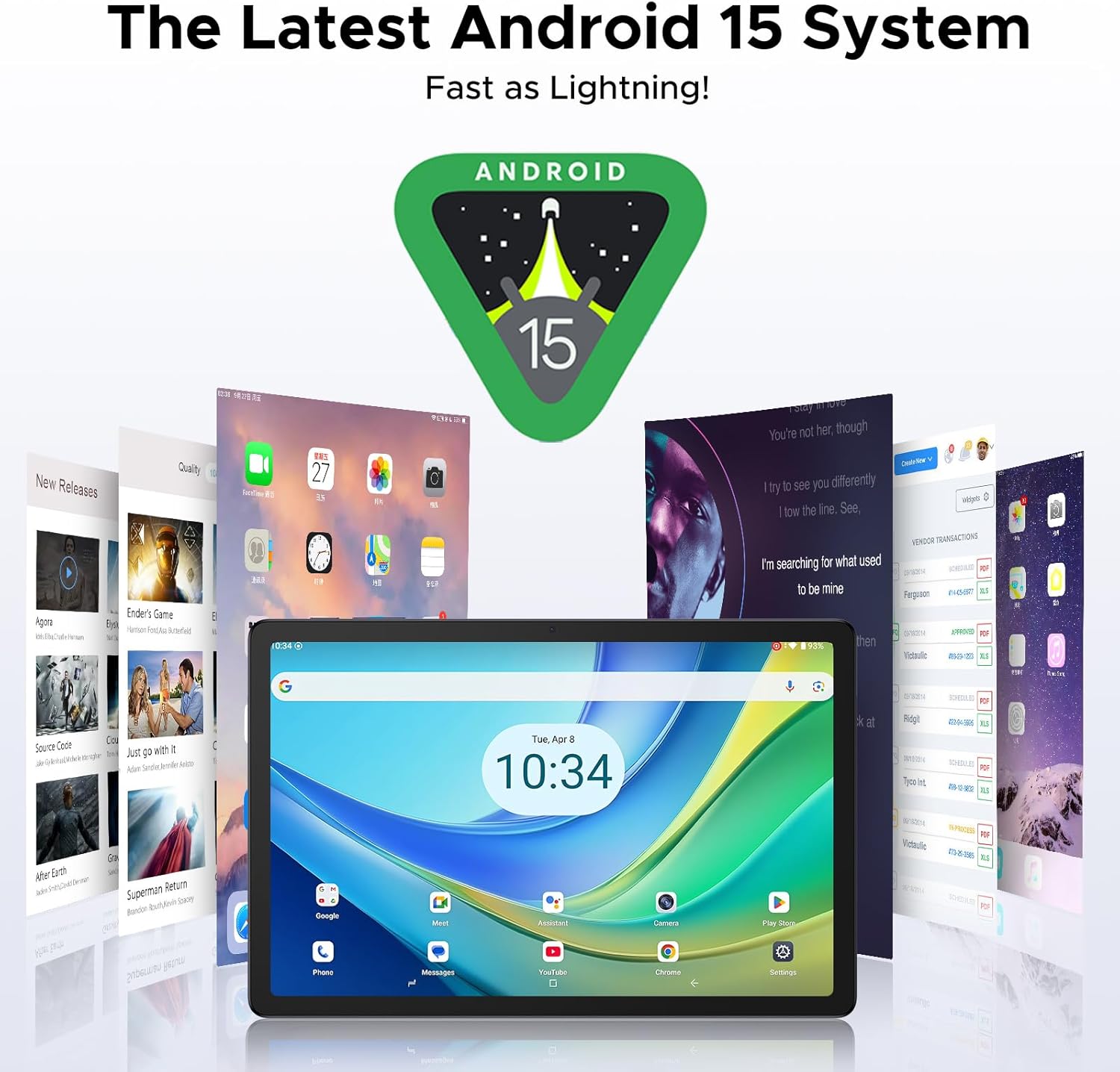
Image: The tablet displaying the Android 15 user interface, highlighting its modern design and features.

Image: A user unlocking the tablet using facial recognition, demonstrating the effortless access feature.
Operating Your Tablet
Display and Visual Experience
The Tab G6+ features an 11-inch FHD+ IPS display with a 90Hz refresh rate, providing smooth visuals and vibrant colors. It supports Widevine L1 for high-definition streaming on platforms like Netflix and Prime Video.

Image: The tablet screen highlighting its 11-inch size, FHD+ resolution, and 90Hz refresh rate for an immersive viewing experience.

Image: The tablet displaying video content, with logos of streaming services like Hulu, Prime Video, HBO Max, and YouTube, indicating Widevine L1 support.
Audio Experience
Enjoy rich audio with the tablet's dual speakers, delivering 360° stereo sound. A 3.5mm headphone jack is also available for private listening.
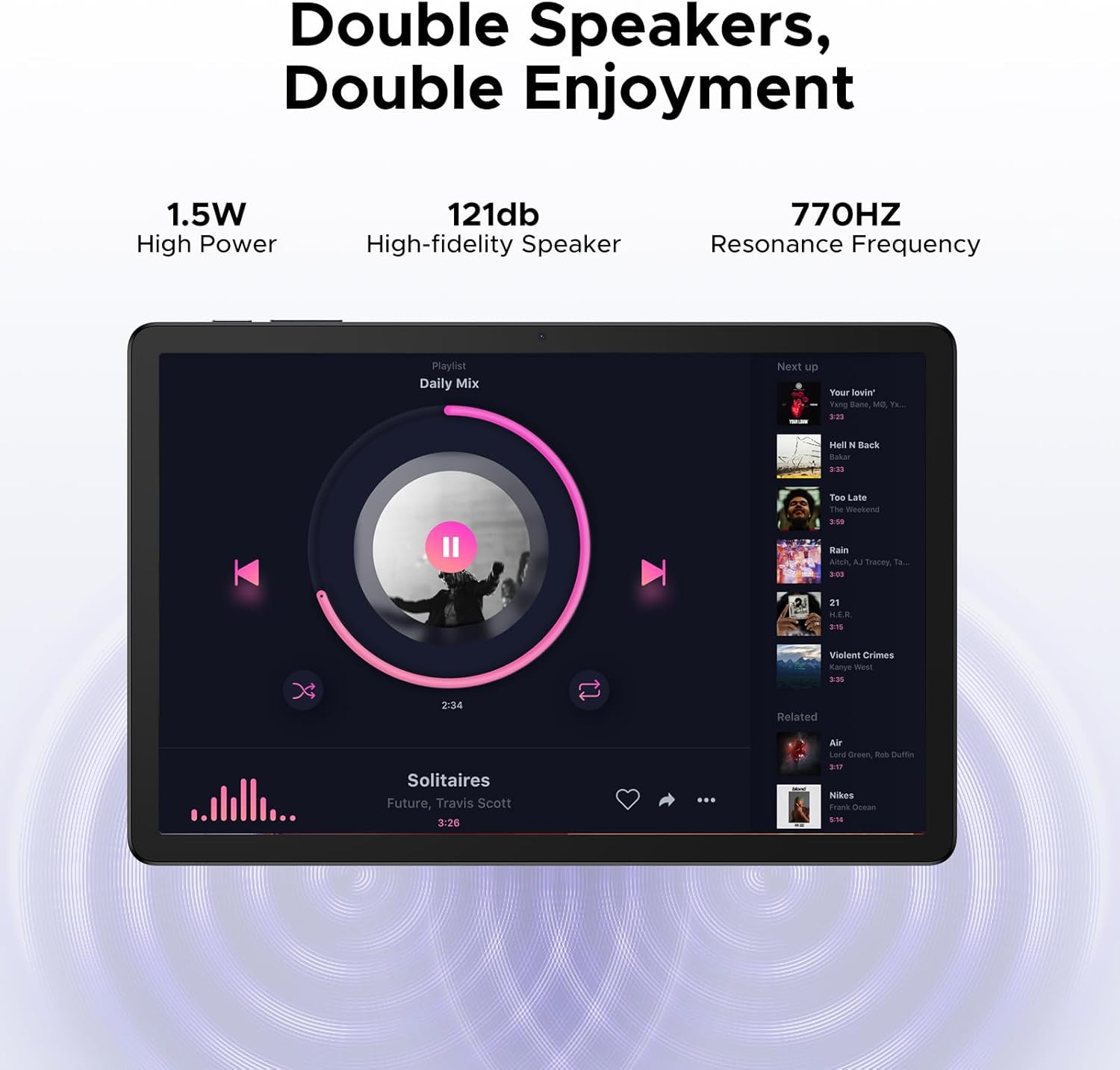
Image: The tablet displaying a music player interface, emphasizing the dual speakers and their high-fidelity audio output.
Camera Functionality
The tablet is equipped with a 13MP rear camera for capturing photos and documents, and a 5MP front camera with AI beautification for video calls and selfies.

Image: Examples of photos taken with the tablet's camera, showcasing Portrait Mode, Beauty Mode, and the simple touch-to-capture function.
Connectivity
Stay connected with 5G Wi-Fi for ultra-fast streaming and downloads, and 4G LTE support for on-the-go browsing. Bluetooth 5.0 ensures stable connections with wireless accessories. The integrated GPS system provides accurate navigation.
Image: The tablet displaying a Wi-Fi signal, illustrating the benefits of Wi-Fi 5 including low power consumption, high data rate, and wide coverage.

Image: The tablet displaying a navigation map in a car, showing support for multiple satellite positioning systems like GPS, Beidou, Glonass, and Galileo.
Productivity Features
- WPS Office: The tablet comes pre-integrated with WPS Office, offering a PC-level experience for creating and editing documents, spreadsheets, and presentations.
- Split Screen: Utilize the split-screen feature to multitask efficiently, viewing two applications simultaneously.
- FM Radio: Enjoy free data listening with the built-in FM radio, suitable for various scenarios without consuming mobile data.

Image: Three images showing the tablet being used for WPS Word, WPS Excel, and WPS PPT, demonstrating its office productivity capabilities.

Image: A woman using the tablet with split-screen functionality, showing two applications open side-by-side for enhanced multitasking.

Image: A person listening to FM radio on the tablet while camping, illustrating the convenience of the built-in FM radio feature.
AI and Performance
Powered by Android 15 and Gemini AI, the Tab G6+ offers an intelligent and optimized user experience. The T7280 Octa-Core processor ensures smooth performance for all your applications and tasks. The tablet's 32GB RAM (8GB base + 24GB extended) and 256GB ROM (expandable to 2TB) provide ample space and speed for your data.

Image: A diagram illustrating various functions of the built-in Gemini AI, such as content creation, information retrieval, image analysis, and smart assistant capabilities.

Image: A close-up of the UNISOC T7280 Octa-Core processor chip, highlighting its 2.2 GHz clock speed and 12nm chipset for efficient performance.

Image: The tablet screen surrounded by various app icons and media files, illustrating its 256GB ROM and 32GB RAM (8GB+24GB Extended) for massive storage.
Maintenance and Battery Care
To ensure the longevity and optimal performance of your DOOGEE Tab G6+, follow these maintenance guidelines:
- Battery Optimization: The 8000mAh battery provides extended usage. To maximize battery life, reduce screen brightness, close unused applications, and disable Wi-Fi or Bluetooth when not in use.
- Charging Habits: Avoid completely draining the battery frequently. Charge your tablet using the provided charger and cable. The tablet also supports 5W reverse charging, allowing it to act as a power bank for other devices in emergencies.
- Cleaning: Use a soft, lint-free cloth to clean the screen and body of the tablet. Avoid abrasive materials or harsh chemicals.
- Software Updates: Regularly check for and install system updates to ensure your tablet has the latest features, security patches, and performance improvements.
Video: An official product video showcasing the features and design of the DOOGEE Tab G6+ Android 15 AI Tablet. This video highlights key aspects such as its display, performance, and overall user experience.
Troubleshooting
If you encounter issues with your DOOGEE Tab G6+, refer to the following common problems and their solutions:
| Problem | Possible Solution |
|---|---|
| Tablet does not power on. | Ensure the tablet is fully charged. Connect it to the charger for at least 30 minutes. If it still doesn't power on, try holding the power button for 10-15 seconds for a forced restart. |
| Wi-Fi connection issues. | Restart your Wi-Fi router. On the tablet, go to Settings > Network & internet > Wi-Fi, turn Wi-Fi off and on again. Forget the network and reconnect. |
| Applications are slow or freezing. | Close unused background applications. Clear app caches (Settings > Apps > [App Name] > Storage & cache > Clear cache). Restart the tablet. Ensure sufficient storage space is available. |
| Tablet not charging. | Check if the charger and USB cable are securely connected. Try a different power outlet. Inspect the charging port for any debris. Use only the original or certified compatible charging accessories. |
| SIM card not detected. | Ensure the SIM card is correctly inserted into the tray. Restart the tablet. Verify that the SIM card is active with your mobile carrier. |
For more complex issues, please refer to the official DOOGEE support website or contact customer service.
Specifications
Below are the detailed technical specifications for the DOOGEE Tab G6+:
| Feature | Detail |
|---|---|
| Brand | DOOGEE |
| Model Name | Tab G6+ |
| Operating System | Android 15 |
| Processor | UNISOC T7280 Octa-Core (2.2 GHz) |
| RAM | 32GB (8GB base + 24GB extended) |
| Internal Storage | 256GB ROM |
| Expandable Storage | Up to 2TB via TF card (not included) |
| Display Size | 11 Inches |
| Display Resolution | 1920 x 1200 pixels (FHD+ IPS) |
| Refresh Rate | 90Hz |
| Battery Capacity | 8000mAh |
| Charging | 18W Fast Charging, 5W Reverse Charging |
| Rear Camera | 13 MP |
| Front Camera | 5 MP |
| Connectivity | 5G Wi-Fi, 4G LTE, Bluetooth 5.0, GPS |
| Dimensions (L x W x H) | 25.69 x 16.84 x 0.82 cm |
| Weight | 528 g |
| Special Features | Gemini AI, Widevine L1, Dual Speakers, Facial Recognition, WPS Office, FM Radio |
Warranty and Support
Your DOOGEE Tab G6+ comes with a standard manufacturer's warranty. Please refer to the Customer Service Card included in your package for specific warranty terms and conditions. For technical support, product inquiries, or warranty claims, please visit the official DOOGEE website or contact their customer service department through the contact information provided on the Customer Service Card.
Keep your purchase receipt and the product's serial number handy when contacting support.
Related documentsG6+


Ask a question about this manual
Ask about setup, troubleshooting, compatibility, parts, safety, or missing instructions. Manuals+ will review the question and use this page’s manual context to help answer it.