
DOOGEE TABE3MAX-GREEN-HS-UK-AMZ13
DOOGEE Tab E3 Max 14 Inch Tablet User Manual
Model: TABE3MAX-GREEN-HS-UK-AMZ13
1. Introduction
This manual provides detailed instructions for the proper use and maintenance of your DOOGEE Tab E3 Max 14 Inch Tablet. Please read this manual thoroughly before using the device to ensure optimal performance and longevity.

The DOOGEE Tab E3 Max, showcasing its large 14-inch display and sleek design.
2. Setup
2.1 Packaging Contents
Upon unboxing, verify that all items are present:
- 1* DOOGEE Tab E3 Max Tablet
- 1* Type-C USB Cable
- 1* Charger
- 1* Card Removal Needle
- 1* Packing Box
- 1* User Manual

All components included in the DOOGEE Tab E3 Max package.
2.2 Initial Charging
Before first use, fully charge the tablet using the provided Type-C USB cable and charger. The 13,500 mAh battery ensures extended usage.

The tablet features a large 13,500 mAh battery for prolonged use.
2.3 Power On/Off
- To Power On: Press and hold the Power button until the DOOGEE logo appears.
- To Power Off: Press and hold the Power button, then select 'Power off' from the options.
2.4 SIM/TF Card Installation
The tablet supports dual SIM cards or one SIM card and one TF (microSD) card for expandable storage up to 2TB. Use the provided card removal needle to open the SIM tray.

The tablet offers flexible connectivity with dual SIM or SIM + TF card options.
2.5 Initial System Setup
Follow the on-screen prompts to complete the initial setup, including language selection, Wi-Fi connection, Google account login, and security settings. The tablet runs on Android 15.

The DOOGEE Tab E3 Max operates on the latest Android 15 system.
3. Operating Instructions
3.1 Display Features
The Tab E3 Max features a 14-inch 2.1K (2160*1440) IPS eye-protection screen. It is certified to reduce harmful blue light, minimizing eye fatigue. TDDI technology enhances touch responsiveness.
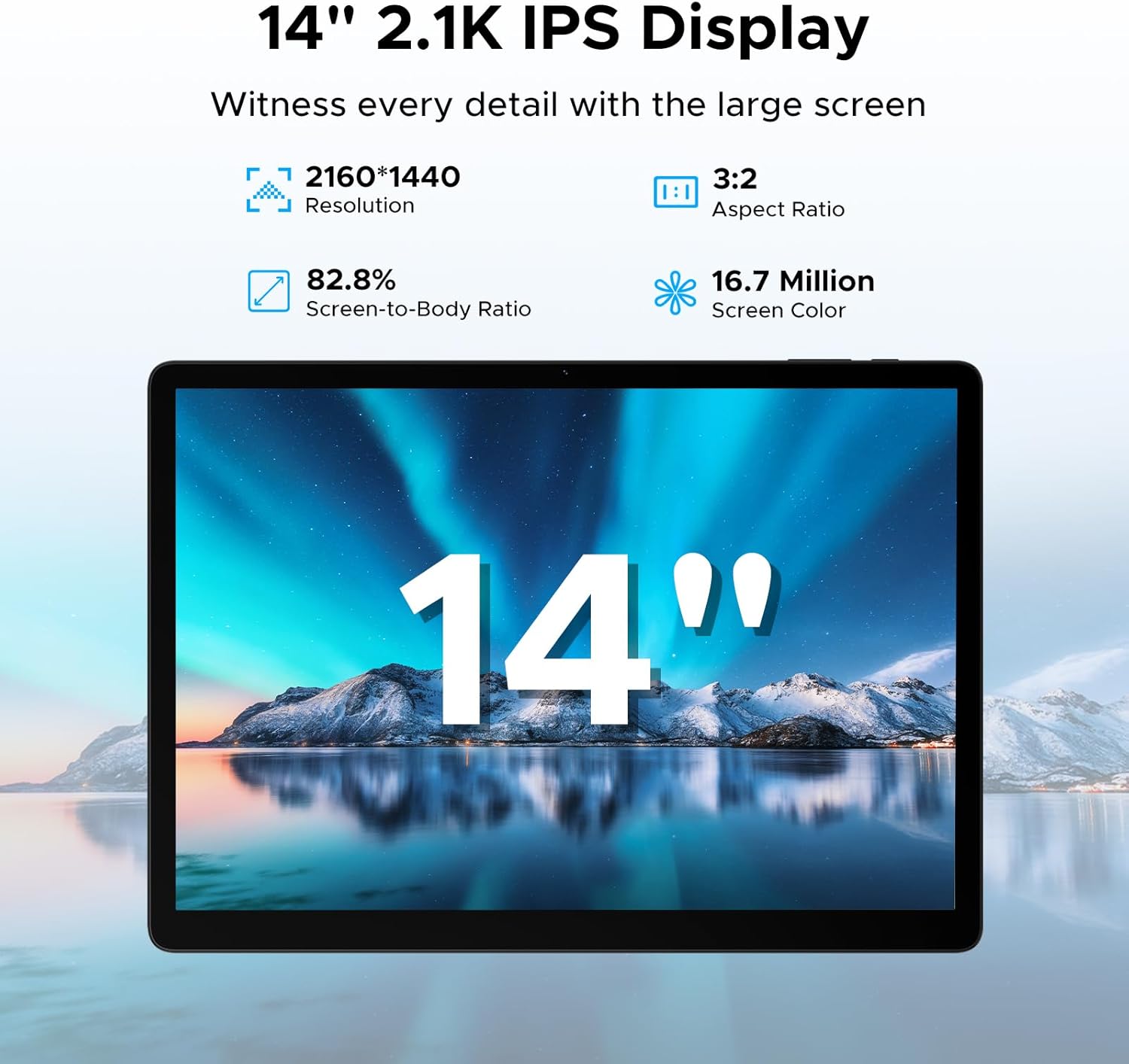
The tablet's 14-inch 2.1K IPS display offers a clear and vibrant visual experience.
3.2 Performance and Storage
Powered by the MediaTek Helio G100 octa-core processor, the tablet ensures smooth performance for gaming, streaming, and multitasking. It comes with 32GB RAM (8GB basic + 24GB expandable) and 256GB ROM, expandable up to 2TB via TF card (sold separately).

The Helio G100 processor provides powerful and efficient performance.

Ample RAM and ROM ensure smooth operation and storage for all your files.
3.3 Connectivity
The tablet supports dual-band Wi-Fi (2.4G/5GHz) for fast internet and 4G LTE for mobile data. Bluetooth connectivity is also available for peripherals.

Enjoy stable and fast wireless connectivity with dual-band Wi-Fi.
3.4 Camera Usage
Equipped with a 16MP rear camera, an 8MP front camera, and a 2MP macro camera. The front camera supports high-quality video conferencing and facial unlock.

Capture various moments with the versatile camera system.
3.5 Audio
The tablet features four stereo speakers (Premium 1217 BOX Quad Speakers) for clear and immersive sound, enhancing your entertainment experience.

Experience crystal-clear audio with the tablet's quad speakers.
3.6 Productivity Features
The tablet comes with built-in WPS Office for document, spreadsheet, and presentation tasks. Efficient split-screen multitasking allows you to use two apps simultaneously.

The tablet is suitable for various tasks, from work to entertainment.

WPS Office is pre-installed for your productivity needs.

Efficient split-screen multitasking enhances productivity.
3.7 Gemini AI Integration
The tablet includes built-in Gemini AI, offering features like content creation, information retrieval, image analysis, code development, language learning, and smart assistance. Utilize Gemini Deep Research for in-depth insights.

Gemini AI serves as an intelligent companion for various tasks.
3.8 Security and Navigation
The tablet supports facial recognition for effortless unlocking. It also offers accurate positioning with A-GPS/GPS/BeiDou/GLONASS/Galileo support.

Facial recognition provides quick and secure access.
4. Maintenance
To ensure the longevity and optimal performance of your DOOGEE Tab E3 Max, follow these maintenance guidelines:
- Cleaning: Use a soft, lint-free cloth to clean the screen and body. Avoid abrasive materials or harsh chemicals.
- Temperature: Operate the tablet within recommended temperature ranges (typically 0°C to 35°C). Avoid extreme heat or cold.
- Storage: When not in use for extended periods, store the tablet in a cool, dry place. Charge the battery to about 50% before long-term storage.
- Software Updates: Regularly check for and install system updates to ensure security and performance improvements.
- Physical Protection: Consider using a protective case and screen protector to guard against drops and scratches.
5. Troubleshooting
This section addresses common issues you might encounter with your tablet.
5.1 Tablet Not Turning On
- Ensure the battery is charged. Connect the charger and wait a few minutes before attempting to power on.
- Press and hold the Power button for at least 10-15 seconds to force a restart.
5.2 Slow Performance
- Close unnecessary background applications.
- Clear cache data from apps and system settings.
- Ensure sufficient storage space is available.
- Restart the tablet.
5.3 Wi-Fi Connectivity Issues
- Toggle Wi-Fi off and on.
- Restart your Wi-Fi router.
- Forget the network and reconnect.
- Ensure the tablet is within range of the Wi-Fi signal.
5.4 Apps Crashing or Freezing
- Force close the app and reopen it.
- Clear the app's cache and data in Settings > Apps.
- Update the app to its latest version from the Google Play Store.
- If the issue persists, uninstall and reinstall the app.
5.5 Battery Draining Quickly
- Reduce screen brightness.
- Disable unused features like Bluetooth, GPS, or Wi-Fi when not needed.
- Identify and close power-intensive applications running in the background.
- Limit push notifications.
6. Specifications
| Feature | Specification |
|---|---|
| Model Name | Tab E3 Max |
| Display Size | 14 Inches |
| Resolution | 2160*1440 Pixels |
| Operating System | Android 15 |
| Processor | MediaTek Helio G100 Octa-Core (2 GHz) |
| RAM | 32GB (8GB Basic + 24GB Expandable) |
| Internal Storage | 256GB |
| Expandable Storage | Up to 2TB (TF Card) |
| Battery Capacity | 13,500 mAh |
| Rear Camera | 16 MP |
| Front Camera | 8 MP |
| Connectivity | 4G LTE, 5G WLAN (802.11a/b/g/n/ac), Bluetooth |
| Dimensions | 31.87 x 22.18 x 0.89 cm |
| Weight | 992 Grams |
| Special Features | USB OTG, Fast Charging, Media Card Reader, Gemini AI, Facial Recognition, Quad Speakers |
7. Warranty and Support
Your DOOGEE Tab E3 Max is covered by a standard manufacturer's warranty. Please refer to the warranty card included in your packaging for specific terms and conditions, including warranty period and coverage details.
For technical support, product inquiries, or warranty claims, please visit the official DOOGEE website or contact their customer service. Keep your purchase receipt as proof of purchase for warranty purposes.
Online Support: www.doogee.cc
Related documentsTABE3MAX-GREEN-HS-UK-AMZ13


Ask a question about this manual
Ask about setup, troubleshooting, compatibility, parts, safety, or missing instructions. Manuals+ will review the question and use this page’s manual context to help answer it.