

Image: The COLORROOM K10 Android 14 Tablet, showcasing its design and included protective case.
Introduction
This manual provides essential instructions for setting up, operating, maintaining, and troubleshooting your COLORROOM K10 Android 14 Tablet. Please read this guide thoroughly to ensure proper use and to maximize your tablet's performance and longevity. The K10 features an 11-inch IPS display, an octa-core processor, 12GB RAM, 128GB internal storage expandable up to 1TB, an 8000mAh battery with 18W PD fast charging, dual-band WiFi6, Bluetooth 5.0, GPS, and FM Radio.
What's in the Box
Upon unboxing, verify that all items listed below are present:
- COLORROOM Android 14 Tablet
- USB Cable
- Power Adapter
- Shock-proof Case
Setup
1. Charging the Tablet
Before first use, fully charge the tablet. Connect the provided USB cable to the tablet's charging port and the power adapter, then plug the adapter into a wall outlet. The tablet supports 18W PD fast charging. A full charge typically takes several hours.
2. Powering On/Off
- To Power On: Press and hold the Power button until the COLORROOM logo appears.
- To Power Off: Press and hold the Power button, then select "Power off" from the options.
- To Restart: Press and hold the Power button, then select "Restart" from the options.
3. Initial Setup Wizard
Follow the on-screen instructions to complete the initial setup, which includes selecting your language, connecting to a Wi-Fi network, and signing in with your Google account.
4. Connecting to Wi-Fi
- Go to Settings > Network & internet > Wi-Fi.
- Toggle Wi-Fi On.
- Select your desired network from the list.
- Enter the password if prompted, then tap Connect. The tablet supports dual-band WiFi (2.4/5GHz) for stable connections.
5. Expanding Storage
The tablet supports up to 1TB expandable storage via a microSD card (not included). Locate the microSD card slot, insert the card gently until it clicks into place, and follow any on-screen prompts to format it if necessary.
6. Installing the Protective Case
Carefully align the tablet with the provided shock-proof case and gently press it into place, ensuring all ports and buttons are accessible and the tablet is securely fitted.
Operating Instructions
1. Basic Navigation
- Touch: Tap an icon to open an app or select an item.
- Swipe: Drag your finger across the screen to scroll or navigate between screens.
- Pinch: Use two fingers to zoom in or out on images and web pages.
- Home Button: Returns to the home screen.
- Back Button: Returns to the previous screen.
- Recent Apps Button: Displays recently opened applications.
2. Multitasking
The tablet's octa-core processor and 12GB RAM allow for efficient multitasking. You can run multiple applications simultaneously. Use the recent apps button to switch between open applications or use split-screen mode for two apps side-by-side.
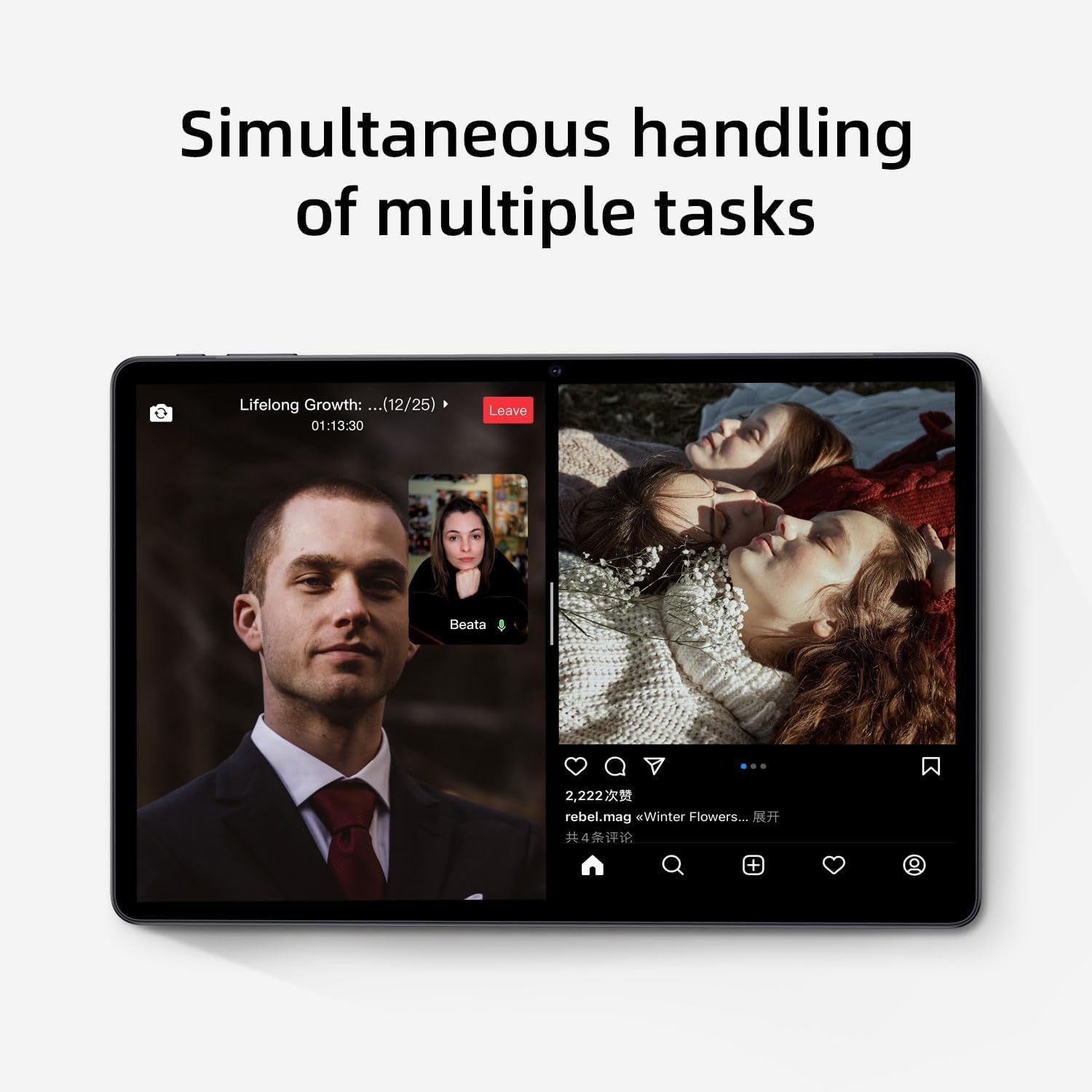
Image: The tablet screen showing two applications running simultaneously in split-screen mode, illustrating its multitasking feature.
3. Media Playback
The 11-inch IPS display with 1920x1200 resolution provides clear and vibrant visuals for streaming videos, viewing photos, and playing games. Use pre-installed media players or download your preferred apps from the Google Play Store.
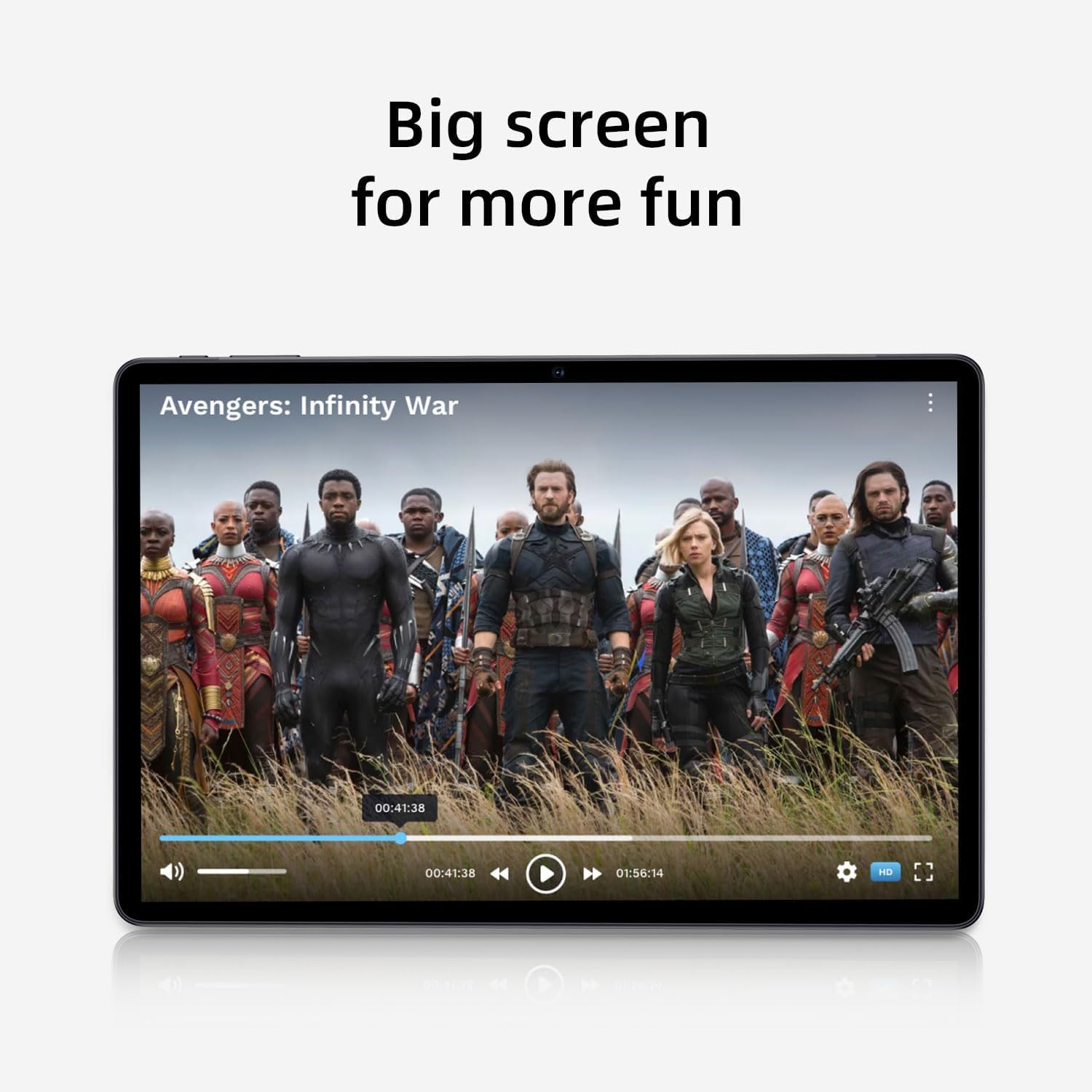
Image: The tablet screen showing a video playing, highlighting the display quality for entertainment.
4. Using GPS
The tablet includes built-in GPS functionality. To use navigation apps, ensure location services are enabled in Settings > Location. Download a navigation app from the Google Play Store for turn-by-turn directions.
5. Using FM Radio
To use the FM Radio, connect wired headphones (not included) to the tablet's audio jack. The headphones act as an antenna. Open the pre-installed FM Radio app and scan for available stations.
6. Bluetooth Connectivity
To pair Bluetooth devices (e.g., headphones, speakers):
- Go to Settings > Connected devices > Connection preferences > Bluetooth.
- Toggle Bluetooth On.
- Ensure your Bluetooth device is in pairing mode.
- Select your device from the list of available devices and follow any on-screen prompts to complete pairing.
7. Camera Usage
Open the Camera app from the home screen or app drawer. Tap the shutter button to take photos or switch to video mode to record videos. Adjust settings like flash, timer, and camera mode within the app interface.
Maintenance
1. Cleaning the Tablet
Use a soft, lint-free cloth to clean the screen and body of the tablet. For stubborn smudges, slightly dampen the cloth with water or a screen-cleaning solution. Avoid harsh chemicals or abrasive materials.
2. Battery Care
- Avoid extreme temperatures, as they can degrade battery life.
- Do not let the battery completely drain frequently.
- Use the provided charger for optimal charging.
- The 8000mAh battery provides extended usage; however, proper care ensures long-term performance.

Image: A visual representation of the tablet's 8000mAh battery capacity, emphasizing its long-lasting power.
3. Software Updates
Regularly check for system updates to ensure your tablet has the latest features and security patches. Go to Settings > System > System update.
4. Storage Management
Periodically review your installed apps and files. Uninstall unused apps and delete unnecessary files to free up the 128GB internal storage. Utilize the 1TB expandable storage for large media files.
Troubleshooting
Tablet Not Powering On
- Ensure the tablet is sufficiently charged. Connect it to the power adapter and wait a few minutes before attempting to power on.
- Press and hold the Power button for at least 10-15 seconds to perform a forced restart.
Wi-Fi Connection Issues
- Restart your Wi-Fi router and the tablet.
- Forget the network in Wi-Fi settings and reconnect.
- Ensure you are within range of the Wi-Fi signal.
Slow Performance
- Close unused applications running in the background.
- Clear cache data for frequently used apps.
- Check for and install any available system updates.
- Consider performing a factory reset as a last resort (back up your data first). Go to Settings > System > Reset options > Erase all data (factory reset).
Touchscreen Unresponsive
- Restart the tablet.
- Ensure the screen is clean and free of debris or moisture.
Specifications

Image: The tablet shown with its physical dimensions, including screen size and overall device measurements.
| Model Name | K10 |
| Operating System | Android 14 |
| Processor | Octa-core (Unisoc) |
| RAM | 12GB |
| Internal Storage | 128GB |
| Expandable Storage | Up to 1TB (microSD) |
| Screen Size | 11 Inches |
| Screen Resolution | 1920x1200 IPS |
| Battery Capacity | 8000mAh |
| Charging | 18W PD Fast Charge |
| Wi-Fi | Dual-band (2.4/5GHz) 802.11ac |
| Bluetooth | Bluetooth 5.0 |
| GPS | Yes |
| FM Radio | Yes |
| Item Weight | 2.33 pounds |
| Product Dimensions | 10.1 x 3.5 x 0.35 inches |
Warranty Information
This COLORROOM K10 Tablet is covered by a standard manufacturer's warranty. The specific terms and duration of the warranty may vary by region. Please retain your proof of purchase for warranty claims. For detailed warranty information, including coverage and how to make a claim, please refer to the warranty card included with your product or visit the official COLORROOM website.
Support
For further assistance, technical support, or to inquire about service, please visit the COLORROOM official support website or contact their customer service department. Contact information can typically be found on the manufacturer's website or on the packaging materials.


