1. Introduction
This manual provides detailed instructions for the setup, operation, maintenance, and troubleshooting of your Jedel CP 102 Optical Gaming Mouse. Designed for precision and comfort, this mouse features silent clicks, a high-resolution optical sensor, and a durable braided cable, making it suitable for various computing tasks and gaming.
2. Package Contents
Please check the package for the following items:
- 1 x Jedel CP 102 Optical Gaming Mouse
If any items are missing or damaged, please contact your retailer or Jedel customer support.
3. Product Overview
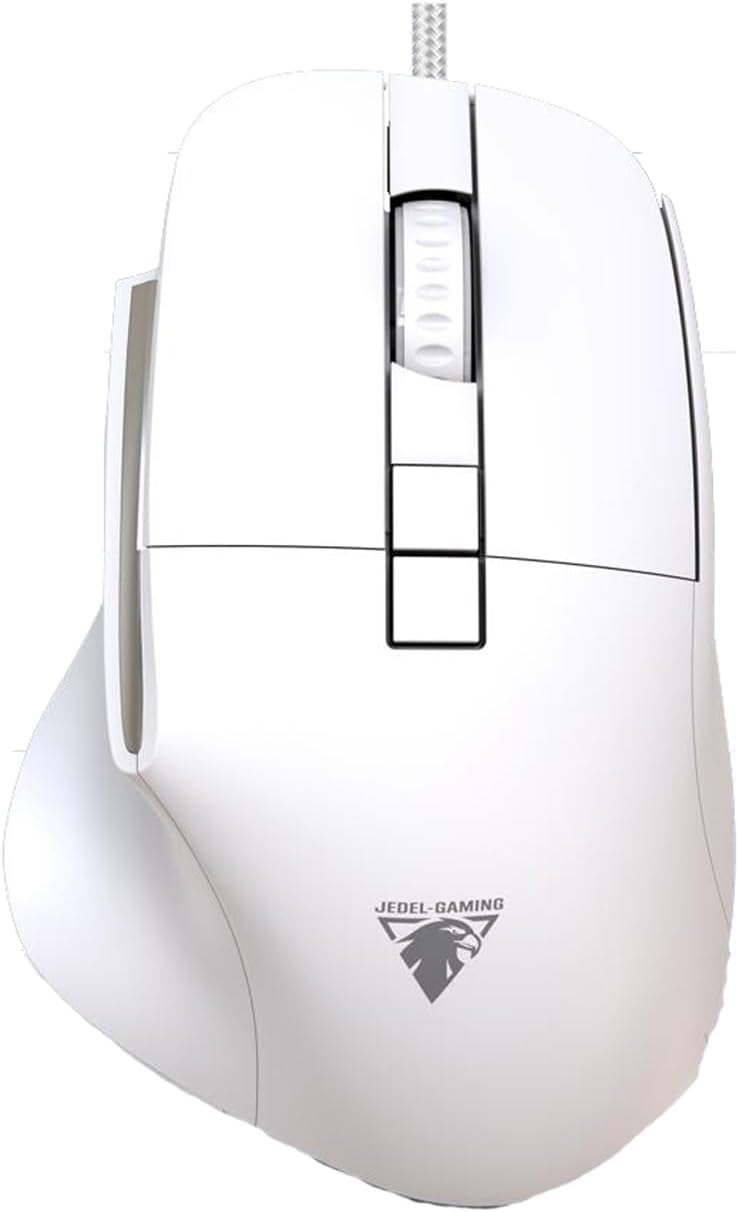
Figure 1: Jedel CP 102 Optical Gaming Mouse. This image shows the top-down view of the white mouse, highlighting its ergonomic shape, the scroll wheel, two main click buttons, two additional buttons near the scroll wheel, and two thumb buttons on the left side. The braided USB cable extends from the front.
The Jedel CP 102 mouse is equipped with:
- Silent Click Buttons: For quiet operation.
- High-Precision Optical Sensor: Up to 3600 DPI for accurate tracking.
- Durable Braided Cable: 1.5 meters in length for enhanced durability and tangle resistance.
- 6 Programmable Buttons: Including left, right, scroll wheel click, DPI adjustment, and two side buttons.
- Ergonomic Design: Comfortable for extended use.
4. Setup
Setting up your Jedel CP 102 mouse is straightforward:
- Unpack the Mouse: Carefully remove the mouse from its packaging.
- Connect to Computer: Plug the USB connector of the mouse into an available USB port on your computer.
- Driver Installation: The mouse is plug-and-play. Your operating system (Windows 11/10/7, macOS) will automatically detect and install the necessary drivers. No additional software installation is typically required for basic functionality.
- Verify Functionality: Once connected, move the mouse to check if the cursor responds on your screen. Test the left and right clicks, and the scroll wheel.
5. Operating Instructions
5.1 Basic Functions
- Left Click: Primary action, selection, opening files.
- Right Click: Opens context menus.
- Scroll Wheel: Scrolls documents and web pages vertically. Pressing the scroll wheel often acts as a middle click, which can open links in new tabs or enable auto-scrolling.
5.2 DPI Adjustment
The Jedel CP 102 mouse features adjustable DPI (Dots Per Inch) settings, allowing you to change cursor sensitivity on the fly. The DPI button is typically located behind the scroll wheel.
- Press the DPI Button (usually the button directly behind the scroll wheel) to cycle through different DPI settings. Each press will change the sensitivity, indicated by a change in cursor speed.
- Higher DPI settings result in faster cursor movement, suitable for large monitors or quick movements in games.
- Lower DPI settings provide more precise control, ideal for graphic design or aiming in games.
5.3 Side Buttons
The two side buttons (typically on the left side of the mouse) are often pre-programmed for "Forward" and "Backward" navigation in web browsers and file explorers. Their functions can often be customized using third-party mouse software, depending on your operating system and specific needs.
6. Maintenance
To ensure the longevity and optimal performance of your Jedel CP 102 mouse, follow these maintenance guidelines:
- Cleaning: Use a soft, dry, lint-free cloth to wipe the surface of the mouse. For stubborn dirt, slightly dampen the cloth with water or a mild cleaning solution. Avoid using harsh chemicals or abrasive materials.
- Sensor Cleaning: Occasionally, dust or debris may accumulate around the optical sensor on the bottom of the mouse. Use a cotton swab or compressed air to gently clean the sensor area.
- Cable Care: Avoid sharp bends or excessive pulling on the braided cable to prevent internal damage.
- Storage: When not in use for extended periods, store the mouse in a clean, dry environment away from extreme temperatures.
7. Troubleshooting
| Problem | Possible Cause | Solution |
|---|---|---|
| Mouse not responding / Cursor not moving. |
|
|
| Cursor movement is erratic or jumpy. |
|
|
| Buttons or scroll wheel not working. |
|
|
8. Specifications
| Feature | Detail |
|---|---|
| Brand Name | Jedel |
| Model Number | CP 102 (GM691 / GW-113) |
| Connectivity Technology | Wired |
| Movement Detection | Optical |
| Special Features | Silent clicks, High-precision optical sensor |
| Number of Buttons | 6 |
| Cable Length | 1.5 meters (Braided) |
| Item Weight | 100 grams |
| Product Dimensions (L×W×H) | 127 mm × 83 mm × 63 mm |
| Compatible Devices | Personal Computer |
| Operating System | Windows, Mac OS |
| Color | White |
| Lifespan | 5 Million Clicks |
| Country of Origin | China |
9. Warranty and Support
For warranty information and customer support, please refer to the warranty card included with your product or contact the retailer from whom you purchased the Jedel CP 102 mouse. You may also visit the official Jedel website for further assistance and updated support information.
Please retain your proof of purchase for any warranty claims.


