
Introduction
The Aurzen EAZZE D1G Smart Projector is designed to provide a versatile and immersive viewing experience. Featuring built-in Google TV, 4K support, and advanced automatic adjustments, this portable projector is suitable for various indoor and outdoor entertainment needs. This manual provides essential information for setup, operation, maintenance, and troubleshooting to ensure optimal performance.
What's in the Box
- Aurzen EAZZE D1G GTV Smart Projector (x1)
- Power Adapter (x1)
- User Manual (x1)
- Remote Control (x1, requires 2*AAA Batteries, not included)
Product Features
- Built-in Google TV: Access over 10,000 apps, including Netflix, YouTube, and Hulu, with no additional streaming stick required. Enjoy over 800 free channels.
- Google Ecosystem Integration: Benefit from Multi-Account Personalized Recommendations, Child Mode for content management, hands-free control with Google Assistant, and seamless content sharing via Google Cast.
- 4K Support Visual Enhancement: Experience native 1080p resolution with HDR10 support for vibrant visuals, deeper blacks, brighter whites, and enhanced detail on screens up to 100 inches.
- Immersive Dolby Audio: Dual 8W high-power speakers with Dolby Audio technology deliver rich, immersive 360° surround sound.
- Auto-Optimized Setup: Features Auto Focus, Auto Keystone Correction (±45° 4-point), Auto Obstacle Avoidance, and Auto Screen Alignment for instant clarity and a perfectly fitted image. Zoom from 50% to 100% without moving the projector.
- Wireless Connectivity: Equipped with 5G/2.4G dual-band WiFi for stable connections and Bluetooth 5.1 for two-way audio transmission (functions as a Bluetooth speaker or connects to external Bluetooth audio devices).
- SGS Certified Brightness: Aurzen ensures honest brightness claims through proactive SGS certification (ANSI/ISO 21118) for crisp, vibrant, and trustworthy clarity.
- Versatile Connectivity: Offers 1 HD port, 2 USB ports, and a 3.5mm headphone jack for connecting TV sticks, laptops, phones, tablets, USB drives, and gaming consoles.
Setup Guide
1. Unboxing and Placement
Carefully remove all components from the packaging. Place the projector on a stable, flat surface or mount it using one of the versatile options (ceiling, tabletop, tripod, wall mounting via built-in 1/4'' screw hole).

Image: Aurzen EAZZE D1G Smart Projector on a stand, projecting an image onto a wall.
2. Power Connection
Connect the power adapter to the projector and then plug it into a power outlet. Press the power button on the projector or remote control to turn it on.
3. Initial Configuration (Google TV)
Upon first power-on, follow the on-screen instructions to set up Google TV. This includes connecting to your 5G/2.4G dual-band WiFi network and logging into your Google account. This step is crucial for accessing streaming apps and features.

Image: Aurzen EAZZE D1G projector displaying the Google TV interface with various streaming apps.
4. Image Adjustment
The projector features automatic image optimization for ease of use:
- Auto Focus: The projector will automatically adjust for a sharp, clear image.
- Auto Keystone Correction: Automatically corrects the image to a rectangular shape, even if the projector is placed at an angle (up to ±45° 4-point correction).
- Auto Obstacle Avoidance: Automatically adjusts the projection to avoid obstacles on the wall.
- Auto Screen Alignment: Automatically aligns the projected image to fit the screen area.
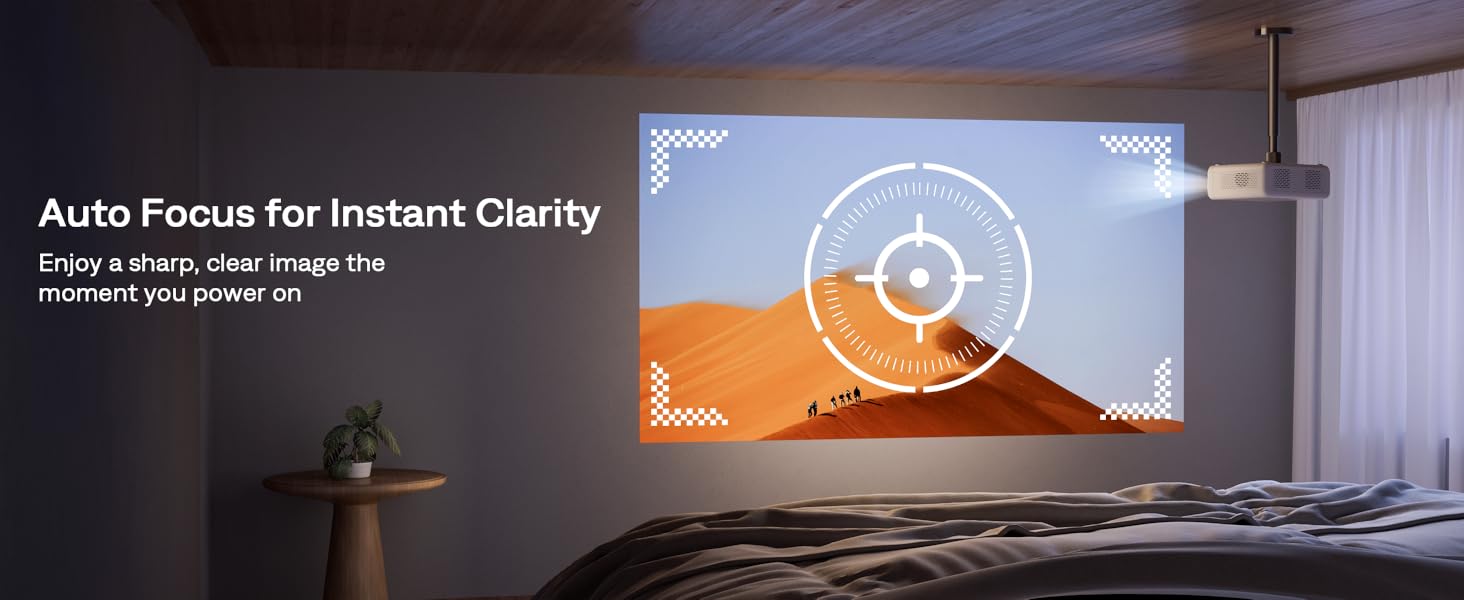
Image: Graphic illustrating the Auto Focus feature of the projector, showing a clear target on the projected image.

Image: Graphic illustrating the Auto Keystone Correction feature, showing a distorted image being corrected to a perfect rectangle.
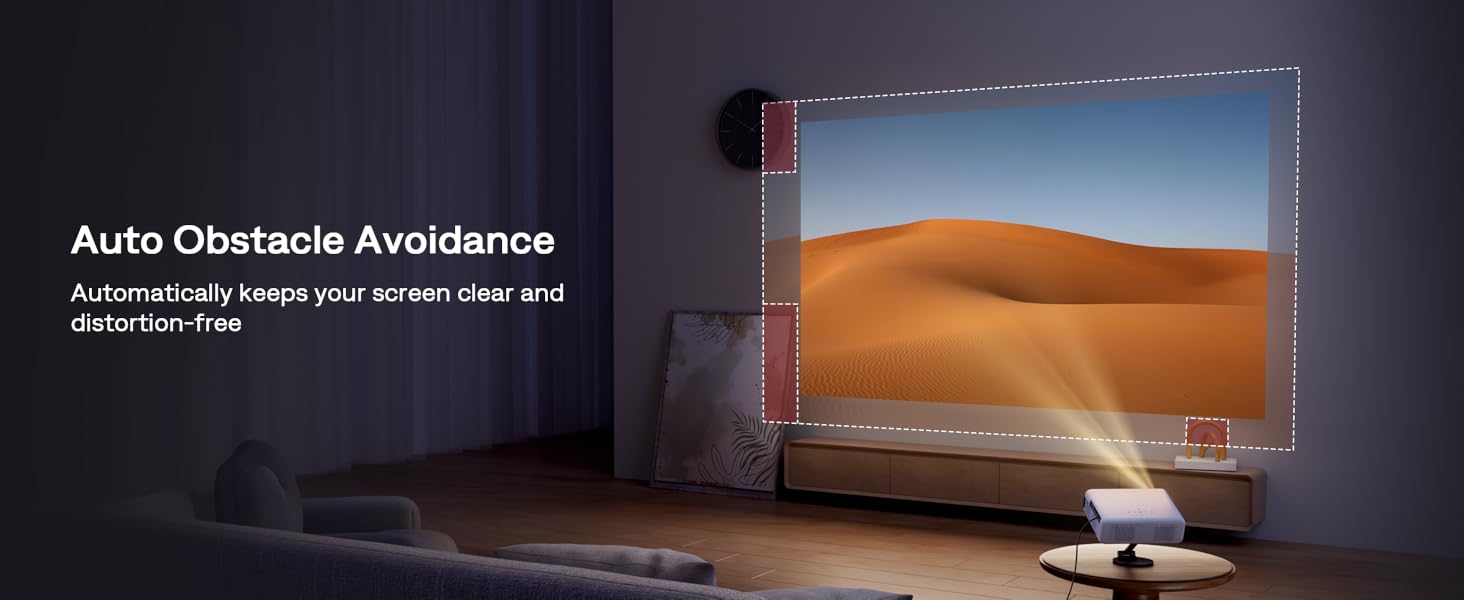
Image: Graphic illustrating the Auto Obstacle Avoidance feature, showing the projected image adjusting to avoid furniture.

Image: Graphic illustrating the Auto Screen Alignment feature, showing the projected image perfectly fitting a screen.
Operating Instructions
1. Google TV Navigation
Use the included remote control to navigate the Google TV interface. The remote allows you to browse apps, select content, and adjust settings. The Google TV home screen provides personalized recommendations and quick access to your favorite streaming services.

Image: Aurzen EAZZE D1G Smart Projector with its remote control.
2. Voice Control with Google Assistant
Press the Google Assistant button on your remote and speak your commands to search for movies, open apps, control playback, and more.

Image: Graphic illustrating Google Voice Assistant functionality with the projector remote.
3. Google Cast for Content Sharing
Use Google Cast to seamlessly share content from your iOS or Android devices directly to the projector screen. Ensure your device and projector are on the same Wi-Fi network.

Image: Image showing a smartphone casting content to the projector screen.
4. Audio Output
The projector features dual 8W speakers with Dolby Audio. For enhanced audio, connect external Bluetooth speakers or soundbars via Bluetooth 5.1. The projector can also function as a standalone Bluetooth speaker.

Image: Graphic illustrating the Dolby Audio feature with sound waves emanating from the projector.
5. Adjusting Screen Size
Adjust the projection size from 50% to 100% using the remote control without physically moving the projector. Optimal viewing sizes vary based on ambient light: 200 inches in a completely dark room, 100 inches in a darkened room, and 60 inches with dim indoor light.

Image: Graphic showing recommended screen sizes for different lighting conditions: 200 inches for dark, 100 inches for darkened, 60 inches for dim light.
6. External Device Connectivity
Connect external devices such as TV sticks, laptops, gaming consoles (Switch, PS5), and USB drives using the available HD port, USB ports, and 3.5mm headphone jack.

Image: Close-up of the Aurzen EAZZE D1G projector's connectivity ports: HDMI, USB, and audio jack.
Maintenance
1. Cleaning the Lens
Gently clean the projector lens with a soft, lint-free cloth specifically designed for optical surfaces. Avoid using abrasive materials or harsh chemicals that could scratch the lens.
2. Ensuring Proper Ventilation
Ensure that the projector's ventilation openings are not blocked. Adequate airflow is essential to prevent overheating and maintain optimal performance and lifespan of the device. Do not place the projector on soft surfaces that may obstruct airflow.
3. Software Updates
Regularly check for and install software updates through the Google TV settings to ensure you have the latest features, performance improvements, and security patches.
Troubleshooting
- No Power: Ensure the power adapter is securely connected to both the projector and a working power outlet. Try a different outlet.
- No Picture/Blurry Picture: Check if the lens cap is removed. Verify the focus using auto-focus or manual adjustment. Ensure the projection surface is clear and flat. Check input source selection.
- No Sound: Check the volume level on the projector and any connected external audio devices. Ensure external audio devices are properly connected via Bluetooth or 3.5mm jack.
- Remote Control Not Responding: Replace the AAA batteries in the remote control. Ensure there are no obstructions between the remote and the projector.
- Wi-Fi/Bluetooth Connectivity Issues: Ensure the projector is within range of your Wi-Fi router. Restart the projector and your router. For Bluetooth, ensure the device is in pairing mode.
Specifications
| Brand | Aurzen |
| Item Model Number | EAZZE D1 GTV |
| Item Weight | 5.15 pounds |
| Product Dimensions | 6.89 x 3.35 x 9.13 inches |
| Display Resolution | 1920 x 1080 (Native 1080p) |
| Special Features | 4K Support, Google TV System, Built-In Speaker, Auto Obstacle Avoidance, Auto Screen Alignment, Digital Keystone Correction, Auto Focus |
| Connectivity Technology | WiFi (5G/2.4G Dual-Band), Bluetooth (5.1), HD, USB, Audio |
| Recommended Uses | Home Outdoor Cinema, Business, Education, Party, Sports, Gaming |
Warranty and Support
Aurzen is committed to providing excellent customer service and product reliability.
- 30-Day Return or Exchange: Refer to your purchase platform's return policy for details.
- Lifetime Technical Support: Aurzen offers lifetime technical support for your product.
- 24/7 Professional Service: Access professional customer service for any inquiries or assistance.
For further assistance, please refer to the included User Manual or contact Aurzen customer support directly.
Official Product Videos
Aurzen EAZZE D1G Smart Projector Overview
Video: An official overview of the Aurzen EAZZE D1G smart projector, showcasing its design and key features.
High Quality Projector Features
Video: A detailed look at the high-quality features of the Aurzen projector, including image clarity and user experience.


