
1. Introduction
This manual provides essential information for the safe and efficient use of your TCL 55Q6C 55-inch QD-Mini LED Smart TV. Please read it thoroughly before operating the device and retain it for future reference. Your new television features 4K HDR Premium 1000nits display, Google TV technology, Dolby Vision IQ and Atmos, an Onkyo 2.1 audio system, Motion Clarity Pro at 144 Hz, and Game Master capabilities.
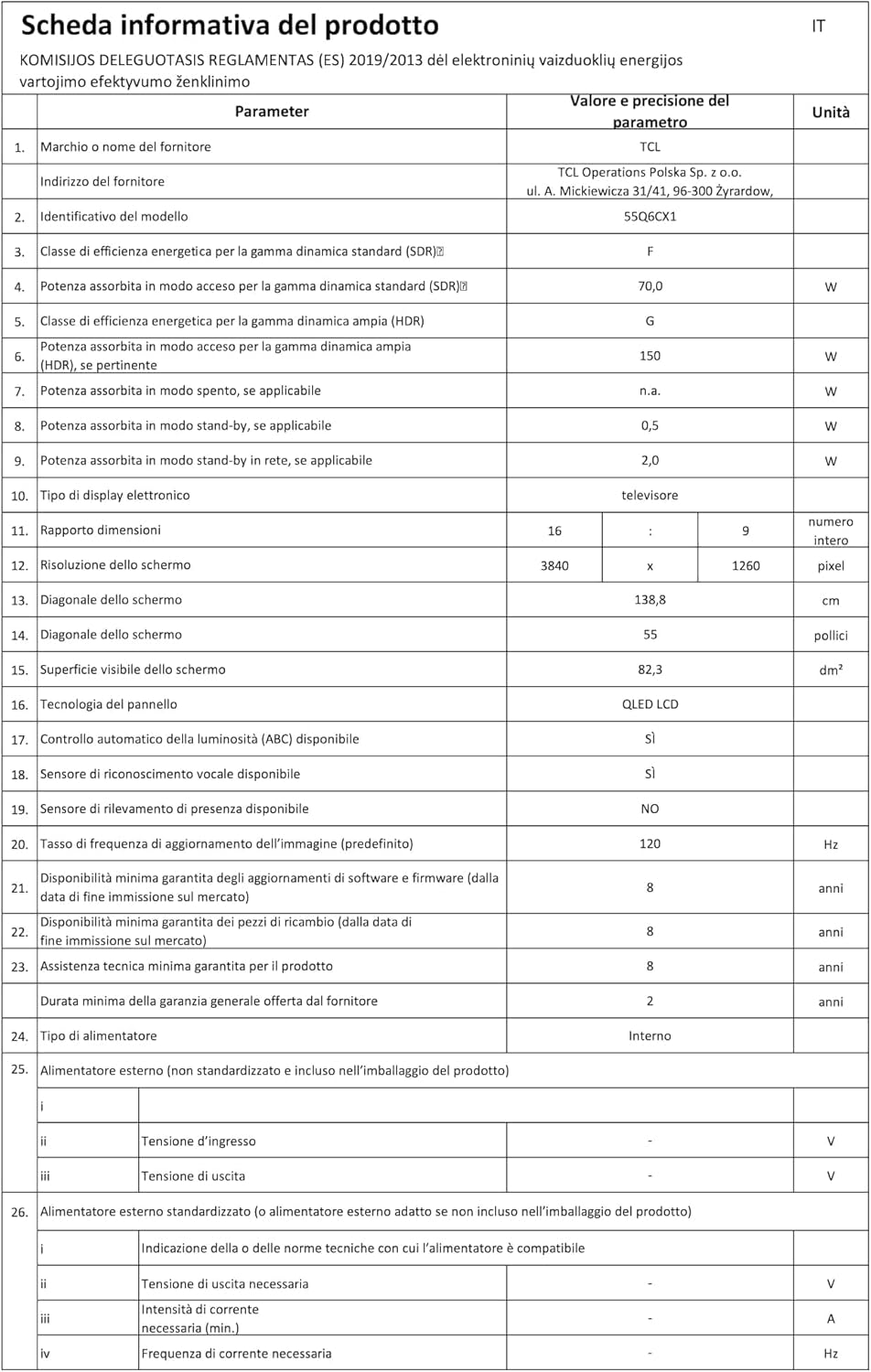
Figure 1: The TCL 55Q6C 55-inch QD-Mini LED Smart TV integrated into a modern living room.
2. Safety Information
Always follow these basic safety precautions when using your television:
- Do not expose the TV to rain or moisture to prevent fire or electric shock.
- Do not block ventilation openings. Ensure adequate space around the TV for proper airflow.
- Do not place the TV on an unstable cart, stand, tripod, bracket, or table.
- Use only the power cord supplied with the TV.
- Protect the power cord from being walked on or pinched.
- Unplug the TV during lightning storms or when unused for long periods.
- Refer all servicing to qualified service personnel.
- Keep small parts and batteries out of reach of children.
3. Setup
3.1 Unpacking and Assembly
Carefully remove the TV from its packaging. Ensure all components (Power Cable, Remote Control, Stand) are present. Follow the instructions provided in the separate quick start guide for stand assembly or wall mounting.
3.2 Connecting Devices
Your TCL 55Q6C TV offers various connectivity options. Refer to the diagram below for port locations and connect your external devices such as gaming consoles, Blu-ray players, or sound systems.
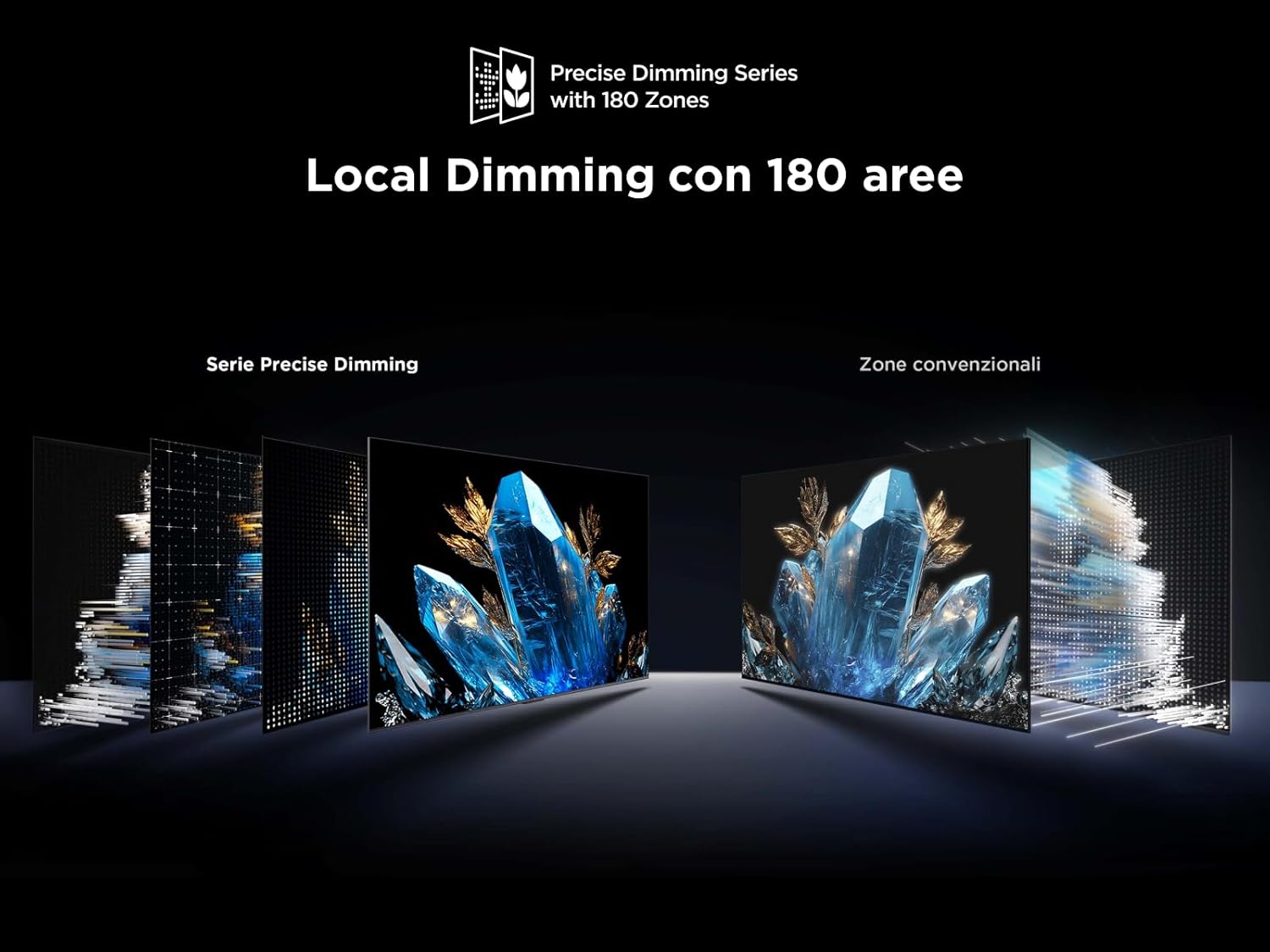
Figure 2: Rear view of the TCL 55Q6C TV showing HDMI, USB, LAN, Optical, Cable, Satellite, and CI Slot ports.
- HDMI: Connect up to 4 HDMI devices for high-definition video and audio.
- USB: Connect USB storage devices for media playback.
- LAN (Ethernet): Connect to your wired network for internet access.
- Optical: For digital audio output to a soundbar or home theater system.
- Cable/Satellite: Connect your antenna or satellite dish.
- CI Slot: For Conditional Access Modules (CAM) from your service provider.
- Wi-Fi & Bluetooth: Built-in wireless connectivity for internet and accessories.
3.3 Initial Power-On
After connecting all necessary cables, plug the power cord into an electrical outlet. Press the power button on the remote control or the TV itself. Follow the on-screen instructions to complete the initial setup, including network connection and Google TV configuration.
4. Operating Instructions
4.1 Google TV Interface
Your TCL 55Q6C TV runs on Google TV, providing a personalized entertainment experience. Navigate through the interface using your remote control to access apps, streaming services, and live TV. You can also use Google Assistant for voice commands.
Video 1: Overview of TCL Q6C features, including QD-Mini LED, QLED, Onkyo audio, AiPQ processor, Game Master, and Google TV interface.
4.2 Picture and Sound Settings
Access the settings menu to adjust picture modes (e.g., Standard, Movie, Game), brightness, contrast, and color settings. The TV features QD-Mini LED and QLED technology for vibrant colors and deep blacks, enhanced by TCL All-domain Halo Control for precise dimming.

Figure 3: Diagram illustrating the QD-Mini LED backlight technology for enhanced picture quality.

Figure 4: Visual representation of Local Dimming technology with 180 zones, improving contrast compared to conventional zones.
For audio, the integrated Onkyo 2.1 sound system with Dolby Atmos provides an immersive experience. Adjust sound modes and equalizer settings to your preference.
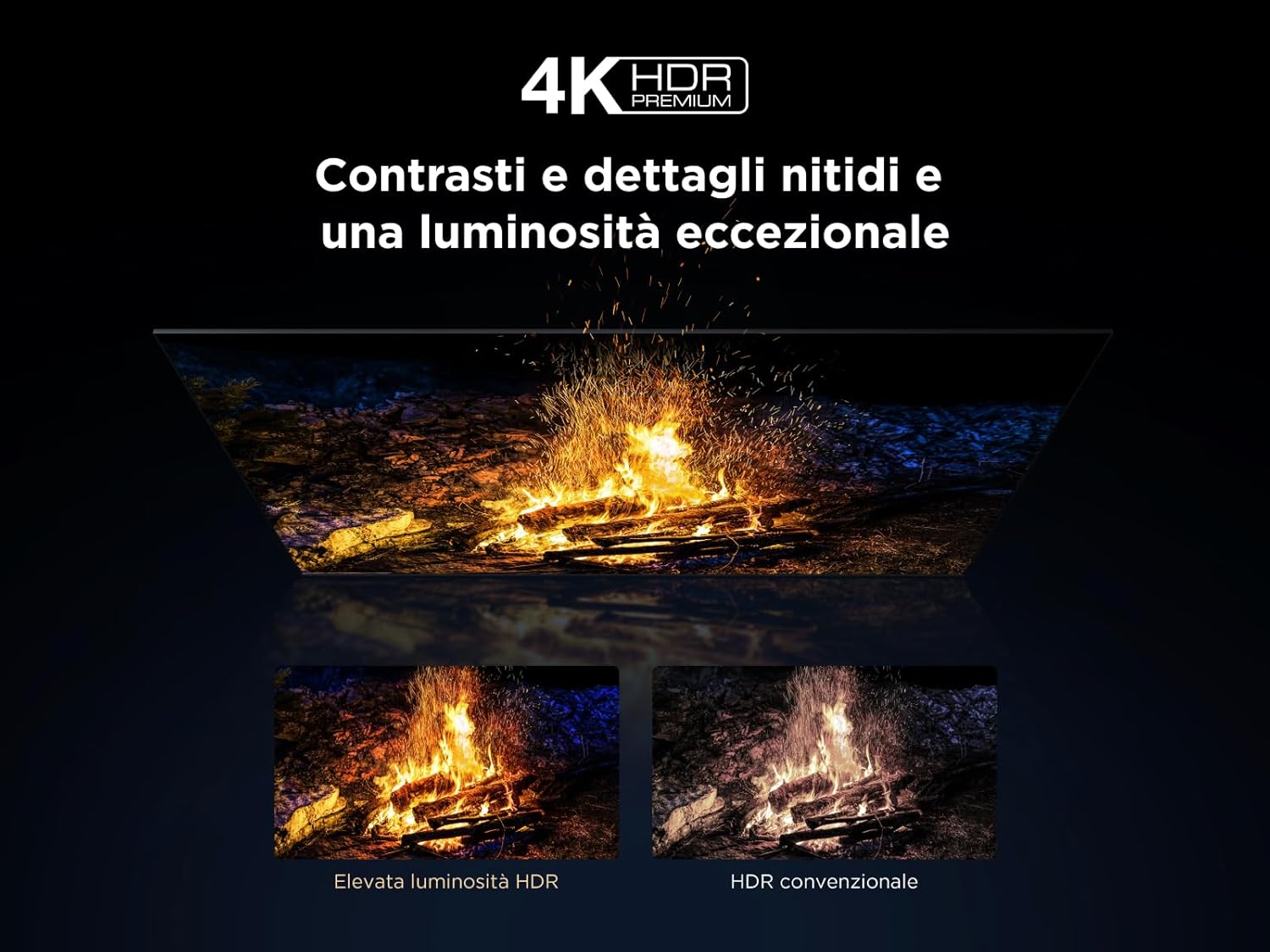
Figure 5: Illustration of the Onkyo 2.1 Hi-Fi audio system components, delivering cinematic sound.
4.3 Gaming Features
The TV's Game Master features, combined with a 144 Hz Motion Clarity Pro display, ensure smooth and responsive gaming. Enable Game Mode in settings for optimized input lag and refresh rates.
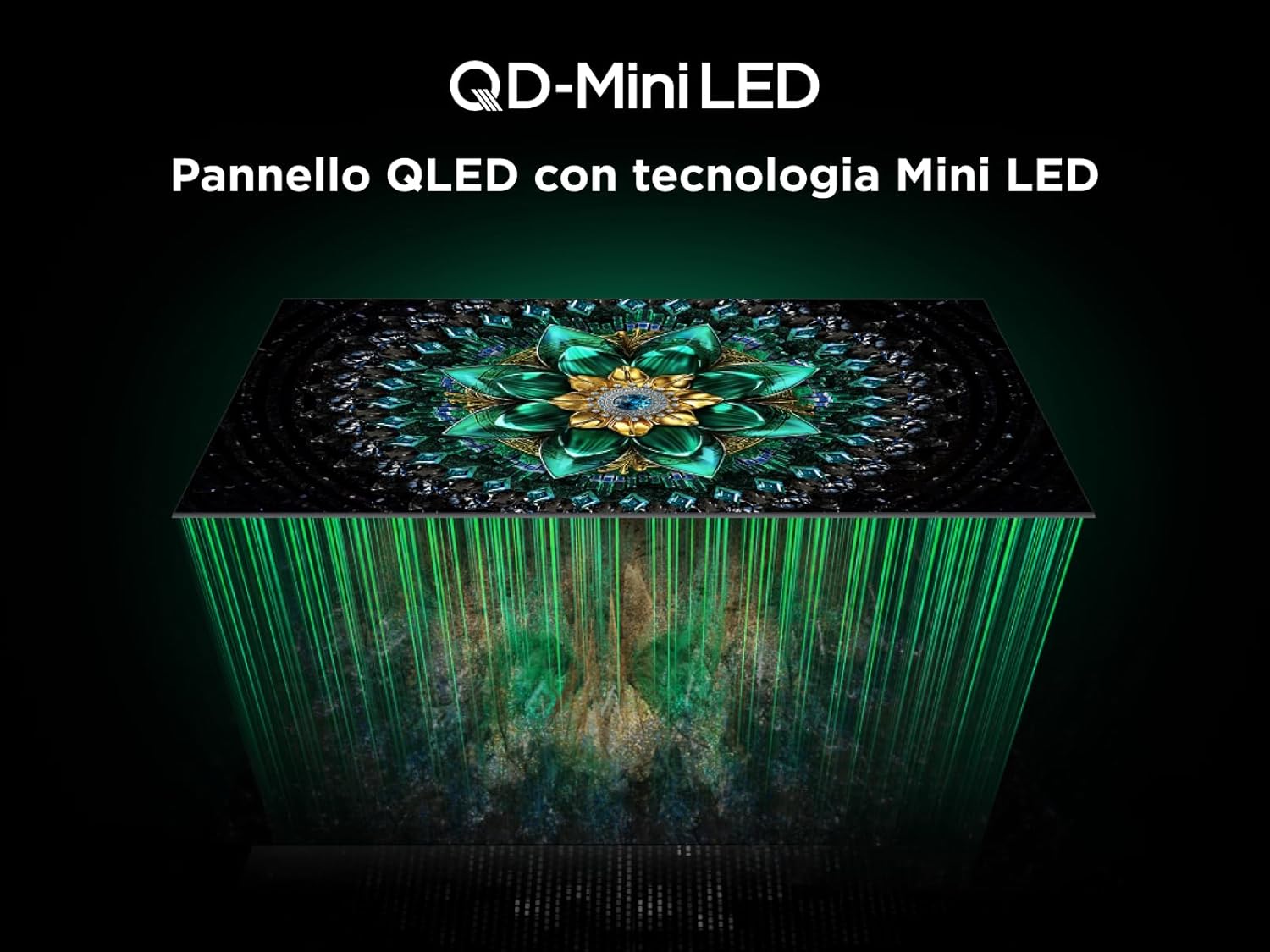
Figure 6: Visual demonstrating the 144Hz Motion Clarity Pro for fluid images, ideal for fast-paced content and gaming.
4.4 AiPQ Pro Processor
The integrated AiPQ Pro Processor optimizes picture and sound in real-time, enhancing contrast, color, clarity, and motion for an improved viewing experience.

Figure 7: Diagram illustrating the AiPQ Pro Processor and its various AI-driven optimization functions for picture quality.
4.5 Casting and Screen Mirroring
Utilize Miracast, Google Cast, and Airplay 2 to wirelessly stream content from your smartphone, tablet, or PC directly to your TV screen.
5. Maintenance
To ensure the longevity and optimal performance of your TV, follow these maintenance guidelines:
- Cleaning the Screen: Gently wipe the screen with a soft, lint-free cloth. For stubborn marks, slightly dampen the cloth with water or a specialized screen cleaner. Avoid harsh chemicals.
- Cleaning the Frame: Use a soft, dry cloth to wipe the TV frame and stand.
- Ventilation: Ensure the ventilation openings on the back of the TV are not blocked by dust or objects.
- Power Cord: Regularly check the power cord for any damage.
- Storage: If storing the TV for an extended period, unplug it and cover it to protect from dust.
6. Troubleshooting
Before contacting customer support, try these common troubleshooting steps:
| Problem | Possible Cause | Solution |
|---|---|---|
| No power | Power cord unplugged; power outlet not working. | Check power cord connection; test outlet with another device. |
| No picture, but sound is present | Incorrect input source selected; backlight issue. | Verify input source; try another HDMI port; contact support if issue persists. |
| No sound, but picture is present | Volume muted; incorrect audio output setting; external audio device issue. | Unmute volume; check audio output settings; verify external audio device connections. |
| Remote control not working | Batteries dead or incorrectly inserted; obstruction between remote and TV. | Replace batteries; ensure clear line of sight to TV's IR receiver. |
| Network connection issues | Wi-Fi signal weak; incorrect password; router issue. | Restart router; re-enter Wi-Fi password; try wired Ethernet connection. |
7. Specifications
Below are the key technical specifications for the TCL 55Q6C 55-inch QD-Mini LED Smart TV:
| Feature | Detail |
|---|---|
| Brand | TCL |
| Model | Q6C Series 2025 |
| Screen Size | 55 Inches |
| Screen Technology | QD-Mini LED, QLED, HVA Panel |
| Resolution | 4K (3840 x 2160 pixels) |
| Refresh Rate | 144 Hz (Motion Clarity Pro) |
| HDR Support | 4K HDR Premium 1000nits, Dolby Vision IQ |
| Audio System | Onkyo 2.1, Dolby Atmos |
| Operating System | Google TV |
| Processor | AiPQ Pro Processor |
| Connectivity | 4x HDMI, 1x USB, Ethernet (LAN), Optical Audio Out, Cable/Satellite, CI Slot, Wi-Fi, Bluetooth |
| Aspect Ratio | 16:9 |
| Product Dimensions (DxWxH) | 30P x 122.4l x 77H cm |
| Included Components | Power Cable, Remote Control, Stand |

Figure 8: Energy efficiency label for the TCL 55Q6C TV. For more details, visit the official EPREL database: https://eprel.ec.europa.eu/qr/2179781

Figure 9: Detailed product information sheet for the TCL 55Q6C TV, including power consumption and other technical data.
8. Warranty and Support
Your TCL 55Q6C TV comes with a manufacturer's warranty. Please refer to the warranty card included in the packaging for specific terms and conditions. For technical support, service, or additional information, please visit the official TCL website or contact your local customer service center.
You can also find more information on the TCL brand store: TCL Brand Store


