
1. Introduction
The Promethean ActivPanel 10 Premium 75-inch is a high-specification digital whiteboard designed for dynamic office and classroom environments. This interactive display offers 4K UHD resolution, flexible operating system options, and robust features to enhance collaboration, presentations, and learning experiences. This manual provides essential information for setting up, operating, and maintaining your ActivPanel.
2. Key Features
- Custom Fit: Intelligent options for panel configuration, including model, size, operating system, and accessories.
- OS Flexibility: Compatible with various operating devices such as i5 Windows OPS, N97 Windows OPS, Chromebox, or Android OPS.
- Enhanced Presentations: Boost participation with familiar apps like Teams, Zoom, and Meet, complemented by a built-in soundbar and 8-array microphone.
- Efficient Workflow: Eliminate source switching by viewing and interacting with two connected sources simultaneously. Adjust layouts and focus areas with touch-enabled Picture-in-picture functionality.
- Versatile Use Cases: Ideal for offices and classrooms, supporting meetings, projects, training sessions, presentations, and lessons.
3. Setup
Follow these steps to set up your Promethean ActivPanel 10 Premium:
- Unpacking: Carefully remove the ActivPanel from its packaging. Ensure all components are present.
- Mounting: Securely mount the ActivPanel to a wall or a mobile stand according to the provided mounting instructions.
- Power Connection: Connect the power cable to the ActivPanel and a grounded power outlet.
- Initial Power On: Press the power button to turn on the ActivPanel. Follow the on-screen prompts for initial setup, including language selection and network configuration.
- OPS Installation (Optional): If using an optional OPS (Open Pluggable Specification) device, insert it into the designated slot on the ActivPanel.
4. Operating Instructions
The ActivPanel offers intuitive controls for seamless interaction.
4.1. Touch and Pen Interaction
The ActivPanel supports multi-touch gestures and precise pen input. Use the included stylus or your finger to navigate, write, draw, and interact with content.

Image: Promethean ActivPanel Stylus Pen. This image shows the sleek design of the stylus pen used for precise writing and drawing on the ActivPanel.
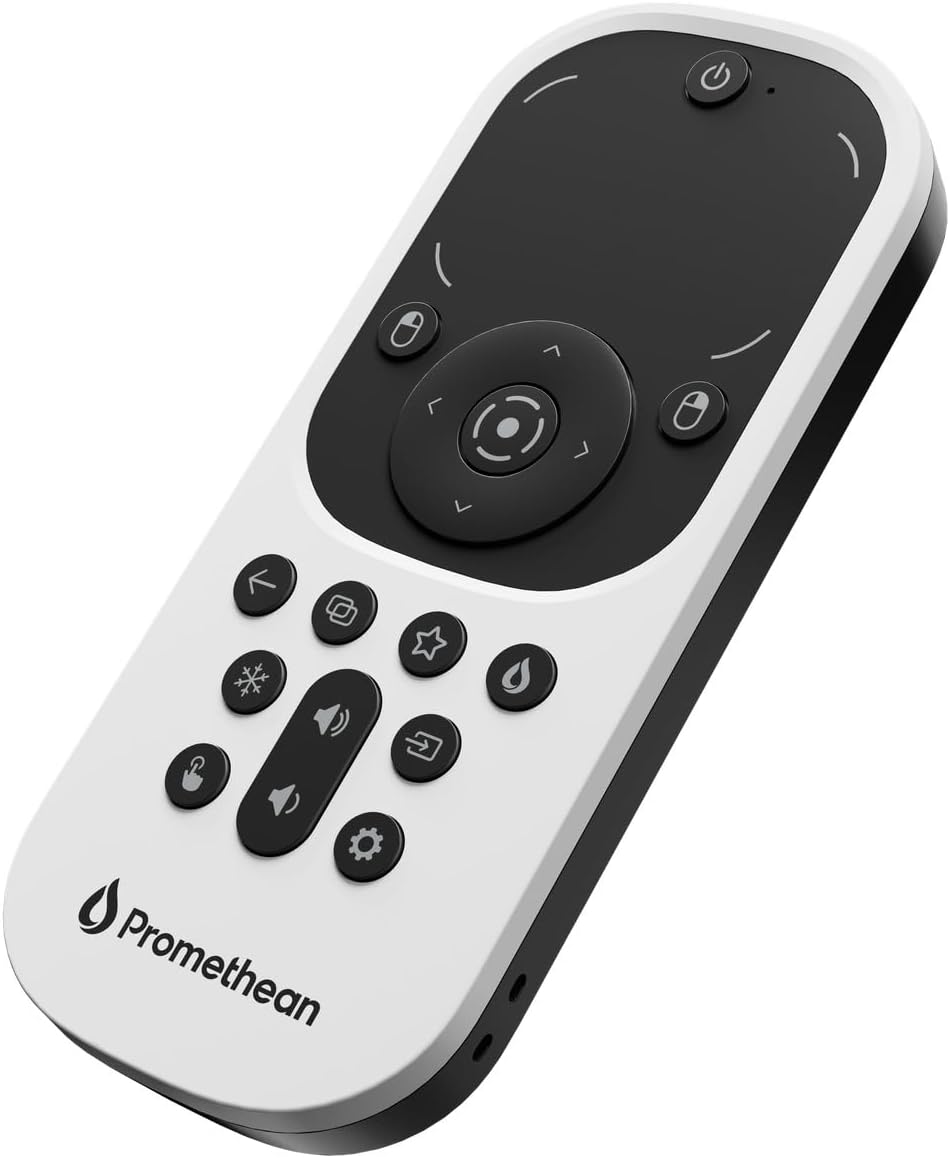
Image: Promethean ActivPanel Remote Control. This image displays the remote control for the ActivPanel, featuring various buttons for navigation and function control.
4.2. Using Applications
Access a wide range of applications directly from the ActivPanel's interface. The flexible OS allows for integration with various platforms, providing a familiar user experience.

Image: Promethean ActivPanel in a Meeting Room. The ActivPanel is shown in use during a business meeting, displaying a presentation to several attendees.

Image: Promethean ActivPanel in a Classroom. Students are engaged in a classroom setting where a teacher is using the ActivPanel for an interactive lesson.
4.3. Multi-Source Interaction
Utilize the Picture-in-picture feature to display and interact with two connected sources simultaneously. This allows for efficient multitasking and dynamic content presentation without constant source switching.
5. Connectivity
The ActivPanel offers multiple connectivity options for various devices:
- USB Ports: Multiple USB ports are available for connecting peripherals and storage devices.
- HDMI: HDMI input allows for connecting external video sources such as laptops or media players.
- Wireless Connectivity: Built-in Wi-Fi and Bluetooth enable wireless screen sharing and peripheral connections.
6. Maintenance
To ensure the longevity and optimal performance of your ActivPanel, follow these maintenance guidelines:
- Cleaning: Use a soft, lint-free cloth slightly dampened with a non-abrasive screen cleaner to wipe the display surface. Avoid harsh chemicals.
- Software Updates: Regularly check for and install software updates to ensure you have the latest features and security enhancements.
- Ventilation: Ensure proper ventilation around the ActivPanel to prevent overheating. Do not block air vents.
- Power Management: Turn off the ActivPanel when not in use for extended periods to conserve energy.
7. Troubleshooting
If you encounter any issues with your ActivPanel, refer to the following common troubleshooting tips:
- No Power: Check the power cable connection and ensure the power outlet is functional.
- No Display: Verify that the correct input source is selected. If using an external device, check its connection and power.
- Touch Inaccuracy: Recalibrate the touch screen if touch input is inaccurate. Refer to the on-screen settings for calibration options.
- Network Issues: Check Wi-Fi or Ethernet connections. Restart the ActivPanel and your network router if necessary.
8. Specifications
| Feature | Specification |
|---|---|
| Product Dimensions | 4.2 x 67.1 x 41.6 inches |
| Item Weight | 139.7 pounds |
| Manufacturer | Promethean |
| Standing Screen Display Size | 75 Inches |
| Aspect Ratio | 16:9 |
| Resolution | 3840 x 2160 Pixels (4K UHD 2160p) |
| Total USB Ports | 2 |
| Screen Surface Description | Matte |
9. Warranty and Support
The Promethean ActivPanel 10 Premium includes 3 years of onsite support. For warranty claims or technical assistance, please contact Promethean customer support through their official website or the contact information provided with your purchase.