
1. Introduction
This manual provides essential information for the setup, operation, and maintenance of your Promethean ActivPanel 10 86-inch interactive display. Please read this manual thoroughly before using the product to ensure proper functionality and safety.
2. Product Overview
The Promethean ActivPanel 10 is an 86-inch 4K UHD interactive display designed for dynamic environments such as offices and classrooms. It features industry-leading optics for reduced reflection and accurate color reproduction. This bundle includes the ActivPanel 10 and the Promethean OPS-M (N97) Windows OPS device, which integrates directly into the panel for a full Windows operating experience.
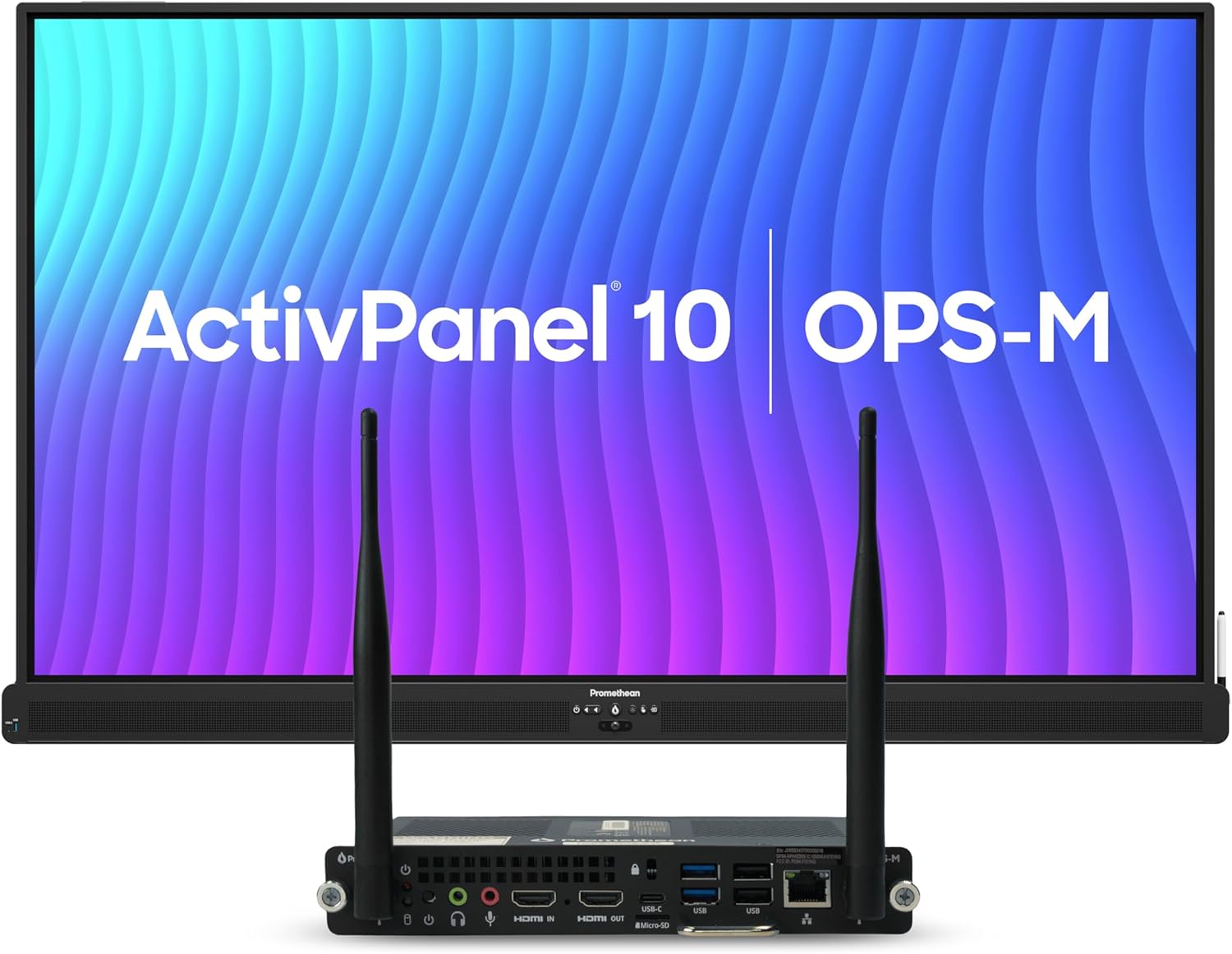
Image 1: The Promethean ActivPanel 10 interactive display shown with the OPS-M device connected. The screen displays "ActivPanel 10 OPS-M" with a colorful background.
Key Features:
- 86-inch 4K UHD Display: Provides a large, high-resolution interactive surface.
- Integrated OPS-M (N97) Windows OPS: Offers a seamless Windows computing experience directly within the panel.
- Picture-in-Picture Functionality: Allows simultaneous viewing and interaction with two connected sources.
- Advanced Optics: Ensures clear visuals with minimal reflection and accurate color from various viewing angles.
- Versatile Application: Suitable for diverse uses in both educational and corporate settings.
3. Setup Instructions
3.1 Unpacking and Inspection
- Carefully unpack all components from the packaging.
- Verify that all items listed in the packing list are present.
- Inspect the ActivPanel and OPS device for any signs of damage. Contact your supplier immediately if any damage is found.
3.2 Mounting the ActivPanel
The ActivPanel 10 includes a wall mount. Ensure the mounting surface is structurally sound and capable of supporting the weight of the display. Follow the instructions provided with the wall mount for secure installation.
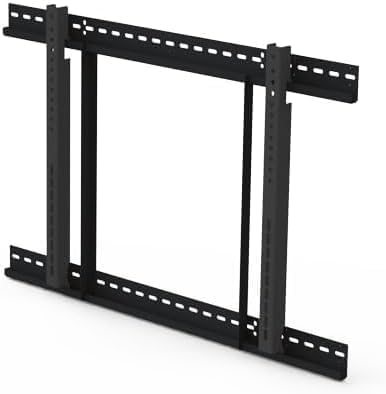
Image 2: A black metal wall mount bracket designed for large displays, featuring multiple attachment points.
3.3 Installing the OPS Device
The Promethean OPS-M (N97) is designed to slot directly into the ActivPanel. Locate the OPS slot on the side or rear of the ActivPanel. Carefully slide the OPS device into the slot until it is securely seated. Refer to the ActivPanel's port diagram for the exact location.

Image 3: A close-up view of the Promethean OPS device, highlighting its various ports including USB, HDMI, and Ethernet.
3.4 Power Connection
- Connect the power cable to the ActivPanel's power input.
- Plug the other end of the power cable into a grounded electrical outlet.
- Press the power button on the ActivPanel to turn it on.
4. Operating Instructions
4.1 Initial Power On and Setup
Upon first power-on, the ActivPanel may guide you through an initial setup wizard for language, network connection, and basic settings. Follow the on-screen prompts.
4.2 Using the Integrated OPS
Once the OPS-M device is installed and the ActivPanel is powered on, the Windows operating system will boot. You can interact with the Windows environment directly on the ActivPanel's touch screen.

Image 4: A group of professionals collaborating around a Promethean ActivPanel in an office setting, with one person interacting with the screen.
4.3 Connecting External Devices
The ActivPanel features multiple input ports (HDMI, USB, etc.) for connecting external devices such as laptops, document cameras, or other peripherals. Use the ActivPanel's on-screen menu to select the desired input source.
4.4 Picture-in-Picture (PiP) Functionality
The ActivPanel 10 supports Picture-in-Picture, allowing you to display content from two different sources simultaneously. Access this feature through the ActivPanel's control menu to select and arrange the two active inputs.

Image 5: The ActivPanel screen showing a main display with a smaller window overlayed, demonstrating the Picture-in-Picture feature.
4.5 Interactive Features
Utilize the touch screen for writing, drawing, and interacting with applications. The ActivPanel supports multi-touch gestures for intuitive navigation and collaboration.

Image 6: A teacher instructing students using the Promethean ActivPanel in a classroom, demonstrating interactive features.
5. Maintenance
5.1 Cleaning the Screen
- Turn off the ActivPanel before cleaning.
- Use a soft, lint-free cloth lightly dampened with a non-abrasive, screen-safe cleaning solution.
- Do not spray cleaning solution directly onto the screen.
- Avoid using harsh chemicals, alcohol, or ammonia-based cleaners.
5.2 General Care
- Keep the ActivPanel in a well-ventilated area.
- Avoid exposing the panel to direct sunlight or extreme temperatures.
- Ensure all cables are securely connected and not under strain.
6. Troubleshooting
This section addresses common issues you might encounter. For more complex problems, refer to the Promethean support website or contact customer service.
6.1 No Power
- Check if the power cable is securely connected to both the ActivPanel and the electrical outlet.
- Verify that the power outlet is functional by plugging in another device.
- Ensure the power button on the ActivPanel is pressed.
6.2 No Image on Screen
- Confirm the ActivPanel is powered on.
- If using an external device, ensure it is powered on and correctly connected to an input port.
- Select the correct input source using the ActivPanel's menu.
- If using the OPS, ensure it is properly seated in its slot.
6.3 Touch Functionality Not Responding
- Restart the ActivPanel and the connected OPS or external device.
- Ensure there are no obstructions on the screen surface or around the bezel that might interfere with touch sensors.
- Check for any software updates for the ActivPanel or OPS.
7. Specifications
The following are key technical specifications for the Promethean ActivPanel 10 86-inch interactive display:
| Feature | Specification |
|---|---|
| Model Number | ActivPanel 10 |
| Screen Size | 86 Inches |
| Resolution | 3840 x 2160 (4K UHD 2160p) |
| Aspect Ratio | 16:9 |
| Image Contrast Ratio | 3000:1 |
| Total USB Ports | 2 |
| Included OPS | Promethean OPS-M (N97) Windows OPS |
| Manufacturer | Promethean |
8. Warranty and Support
The Promethean ActivPanel 10 86-inch interactive display comes with a 3-Year Onsite Support warranty. This warranty covers manufacturing defects and provides onsite service for eligible issues.
For technical assistance, warranty claims, or further information, please visit the official Promethean support website or contact your local Promethean representative.
Promethean Support Website: www.prometheanworld.com/support


