
Introduction
This manual provides essential information for setting up, operating, maintaining, and troubleshooting your Lenovo ThinkCentre neo 50a 24 Gen 5 12SD004LUS All-in-One Computer. Please read this manual thoroughly before using your device to ensure proper function and longevity.
Package Contents
Verify that all items are present in the package:
- ThinkCentre neo 50a 24 Gen 5 12SD004LUS All-in-One Computer
- USB Calliope Keyboard
- USB Calliope Mouse
- 90W 89% Adapter
- Monitor Stand
Setup
1. Unpacking and Placement
Carefully remove the All-in-One (AIO) computer and all accessories from the packaging. Place the AIO on a stable, flat surface, ensuring adequate ventilation around the device.
2. Attaching the Monitor Stand
Follow the instructions provided with the monitor stand to securely attach it to the back of the AIO computer. Ensure all screws are tightened appropriately.
3. Connecting Peripherals
- Keyboard and Mouse: Connect the USB Calliope Keyboard and USB Calliope Mouse to any available USB ports on the AIO computer.
- Power Adapter: Connect the 90W power adapter to the power input port on the AIO, then plug the adapter into a grounded electrical outlet.
- Network (Optional): For a wired internet connection, connect an Ethernet cable from your router or modem to the Ethernet port on the AIO.
4. Initial Power-On
Press the power button, typically located on the side or bottom edge of the display. The computer will boot up, and you will be guided through the initial Windows 11 setup process.
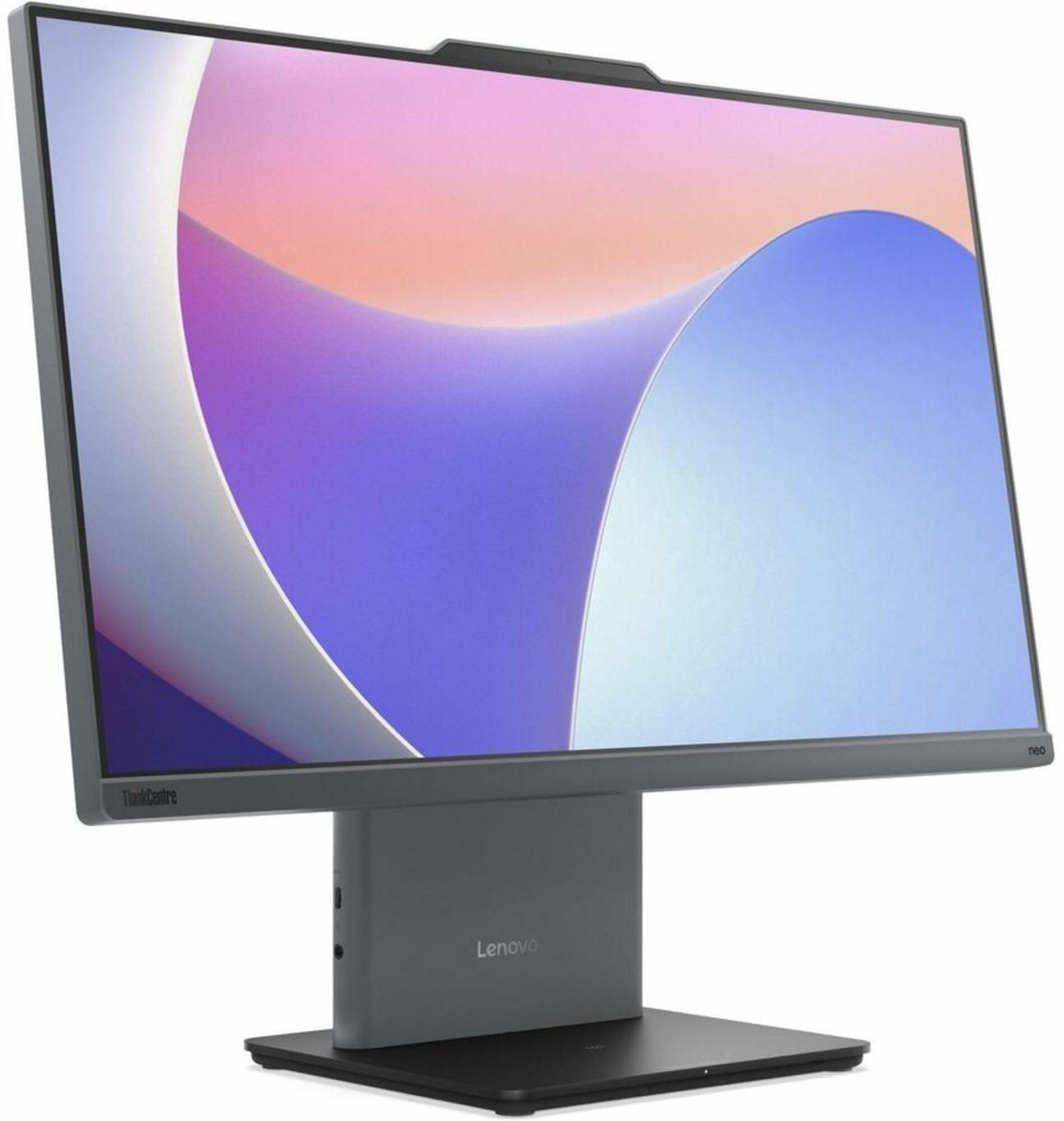
Image: Front view of the Lenovo ThinkCentre neo 50a 24 Gen 5 All-in-One Computer, showcasing its 23.8-inch Full HD display and sleek design.
Operating
Power On/Off
- To Power On: Press the power button.
- To Shut Down: Click the Start button in Windows, then select Power > Shut down.
- To Restart: Click the Start button in Windows, then select Power > Restart.
Network Connectivity
- Wi-Fi: To connect to a wireless network, click the network icon in the taskbar, select your desired Wi-Fi network, and enter the password if prompted.
- Ethernet: If an Ethernet cable is connected, the system will automatically detect and connect to the wired network.
Using Ports
The ThinkCentre neo 50a 24 Gen 5 features various ports for connectivity:
- USB Ports: For connecting external devices such as USB drives, printers, or additional peripherals.
- HDMI Port: For connecting an external display or projector.
- DisplayPort: For connecting an external display or projector.
- Audio Jack: For connecting headphones or external speakers.
Maintenance
Cleaning the Device
- Screen: Use a soft, lint-free cloth lightly dampened with water or a screen-cleaning solution. Do not spray liquid directly onto the screen.
- Chassis: Wipe the exterior surfaces with a soft, dry cloth. Avoid abrasive cleaners.
- Ventilation: Ensure that the ventilation openings are clear of dust and obstructions to prevent overheating.
Software Updates
Regularly update your Windows operating system and drivers to ensure optimal performance and security. Windows Update can be accessed via Settings > Windows Update.
Troubleshooting
Common Issues and Solutions
- No Power:
- Ensure the power adapter is securely connected to both the AIO and a working electrical outlet.
- Try a different outlet. - No Display:
- Check if the computer is powered on.
- If an external monitor is connected, ensure it is powered on and correctly configured. - Network Connectivity Issues:
- For Wi-Fi, verify your network password and ensure you are within range of the router.
- For Ethernet, check the cable connection and ensure your router/modem is functioning correctly. - Keyboard/Mouse Not Responding:
- Ensure the USB cables are securely plugged into the AIO's USB ports.
- Try connecting them to different USB ports.
If problems persist, refer to the Lenovo support website for further assistance.
Specifications
| Feature | Specification |
|---|---|
| Model | ThinkCentre neo 50a 24 Gen 5 12SD004LUS |
| Processor | Intel Core i7-13620H (13th Gen), Deca-core (10 Core), 2.40 GHz (Max Turbo 4.90 GHz) |
| Operating System | Windows 11 |
| Memory (RAM) | 16 GB DDR5 SDRAM (5200 MHz), Max 32 GB |
| Storage | 512 GB NVMe SSD (PCI Express NVMe 4.0 x4) |
| Display | 23.8" Full HD (1920 x 1080), 250 Nit Brightness |
| Graphics | Intel UHD Graphics (Integrated, Shared DDR5 SDRAM) |
| Network | Gigabit Ethernet, IEEE 802.11ax Wireless LAN, Bluetooth |
| Ports | HDMI, DisplayPort, USB (Total 1), Ethernet |
| Webcam | Yes |
| Dimensions | 26 x 9 x 21 inches |
| Weight | 20.2 Pounds |
Warranty Information
This product is sold with No Warranty as per the manufacturer's stated terms. Please refer to your purchase documentation for any retailer-specific return policies.
Support
For additional support, driver downloads, or service inquiries, please visit the official Lenovo support website:
You may also find helpful resources and community forums on the Lenovo website.