
1. Introduction
Welcome to the MCHOSE ACE68 Magnetic Gaming Keyboard user manual. This guide provides detailed instructions for setting up, operating, maintaining, and troubleshooting your new keyboard. The ACE68 is designed for high-performance gaming, featuring magnetic switches, rapid trigger technology, and a compact 65% layout.
2. Product Overview
2.1 Package Contents
- MCHOSE ACE68 Magnetic Gaming Keyboard
- USB-C Cable
- User Manual (This document)
2.2 Key Features
- 0.01mm Rapid Trigger Accuracy: Adjustable actuation from 0.005mm to 3.4mm for precise and fast key resets.
- 8000Hz Polling Rate: Ultra-fast 0.1ms report rate for minimal latency.
- Snap Tap & Dynamic Typing: Assign up to four actions to a single key press for complex maneuvers.
- 65% Compact Layout: Space-saving design with 68 keys, ideal for gaming setups.
- PBT Double-Shot Keycaps: Durable keycaps with an ergonomic Cherry profile.
- StellarVision 2.0 Magnetic Adjustable Switches: Hot-swappable switches with a lifespan of 100 million clicks.
- M HUB Web Driver: Web-based software for easy configuration and advanced features like RS (Rappy Snappy), DKS (Double KeyStroke), MT (Multi-Tap), TGL (Toggle), and Berserk mode.
- RGB Backlighting: 16 million customizable colors with 22+ preset lighting effects.
2.3 Keyboard Layout
The MCHOSE ACE68 features a 65% layout with 68 keys. This compact design optimizes desk space while retaining essential keys for gaming and general use.

Image: MCHOSE ACE68 Keyboard Layout and Dimensions. This image illustrates the compact 65% layout of the keyboard, showing its dimensions (32cm length, 11.7cm width, 3.5cm height) and the ergonomic Cherry profile of the PBT keycaps.
3. Setup
3.1 Connecting the Keyboard
- Locate the USB-C port on the MCHOSE ACE68 keyboard.
- Connect one end of the provided USB-C cable to the keyboard.
- Connect the other end of the USB-A connector to an available USB port on your computer.
- The keyboard will automatically be detected by your operating system. No additional drivers are typically required for basic functionality.
For advanced customization and features, refer to the "Customization" section for instructions on using the M HUB Web Driver.
4. Operating Instructions
4.1 Basic Usage
Once connected, the MCHOSE ACE68 functions as a standard QWERTY keyboard. You can begin typing and using it for general computer tasks and gaming.
4.2 Function Key Combinations (Fn Layer)
Due to its compact 65% layout, some functions are accessed via the Fn key in combination with other keys. Specific combinations may vary or be customizable via the M HUB Web Driver.
- Fn + [Key]: Access secondary functions printed on keycaps (e.g., F1-F12, Home, End, Page Up, Page Down, media controls).
- Fn + Arrow Keys: Often used for navigation or RGB lighting adjustments.
Refer to the keycap legends for specific Fn combinations.
5. Customization
The MCHOSE ACE68 offers extensive customization options through its web-based M HUB driver.
5.1 M HUB Web Driver
The M HUB Web Driver allows you to configure various settings without installing desktop software.
- Ensure your keyboard is connected to your computer.
- Open a compatible web browser (e.g., Opera, Chrome, Firefox) and navigate to the official MCHOSE M HUB website (specific URL not provided, refer to product packaging or official MCHOSE website for the exact link).
- The web interface will detect your keyboard, allowing you to adjust settings.
Through the M HUB, you can configure:
- Actuation Point: Adjust the actuation distance for each key from 0.005mm to 3.4mm in 0.005mm increments.
- Rapid Trigger: Enable and fine-tune the rapid trigger function for faster key resets, especially useful in FPS games.
- Snap Tap / Dynamic Typing: Program up to four distinct actions per key press based on pressure or depth.
- Key Remapping: Reassign key functions, create macros, and set advanced features like RS (Rappy Snappy), DKS (Double KeyStroke), MT (Multi-Tap), and TGL (Toggle).
- RGB Lighting: Customize lighting effects, colors, brightness, and speed.
- Profiles: Create, save, and export multiple configuration profiles for different games or applications.
- Firmware Updates: Perform firmware updates directly through the web interface.

Image: Rapid Trigger Accuracy and Low Latency. This graphic illustrates the 0.01mm RT accuracy and ultra-low latency features, showing how key presses are registered and reset almost simultaneously compared to fixed actuation points.

Image: 4-In-1 Action Keys. This image demonstrates the "Snap Tap" or "4-In-1 Action Keys" feature, allowing users to assign up to four distinct actions to a single key press based on the depth of the press.
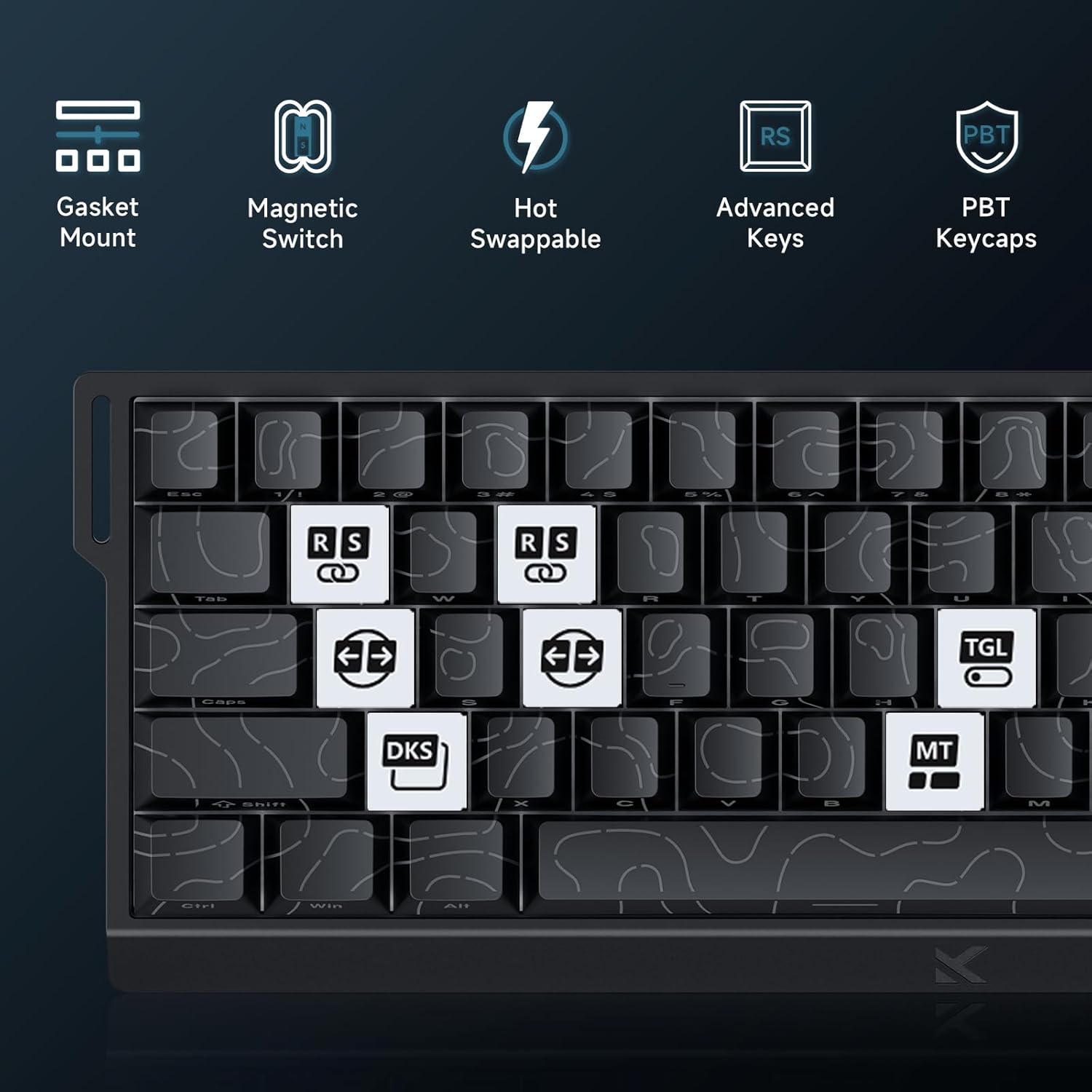
Image: Advanced Key Features. This image highlights various advanced features such as Gasket Mount, Magnetic Switches, Hot-Swappable design, and specific key functions like RS (Rappy Snappy), DKS (Double KeyStroke), MT (Multi-Tap), and TGL (Toggle).
5.2 RGB Lighting
The keyboard features per-key RGB backlighting with 16 million colors and over 22 preset lighting effects.
- Onboard Control: Some basic lighting adjustments (e.g., changing effects, brightness) can be done directly on the keyboard using Fn key combinations. Refer to the keyboard's keycap legends for these shortcuts.
- M HUB Control: For full customization, including per-key lighting, custom effects, and color palettes, use the M HUB Web Driver.

Image: RGB Lighting Effects. This image showcases the vibrant RGB backlighting of the MCHOSE ACE68 keyboard, highlighting its 22+ preset light effects.
6. Maintenance
6.1 Cleaning the Keyboard
- General Cleaning: Use a soft, lint-free cloth slightly dampened with water or a mild cleaning solution to wipe down the keycaps and chassis. Avoid excessive moisture.
- Dust Removal: Use compressed air to remove dust and debris from between the keycaps.
- Deep Cleaning: For thorough cleaning, you can remove the keycaps using a keycap puller. Clean the keycaps separately with mild soap and water, ensuring they are completely dry before reattaching.
6.2 Keycap and Switch Replacement
The MCHOSE ACE68 features hot-swappable switches, allowing you to easily replace switches without soldering.
- Removing Keycaps: Use a keycap puller to gently pull keycaps straight up.
- Removing Switches: Use a switch puller to carefully grip the top and bottom clips of the switch and pull it straight out.
- Installing Switches: Align the pins of the new switch with the holes on the PCB. Gently press the switch down until it clicks into place. Ensure the switch is seated correctly and not bent.
- Installing Keycaps: Align the keycap with the switch stem and press down firmly until it is securely attached.

Image: Keyboard Internal Structure and Hot-Swappable Switches. This image provides an exploded view of the keyboard's internal components, including the precision pre-lubricated switches, stability switch plate, and PORON sound dampening, illustrating its hot-swappable design.

Image: Uranus Magnetic eSports Switches. This image details the specifications of the Uranus Magnetic eSports switches, including their actuation range (0.1-3.4mm), total travel (3.4mm), sensitivity (0.005mm), trigger pressure (32 ± 5 gf), and lifespan (100 million clicks).
7. Troubleshooting
7.1 Common Issues and Solutions
| Issue | Possible Cause | Solution |
|---|---|---|
| Keyboard not responding | Loose cable connection, faulty USB port, driver issue. |
|
| Keys not registering or double-typing | Dust/debris under keycap, switch malfunction, incorrect actuation settings. |
|
| RGB lighting not working or incorrect | Software glitch, incorrect settings, power issue. |
|
| M HUB Web Driver not detecting keyboard | Browser incompatibility, connection issue, firewall. |
|
8. Specifications
| Feature | Detail |
|---|---|
| Brand | MCHOSE |
| Model | ACE68 |
| Layout | 65% (68 keys), QWERTY |
| Switch Type | Uranus Magnetic Standard (StellarVision 2.0 Magnetic Adjustable Switches) |
| Actuation Range | 0.005 mm to 3.4 mm (adjustable) |
| Polling Rate | 8000 Hz |
| Report Rate | 0.1 ms |
| Keycaps | PBT Double-Shot, Cherry Profile |
| Backlighting | RGB (16 million colors, 22+ preset effects) |
| Connectivity | Wired (USB-C) |
| Compatible Devices | Computer |
| Dimensions (L x W x H) | 32 cm x 15 cm x 3.5 cm (12.6 in x 5.9 in x 1.4 in) |
| Internal Material | Aluminium, Plastic |
| Special Features | Ergonomic, Backlit, Customizable Keys, Programmable Keys, Hot-Swappable |

Image: 8000 Hz Polling Rate. This image highlights the keyboard's 8000 Hz polling rate, indicating ultra-fast 0.01ms report rate and significantly faster actuation and response times.
9. Warranty and Support
9.1 Manufacturer's Warranty
The MCHOSE ACE68 Magnetic Gaming Keyboard comes with a 2-year manufacturer's warranty. This warranty covers defects in materials and workmanship under normal use. Please retain your proof of purchase for warranty claims.
9.2 Customer Support
For technical assistance, troubleshooting, or warranty inquiries, please contact MCHOSE customer support.
- Website: Visit the official MCHOSE website for support resources, FAQs, and contact information. (Specific URL not provided, refer to product packaging or official MCHOSE website)
- Online Resources: Check for updated drivers, firmware, and user guides on the MCHOSE support page.
10. Video Resources
No official product videos from the seller were provided in the product data to embed in this manual. Please refer to the manufacturer's official website or YouTube channel for any available video guides or demonstrations.


