
Introduction
This manual provides essential information for the safe and efficient operation of your Yoton 17.5-inch Portable DVD Player. Please read these instructions thoroughly before using the device and retain them for future reference.
The Yoton Portable DVD Player features a 15.6-inch HD screen (1280×800 resolution), dual stereo speakers, and a 5000mAh built-in battery for 4-6 hours of playback. It supports multiple disc formats and media files via USB and SD card.
Safety Information
- Do not expose the device to rain or moisture to prevent fire or electric shock.
- Avoid placing the device near heat sources such as radiators, heat registers, stoves, or other heat-producing appliances.
- Use only attachments/accessories specified by the manufacturer.
- Clean only with a dry cloth.
- Do not block any ventilation openings. Install in accordance with the manufacturer's instructions.
- This device cannot play 1080p, 4K, or Blu-ray discs.
What's in the Box
- 1 x Purple Portable DVD Player YD155
- 1 x Remote Control (battery not included)
- 1 x AC Charger
- 1 x Car Charger
- 1 x 3-in-1 AV Cable (male)
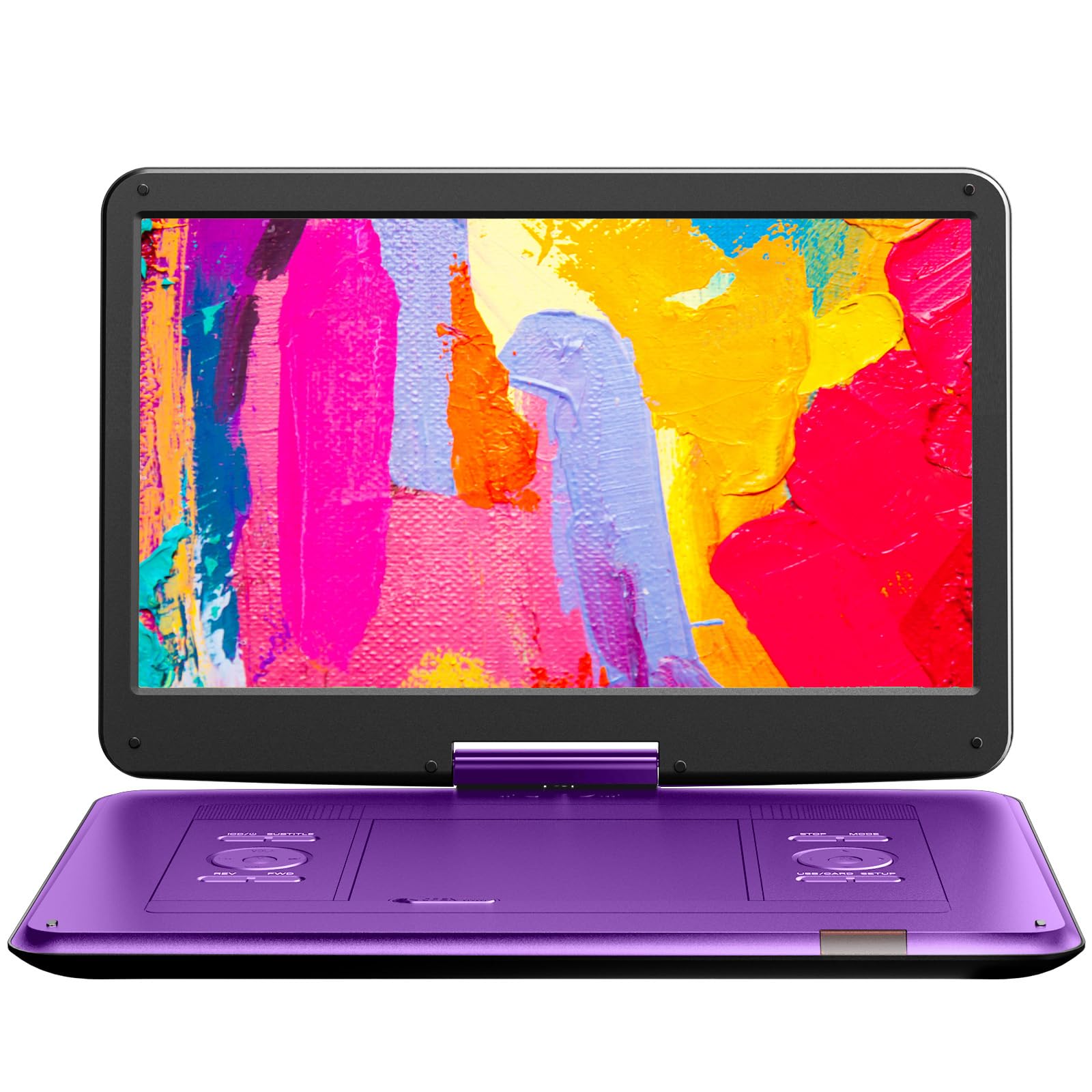
Image: The Yoton 17.5-inch Portable DVD Player, purple color, with its screen open, showcasing the main unit.
Setup
1. Powering On
To power on the device, locate the power switch on the right side of the unit and slide it to the 'ON' position. The screen will display the Yoton Portable Video Player logo.
Video: Demonstrates how to power on the Yoton Portable DVD Player and insert a disc. The video shows sliding the power switch to 'ON' and then opening the disc tray to place a DVD.
2. Inserting a Disc
Press the 'OPEN' button on the unit to open the disc tray. Carefully remove any stuck paper or protective material. Place the disc you wish to play into the tray with the label side facing up. Close the disc tray. The system will then read the disc, which typically completes within 30 seconds.
Note: This device does not support Blu-ray discs, 1080p, or 4K resolution content.
3. Charging the Battery
The device includes a 5000mAh rechargeable battery, providing 4-6 hours of playback. Use the provided AC charger for home use or the car charger for in-vehicle charging. Ensure the charger is securely connected to the DC input port on the unit.
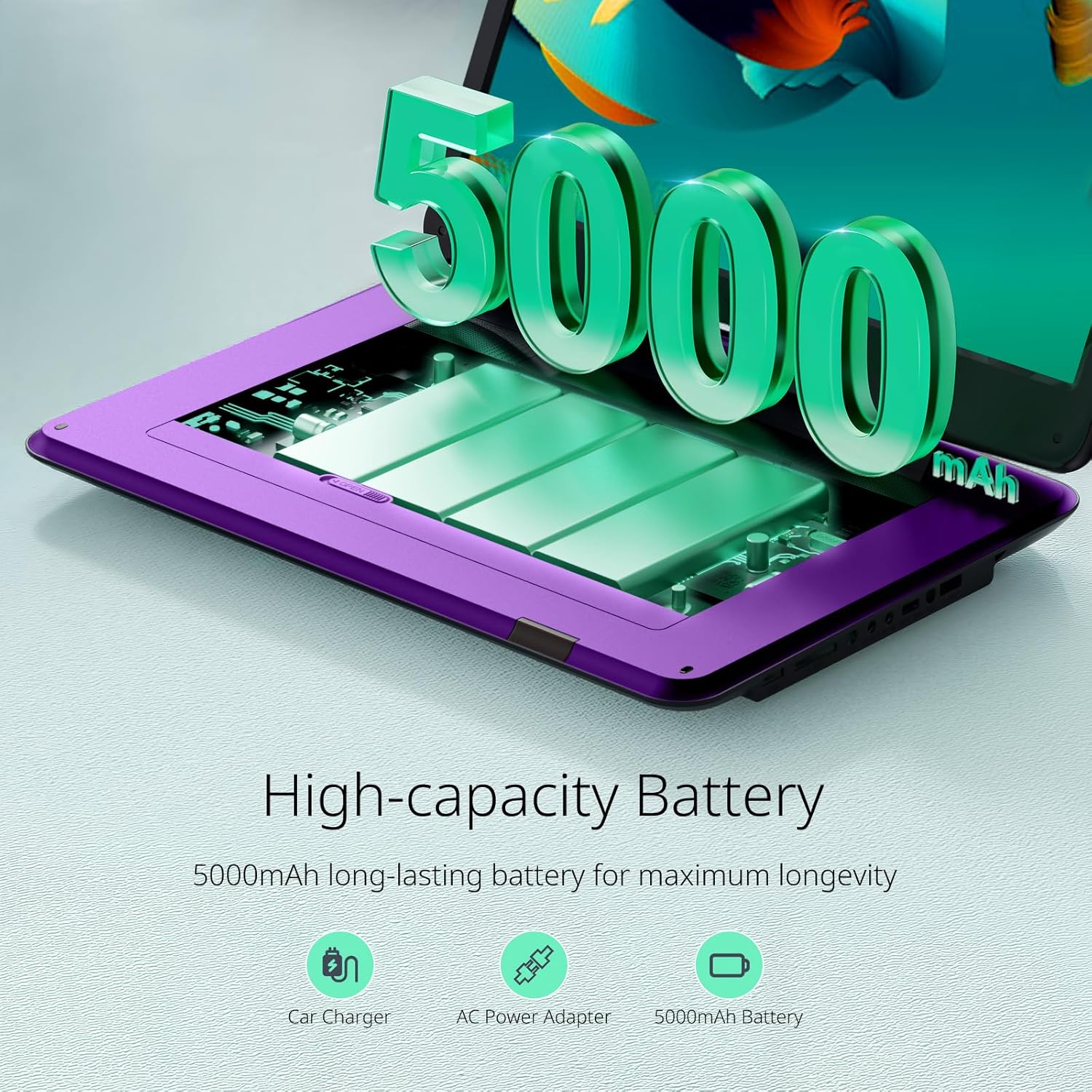
Image: Illustrates the high-capacity 5000mAh battery of the Yoton Portable DVD Player, highlighting its longevity and charging options (car charger, AC power adapter, 5000mAh battery).
4. Connecting to External Devices (TV/Projector)
To connect the DVD player to a television or projector, use the included 3-in-1 AV cable. Connect one end to the AV OUT port on the DVD player and the other end to the corresponding AV IN ports on your external display device. This allows for a larger viewing experience.

Image: Shows the Yoton Portable DVD Player connected to a television, demonstrating the "Sync Screen to TV" feature, allowing users to enjoy content on a larger display.
5. Using USB and SD Cards
The player supports multi-media files via USB and SD Card (up to 32GB). Insert your USB drive into the USB port or your SD card into the SD card slot. The device will automatically detect the media and allow you to browse and play supported files such as VOB, AVI, MPEG, MP3, WMA, and JPEG.

Image: A detailed view of the Yoton Portable DVD Player's side panel, highlighting the USB port, SD card slot, AV OUT, AV IN, Headphone Jack, DC input, and Power ON/OFF switch.
Operating Instructions
1. Basic Playback
Once a disc is inserted and read, playback should begin automatically. Use the control buttons on the unit or the remote control to manage playback (Play, Pause, Stop, Fast Forward, Rewind).
2. Last Memory Function
The intelligent memory feature automatically saves your last viewing spot. When you power the device back on, it will resume playback from where you left off, ensuring an uninterrupted viewing experience.

Image: Illustrates the "Last Memory Function" of the Yoton Portable DVD Player, showing how it remembers the last playback position even after being powered off and on again.
3. Toggling Display On/Off
You can toggle the display screen on or off without stopping playback. This feature allows for power savings when visual display is not required, such as when listening to audio or when connected to an external screen. Press the 'LCD/U' button on the unit to control the display.
Video: Demonstrates how to control the display on/off function of the Yoton Portable DVD Player using the 'LCD/U' button. Playback continues uninterrupted even when the screen is off.
4. Adjusting Playback Speed
To adjust the playback speed, press the 'FWD' button repeatedly to cycle through various fast-forward speeds (2x, 4x, 8x, 16x, up to 32x). After selecting your desired speed, press the 'OK' button to initiate playback at that rate.
Video: Illustrates how to adjust the playback speed on the Yoton Portable DVD Player by repeatedly pressing the 'FWD' button and confirming with 'OK'.
5. Supported Formats and Region-Free Playback
The player supports a wide range of disc formats including CD, DVD, DVD±R, CD-R(RW), SVCD-R(RW), DVD±RW, and VCD. It is also region-free, allowing you to play discs from all regions. For digital media, it supports VOB, AVI, MPEG, MP3, WMA, and JPEG files via USB and SD card.

Image: Displays the Yoton Portable DVD Player with a graphic indicating its region-free capability and support for various VCD and DVD disc formats.
6. Audio Output
The device features dual stereo speakers for clear audio. For private listening, connect headphones to the headphone jack. When connected to an external display via AV cable, audio will typically output through the external display's speakers.

Image: A graphic representation of the Yoton Portable DVD Player's dual stereo speakers, emphasizing immersive sound quality.
Maintenance
- Cleaning the Screen: Use a soft, lint-free cloth to gently wipe the screen. For stubborn smudges, slightly dampen the cloth with water or a screen-cleaning solution. Avoid harsh chemicals.
- Cleaning the Disc Tray: Periodically inspect the disc tray for dust or debris. Use a soft brush or compressed air to clean the area.
- Battery Care: To prolong battery life, avoid fully discharging the battery frequently. If storing the device for an extended period, charge it to about 50% and store in a cool, dry place.
- General Care: Keep the device away from extreme temperatures, direct sunlight, and high humidity. Do not drop or subject the device to strong impacts.
Troubleshooting
| Problem | Possible Cause | Solution |
|---|---|---|
| Device does not power on. | Battery is drained or power switch is off. | Ensure the power switch is in the 'ON' position. Connect the AC adapter or car charger to charge the battery. |
| Disc does not play. | Disc is dirty, scratched, or unsupported format. | Clean the disc with a soft cloth. Try a different disc. Ensure the disc format is supported (not Blu-ray, 1080p, or 4K). |
| No sound. | Volume is too low or muted. External device not properly connected. | Increase the volume. Check if headphones are connected. If using external speakers, ensure AV cables are correctly connected and external device volume is up. |
| No picture on external TV. | AV cables not properly connected or TV input incorrect. | Ensure AV cables are securely connected to both the DVD player and the TV. Select the correct AV input on your television. |
| USB/SD card not recognized. | Card/drive is corrupted, unsupported format, or capacity too large. | Ensure the USB drive or SD card is formatted correctly and contains supported file types. Max capacity is 32GB. Try a different USB drive or SD card. |
Specifications
- Brand: YOTON
- Model Number: YD155
- Screen Size: 15.6 Inches
- Display Type: LCD
- Native Resolution: 1280x800
- Media Type: SD, VCD, DVD, AVI, MPG, MPEG, DAT, VOB, OGG, ASF, CD, MP3, WMA, JPEG
- Connectivity Technology: USB
- Compatible Devices: Television
- Item Dimensions (L x W x H): 15.3"L x 10.2"W x 2"H
- Item Weight: 1.8 Kilograms
- Battery Capacity: 5000mAh (4-6 hours playback)
Warranty
All products purchased from Yoton are covered by a 1-year warranty. This warranty covers manufacturing defects and malfunctions under normal use. Please retain your proof of purchase for warranty claims.
For any concerns or issues, please contact Yoton customer service. Free new parts may be provided for any broken or missing components during the warranty period.
Support
Yoton offers problem-solving assistance to all customers with a guaranteed response within 24 hours. Our professional team provides 100% technical support. Even after the 30-day Amazon return period, we are available to help with device issues.
To receive support, please provide your order number and a detailed description of the problem. You can find more detailed operation instructions on the Amazon product page or by contacting us directly.

Image: A Yoton customer service representative wearing a headset, symbolizing the available support for product inquiries and issues.


