
Introduction
This manual provides comprehensive instructions for the installation, operation, and maintenance of your Carpuride YT103S Double DIN Car Stereo. The YT103S is designed to enhance your in-car experience with its 10.3-inch HD touchscreen, wireless Apple CarPlay and Android Auto compatibility, GPS navigation, Bluetooth music streaming, MirrorLink functionality, and support for various media inputs. Please read this manual thoroughly before using the device to ensure proper operation and safety.
Setup and Installation
Before beginning installation, ensure your vehicle's battery is disconnected to prevent electrical damage. The Carpuride YT103S is designed for Double DIN slots. Professional installation is recommended.
Package Contents
Verify that all components are present in the package:
- Main Engine Display (10.3-inch screen)
- Main Engine Unit
- Wire Harness A
- Wire Harness B
- 6PIN Line
- Rear View Camera (included)
- Camera Wire
- Frame
- Disassembly Tool
- Brackets
- User Manual

Figure 1: Included Components. This image displays all items typically found in the Carpuride YT103S package, including the main display, engine unit, wiring harnesses, rear view camera, and installation tools.
Basic Wiring Connections
- Power Connection: Connect Wire Harness A and B to the main engine unit and then to your vehicle's power supply according to the wiring diagram provided in the full installation guide (not included in this manual).
- Antenna Connection: Connect the FM antenna cable to the designated port on the main engine unit.
- Rear View Camera: Connect the included rear view camera using the camera wire to the appropriate input on the main engine unit. Ensure proper routing of the cable to avoid interference.
- External Microphone (Optional): If using an external 3.5mm microphone, connect it to the dedicated port.
- Speaker Output: Connect your vehicle's speakers to the 4-channel outputs (Front Left, Front Right, Rear Left, Rear Right) and subwoofer output if applicable.
Mounting the Unit
Install the main engine unit into the Double DIN slot of your vehicle's dashboard using the provided brackets. Attach the 10.3-inch display to the main engine unit. The display can be rotated for optimal viewing angle.
Operating Instructions

Figure 2: Carpuride YT103S Main Interface. This image shows the 10.3-inch HD touchscreen displaying a typical application menu, similar to Apple CarPlay, providing a visual overview of the unit's user interface.
Power On/Off
Turn on your vehicle's ignition. The Carpuride YT103S will power on automatically. To power off, turn off the vehicle's ignition.
Wireless CarPlay and Android Auto
The YT103S supports both wireless and wired Apple CarPlay and Android Auto. Ensure your smartphone's Bluetooth and Wi-Fi are enabled.
- On the YT103S screen, select the CarPlay or Android Auto icon.
- On your smartphone, search for the Carpuride device in Bluetooth settings and pair.
- Follow the on-screen prompts to establish the connection. Once connected, your phone's interface will be displayed on the 10.3-inch screen.
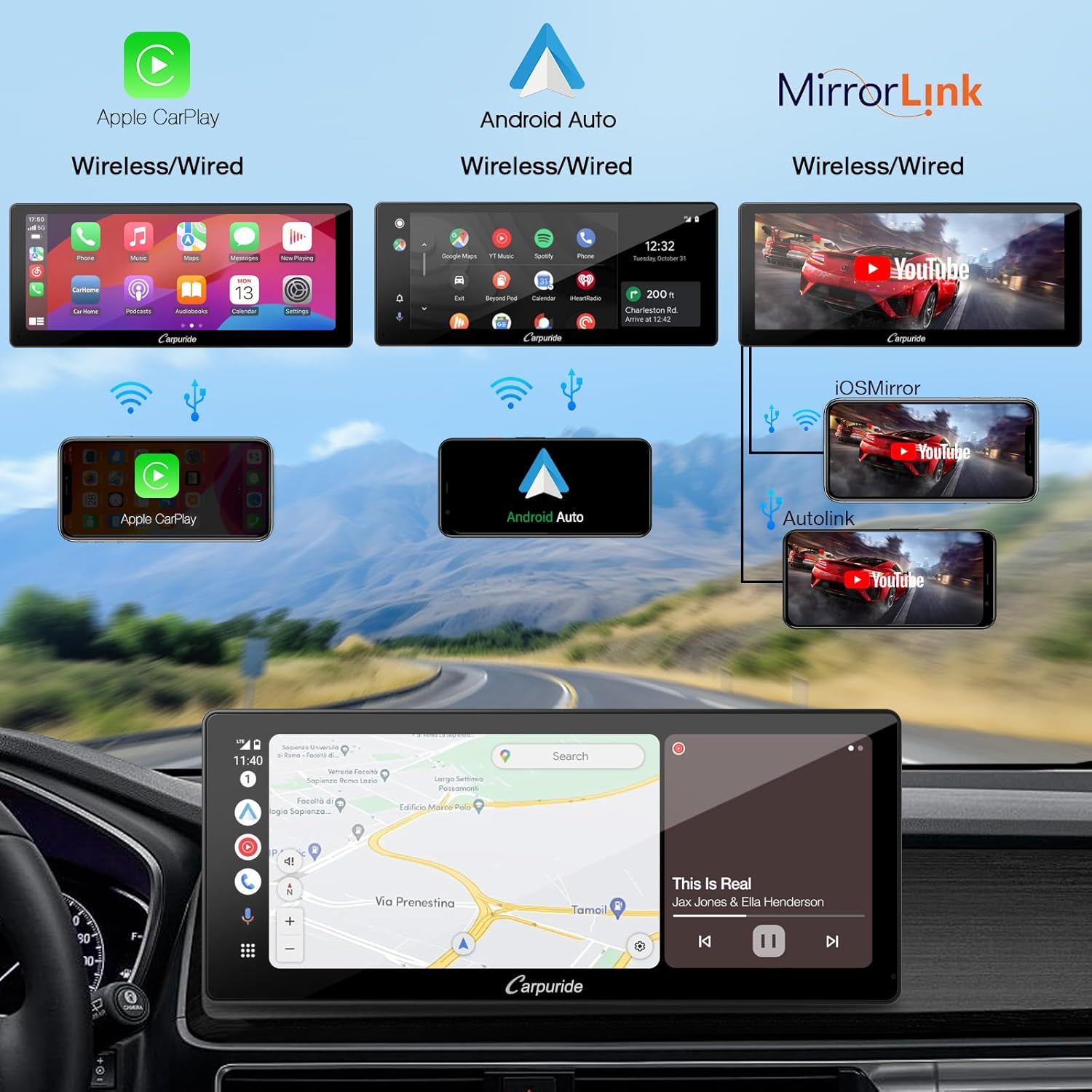
Figure 3: Connectivity Options. This image illustrates the various connection methods for Apple CarPlay, Android Auto, and MirrorLink, supporting both wireless and wired configurations.
GPS Navigation
Access GPS navigation through CarPlay or Android Auto. Compatible navigation apps (e.g., Apple Maps, Google Maps, Waze) from your smartphone will be displayed on the unit's screen.
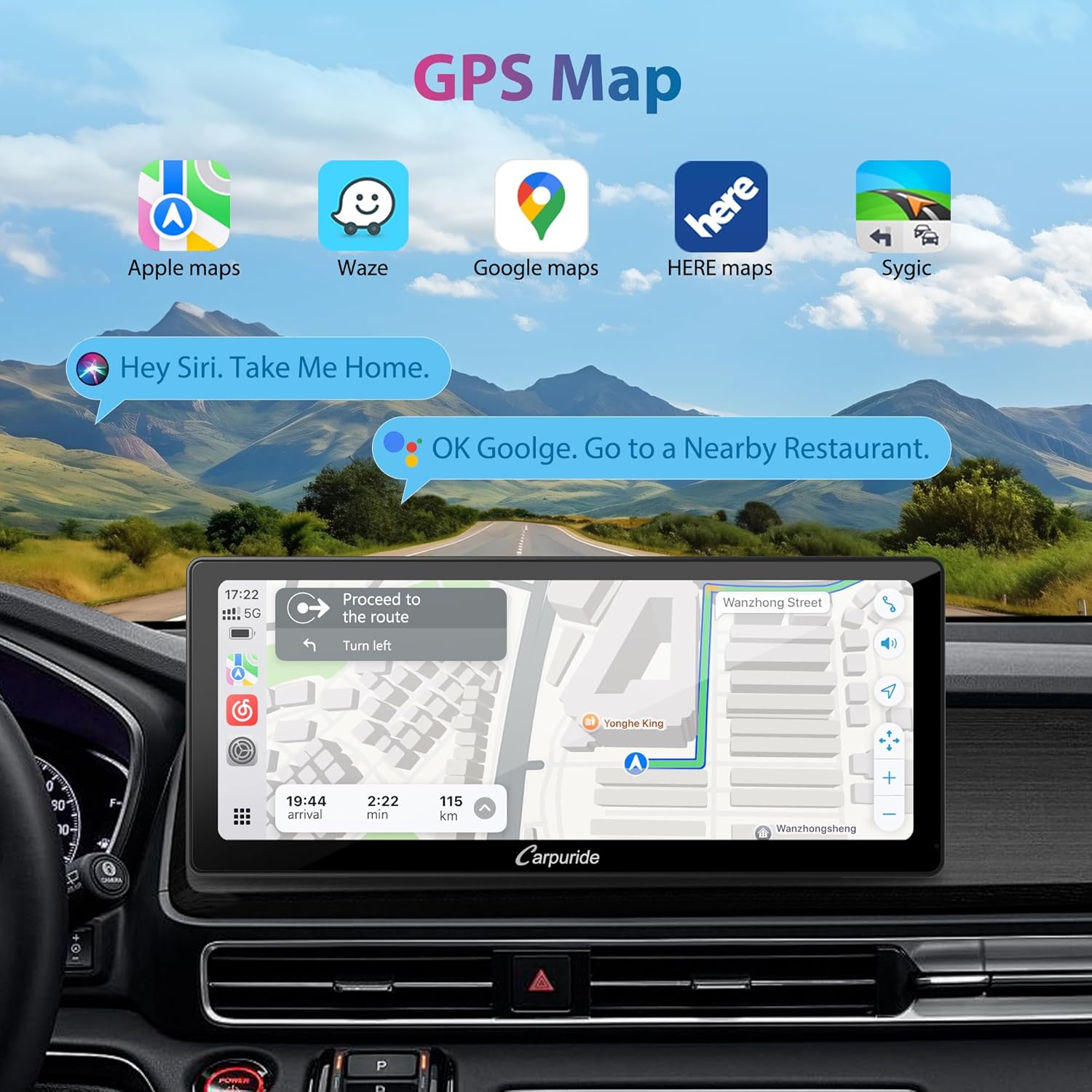
Figure 4: GPS Navigation Interface. The image shows the 10.3-inch screen displaying a map from a navigation application, demonstrating the clarity and integration of GPS features.
Voice Control
Utilize Siri or Google Assistant for hands-free control. With the integrated microphone or an external 3.5mm microphone, you can issue voice commands for navigation, calls, and music playback without touching the screen or your smartphone.

Figure 5: Voice Control Functionality. This image illustrates how voice commands like "Hey Siri, Navigate Home" or "OK Google, Call Flora" are processed by the unit for hands-free operation.
Steering Wheel Control (SWC)
If your vehicle supports Steering Wheel Control, the YT103S can integrate with your existing steering wheel buttons. This allows you to adjust volume, change tracks, and manage calls directly from your steering wheel, enhancing safety.
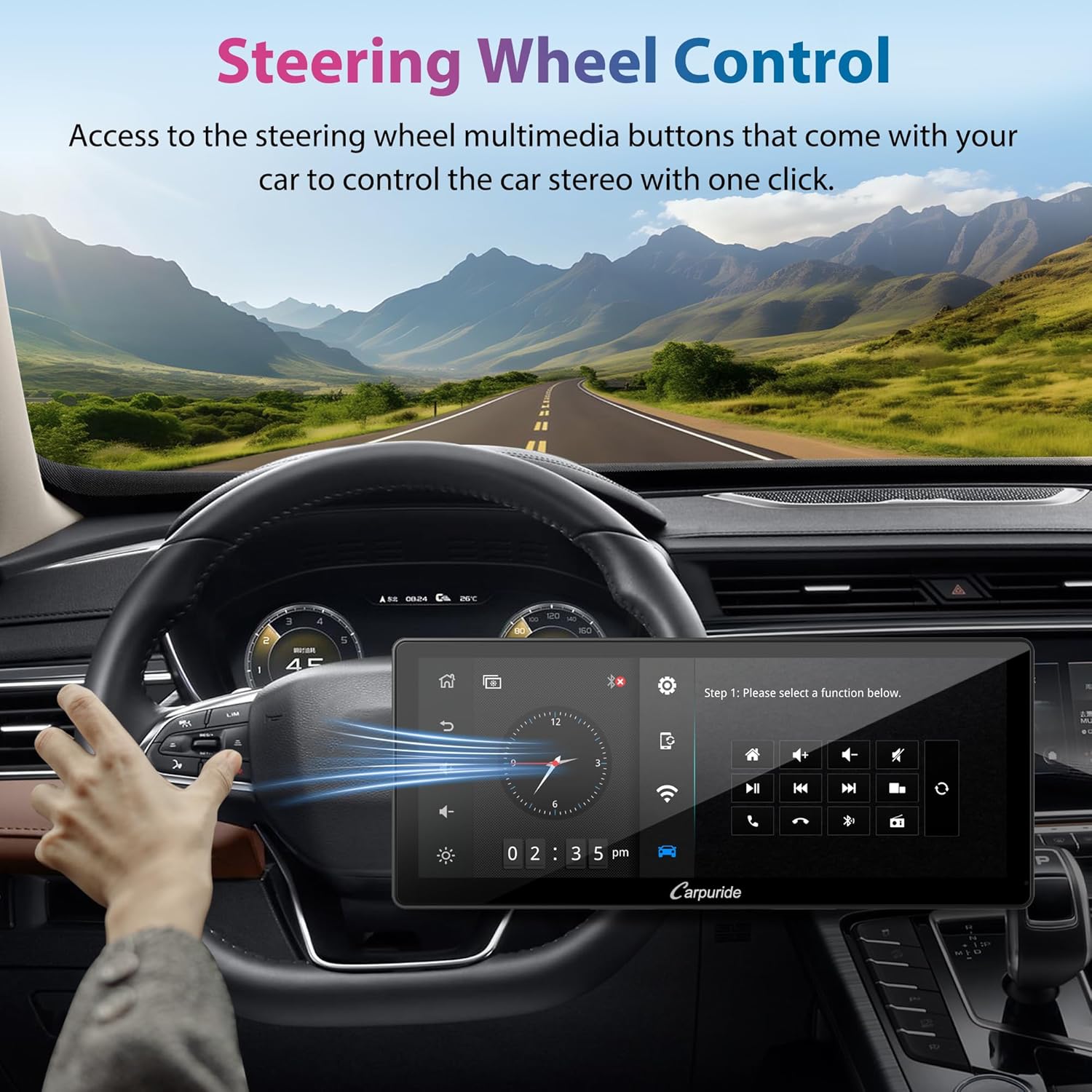
Figure 6: Steering Wheel Control. The image depicts a driver using steering wheel buttons to control the car stereo, highlighting the convenience and safety of this feature.
MirrorLink Function
MirrorLink allows you to project your smartphone's screen content (audio, video, apps) onto the YT103S display. It supports iOS and Android via cable, and iOS wirelessly.
Bluetooth Connectivity
Pair your smartphone via Bluetooth to stream music and make hands-free calls. Access the Bluetooth menu on the unit to pair a new device or connect to a previously paired one.
AM/FM Radio
The unit includes an integrated AM/FM radio tuner. Scan for local stations (FM: 87.5 MHz-107.9 MHz) and save your favorites.
USB and TF Card Support
The YT103S features a USB port and a TF card slot for playing downloaded audio and video files without an internet connection.

Figure 7: Multimedia Features. This composite image highlights the unit's capabilities for Bluetooth music streaming, AM/FM radio, playback from USB and TF cards, and sound equalization settings.
Equalizer (EQ) Adjustment
Customize your audio experience using the built-in equalizer presets or manual adjustments to suit various music styles.
Camera Compatibility (Front/Rear)
The unit supports both front and rear cameras. When the vehicle is shifted into reverse, the display automatically switches to the rear view camera feed, aiding in safe parking. The included rear camera offers a 170° wide angle, night vision, and is waterproof. (Note: Front camera is not included and must be purchased separately).

Figure 8: Camera Support. This image illustrates the unit's capability to display feeds from both front and rear cameras, emphasizing features like night vision, wide viewing angle, and automatic switching for reversing.
Customizable Boot Logo and Screen
Personalize your unit by setting a custom boot logo, such as your car's brand logo, or by displaying personal photos on the home screen.
Maintenance
- Screen Cleaning: Use a soft, lint-free cloth to gently wipe the touchscreen. Avoid abrasive cleaners or solvents.
- Software Updates: Check the manufacturer's website periodically for any available software updates to ensure optimal performance and access to new features.
- Environmental Care: Avoid exposing the unit to extreme temperatures, direct sunlight for prolonged periods, or excessive moisture.
Troubleshooting
- No Power: Check all power connections and ensure the vehicle's ignition is on. Verify fuses.
- No Sound: Check speaker connections, volume levels, and audio source selection. Ensure the EQ settings are not muting output.
- CarPlay/Android Auto Connection Issues: Ensure Bluetooth and Wi-Fi are enabled on your phone. Try restarting both your phone and the car stereo. For wired connections, check the USB cable. Ensure your phone's OS version is compatible (iOS 6+ or Android 11+).
- Poor Radio Reception: Check the antenna connection. Ensure the antenna is properly extended or positioned.
- Screen Unresponsive: Try restarting the unit by turning off and on the vehicle's ignition. If issues persist, consult a professional.
Specifications
| Feature | Detail |
|---|---|
| Brand | CARPURIDE |
| Model Number | YT103S |
| Screen Size | 10.3 Inches |
| Color | Black |
| Connectivity | Bluetooth, Jack 3.5 mm (external mic) |
| Special Features | Music Playback, GPS Navigation, Apple CarPlay, Android Auto, Touchscreen |
| Compatible Devices | Smartphone (iOS 6+, Android 11+) |
| Audio Output Mode | Stereo |
| Surround Sound Channel Configuration | 4.0 |
| Number of Channels | 4 |
| Internet Services Supported | YouTube (via MirrorLink/CarPlay/Android Auto) |
| Rechargeable Battery | No |
Warranty and Support
Specific warranty information and detailed support contacts are not provided within this manual. Please refer to the product packaging or the official Carpuride website for warranty details and customer support options.
