
1. Product Overview
The BUNUD External USB-C DVD Drive is a versatile 5-in-1 optical drive designed for various computing needs. It offers DVD/CD read and write capabilities, along with an integrated SD/TF card reader and two additional USB ports, enhancing connectivity for your devices.
Key Features
- 5-in-1 Functionality: Includes an independent SD/TF card slot, 2 USB ports, and micro USB ports for expanded connectivity.
- Reader and Writer: Supports reading CD, VCD, SVCD, CD-R/RW, DVD-R/RW and burning CD+/-RW, DVD+/-RW.
- Plug and Play: Equipped with USB 3.0 and Type-C connectors for automatic recognition without external drivers or power supply.
- Wide Compatibility: Compatible with Windows 11/10/8.1/7/XP, Linux, and all versions of Mac OS.
- Ultra Slim & Portable Design: Lightweight with an embedded data cable for easy transport and organization.
Package Contents
- BUNUD External DVD Drive
- User Manual
- Power Cable

This image displays the BUNUD external DVD drive, its integrated USB-C and USB-A cables, along with a USB flash drive, an SD card, and a TF card, illustrating its multi-functionality.
2. Setup Guide
System Requirements
Ensure your computer meets the following operating system requirements:
- Operating Systems: Windows 11/10/8.1/8/7/2000/XP, Linux, Mac OS (all versions).
- Hardware Platform: PC, MAC, Macbook, Laptop.
Note: This DVD drive is not compatible with iPad, Tablets, Projectors, TVs, Chrome OS, Car systems, or Smart Phones.
Connection Steps
- Locate an available USB 3.0 or USB-C port on your computer.
- Connect the integrated USB cable from the BUNUD External DVD Drive directly to the chosen port on your computer.
- The drive is designed for plug-and-play operation and should be automatically recognized by your operating system. No additional drivers or external power supply are typically required.
- An indicator light on the drive will illuminate when successfully connected and powered.
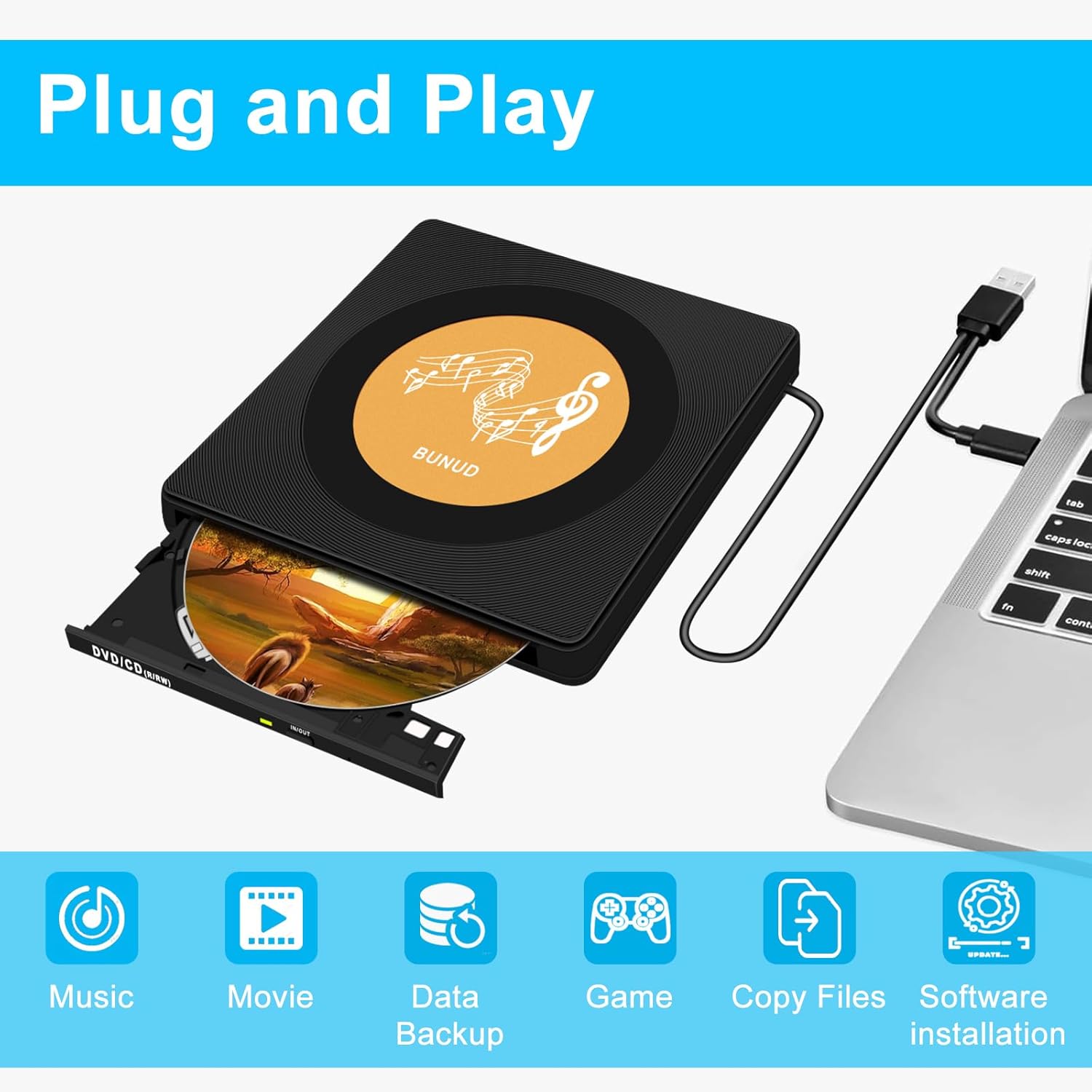
This image demonstrates the plug-and-play nature of the BUNUD external DVD drive, connected to a laptop, and its applications for listening to music, watching movies, data backup, gaming, copying files, and software installation.

A visual representation of the drive's wide compatibility, indicating support for multiple operating systems such as Mac OS, Windows 11, 10, 8, 7, and XP, and various computer types including iMac, desktop PCs, notebooks, MacBook Air, and MacBook Pro.
3. Operating Instructions
Inserting and Ejecting Discs
- To open the disc tray, press the eject button located on the front of the drive.
- Carefully place the CD or DVD onto the tray, ensuring it is centered on the spindle.
- Gently push the tray back into the drive until it clicks shut.
- To eject a disc, press the eject button again or use the software eject function on your computer.
- In case of power failure or if the eject button does not respond, a small forced ejection hole is provided. Insert a straightened paperclip into this hole to manually open the tray.
Reading Discs
Once a disc is inserted and the drive is connected, your computer's operating system should automatically detect the disc. You can then access its contents through File Explorer (Windows) or Finder (Mac). For media playback, ensure you have compatible software installed (e.g., VLC Media Player for DVDs).
Writing Discs (Burning)
To burn data to a CD or DVD, you will need disc burning software (e.g., Windows Media Player, Nero, Roxio, or built-in macOS utilities). Follow the instructions provided by your chosen software to select files and initiate the burning process. Ensure you use compatible blank discs (CD-R/RW, DVD+/-RW).
Using the Card Reader and USB Ports
The drive features an SD card slot, a TF card slot, and two USB ports. These can be used simultaneously with the optical drive function, though SD and TF card slots cannot be used at the exact same time.
- SD/TF Card Slots: Insert your SD or TF card into the corresponding slot to access or transfer data. The card will appear as a removable drive on your computer.
- USB Ports: Connect USB devices such as flash drives, external hard drives, or other peripherals to these ports for data transfer or power.

An image emphasizing the high-speed data transmission capabilities of the drive through USB 3.0 and Type-C connections, with visual indicators for faster USB 3.0 performance compared to USB 2.0, and specifying 24X CD and 8X DVD read/write speeds.
4. Maintenance
Care and Cleaning
- Keep the drive clean and free from dust. Use a soft, dry cloth to wipe the exterior.
- Avoid using liquid cleaners or abrasive materials, as these can damage the surface.
- Do not open the drive casing, as this may void the warranty and expose internal components.
- Handle discs by their edges to prevent fingerprints and scratches, which can affect readability.
Storage
- When not in use, store the drive in a cool, dry place away from direct sunlight and extreme temperatures.
- Utilize the embedded cable design to neatly store the cable, preventing tangles and damage.
- The compact and lightweight design makes it easy to store in a laptop bag or drawer.
5. Troubleshooting
Common Issues and Solutions
- Drive not recognized by computer:
- Ensure the USB cable is securely connected to both the drive and the computer.
- Try connecting to a different USB port on your computer.
- If using a USB hub, try connecting the drive directly to the computer.
- Restart your computer. - Disc not reading or playing:
- Check if the disc is clean and free of scratches or smudges. Clean with a soft, lint-free cloth if necessary.
- Ensure the disc is correctly seated in the tray.
- Verify that you have appropriate software installed for the disc type (e.g., DVD player software for DVDs).
- Try a different disc to rule out a faulty disc. - Disc burning fails:
- Ensure you are using a compatible blank disc (CD-R/RW, DVD+/-RW).
- Verify that you have sufficient free space on your computer for temporary files during the burning process.
- Try reducing the burning speed in your software settings.
- Close other applications that might be using system resources. - SD/TF card or USB device not detected:
- Ensure the card or device is fully inserted into the correct slot/port.
- Try a different card or USB device to check if the issue is with the drive or the external media.
- Note that SD and TF card slots cannot be used simultaneously.
6. Specifications
Technical Details
| Brand | BUNUD |
| Model | B0DWXCNRHH |
| Hardware Platform | PC, MAC, Macbook, Laptop |
| Operating System | Windows 11/10/8.1/8/7/2000/XP, Linux, Mac OS |
| Item Weight | 14.4 ounces |
| Package Dimensions | 7.4 x 7.13 x 1.46 inches |
| Special Feature | 5 in 1 Design (DVD/CD Drive, SD/TF Card Reader, 2 USB Ports) |
| Hardware Interface | USB 3.0, Type C |
| Optical Storage Write Speed | CD-R: 24X; CD-RW: 16X; DVD-R: 8X; DVD-R DL: 6X; DVD-RW: 6X; DVD+R: 8X; DVD+R DL: 6X; DVD+RW: 8X |
| Optical Storage Read Speed | DVD-ROM: 8X; CD-ROM: 24X |

This diagram illustrates the physical dimensions of the drive (15cm x 15cm x 1.5cm) and details its various components: a power port, USB port, SD card slot, TF card slot, indicator light, eject button, forced ejection hole, non-slip pads, and the embedded cable design.
7. Warranty and Support
Warranty Information
BUNUD provides a 1-year quality guarantee for this external DVD drive from the date of purchase. This warranty covers manufacturing defects and ensures the product meets its specified performance standards under normal use.
Customer Support
If you encounter any issues or have questions regarding your BUNUD External DVD Drive, please contact our customer support team. We are committed to providing after-sales service and will respond to your inquiries within 24 hours.
For support, please refer to the contact information provided with your purchase or visit the official BUNUD website.