
Tecaki B0DWWTPTQW
Tecaki Mini Portable Projector & 100-Inch Screen Bundle User Manual
Model: B0DWWTPTQW
1. Product Overview
The Tecaki Mini Portable Projector and 100-Inch Projector Screen Bundle is designed to provide a versatile and immersive viewing experience. This bundle includes a compact projector supporting 1080P Full HD resolution and a large, durable 100-inch projection screen, suitable for both indoor and outdoor use.

Image 1.1: The Tecaki Mini Portable Projector and included 100-inch projection screen.
2. Package Contents
Please verify that all items are present in your package:
- Tecaki Mini Portable Projector
- 100-Inch Projector Screen
- Power Adapter
- Remote Control (batteries not included)
- User Manual
- Screen Installation Accessories (hooks, adhesive)
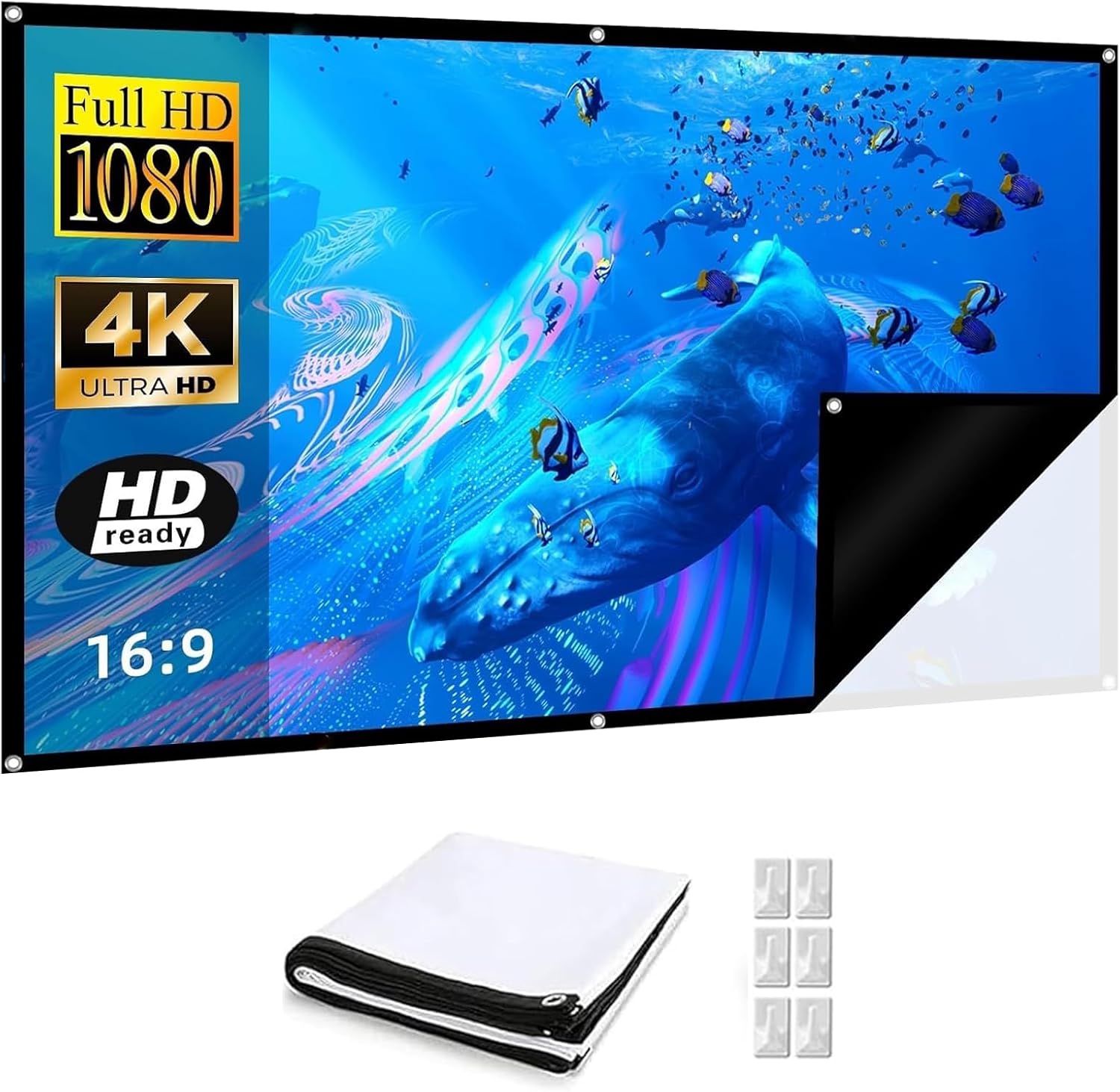
Image 2.1: The 100-inch projector screen and its accompanying installation accessories.
3. Setup Guide
3.1 Projector Placement
The projector features a 180° rotatable lens, allowing for flexible projection on walls, ceilings, or floors. Position the projector on a stable, flat surface. Ensure adequate ventilation around the device.

Image 3.1: The projector's 180-degree rotation capability enables versatile projection angles on various surfaces.
Consider the projection distance based on your desired screen size. The projector supports various screen sizes, from 30 inches up to 200 inches, depending on the distance from the projection surface.

Image 3.2: Recommended projection distances for achieving various screen sizes.
3.2 Projector Screen Installation
The 100-inch projector screen is designed for simple installation. Use the provided hooks and adhesive to secure the screen to a flat wall or surface. Ensure the screen is taut and wrinkle-free for optimal viewing.
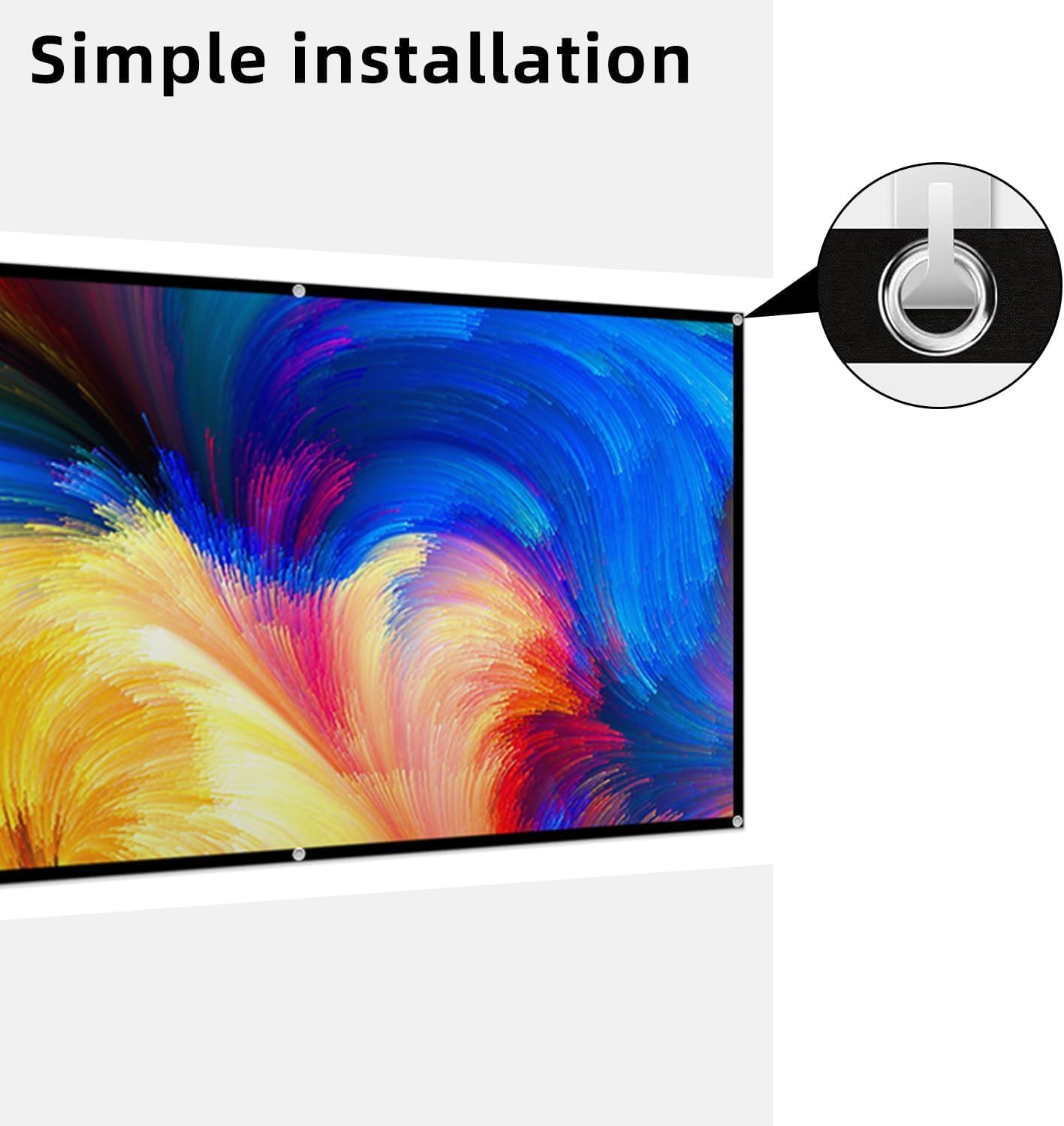
Image 3.3: Detail of the simple installation method for the projector screen.
The screen supports both front and rear projection, offering flexibility in setup depending on your environment and preference.

Image 3.4: The projector screen is compatible with both front and rear projection setups.
3.3 Power Connection
- Connect the power adapter to the projector's power input port.
- Plug the power adapter into a standard electrical outlet.
3.4 Connecting Devices
The projector supports HDMI connectivity. Use an HDMI cable (not included) to connect your source device (e.g., laptop, gaming console, streaming stick) to the HDMI input port on the projector.
4. Operating Instructions
4.1 Power On/Off
- To power on: Press the power button on the projector or the remote control.
- To power off: Press the power button again. The projector will enter standby mode.
4.2 Image Adjustment
The projector features automatic vertical keystone correction (±35°) to ensure a perfectly rectangular image, even if the projector is not perfectly aligned with the screen. It also includes a 75%-100% zoom function to fit the screen.

Image 4.1: The projector automatically corrects image distortion and offers a zoom function for screen fitting.
4.3 Input Source Selection
Use the input source button on the remote control or projector to cycle through available input options (e.g., HDMI).
4.4 Optimizing Viewing Experience
The projector supports 1920x1080 resolution, delivering crisp and clear visuals. It boasts a 10000:1 contrast ratio and enhanced brightness for vivid colors and an immersive viewing experience. Integrated stereo sound provides audio without external speakers.

Image 4.2: Key features of the projector, highlighting its visual and audio capabilities.
5. Maintenance
5.1 Projector Care
- Cleaning the Lens: Gently wipe the projector lens with a soft, lint-free cloth. Do not use abrasive cleaners.
- Dust Removal: Periodically clean the projector's vents to prevent dust buildup, which can affect performance and lifespan. Use a soft brush or compressed air.
- Storage: When not in use for extended periods, store the projector in a cool, dry place, away from direct sunlight and extreme temperatures.
5.2 Projector Screen Care
The 100-inch projector screen is made from durable, wrinkle-free material. It is designed to be easily maintained.
- Cleaning: The screen can be hand washed or machine washed. Use mild soap and cold water.
- Wrinkle Removal: If creases appear, the screen can be ironed on a low setting.
- Storage: The screen is foldable for compact storage. Ensure it is clean and dry before folding.
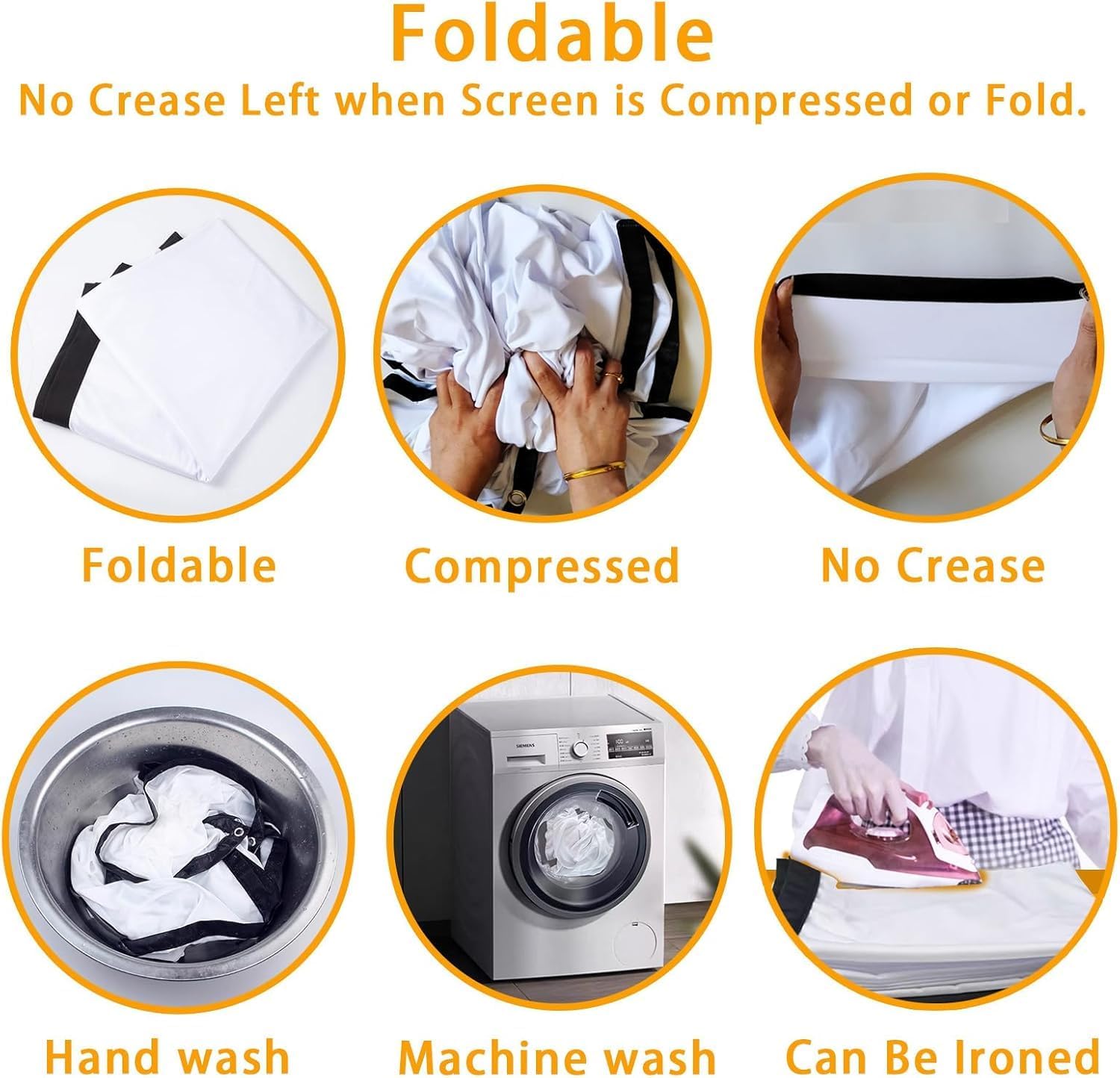
Image 5.1: Guidelines for folding, cleaning (hand wash, machine wash), and ironing the projector screen.
6. Troubleshooting
If you encounter issues with your Tecaki projector, please refer to the following common problems and solutions:
| Problem | Possible Cause | Solution |
|---|---|---|
| No image on screen | Projector not powered on; Incorrect input source selected; Loose HDMI cable. | Ensure projector is powered on; Select correct input source; Check HDMI cable connection. |
| Image is blurry or distorted | Projector out of focus; Incorrect keystone; Projector too close/far from screen. | Adjust focus manually (if applicable); Allow auto keystone to correct; Adjust projector distance. |
| No sound | Volume too low; Muted; Source device audio settings. | Increase projector volume; Unmute; Check audio output settings on source device. |
| Remote control not working | Dead batteries; Obstruction between remote and projector. | Replace batteries; Ensure clear line of sight to projector's IR receiver. |
7. Specifications
| Feature | Detail |
|---|---|
| Brand | Tecaki |
| Model Number | B0DWWTPTQW |
| Connectivity Technology | HDMI |
| Display Resolution (Native) | 1920 x 1080 (Full HD Supported) |
| Special Features | Auto Keystone, Portable, 180° Rotatable Lens |
| Screen Size | 100-Inch (included) |
| First Available Date | February 12, 2025 |
8. Warranty and Support
8.1 Return Policy
This product is eligible for a 30-day refund or replacement policy from the date of purchase. Please refer to the retailer's return policy for specific terms and conditions.
8.2 Customer Support
For further assistance, technical support, or warranty inquiries, please contact Tecaki customer service through the retailer's platform or visit the official Tecaki brand store:
Ask a question about this manual
Ask about setup, troubleshooting, compatibility, parts, safety, or missing instructions. Manuals+ will review the question and use this page’s manual context to help answer it.