1. Introduction
This manual provides detailed instructions for the installation, operation, and maintenance of your SANNCE 6MP NVR (Network Video Recorder) for PoE Home Security Camera Systems. Please read this manual thoroughly before using the product to ensure proper setup and functionality. This NVR is designed to provide reliable 24/7 recording and remote access for home and business surveillance.
2. What's in the Box
Verify that all items listed below are included in your package. If any items are missing or damaged, please contact SANNCE customer support.
- SANNCE 6MP NVR Unit (with 2TB HDD pre-installed)
- Power Adapter
- USB Mouse
- 1.8M HDMI Cable
- 1M Network Cable
- User Manual (this document)

Image: Contents of the SANNCE NVR package. Includes the NVR unit, power adapter, USB mouse, HDMI cable, network cable, and user manual.
3. Product Features
- 6MP Super HD Recording: Supports 6MP IP camera access for preview, recording, and playback in high-definition.

Image: Illustrates 6MP HD clarity for day and night surveillance.
- S+265 Video Compression: Advanced compression technology saves up to 75% storage space, extending recording time and ensuring smooth playback.
- High-Efficient PoE Power Supply: Supports IEEE 802.3 af/at standards with a maximum output of 30W per port. A single Ethernet cable transmits both data and power to compatible PoE cameras, simplifying installation.
- Smart Playback & AI Detection: Features intelligent detection playback (requires compatible IP cameras) for efficient review of events.

Image: Smartphone interface demonstrating human and vehicle detection playback.
- Remote Access: Utilize P2P technology for remote preview and playback via a dedicated mobile application. Receive instant alarm pushes with screenshots.
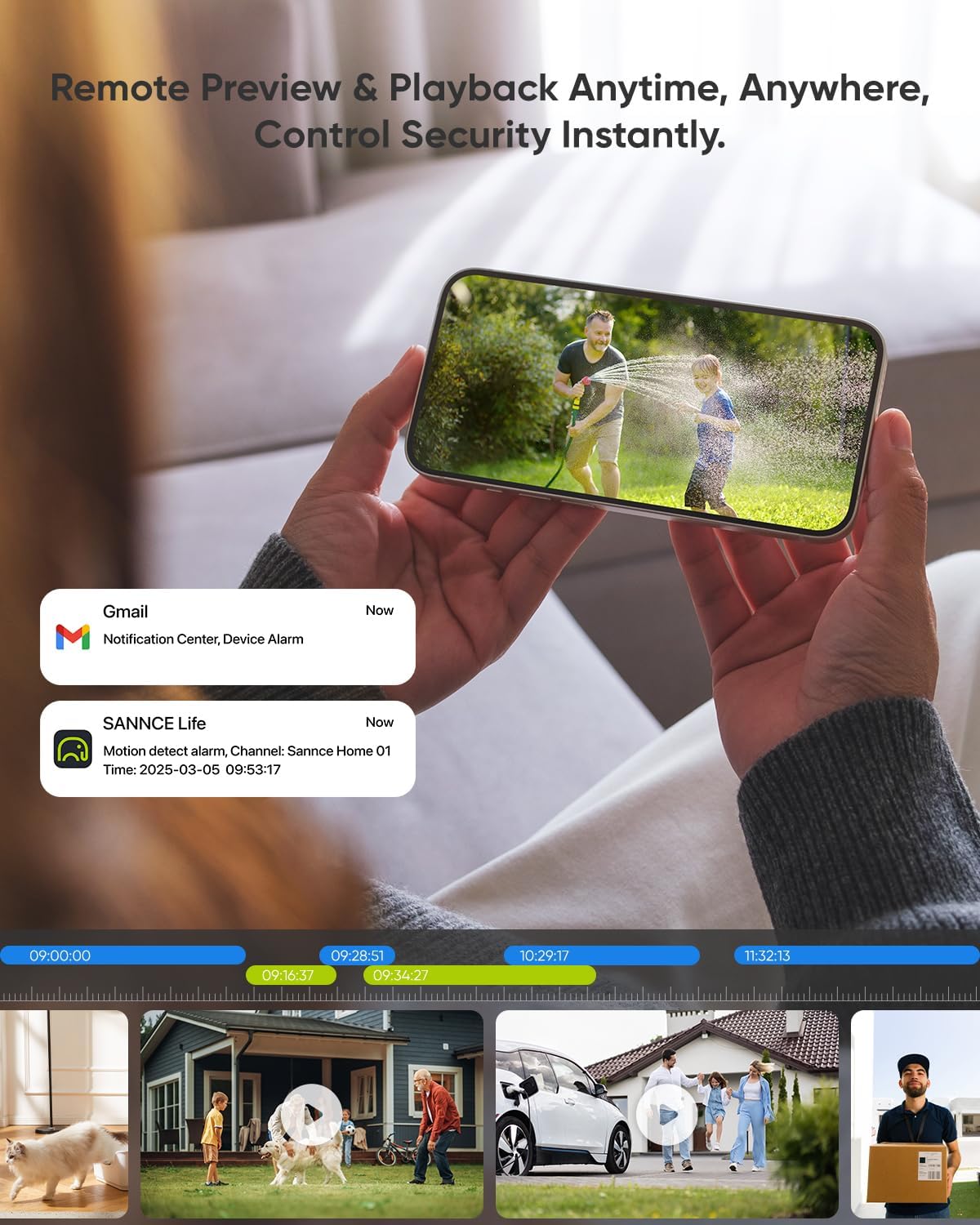
Image: A smartphone showing remote access to live view and recorded footage.
- Multi-Device Compatibility: Access and view surveillance footage simultaneously from smartphones, tablets, and computers.

Image: Depicts simultaneous viewing across multiple devices like smartphones, tablets, and computers.
- Large Storage Capacity: Supports up to 6TB hard disk drive (2TB HDD pre-installed) for extended recording needs.
- Advanced Security Features: Includes high-level data encryption, HDMI/VGA dual output (up to 1080P), and email alerts with screenshots. Supports cloud upgrade.

Image: Real-time alarm notifications triggered by detected activity, sent to a smartphone.

Image: Illustrates features like detection areas and privacy masking for enhanced security.
- Multi-Language Menu: Supports English, German, French, Italian, and Spanish.
4. Setup Guide
4.1 Hardware Installation
- Connect the Hard Drive (if not pre-installed):
The 2TB HDD is typically pre-installed. If you need to install or replace an HDD:
- Unscrew the cover of the NVR.
- Connect the SATA data and power cables from the NVR to the HDD.
- Secure the HDD with screws.
- Replace the NVR cover.

Image: SANNCE NVR unit with an illustration of the 2TB hard drive.
- Connect to a Monitor: Connect the NVR to a monitor using the provided HDMI cable or a VGA cable (not included).
- Connect the Mouse: Plug the USB mouse into a USB port on the NVR.
- Connect to Network: Connect the NVR to your router using the provided Ethernet cable. This is necessary for remote access and online features.
- Connect PoE Cameras: Connect your PoE IP cameras to the PoE ports on the back of the NVR using Ethernet cables. The NVR will provide power and data transmission.
- Power On: Connect the power adapter to the NVR and then plug it into a power outlet. The NVR will start automatically.
4.2 Initial Configuration
Upon first boot, the NVR will guide you through a setup wizard. Follow the on-screen instructions to:
- Set up an administrator password.
- Configure date and time settings.
- Set up network parameters (DHCP is usually sufficient).
- Scan and add connected IP cameras.
- Format the hard drive (if prompted and necessary).
5. Operating Instructions
5.1 Live View
After successful setup, the NVR will display the live view from your connected cameras on the monitor. You can switch between single-camera view and multi-camera grid view using the on-screen controls or mouse right-click menu.
5.2 Recording
- Continuous Recording: The NVR is configured for 24/7 continuous recording by default.
- Motion Detection Recording: Configure specific areas for motion detection in the camera settings. Recording will trigger only when motion is detected.
- Scheduled Recording: Set specific time schedules for recording.
Access recording settings via the NVR's main menu: Main Menu > Record > Record Schedule.
5.3 Playback
To review recorded footage:
- From the live view, right-click and select Playback.
- Select the camera(s) and date you wish to review.
- Use the timeline to navigate through recorded events. The timeline may show different colors for continuous, motion, or alarm recordings.
- Utilize the smart playback feature to quickly find events based on human or vehicle detection (if supported by cameras).
5.4 Remote Access (Mobile App)
To access your NVR remotely:
- Download the SANNCE mobile application from the App Store (iOS) or Google Play Store (Android).
- Register an account and log in.
- Add your NVR by scanning the QR code on the NVR unit or by manually entering its serial number.
- Once added, you can view live feeds, play back recordings, and receive alarm notifications on your mobile device.
6. Maintenance
- Regular Cleaning: Keep the NVR unit free from dust. Use a soft, dry cloth for cleaning. Do not use liquid cleaners.
- Firmware Updates: Periodically check the SANNCE official website for firmware updates. Updating firmware can improve performance and add new features. The NVR supports cloud upgrade.
- Hard Drive Health: Monitor the health of your hard drive through the NVR's system settings. Replace the HDD if any errors are detected to prevent data loss.
- Password Security: Regularly change your NVR and app passwords to strong, unique combinations.
- Environmental Conditions: Ensure the NVR is placed in a well-ventilated area, away from direct sunlight, heat sources, and moisture.
7. Troubleshooting
| Problem | Possible Cause | Solution |
|---|---|---|
| No video output on monitor. | Loose cable connection, incorrect input source on monitor, NVR not powered on. | Check HDMI/VGA cable connections. Ensure monitor is set to correct input. Verify NVR power indicator is on. |
| Cameras not displaying. | PoE cable issue, camera not powered, camera not added/configured, network issue. | Check PoE cable connections. Ensure cameras are receiving power. Re-scan for cameras in NVR settings. Verify network connectivity. |
| Cannot access NVR remotely. | NVR not connected to internet, incorrect app settings, firewall blocking. | Ensure NVR is connected to your router. Check network settings on NVR. Verify app login details and NVR addition. Check router firewall settings. |
| No recording. | HDD full or faulty, recording schedule not set, camera not recording. | Check HDD status and capacity. Ensure recording schedule is active. Verify camera recording settings. Format or replace HDD if necessary. |
| Poor video quality. | Camera resolution settings, network bandwidth, dirty camera lens. | Check camera resolution settings in NVR. Ensure sufficient network bandwidth. Clean camera lenses. |
8. Specifications
| Feature | Detail |
|---|---|
| Model Number | N98PBM200 |
| Video Input | Up to 6MP IP Cameras |
| Video Compression | S+265 |
| Hard Disk Drive | 2TB (pre-installed), supports up to 6TB |
| PoE Standard | IEEE 802.3 af/at, max 30W output |
| Video Output | HDMI (up to 1080P), VGA (up to 1080P) |
| Network Interface | Ethernet |
| Remote Access | P2P via Mobile App (iOS/Android), PC Client |
| Multi-Language Support | English, German, French, Italian, Spanish |
| Product Dimensions | 15 x 12 x 4 inches |
| Item Weight | 4.63 pounds |
| Number of Channels | 8 |
9. Warranty and Support
SANNCE products come with a standard manufacturer's warranty. For specific warranty terms and conditions, please refer to the warranty card included in your package or visit the official SANNCE website.
For technical support, product inquiries, or assistance with troubleshooting, please contact SANNCE customer service:
- Website: www.sannce.com
- Email: support@sannce.com
- Phone: Refer to your product packaging or website for regional support numbers.
Please have your model number (N98PBM200) and purchase information ready when contacting support.


