1. Introduction
Thank you for choosing the Livoo WASH'UP DOH145 Robot Vacuum Cleaner and Mop. This device is designed to simplify your daily cleaning routine by sweeping, vacuuming, and mopping your floors simultaneously. This manual provides essential information for safe operation, setup, maintenance, and troubleshooting to ensure optimal performance of your robot cleaner.
2. Safety Instructions
Please read all safety instructions carefully before using the appliance and keep this manual for future reference. Failure to follow these instructions may result in electric shock, fire, or serious injury.
- This appliance is not intended for use by persons (including children) with reduced physical, sensory, or mental capabilities, or lack of experience and knowledge, unless they have been given supervision or instruction concerning use of the appliance by a person responsible for their safety.
- Children should be supervised to ensure that they do not play with the appliance.
- Only use the original power adapter and charging base provided with the robot.
- Do not use the robot in wet environments or near water.
- Ensure the robot is placed on a stable, flat surface during operation and charging.
- Remove any loose cables, small objects, or fragile items from the cleaning area before operation to prevent entanglement or damage.
- Do not block the robot's air vents or exhaust ports.
- Turn off the robot and unplug it from the power source before cleaning or performing maintenance.
3. Product Overview
Familiarize yourself with the components of your Livoo WASH'UP DOH145 robot cleaner.
3.1 Package Contents
- Livoo WASH'UP DOH145 Robot Vacuum Cleaner and Mop
- Charging Base
- Power Adapter
- Remote Control
- Side Brushes (4x)
- Microfiber Cloth (1x)
- Cleaning Brush (1x)
- Dust Tank (1x)
- Water Tank (1x)

Image: All included accessories for the Livoo WASH'UP DOH145.
3.2 Robot Components
- Top View: Power button, Wi-Fi indicator, charging indicator.
- Side View: Charging port, exhaust vent, water tank release.
- Bottom View: Driving wheels, side brushes, main brush (if applicable), infrared sensors, mop attachment area.

Image: Top view of the Livoo WASH'UP DOH145 robot cleaner with remote and mop.

Image: Side view of the Livoo WASH'UP DOH145 robot cleaner.

Image: Bottom view of the Livoo WASH'UP DOH145 robot cleaner.
4. Setup
4.1 Initial Charging
- Place the charging base against a wall in an open area, ensuring there are no obstacles within 1 meter to the sides and 2 meters in front.
- Connect the power adapter to the charging base and plug it into a wall outlet.
- Place the robot onto the charging base. Ensure the charging contacts on the robot align with those on the base. The charging indicator will illuminate.
- Allow the robot to charge completely before first use (approximately 4-5 hours).
4.2 App Connection (Smart Life)
The Livoo WASH'UP DOH145 can be controlled via the Smart Life app (available on Android and iOS).
- Download the 'Smart Life' app from your device's app store.
- Register or log in to your Smart Life account.
- Ensure your smartphone is connected to a 2.4GHz Wi-Fi network. The robot does not support 5GHz Wi-Fi.
- Follow the in-app instructions to add your device. You may need to put the robot into pairing mode (refer to the app's specific instructions for your device model).
4.3 Voice Assistant Integration (Alexa & Google Home)
Once connected to the Smart Life app, you can integrate your robot with Amazon Alexa or Google Home for voice control.
- Open the Alexa or Google Home app on your smartphone.
- Navigate to the 'Skills' or 'Works with Google' section.
- Search for and enable the 'Smart Life' skill/service.
- Link your Smart Life account when prompted.
- Discover devices. Your Livoo WASH'UP DOH145 should now be controllable via voice commands.
5. Operating the Robot
The robot offers various cleaning modes and control options for flexible cleaning.
5.1 Cleaning Modes
The robot features 4 cleaning modes:
- Random Mode: The robot cleans in a random pattern, covering the entire area.
- Along Walls Mode: The robot cleans along the edges and corners of the room.
- Spiral Mode: The robot cleans in a spiral pattern, ideal for concentrated cleaning of a specific dirty area.
- Manual Control: You can direct the robot's movement using the remote control or the Smart Life app.

Image: Robot operating in Random Mode.

Image: Robot operating in Along Walls Mode.
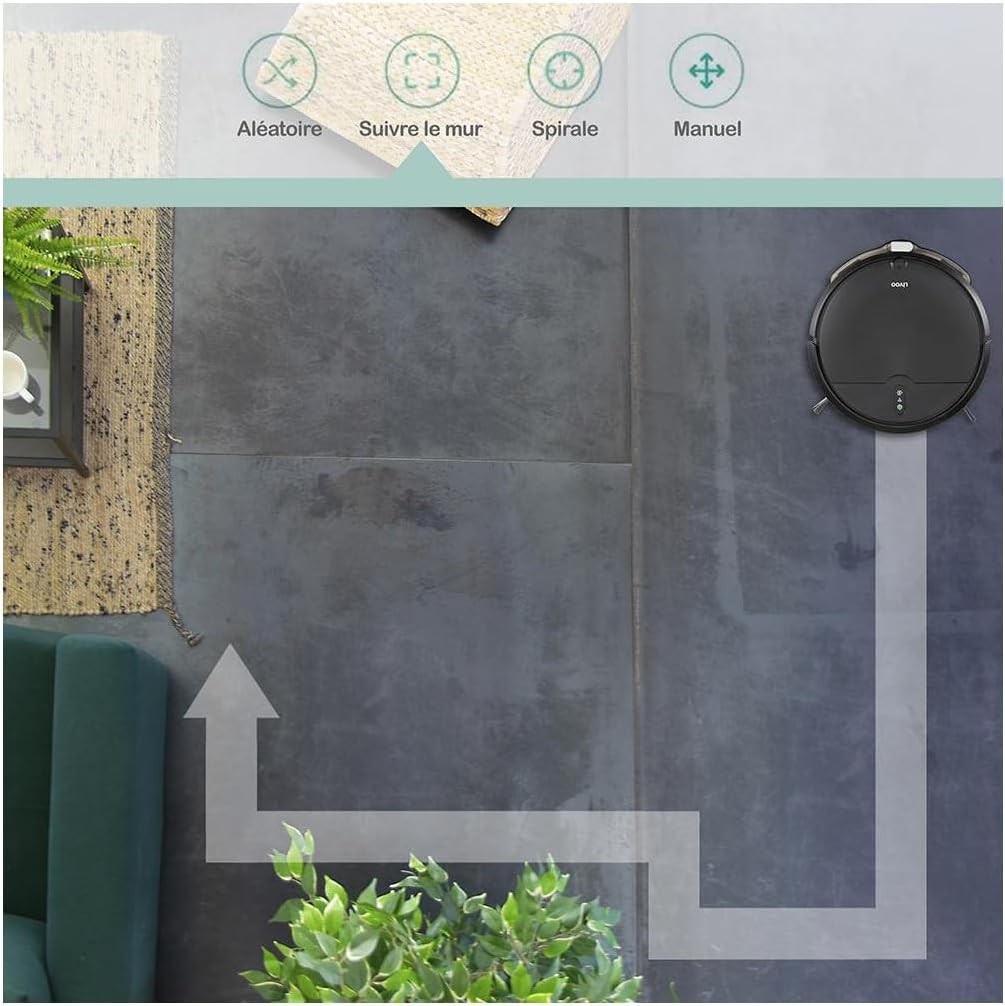
Image: Robot operating in Spiral Mode.

Image: Robot operating with Manual Control via app.
5.2 Starting and Stopping Cleaning
- Via Robot: Press the power button on the robot to start or pause cleaning.
- Via Remote Control: Use the designated buttons on the remote to start, pause, or select cleaning modes.
- Via Smart Life App: Use the app interface to start, pause, select modes, or schedule cleaning.
5.3 Scheduling Cleaning
Use the Smart Life app to set up cleaning schedules for automated cleaning sessions.
- Open the Smart Life app and select your Livoo WASH'UP DOH145 device.
- Navigate to the 'Schedule' or 'Timer' section.
- Set your desired cleaning times and days.
- Confirm the schedule. The robot will automatically start cleaning at the programmed times.
5.4 Automatic Return to Charging Base
The robot will automatically return to its charging base when its battery is low or when a cleaning cycle is complete. You can also manually send it back using the remote control or the app.
6. Maintenance
Regular maintenance ensures the longevity and optimal performance of your robot cleaner.
6.1 Emptying the Dustbin
Empty the dustbin after each cleaning cycle or when the 'full' indicator (if available) illuminates.
- Press the dustbin release button and pull out the dustbin.
- Open the dustbin lid and empty its contents into a trash can.
- Clean the dustbin with a dry cloth. Do not wash the dustbin with water unless specified in the product's detailed instructions.
- Reinsert the dustbin until it clicks into place.
6.2 Cleaning the Filter
The removable filter should be cleaned regularly to maintain suction power.
- Remove the dustbin as described above.
- Take out the filter from the dustbin.
- Tap the filter gently to remove dust and debris. You can also use the provided cleaning brush.
- Do not wash the filter with water.
- Reinstall the filter and dustbin.
6.3 Maintaining the Water Tank and Microfiber Cloth
For mopping functionality, maintain the water tank and cloth.
- Remove the water tank from the robot.
- Open the water tank cap and fill it with clean water. Do not use detergents or harsh chemicals.
- Attach the microfiber cloth securely to the water tank.
- After mopping, remove the microfiber cloth and wash it by hand or machine. Allow it to air dry completely before reattaching.
- Empty any remaining water from the tank and allow it to dry.
6.4 Cleaning Side Brushes
Inspect and clean the side brushes regularly to remove tangled hair or debris.
- Turn the robot over.
- Gently pull the side brushes upwards to remove them.
- Remove any hair or debris tangled around the brushes or their shafts. Use the cleaning brush if necessary.
- Reattach the brushes, ensuring they click into place. Replace worn brushes with new ones from the accessory kit.
6.5 Cleaning Sensors and Charging Contacts
Wipe the infrared sensors and charging contacts on both the robot and the charging base with a clean, dry cloth.
7. Troubleshooting
If you encounter issues with your Livoo WASH'UP DOH145, refer to the following common problems and solutions.
| Problem | Possible Cause | Solution |
|---|---|---|
| Robot does not turn on | Low battery; Power button not pressed correctly | Charge the robot; Press and hold the power button for a few seconds. |
| Robot not charging | Charging contacts dirty; Power adapter not connected; Robot not properly aligned on base | Clean charging contacts; Ensure adapter is plugged in; Reposition robot on base. |
| Poor suction power | Dustbin full; Filter clogged; Suction inlet blocked | Empty dustbin; Clean filter; Check and clear suction inlet. |
| Robot gets stuck frequently | Obstacles in cleaning path; Side brushes tangled | Clear floor of cables and small objects; Clean side brushes. |
| Wi-Fi connection issues | Incorrect Wi-Fi band (5GHz); Weak signal; Incorrect password | Ensure 2.4GHz Wi-Fi; Move robot closer to router; Re-enter Wi-Fi password in app. |
8. Specifications
| Feature | Specification |
|---|---|
| Model Number | DOH145 |
| Dimensions | 31.5 x 29 x 7.8 cm |
| Weight | 2.94 kg |
| Material | Plastic |
| Battery | 2000 mAh Lithium Battery |
| Runtime | Up to 70 minutes |
| Coverage Area | Up to 60 m² |
| Dustbin Capacity | 370 ml |
| Water Tank Capacity | 150 ml |
| Suction Power | 1000 Pa |
| Noise Level | Max 64 dB |
| Obstacle Climbing Ability | Up to 1.5 cm |
| Connectivity | Wi-Fi 2.4G, Alexa, Google Home |
| Cleaning Modes | Random, Along Walls, Spiral, Manual |
9. Warranty and Support
For warranty information, please refer to the warranty card included with your product or contact your retailer. For technical support or further assistance, please visit the official LIVOO website or contact their customer service department.


