
Introduction
Welcome to the user manual for your new Realme C75 Dual SIM smartphone. This guide provides essential information to help you get started, operate, maintain, and troubleshoot your device. The Realme C75 combines powerful performance with advanced features, including an IPS LCD 6.72-inch Full HD+ display, a 50 MP main camera, a MediaTek Helio G92 Max processor, and a robust 6000 mAh battery with 45W fast charging. It also features IP69 and MIL-STD-810H resistance for enhanced durability.
What's in the Box
Please check the contents of your product package. If any items are missing or damaged, contact your retailer.
- Realme C75 Smartphone
- Charger (45W)
- USB Cable (Type-C)
- Protective Case
- SIM Ejection Pin
- Quick Guide
Setup
1. Inserting the SIM Card and microSD Card
The Realme C75 supports Dual SIM functionality. Use the provided SIM ejection pin to open the SIM tray.

Image: Front view of the Realme C75 smartphone.
- Locate the SIM tray on the side of your device.
- Insert the SIM ejection pin into the small hole on the SIM tray and press gently until the tray pops out.
- Place your Nano-SIM cards and/or microSD card into the designated slots on the tray. Ensure the gold contacts face downwards.
- Carefully push the SIM tray back into the slot until it clicks into place.
2. Initial Power On and Basic Setup
- Press and hold the Power button (located on the right side of the device) until the Realme logo appears.
- Follow the on-screen prompts to select your language, region, and connect to a Wi-Fi network.
- Sign in with your Google account or create a new one to access Google services and the Play Store.
- Set up your preferred screen lock method (PIN, pattern, password, or fingerprint).
3. NFC Setup
The Realme C75 supports NFC (Near Field Communication) for contactless payments and quick data transfer.
- Go to Settings > Connected devices > Connection preferences > NFC.
- Toggle the NFC switch to On.
- You can then set up payment apps or use NFC for pairing with compatible devices.
Operating Your Device
1. Display and Navigation
The Realme C75 features a vibrant 6.72-inch IPS LCD display with Full HD+ resolution (2400 x 1080 pixels) and a 90 Hz refresh rate for smooth visuals.
- Touch Gestures: Swipe, tap, pinch-to-zoom for navigation and interaction.
- Navigation Bar: Use the on-screen navigation buttons (Back, Home, Recent Apps) or enable gesture navigation in Settings.
2. Camera Functions
Capture high-quality photos and videos with the Realme C75's camera system.
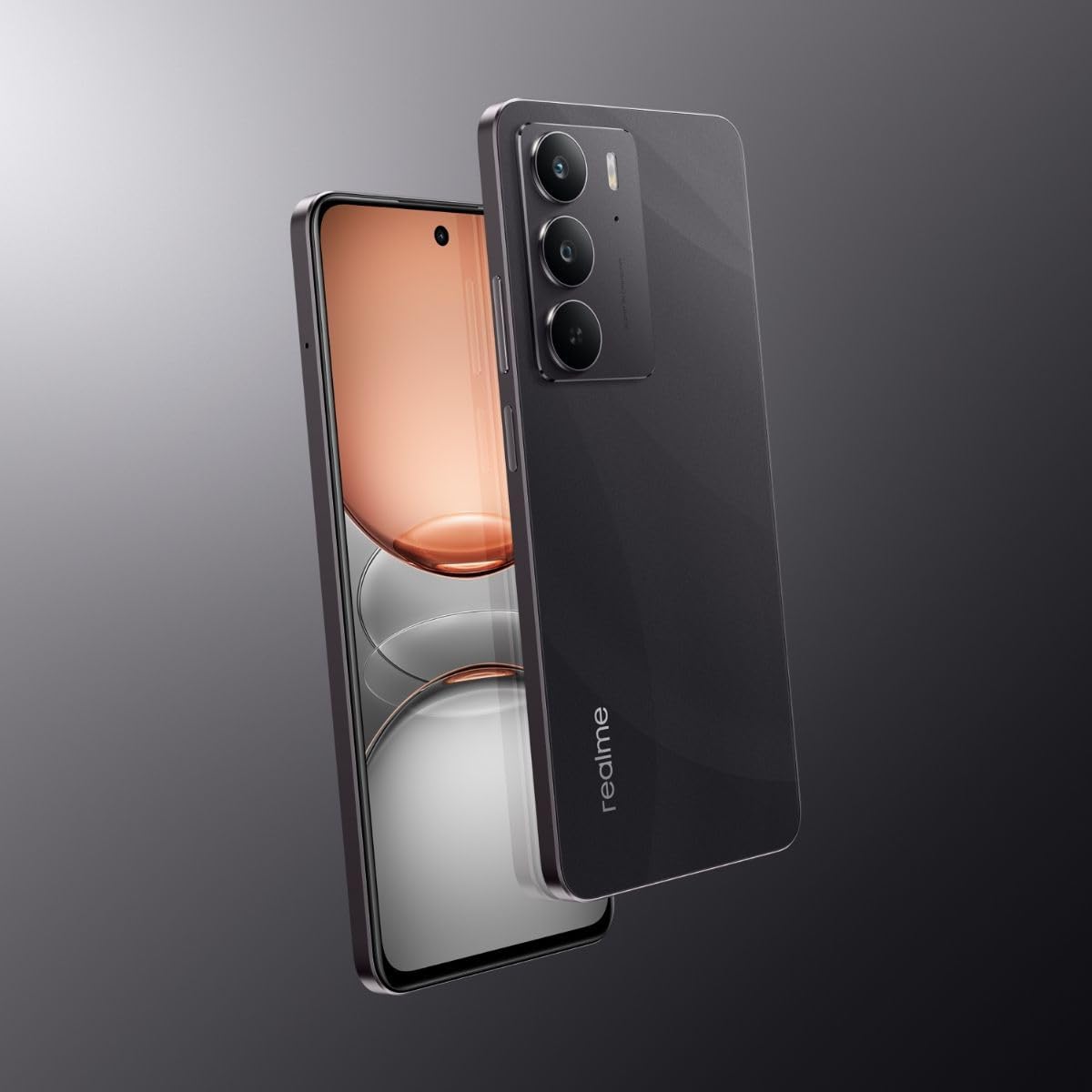
Image: Angled rear view of the Realme C75 smartphone, highlighting the camera module.
- Rear Camera: 50 MP main lens with AI auxiliary lens. Open the Camera app and select modes like Photo, Portrait, Night, or Pro.
- Front Camera: 8 MP for selfies and video calls. Tap the camera switch icon to change to the front camera.
- Video Recording: Supports 1080p video capture.
3. Connectivity
Your device offers various connectivity options:
- 4G LTE: For mobile data and calls.
- Wi-Fi 5 Dual-Band: Connect to wireless networks for internet access.
- Bluetooth 5.0: Pair with wireless headphones, speakers, and other devices.
- USB Type-C: For charging and data transfer.
4. Biometric Security
Unlock your phone securely using fingerprint recognition.
- Fingerprint Sensor: Located on the side of the device, integrated with the power button.
- To set up, go to Settings > Security & privacy > Device unlock > Fingerprint unlock and follow the instructions.
5. Battery Management
The 6000 mAh battery provides extended usage, and 45W fast charging allows for quick recharges.
- Use the original charger and USB cable for optimal charging speed and safety.
- To optimize battery life, adjust screen brightness, disable unused features (Wi-Fi, Bluetooth, GPS), and close background apps.
Maintenance
1. Water and Dust Resistance
The Realme C75 is certified with IP69 and MIL-STD-810H ratings, indicating resistance to water, dust, and extreme conditions. This means the device can withstand high-pressure, high-temperature water jets and is protected against dust ingress.

Image: Realme C75 smartphone submerged in water, showcasing its IP69 rating.

Image: Detailed view of internal components, illustrating water protection features.
While resistant, it is not waterproof. Avoid intentional submersion, exposure to saltwater, or prolonged exposure to high-pressure water. If the device gets wet, wipe it thoroughly with a clean, soft cloth before charging or using ports.
2. Cleaning Instructions
- Use a soft, lint-free cloth to clean the screen and body of the phone.
- Avoid using harsh chemicals, abrasive materials, or aerosol sprays.
- For stubborn smudges, slightly dampen the cloth with water or a screen cleaner designed for electronics.
3. Battery Care
- Avoid exposing the device to extreme temperatures (below 0°C or above 35°C).
- Do not fully discharge the battery regularly; try to keep it between 20% and 80% for optimal longevity.
- If storing the device for an extended period, charge it to about 50% and power it off.
Troubleshooting
If you encounter issues with your Realme C75, try the following common troubleshooting steps:
- Device Not Responding: Press and hold the Power button for about 10-15 seconds to force a restart.
- Apps Crashing: Clear the cache and data of the problematic app (Settings > Apps > [App Name] > Storage > Clear cache/Clear data). If the issue persists, uninstall and reinstall the app.
- Poor Battery Life: Review battery usage in Settings > Battery to identify power-hungry apps. Adjust screen brightness, disable background app refresh, and turn off unused connectivity features.
- Network Issues: Toggle Airplane Mode on and off. Reset network settings (Settings > System > Reset options > Reset Wi-Fi, mobile & Bluetooth).
- Software Updates: Ensure your device is running the latest software version. Go to Settings > About phone > Software update.
- Factory Reset: As a last resort, if software issues persist, you may perform a factory reset. Warning: This will erase all data on your phone. Back up important data before proceeding. Go to Settings > System > Reset options > Erase all data (factory reset).
Specifications
Detailed technical specifications for the Realme C75 smartphone:
| Feature | Specification |
|---|---|
| Brand | realme |
| Model | C75 (RMX3941) |
| Operating System | Android 14, Realme UI 5.0 |
| Processor | MediaTek Helio G92 Max (2.4 GHz CPU Speed) |
| RAM | 8 GB |
| Internal Storage | 256 GB (Max supported flash memory: 256 GB) |
| Display | 6.72-inch IPS LCD, 2400 x 1080 pixels (Full HD+), 90 Hz refresh rate |
| Rear Camera | 50 MP (main), 2 cameras total |
| Front Camera | 8 MP, 1 camera total |
| Video Capture Resolution | 1080p |
| Battery Capacity | 6000 mAh (45W charging power) |
| SIM Card Slots | Dual SIM |
| Connectivity | 4G LTE, Wi-Fi 5 (Dual-Band), Bluetooth 5.0, NFC, USB Type-C |
| Biometric Security | Fingerprint Recognition |
| Resistance | IP69, MIL-STD-810H (Water and Dust Resistant) |
| Dimensions | 10 x 10 x 10 millimeters |
| Weight | 300 Grams |
Warranty and Support
1. Warranty Information
Your Realme C75 smartphone comes with a 90-day factory warranty. Please retain your proof of purchase for warranty claims. The warranty covers manufacturing defects but does not cover damage caused by misuse, accidents, unauthorized repairs, or normal wear and tear.
2. ANATEL Certification
This product is certified by ANATEL under number 089642413366. The model number for certification is RMX3941. For more details, you can consult the ANATEL systems at sistemas.anatel.gov.br/sch.
3. Customer Support
For further assistance, technical support, or service inquiries, please visit the official Realme website or contact their customer service channels. You can also visit the official Realme store on Amazon for product information and support: Realme Store.


