
Introduction
Thank you for purchasing the Jedel GM691 RGB Gaming Mouse. This manual provides essential information for the proper use and maintenance of your device. Please read it carefully before use and retain it for future reference.
Safety Information
- Avoid exposing the mouse to liquids or excessive moisture.
- Do not disassemble the device. Repairs should only be performed by qualified personnel.
- Keep the mouse away from extreme temperatures and direct sunlight.
- Use only with compatible devices and power sources.
Package Contents
The package should contain the following items:
- Jedel GM691 RGB Gaming Mouse (1 unit)
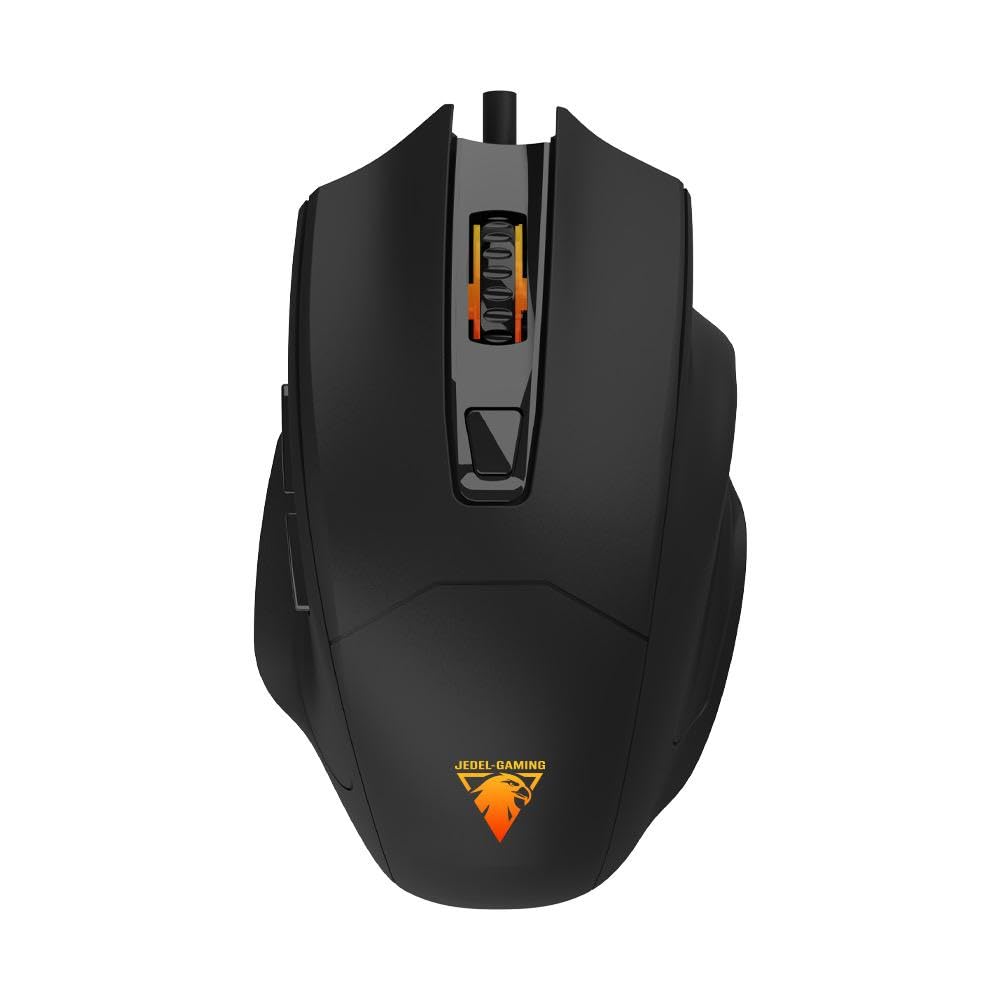
Image: Jedel GM691 RGB Gaming Mouse in its retail packaging.
Product Overview
The Jedel GM691 is a wired gaming mouse featuring 6 programmable buttons and RGB lighting. Its ergonomic design ensures comfortable use during extended gaming sessions.
Key Features:
- Optical Sensor with up to 3600 DPI sensitivity.
- 6-button design for enhanced control.
- High polling rate for responsive performance.
- RGB "breathing" lighting effects.
- Durable and lightweight construction.
- 1.5-meter braided cable for durability and tangle resistance.
Button Functions:
- Left Click Button: Standard primary function.
- Right Click Button: Standard secondary function.
- Scroll Wheel: Scroll up/down, and middle click.
- DPI Switch Button: Adjusts the mouse sensitivity (DPI) on the fly.
- Forward Key: Navigates forward in web browsers or applications.
- Back Button: Navigates backward in web browsers or applications.
Setup Instructions
- Connect the Mouse: Plug the USB connector of the Jedel GM691 mouse into an available USB port on your computer or compatible device.
- Driver Installation: The mouse is plug-and-play. Your operating system (Windows, Mac, Linux) should automatically detect and install the necessary drivers. No additional software installation is typically required.
- Initial Test: Once connected, move the mouse and click the buttons to ensure it is functioning correctly. The RGB lighting should illuminate.
Operating Instructions
Adjusting DPI:
Press the DPI Switch Button (located behind the scroll wheel) to cycle through different sensitivity levels. Each press will change the DPI setting, allowing you to adjust cursor speed to your preference or game requirements. The mouse supports up to 3600 DPI.
Using Side Buttons:
The Forward Key and Back Button on the side of the mouse are typically used for navigation in web browsers and file explorers. Their functionality may vary depending on the application or game you are using.
RGB Lighting:
The mouse features an RGB "breathing" lighting effect that activates automatically when connected. There are no user-configurable settings for the lighting effects directly on the mouse.
Maintenance
- Cleaning: Use a soft, dry cloth to clean the surface of the mouse. For optical sensor cleaning, use a cotton swab lightly dampened with isopropyl alcohol. Ensure the mouse is disconnected before cleaning.
- Storage: When not in use, store the mouse in a clean, dry environment away from direct sunlight and extreme temperatures.
- Cable Care: Avoid sharp bends or excessive pulling on the braided cable to prevent damage.
Troubleshooting
| Problem | Solution |
|---|---|
| Mouse is not responding. |
|
| Cursor movement is erratic or jumpy. |
|
| RGB lighting is not working. |
|
| DPI button does not change sensitivity. |
|
Specifications
| Model Name | GM691 |
| Part Number | GW-113 |
| Brand | Jedel |
| Color | Black |
| Connectivity Technology | Wired |
| Movement Detection Technology | Optical |
| Max Sensitivity (DPI) | 3600 DPI |
| Number of Buttons | 6 |
| Cable Length | 1.5 meters (Braided) |
| Approximate Weight | 97 grams |
| Dimensions (L x W x H) | 120mm x 74mm x 40mm |
| Power Source | Corded Electric (USB) |
| Compatible Operating Systems | Windows 11, Mac OS 14 Sonoma, Linux (Ubuntu 24.04 Noble Numbat) |
| Compatible Devices | Personal Computer, Laptop, Tablet, Smartphone |
| Material | Plastic |
| Special Features | Lightweight, RGB Breathing Lighting |
Warranty and Support
The Jedel GM691 RGB Gaming Mouse comes with a 30-day warranty from the date of purchase. This warranty covers manufacturing defects under normal use.
For warranty claims or technical support, please contact your retailer or the manufacturer directly. Please have your proof of purchase and the product model number (GM691) ready when contacting support.
Note: The warranty does not cover damage caused by misuse, accidents, unauthorized modifications, or normal wear and tear.