
1. Introduction
This manual provides essential instructions for the installation, operation, maintenance, and troubleshooting of your new Generic replacement laptop keyboard. This keyboard is specifically designed for Huawei MateBook D14 models NBB-WAI9 and NbB-WAI9B, featuring a Korean (KR) layout. Please read this manual carefully before proceeding with installation to ensure proper function and to avoid damage to your device.
2. Setup and Installation
Replacing a laptop keyboard requires careful handling and basic technical knowledge. If you are unsure about any step, it is recommended to seek professional assistance.
2.1 Compatibility Check
Ensure that the model number of your laptop matches the compatible models listed: Huawei MateBook D14 NBB-WAI9 or NbB-WAI9B. Verify the keyboard layout is Korean (KR) as intended.
2.2 Required Tools
- Small Phillips head screwdriver
- Plastic prying tool (spudger)
- Anti-static wrist strap (recommended)
2.3 Installation Steps
- Power Off and Disconnect: Completely shut down your laptop and disconnect it from the power adapter. Remove the battery if it is external and easily removable.
- Disassembly: Carefully follow your laptop's specific service manual or a reliable online guide for disassembling the necessary components to access the keyboard. This typically involves removing the bottom cover, screws, and sometimes other internal components.
- Disconnect Old Keyboard: Locate the ribbon cable(s) connecting the old keyboard to the motherboard. Gently unlatch the connectors and carefully pull out the ribbon cable(s).
- Remove Old Keyboard: Remove any screws or clips securing the old keyboard. Carefully lift it out of its housing.
- Install New Keyboard: Position the new keyboard into the housing. Ensure it sits flush and correctly aligned.
- Connect New Keyboard: Carefully insert the new keyboard's ribbon cable(s) into the motherboard connectors and secure the latches. Ensure the cables are not bent or pinched.
- Reassembly: Reassemble your laptop by reversing the disassembly steps. Ensure all screws are tightened appropriately and no components are left loose.
- Initial Test: Before fully closing the laptop, connect the power adapter (and battery if removed) and power on the laptop to test the new keyboard's functionality.
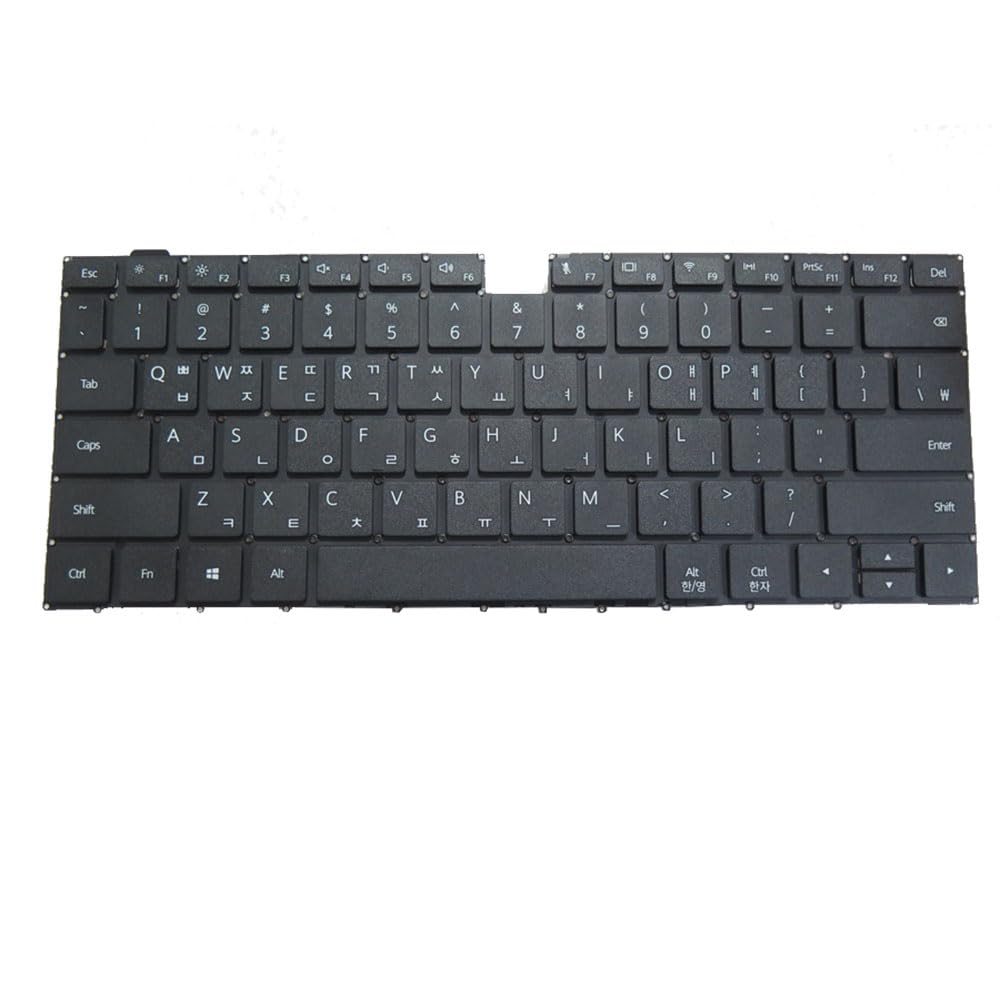
Image 2.3.1: Generic Laptop Keyboard for Huawei MateBook D14. This image shows the replacement keyboard, highlighting its layout and design for visual reference during installation.
3. Operating Instructions
Once installed, your new keyboard operates like the original. This section covers basic usage and specific features of the Korean layout.
3.1 Basic Keyboard Functions
All standard alphanumeric keys, function keys (F1-F12), and navigation keys (arrows, Home, End, PgUp, PgDn) will function as expected. Ensure your operating system's keyboard language settings are configured for Korean to utilize the full layout.
3.2 Korean (KR) Layout Specifics
The Korean layout includes specific keys for Hangul input. Typically, you can switch between English and Korean input modes using a dedicated key (often located near the spacebar or right Alt key) or a key combination (e.g., Right Alt or Ctrl+Space, depending on your operating system settings).
- Hangul/Hanja Key: Used to toggle between Korean (Hangul) and English input modes, and to convert Hangul to Hanja characters.
- Special Characters: Access various Korean punctuation and symbols.
Refer to your operating system's language and input settings for detailed configuration and usage of the Korean keyboard layout.
4. Maintenance
Proper maintenance extends the life of your keyboard and ensures optimal performance.
4.1 Cleaning
- Dust Removal: Use a can of compressed air to blow away dust and debris from between the keys. Hold the can upright to prevent propellant discharge.
- Surface Cleaning: Gently wipe the keycaps with a soft, lint-free cloth lightly dampened with water or a mild, non-abrasive cleaning solution. Avoid excessive moisture.
- Avoid Liquids: Do not spray cleaning solutions directly onto the keyboard.
4.2 General Care
- Prevent Spills: Keep liquids away from your laptop to prevent damage to the keyboard and internal components.
- Gentle Use: Avoid excessive force when typing.
- Storage: When not in use, keep your laptop in a clean, dry environment.
5. Troubleshooting
If you encounter issues with your new keyboard, try the following troubleshooting steps:
| Problem | Possible Cause | Solution |
|---|---|---|
| Keyboard not responding | Loose ribbon cable connection Driver issue Hardware fault | Ensure ribbon cable(s) are securely connected. Reinstall or update keyboard drivers via Device Manager. Restart laptop. If problem persists, contact support. |
| Specific keys not working | Debris under key Key mechanism damage Localized connection issue | Use compressed air to clear debris. Check for physical damage to the key. Verify ribbon cable connection. |
| Incorrect characters or layout | Incorrect language settings in OS Sticky keys feature enabled | Check and adjust your operating system's keyboard language settings to Korean (KR). Disable any accessibility features like Sticky Keys if they are interfering. |
| Backlight not working (if applicable) | Backlight cable not connected Software setting Hardware fault | Ensure backlight ribbon cable (if separate) is connected. Check laptop's function key (Fn) combinations or system settings for backlight control. |
If these steps do not resolve the issue, please refer to the Warranty and Support section.
6. Specifications
| Feature | Detail |
|---|---|
| Product Type | Laptop Replacement Keyboard |
| Brand | Generic |
| Compatibility | Huawei MateBook D14 NBB-WAI9, NbB-WAI9B |
| Layout | Korean (KR) |
| Color | Black |
| Item Model Number | NbB-WAI9 |
| Product Dimensions | 11.81 x 7.87 x 3.94 inches |
| Item Weight | 1.76 pounds |
7. Warranty and Support
7.1 Warranty Information
This product comes with a 90-day warranty from the date of purchase. This warranty covers manufacturing defects and malfunctions under normal use. It does not cover damage caused by improper installation, misuse, accidents, or unauthorized modifications.
7.2 Customer Support
For technical assistance, warranty claims, or any questions regarding your replacement keyboard, please contact the seller or retailer from whom you purchased the product. Provide your order details and a clear description of the issue for prompt support.

