
1. Introduction
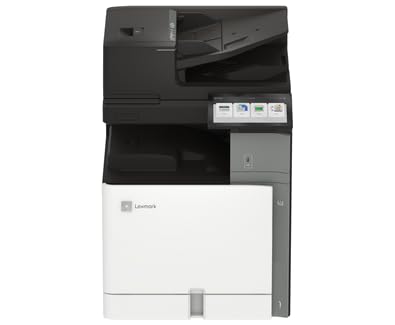
This manual provides essential information for the safe and efficient operation of your Lexmark CX962se MFP Color Laser Printer. Please read it thoroughly before using the device. The Lexmark CX962se is an A3 multifunction color laser printer designed for versatility and productivity, offering vivid prints up to 45 pages per minute, an intuitive 10-inch color touchscreen, and single-pass two-sided scanning capabilities.
2. Safety Information
- Electrical Safety: Always connect the printer to a grounded power outlet. Do not use damaged power cords. Disconnect the power cord before cleaning or servicing.
- Laser Radiation: This product uses a laser. Use of controls or adjustments or performance of procedures other than those specified herein may result in hazardous radiation exposure.
- Hot Surfaces: Internal components of the printer can become hot during operation. Avoid touching areas marked with a hot surface warning.
- Ventilation: Ensure adequate space around the printer for proper ventilation to prevent overheating. Do not block ventilation openings.
- Toner Cartridges: Handle toner cartridges carefully. If toner comes into contact with skin or clothing, wash immediately with soap and cold water. Keep toner out of reach of children.
3. Package Contents
Verify that all items are present in the package:
- Lexmark CX962se MFP Color Laser Printer
- Power Cord
- Starter Toner Cartridges (Black, Cyan, Magenta, Yellow)
- Setup Guide
- Software and Documentation (may be provided via download link)
4. Setup
Follow these steps to set up your Lexmark CX962se printer:
- Unpacking: Carefully remove the printer from its packaging. Remove all protective tapes, films, and packing materials from the exterior and interior of the printer. Refer to the Setup Guide for specific locations.
- Placement: Place the printer on a stable, level surface with adequate space for ventilation and access to power and data ports.
- Connect Power: Connect the power cord to the printer and then to a grounded electrical outlet.
- Initial Power On: Press the power button. Follow the on-screen instructions on the 10-inch color touchscreen to select language, region, and initial settings.
- Install Toner Cartridges: If not pre-installed, open the front cover and insert the toner cartridges into their corresponding slots until they click into place.
- Software Installation: Insert the software CD (if provided) into your computer or visit the official Lexmark support website to download the latest drivers and utilities for your operating system. Follow the on-screen instructions to complete the installation.
- Connect to Computer: Connect the printer to your computer using a USB cable (not included) or configure network connectivity as per the software instructions.
5. Operating Instructions
This section covers basic operations of your printer.
- Control Panel: The 10-inch color touchscreen provides access to all printer functions. Navigate through menus by tapping icons and swiping.
- Loading Paper: Open the paper tray, adjust the paper guides to fit the paper size (up to 8.5 x 11 inch), and load up to 250 sheets of plain paper. Ensure the paper is not creased or bent.
- Printing: From your computer, open the document you wish to print. Select "Print" from the application's menu, choose the Lexmark CX962se printer, adjust settings as needed (e.g., color, duplex), and click "Print."
- Copying: Place your document face-down on the scanner glass or face-up in the Automatic Document Feeder (ADF). On the printer's touchscreen, select "Copy," adjust settings like quantity, color, and duplex, then press "Start."
- Scanning: Place your document on the scanner glass or in the ADF. On the touchscreen, select "Scan." Choose your desired scan destination (e.g., computer, network folder, email) and adjust scan settings (e.g., resolution, file type), then press "Start."
6. Maintenance
Regular maintenance ensures optimal performance and longevity of your printer.
- Replacing Toner Cartridges: When a toner cartridge is low or empty, a message will appear on the touchscreen. Open the front cover, press the release lever for the empty cartridge, pull it out, and insert a new Lexmark genuine toner cartridge until it clicks into place. Close the cover.
- Cleaning the Printer: Use a soft, lint-free cloth to wipe the exterior of the printer. For the scanner glass, use a glass cleaner applied to the cloth (not directly to the glass) to remove smudges. Periodically clean the interior of the printer as instructed in the full user guide available on the Lexmark website.
- Firmware Updates: Periodically check the Lexmark support website for firmware updates. Installing the latest firmware can improve performance and add new features. Follow the instructions provided with the update.
7. Troubleshooting
This section addresses common issues you might encounter.
- Paper Jams: If a paper jam occurs, the touchscreen will display instructions on how to clear it. Carefully open the indicated access points and remove any jammed paper, ensuring no torn pieces remain.
- Print Quality Issues: If prints are faded, streaky, or have incorrect colors, check the toner levels. Perform a print quality diagnostic from the printer's control panel. Clean the print heads or transfer belt if recommended.
- Connectivity Problems: Ensure the USB cable is securely connected to both the printer and the computer. If using a network connection, verify network cables are connected and IP settings are correct. Restart both the printer and the computer.
- Error Codes: If an error code appears on the display, note the code and refer to the Lexmark support website or the comprehensive user guide for detailed solutions.
8. Specifications
| Brand | Lexmark |
| Model Name | CX962se (20L8250) |
| Printing Technology | Laser |
| Functions | Print, Copy, Scan |
| Maximum Print Speed (Color) | 15 ppm |
| Maximum Print Speed (Monochrome) | 35 ppm |
| Resolution | 600 x 600 dpi |
| Connectivity Technology | USB |
| Scanner Type | ADF (Automatic Document Feeder) |
| Maximum Sheet Capacity | 250 sheets |
| Maximum Media Size | 8.5 x 11 inch |
| Product Dimensions (D x W x H) | 29" x 43" x 31" |
| Ink Color | Black, Cyan, Magenta, Yellow |
| Special Feature | Auto Power On |
9. Warranty and Support
Your Lexmark CX962se MFP Color Laser Printer comes with a Limited Warranty. For specific terms and conditions of the warranty, please refer to the documentation included with your product or visit the official Lexmark website.
For further assistance, technical support, driver downloads, and additional documentation, please visit the official Lexmark support website. You can also find contact information for customer service there.
Lexmark Official Website: www.lexmark.com


