
UGREEN 35270
Contents
UGREEN 1TB Portable SSD User Manual
Model: 35270
Introduction
Thank you for choosing the UGREEN 1TB Portable SSD. This external solid state drive is designed for high-speed data transfer and reliable storage, compatible with a wide range of devices. Featuring USB 3.2 Gen 2x2 connectivity, it offers read/write speeds of up to 2000MB/s, making it ideal for large files, 4K video, and gaming. Its compact design and robust build ensure portability and durability.

Image: The UGREEN 1TB Portable SSD, showcasing its sleek, compact design and metallic finish.
Package Contents
- UGREEN 1TB Portable SSD (Model: 35270)
- USB-C to USB-C Cable
- USB-C to USB-A Cable
- User Manual
Setup
The UGREEN Portable SSD is designed for plug-and-play operation. No drivers are required for most operating systems.
Connecting the SSD
- Select the appropriate cable:
- Use the USB-C to USB-C cable for devices with a USB-C port (e.g., modern laptops, tablets, smartphones).
- Use the USB-C to USB-A cable for devices with a standard USB-A port (e.g., older PCs, gaming consoles).
- Connect one end of the chosen cable to the USB-C port on the UGREEN Portable SSD.
- Connect the other end of the cable to an available USB port on your host device (PC, Mac, laptop, gaming console, etc.).
- The SSD will be automatically detected by your operating system. A new drive letter or icon will appear, indicating it is ready for use.
Initial Formatting (Optional)
The SSD comes pre-formatted, typically in exFAT, for broad compatibility. If you wish to use a different file system (e.g., NTFS for Windows, APFS for macOS), you may need to format the drive. Warning: Formatting the drive will erase all data on it. Back up any important data before proceeding.
- Windows: Right-click on "This PC" or "My Computer" > "Manage" > "Disk Management". Find the UGREEN SSD, right-click on its partition, and select "Format". Choose your desired file system and allocation unit size.
- macOS: Open "Disk Utility" (Applications > Utilities). Select the UGREEN SSD from the sidebar, click "Erase", and choose your desired format (e.g., APFS, Mac OS Extended (Journaled)).
Operating
Data Transfer
To transfer files, simply drag and drop them to and from the UGREEN SSD, or use copy-paste functions within your operating system's file explorer.

Image: Visual representation of the UGREEN SSD's ultra-fast 2000MB/s transfer speed, highlighting USB 3.2 Gen 2x2 capability.
Note on Speed: To achieve the maximum transfer speed of up to 2000MB/s, your host device must support USB 3.2 Gen 2x2. Performance may vary depending on your system's configuration, file size, and other factors. Devices supporting older USB standards (e.g., USB 3.2 Gen 2, USB 3.0) will operate at their respective maximum speeds.

Image: A user engaged in video editing on a laptop, with the UGREEN Portable SSD connected, demonstrating its utility for creative professionals.
Compatibility
The UGREEN Portable SSD offers wide compatibility:
- Operating Systems: Windows, macOS, Linux, Chrome OS, Android.
- Devices: PCs, Laptops (e.g., MacBook Pro/Air, iPad Pro, Thinkpad), Gaming Consoles (PS5, Xbox Series), Smartphones (e.g., iPhone 16 series), Tablets, NAS systems.

Image: The UGREEN Portable SSD displayed among various compatible devices including a laptop, tablet, Xbox, and PlayStation, illustrating its broad compatibility.

Image: A user playing a video game on a console, with the UGREEN Portable SSD connected, demonstrating its use for expanding game storage.

Image: A user connecting the UGREEN Portable SSD to a smartphone, illustrating its direct compatibility with mobile devices for data management.
Safe Removal
Always safely eject the SSD before disconnecting it to prevent data corruption.
- Windows: Click the "Safely Remove Hardware and Eject Media" icon in the system tray, then select the UGREEN SSD.
- macOS: Drag the SSD icon from the desktop to the Trash, or right-click the SSD icon and select "Eject".
Maintenance
Proper maintenance ensures the longevity and optimal performance of your UGREEN Portable SSD.
- Regular Backups: While the SSD features advanced ECC technology for data reliability, regularly back up your important data to another storage device.
- Physical Care:
- Keep the SSD clean and free from dust. Use a soft, dry cloth for cleaning.
- Avoid dropping the SSD or subjecting it to strong impacts.
- Store the SSD in a cool, dry place away from direct sunlight and extreme temperatures.
- Heat Dissipation: The SSD features a dual cooling system with an aluminum case and built-in thermal pads to maintain stable speeds and keep temperatures below 45°C under heavy loads. Ensure proper airflow around the device during extended use.
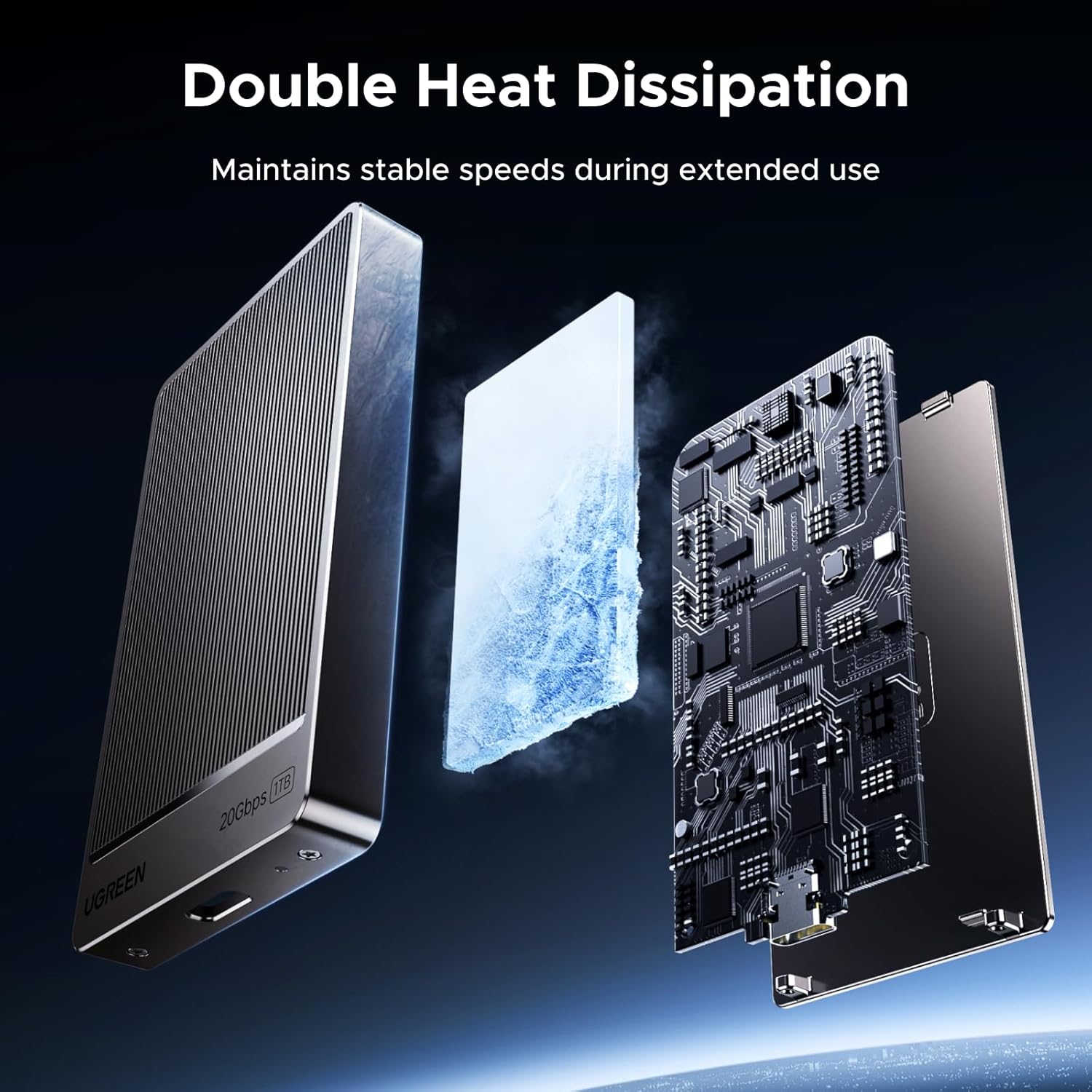
Image: An exploded view of the UGREEN Portable SSD, illustrating its dual heat dissipation system with an aluminum casing and internal thermal components.
- Firmware Updates: Check the official UGREEN website periodically for any available firmware updates for your SSD model. Firmware updates can improve performance, stability, and compatibility.
Troubleshooting
If you encounter issues with your UGREEN Portable SSD, refer to the following common solutions:
| Problem | Possible Cause | Solution |
|---|---|---|
| SSD not detected by computer. | Loose cable connection, incompatible USB port, drive not initialized/formatted. |
|
| Slow transfer speeds. | Host device does not support USB 3.2 Gen 2x2, old drivers, fragmented files, background processes. |
|
| Cannot write files to SSD. | Drive is read-only, file system limitations (e.g., exFAT on some older systems, NTFS on macOS without third-party software). |
|
Specifications
| Feature | Detail |
|---|---|
| Brand | UGREEN |
| Model Number | 35270 |
| Storage Capacity | 1 TB |
| Interface | USB 3.2 Gen 2x2 (20Gbps) |
| Read Speed | Up to 2000 MB/s |
| Write Speed | Up to 2000 MB/s |
| Dimensions (LxWxH) | 2.95 x 1.81 x 0.31 inches (75 x 46 x 8 mm) |
| Weight | 3.17 ounces (90 Grams) |
| Cooling System | Aluminum case with built-in thermal pads (Dual Cooling) |
| Chipset | SM2320G |
| Data Protection | NANDXtend ECC technology, SRAM ECC, CRC path protection, S.M.A.R.T. |
| Compatibility | Windows, macOS, Linux, PS5, Xbox Series, Tablets, iPhone 16, PC |
| Included Components | Portable SSD, USB-C to USB-C cable, USB-C to USB-A cable |
Warranty and Support
UGREEN products come with a standard warranty. Please refer to the warranty card included in your package or visit the official UGREEN website for detailed warranty terms and conditions.
Customer Support
For technical assistance, troubleshooting, or product inquiries, please contact UGREEN customer support:
- Website: Visit the official UGREEN website for FAQs, driver downloads, and support contact information.
- Email: Refer to your product packaging or the UGREEN website for the customer support email address.
- Online Store: For purchases made on Amazon, you can also contact the seller "UGREEN GROUP LIMITED" through your Amazon order history for support.
Please have your product model number (35270) and purchase information ready when contacting support.
Ask a question about this manual
Ask about setup, troubleshooting, compatibility, parts, safety, or missing instructions. Manuals+ will review the question and use this page’s manual context to help answer it.