
Amazon Kindle Scribe Colorsoft
Amazon Kindle Scribe Colorsoft 32GB User Manual
Model: Kindle Scribe Colorsoft
Introduction
The Amazon Kindle Scribe Colorsoft is an advanced e-reader and digital notebook featuring an 11-inch paper-like color display. It is designed for reading, writing, and organizing notes, documents, and books with a natural pen-on-paper feel. This manual provides essential information for setting up, operating, and maintaining your device.
Key Features
- 11-inch Colorsoft Display: High-contrast, paper-like color display with front light for comfortable viewing and writing.
- Premium Pen: Included stylus for a natural writing experience, requiring no charging.
- Built-in Notebook with AI Tools: Organize thoughts, generate summaries, refine handwriting, and convert notes to text.
- Document Import: Directly import documents from Google Drive and Microsoft OneDrive for markup.
- Thin and Light Design: At 5.4mm thin and 400g light, it offers portability and a large workspace.
- Long Battery Life: Weeks of battery life for both reading and writing on a single charge.

Image: The Amazon Kindle Scribe Colorsoft device shown with its Premium Pen. This is the main product image, highlighting the device's sleek design.

Image: The Kindle Scribe Colorsoft shown from an angle, emphasizing its thin profile and light weight, with text stating "Thin. Light. Fast."
Setup Guide
- Charge Your Device: Before first use, fully charge your Kindle Scribe Colorsoft using the included USB-C charging cable and a 20W USB-C power adapter. A full charge takes less than 3 hours.
- Power On: Press and hold the power button located on the side of the device until the screen lights up.
- Select Language: Follow the on-screen prompts to select your preferred language.
- Connect to Wi-Fi: Select your Wi-Fi network from the list and enter the password. The device supports 2.4 GHz and 5.0 GHz networks with WEP, WPA, WPA2, and WPA3 security.
- Register Your Device: Sign in with your Amazon account credentials. If you do not have an Amazon account, you will be prompted to create one.
- Premium Pen Setup: The included Premium Pen does not require charging. It is typically paired automatically upon initial setup. If not, follow on-screen instructions to pair it.

Image: The Kindle Scribe Colorsoft displaying a page titled "Notes on creativity," demonstrating its note-taking capabilities during initial use.
Operating Your Kindle Scribe Colorsoft
Reading Books
Access your library from the home screen. Tap on a book cover to open it. Use the touch screen to turn pages. Adjust font size, line spacing, and margins through the reading menu. The Colorsoft display provides a comfortable reading experience with its paper-like color and adjustable front light.

Image: A user holding the Kindle Scribe Colorsoft, demonstrating its auto-adjusting front light for comfortable reading in various lighting conditions.
Writing and Note-Taking
The Kindle Scribe Colorsoft allows you to write directly on books and documents, or create dedicated notebooks. The Premium Pen offers a natural writing feel due to the textured display surface and ultra-fast responsiveness.
- In Books/Documents: Tap on the screen to bring up the writing toolbar. Use the Premium Pen to highlight, annotate, or write notes. Active Canvas creates space for your notes, allowing you to expand margins or collapse them.
- Notebooks: Create new notebooks from the home screen. Utilize AI-powered tools to search, summarize, and gain insights from your notes. You can also refine your handwriting or convert notes to text.

Image: The Kindle Scribe Colorsoft screen showing colorful handwritten notes and diagrams, highlighting the Colorsoft display's ability to make notes stand out.

Image: A close-up view of the Premium Pen writing on the Kindle Scribe Colorsoft, emphasizing the textured surface and natural paper-like feel.

Image: The Kindle Scribe Colorsoft displaying a notebook with organized notes and a summary, illustrating its smart notebook features and AI capabilities.
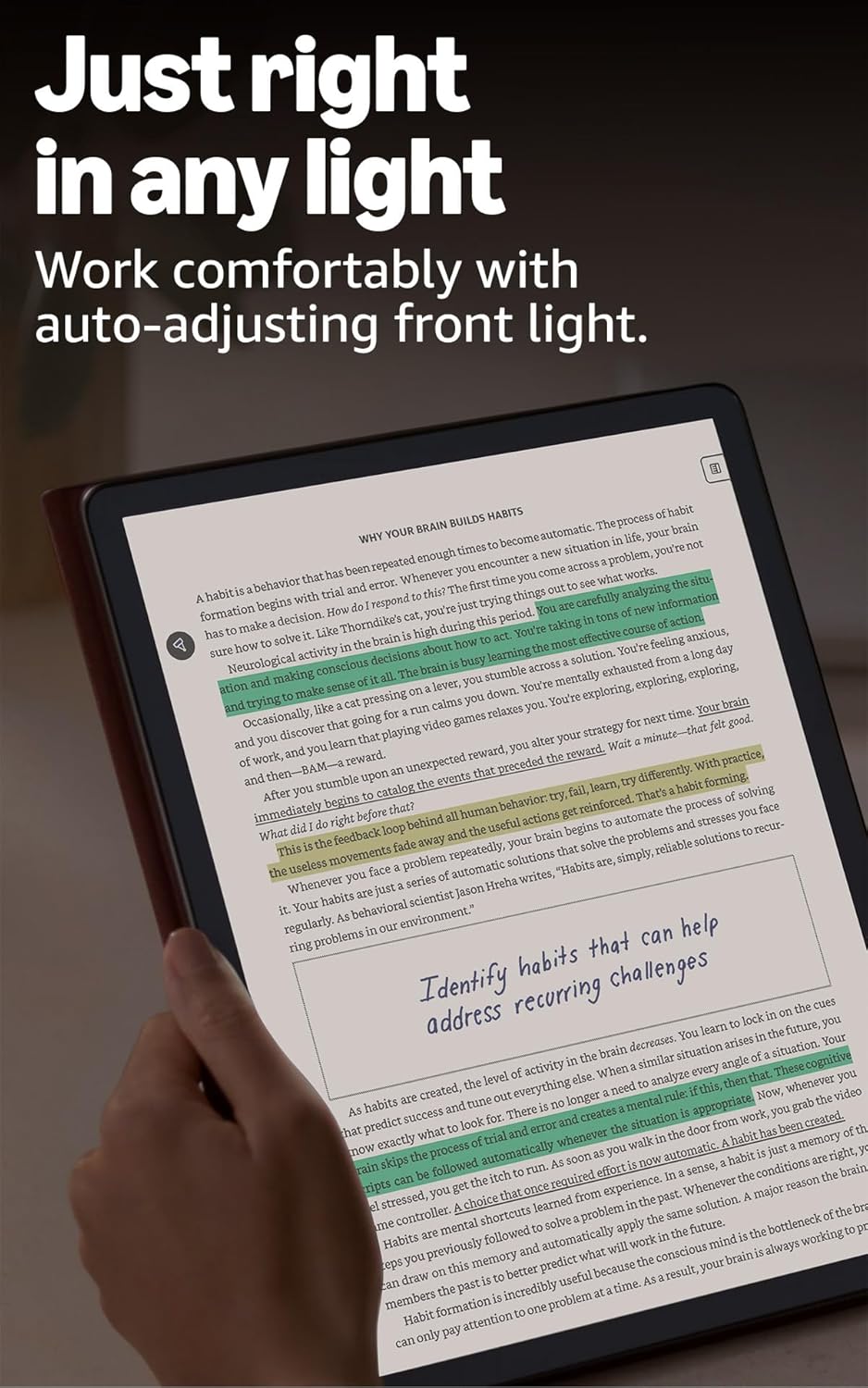
Image: A user making handwritten marks and notes directly on a document displayed on the Kindle Scribe Colorsoft, demonstrating the ability to annotate freely.
Importing and Exporting Documents
You can import documents directly from cloud services like Google Drive and Microsoft OneDrive for markup. Export your notebooks to Microsoft OneNote for further integration.
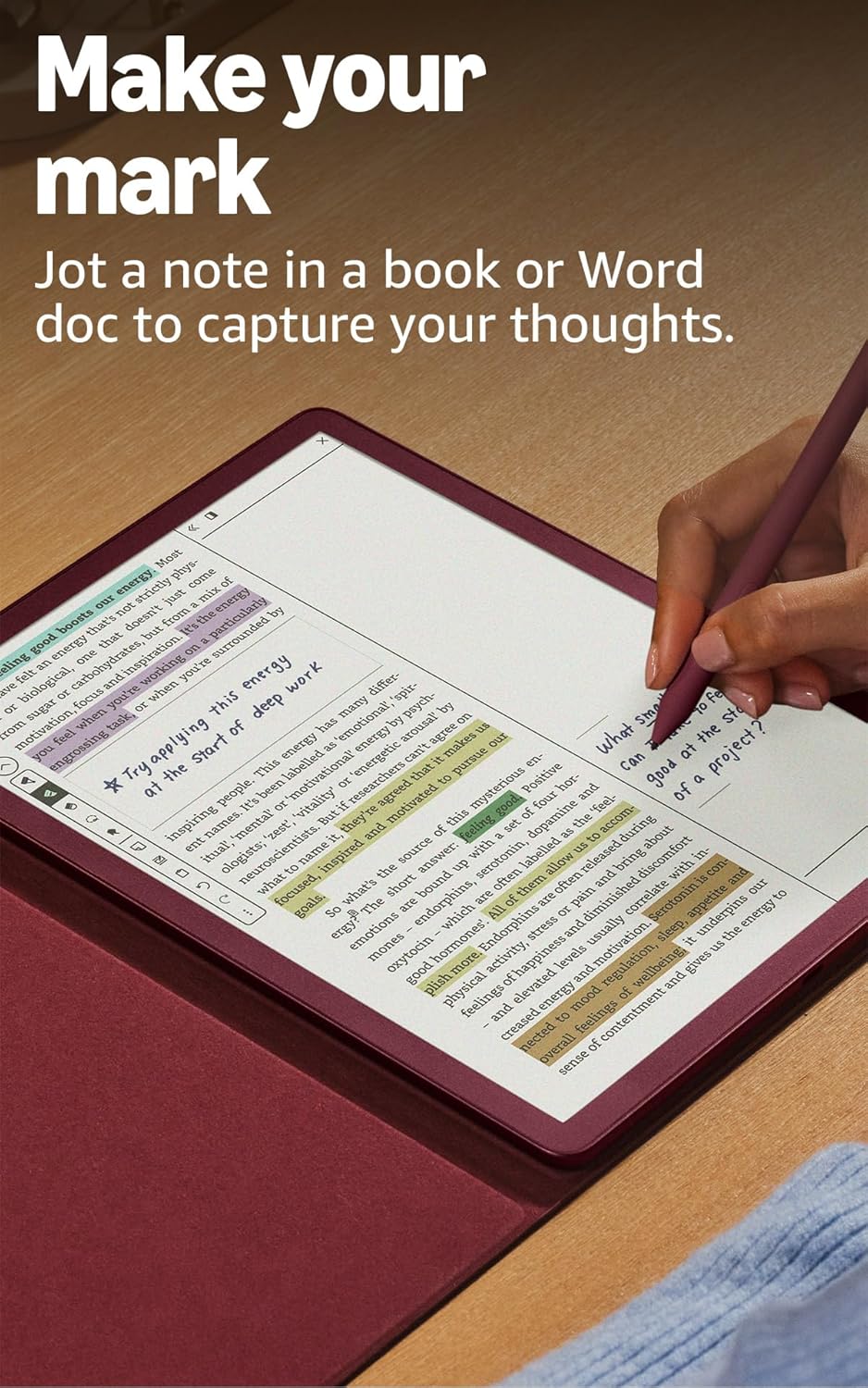
Image: The Kindle Scribe Colorsoft displaying a document with handwritten annotations, illustrating the "Docs on demand" feature for importing files from Google Drive and Microsoft OneDrive.
Maintenance
- Cleaning the Screen: Use a soft, lint-free cloth to gently wipe the screen. Avoid abrasive materials or harsh cleaning solutions.
- Premium Pen Tip Replacement: The Premium Pen comes with replacement tips. If the tip wears down, gently pull out the old tip and insert a new one.
- Battery Care: To maximize battery life, avoid exposing the device to extreme temperatures. Charge the device regularly, but it is not necessary to fully discharge it before recharging.
- Software Updates: Your device will receive automatic software security updates for at least four years from its last availability as a new unit. Ensure your device is connected to Wi-Fi to receive these updates.
Troubleshooting
- Device Not Responding: If your Kindle Scribe Colorsoft is unresponsive, press and hold the power button for 40 seconds until the device restarts.
- Cannot Connect to Wi-Fi: Ensure your Wi-Fi password is correct and that you are within range of your router. Try restarting your router and then your Kindle Scribe.
- Pen Not Writing: Check if the Premium Pen tip is properly seated. If the tip is worn, replace it with a new one. Ensure the pen is not damaged.
- Battery Drains Quickly: Reduce screen brightness, turn off Wi-Fi when not needed, and ensure no applications are running in the background. Battery life can vary based on usage, especially with heavy writing or annotation.
- Further Assistance: For more detailed troubleshooting or specific issues, refer to the Kindle User Guide or visit Amazon's customer support website.
Specifications
| Display | Amazon’s 11” Colorsoft display technology with built-in light, 300 ppi B&W, 150 ppi color, optimized font technology, 16-level gray scale. |
| Size (Device) | 7.4” x 9.6 x .21” (189 x 245 x 5.4mm excluding feet) |
| Size (Premium Pen) | 6.1” x .35” (155 x 8.8 mm) |
| On-Device Storage | 32 GB (21 GB available to user) |
| Weight (Device) | 14.1oz (400g) |
| Weight (Premium Pen) | .6oz (17g) |
| Wi-Fi Connectivity | Supports 2.4 GHz and 5.0 GHz networks with WEP, WPA, WPA2, and WPA3 security. |
| Content Formats Supported | Kindle Format 8 (AZW3), Kindle (AZW), TXT, PDF, unprotected MOBI, PRC natively; PDF, DOCX, DOC, HTML, EPUB, TXT, RTF, JPEG, GIF, PNG, BMP through conversion; Audible audio format (AAX). |
| Battery Life (Reading) | Up to 8 weeks (half hour/day, wireless off, light setting 13). |
| Battery Life (Writing) | Up to 2 weeks (half hour/day, wireless off, light setting 13). |
| Charge Time | Less than 3 hours with a 20W USB-C power adapter. |
| Included in the Box | Kindle Scribe Colorsoft, Premium Pen, USB-C charging cable, and replacement tips. |
Warranty and Support
Your Kindle Scribe Colorsoft includes a 1-year limited warranty and service. Optional extended warranties (1-year, 2-year, or 3-year) are available for purchase separately for U.S. customers.
For warranty claims, technical support, or additional information, please visit the official Amazon Device Support website or contact Amazon customer service.
For more information on accessibility features, including VoiceView screen reader, please visit Accessibility for Kindle.
Related documentsKindle Scribe Colorsoft


Ask a question about this manual
Ask about setup, troubleshooting, compatibility, parts, safety, or missing instructions. Manuals+ will review the question and use this page’s manual context to help answer it.