1. Introduction
Thank you for choosing the Hodozzy 1511W Single Din Car Radio. This advanced car stereo system features a 10.4-inch vertical touch screen, offering seamless integration with Wireless CarPlay and Android Auto. Enjoy enhanced connectivity with Bluetooth 5.2, FM/RDS radio, multiple audio input options, and support for a backup camera. This manual provides essential information for installation, operation, and maintenance to ensure optimal performance and a safe driving experience.
2. Safety Information
- Always ensure the vehicle is parked and the ignition is off before performing any installation or wiring.
- Professional installation is recommended for car audio systems to prevent damage to the unit or vehicle.
- Do not operate the device in a way that distracts you from driving. Always prioritize road safety.
- Avoid exposing the unit to extreme temperatures, direct sunlight for prolonged periods, or moisture.
- Ensure all wiring connections are secure and properly insulated to prevent short circuits.
- Consult your vehicle's owner's manual for specific wiring diagrams and safety precautions.
3. Package Contents
Verify that all items are present in the package before installation:
- Hodozzy 1511W Car Stereo Unit
- Power Cable
- Horn Cable
- D-BUS Cable
- Microphone (MIC)
- Mounting Brackets (2)
- User Manual (this document)
- Backup Camera (if included in your specific package)
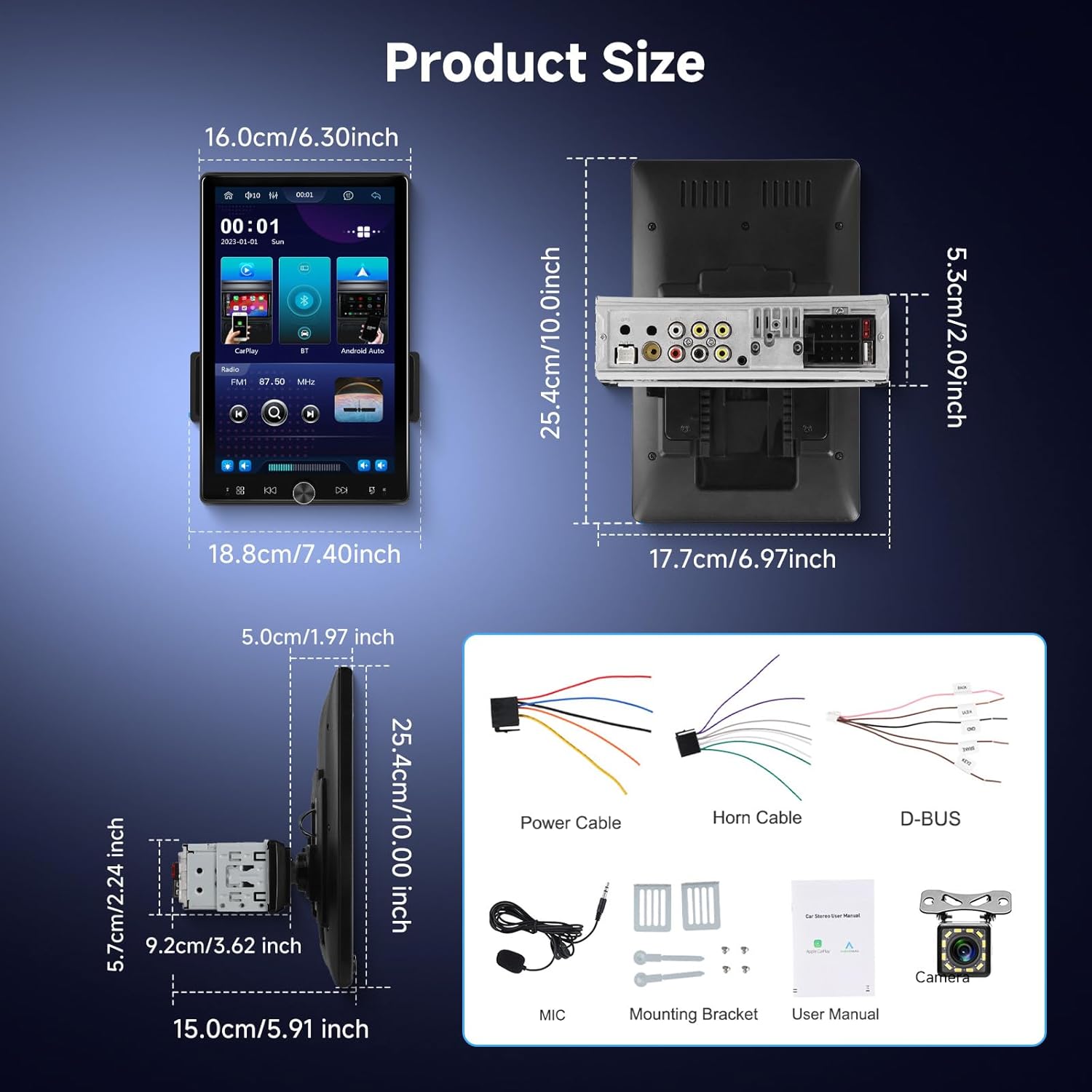
Image: Overview of the Hodozzy 1511W car radio, its dimensions, and included accessories like power cables, microphone, mounting brackets, and user manual.
4. Product Features Overview
- 10.4-Inch 2.5D Vertical Touch Screen Display: Large, vibrant display with 360° rotation and adjustable vertical/horizontal positioning for optimal viewing.
- Wireless Connectivity: Supports Wireless CarPlay and Android Auto for seamless smartphone integration. Includes Wired Mirror Link.
- Bluetooth Version 5.2: Provides faster and more stable connections for hands-free calling and audio streaming.
- Diverse Audio Input Options: AUX, dual USB ports, TF card slot, and FM/RDS radio.
- Enhanced Audio Experience: Built-in EQ settings for personalized sound, with colorful backlight options.
- Steering Wheel Control (SWC): Allows volume adjustment and track changes without removing hands from the wheel.
- Reverse Camera Function: Automatically displays rear view when the vehicle is in reverse gear for enhanced safety.
5. Setup and Installation
This section provides general guidelines for installing your Hodozzy 1511W car radio. Due to the complexity of car electrical systems, professional installation is highly recommended.
5.1 Pre-Installation Checks
- Ensure your vehicle has a single DIN opening.
- Disconnect the vehicle's negative battery terminal before starting any wiring.
- Identify your vehicle's wiring harness for power, ground, speaker, and accessory connections.
5.2 Wiring Connections
Refer to the wiring diagram provided with your unit and your vehicle's specific wiring information. Common connections include:
- Yellow Wire: Constant 12V (Battery)
- Red Wire: Accessory 12V (Ignition Switched)
- Black Wire: Ground
- Orange Wire: Illumination (Optional)
- Blue Wire: Power Antenna / Amplifier Remote Turn-On
- Speaker Wires: Connect to corresponding vehicle speaker wires (e.g., White/White-Black for Front Left, Gray/Gray-Black for Front Right, Green/Green-Black for Rear Left, Purple/Purple-Black for Rear Right).
- Reverse Camera Input: Connect the camera's video output to the unit's 'CAM IN' port and the camera's power to the reverse light circuit.
- Steering Wheel Control (SWC): Connect the SWC wires (Key1, Key2) to your vehicle's SWC output wires. Configuration may be required in the unit's settings.
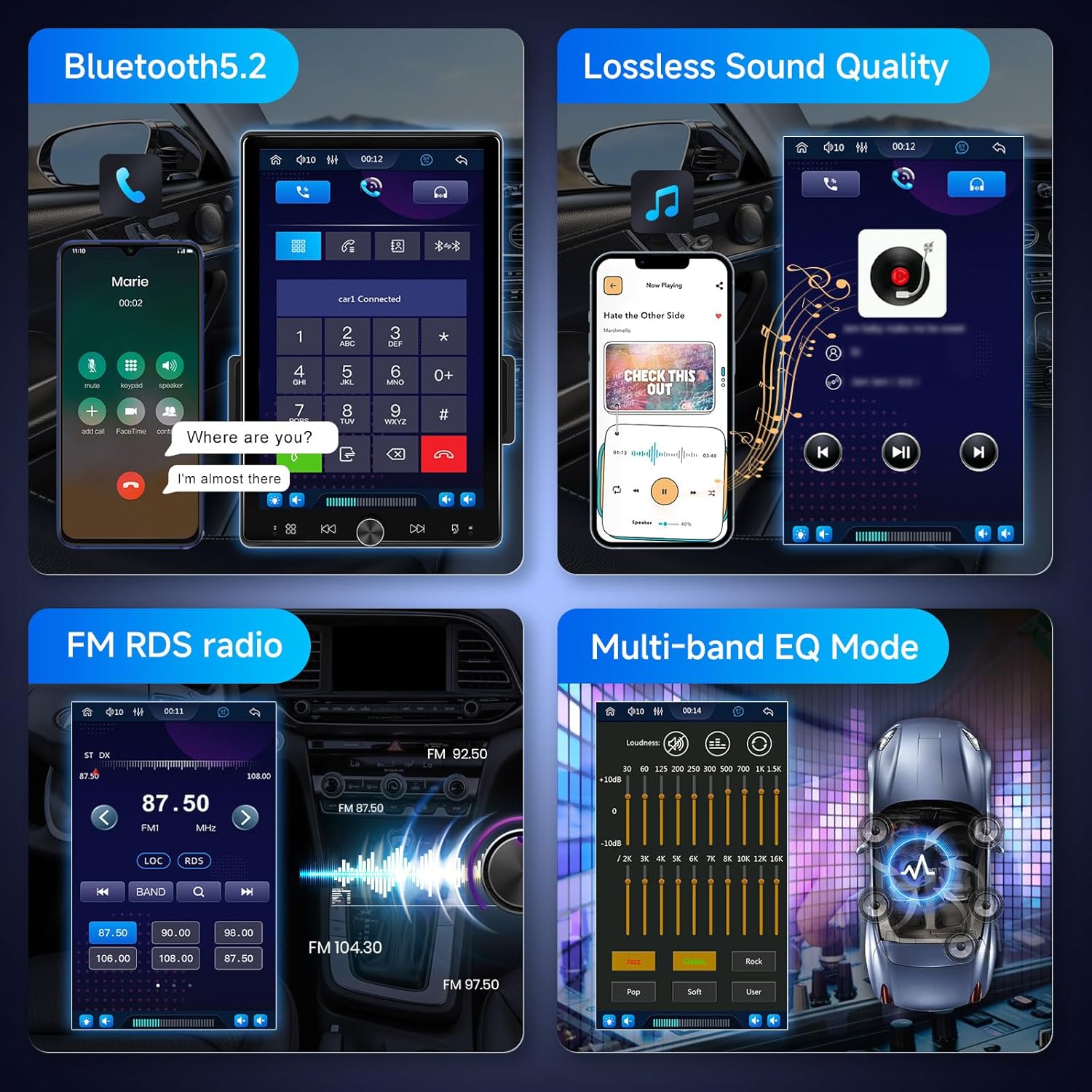
Image: Rear view of the Hodozzy 1511W car radio, illustrating various input and output ports for power, speakers, camera, and other accessories.
5.3 Mounting the Unit
- Install the metal mounting sleeve into your vehicle's dashboard opening.
- Slide the car radio unit into the mounting sleeve until it clicks into place.
- Connect all wiring harnesses and antenna cable.
- Reconnect the vehicle's negative battery terminal.
6. Operating Instructions
6.1 Power On/Off and Basic Controls
- Power Button: Press and hold to turn the unit on or off. Short press to mute/unmute.
- Volume Knob: Rotate to adjust volume.
- Home Button: Returns to the main menu.
- Back Button: Returns to the previous screen.
6.2 Screen Adjustment
The 10.4-inch vertical screen offers flexibility for optimal viewing:
- Vertical Adjustment: The screen can be moved up and down to suit your preference.
- Horizontal Adjustment: The screen can be fine-tuned left and right.
- Rotation: The screen can rotate 360 degrees for portrait or landscape orientation.

Image: Illustration of the Hodozzy 1511W car radio's screen adjustment capabilities, including vertical movement and horizontal rotation.
6.3 Wireless CarPlay & Android Auto
Connect your smartphone wirelessly for navigation, music, calls, and more.
- Ensure Bluetooth and Wi-Fi are enabled on your smartphone.
- On the car stereo, navigate to the CarPlay or Android Auto icon and tap it.
- On your phone, search for the car stereo's Bluetooth name and pair.
- Follow any on-screen prompts on both the stereo and your phone to complete the connection.
- For wired connection, connect your phone via USB.

Image: The Hodozzy 1511W car radio screen showing the user interface for Wireless CarPlay and Android Auto, including app icons and navigation.
6.4 Bluetooth Connectivity (for other devices)
Connect your phone for hands-free calls and audio streaming.
- Go to the Bluetooth menu on the car stereo.
- Enable Bluetooth on your phone and search for available devices.
- Select the car stereo's Bluetooth name (e.g., "Hodozzy 1511W") from your phone's list.
- Confirm the pairing code if prompted.
- Once connected, you can make/receive calls and play music through the stereo.
6.5 FM/RDS Radio
Access your favorite radio stations with RDS information.
- Tap the "Radio" icon on the main menu.
- Use the "Band" button to switch between FM bands.
- Use the "Seek" buttons to automatically scan for stations.
- Manually tune by dragging the frequency bar or using the arrow buttons.
- Save favorite stations by pressing and holding a preset number.
6.6 Audio Equalizer (EQ)
Customize your audio output to match your preferences.
- Access the "EQ" settings from the main menu or audio settings.
- Choose from preset equalizer modes (e.g., Pop, Rock, Jazz) or create a custom profile.
- Adjust individual frequency bands to fine-tune the sound.
6.7 Rear View Camera
When a compatible rear view camera is connected, the display will automatically switch to the camera feed when the vehicle is put into reverse gear.
- Ensure the camera is properly installed and wired to the reverse light circuit.
- The screen will display the rear view, often with parking guidelines.

Image: The Hodozzy 1511W car radio screen showing a simulated rear camera view with dynamic parking guidelines, indicating the reverse camera functionality.
6.8 Steering Wheel Control (SWC)
Configure the unit to respond to your vehicle's steering wheel controls.
- Go to "Settings" > "Steering Wheel Control" or similar menu.
- Follow the on-screen instructions to program each button (e.g., press a button on the steering wheel, then select the corresponding function on the screen).
7. Maintenance
- Screen Cleaning: Use a soft, lint-free cloth to gently wipe the touch screen. For stubborn smudges, slightly dampen the cloth with water or a screen-safe cleaner. Avoid harsh chemicals.
- General Cleaning: Use a dry cloth to wipe the unit's body. Do not use abrasive cleaners or solvents.
- Software Updates: Periodically check the Hodozzy official website or contact support for any available software updates to ensure optimal performance and new features.
- Avoid Obstruction: Ensure no objects block the ventilation openings of the unit to prevent overheating.
8. Troubleshooting
If you encounter issues, refer to the following common problems and solutions:
| Problem | Possible Cause | Solution |
|---|---|---|
| Unit does not power on. | Incorrect wiring, blown fuse, no power. | Check power and ground connections. Verify vehicle fuses and the unit's fuse. Ensure ignition is on. |
| No sound. | Volume too low, mute activated, incorrect speaker wiring, amplifier issue. | Increase volume. Check if unit is muted. Verify speaker connections. Check external amplifier if used. |
| Bluetooth not connecting. | Bluetooth off on phone/unit, pairing issue, interference. | Ensure Bluetooth is enabled on both devices. Delete previous pairings and re-pair. Move closer to the unit. |
| CarPlay/Android Auto not working. | Incorrect connection, phone settings, app issues. | Ensure Wi-Fi and Bluetooth are on. Check phone settings for CarPlay/Android Auto permissions. Try a different USB cable for wired connection. Restart phone and unit. |
| Rear camera not displaying. | Incorrect wiring, camera fault, reverse signal not detected. | Check camera power and video input connections. Ensure reverse trigger wire is correctly connected to the vehicle's reverse light. |
| Touch screen unresponsive. | Software glitch, screen damage. | Restart the unit (power cycle). If issue persists, contact support. |
If these solutions do not resolve the issue, please contact Hodozzy customer support.
9. Specifications
| Feature | Specification |
|---|---|
| Product Dimensions | 7.4 x 5.91 x 10 inches (18.8 x 15.0 x 25.4 cm) |
| Item Weight | 3.69 pounds (1.68 Kilograms) |
| Item Model Number | 1511W |
| Brand | Hodozzy |
| Color | Black |
| Special Feature | Built-In Bluetooth, Wireless CarPlay, Android Auto, Vertical Touch Screen |
| Connectivity Technology | USB, Bluetooth |
| Tuner Technology | FM, RDS |
| Frequency | 101.1 MHz (example, actual range varies) |
| Included Components | Owner's Manual, Power Cable, Horn Cable, D-BUS Cable, Microphone, Mounting Brackets, Backup Camera (if applicable) |
10. Warranty and Support
10.1 Warranty Information
Hodozzy products are designed for quality and reliability. For specific warranty details, please refer to the warranty card included in your package or visit the official Hodozzy website. Optional protection plans may be available for extended coverage:
- 2-Year Protection Plan: Available for purchase.
- 3-Year Protection Plan: Available for purchase.
Please retain your proof of purchase for warranty claims.
10.2 Customer Support
For technical assistance, troubleshooting, or any questions regarding your Hodozzy 1511W car radio, please contact our customer support team:
- Email: hodozzyofficial@163.com
- Online: Visit the Hodozzy store on Amazon or our official website for FAQs and support resources.
Our team is committed to providing quality products and good after-sales service.


