
NETGEAR RS100-100APS
Contents
NETGEAR Nighthawk Dual-Band WiFi 7 Router (RS100)
Model: RS100-100APS
Brand: NETGEAR
Introduction
This instruction manual provides comprehensive guidance for setting up, operating, and maintaining your NETGEAR Nighthawk Dual-Band WiFi 7 Router (RS100). Designed for high-performance home networking, this router delivers advanced speed, coverage, and security features to enhance your internet experience.

Figure 1: Front view of the NETGEAR Nighthawk RS100 WiFi 7 Router. This image displays the sleek, vertical design of the router with its illuminated indicator lights on the front panel.
Product Features
- Blazing-Fast WiFi 7 Speeds: Experience wireless speeds up to 3.6 Gbps, 1.2 times faster than WiFi 6, for seamless gaming, smooth streaming, and efficient video conferencing.
- Extensive Coverage: Provides WiFi coverage for up to 2,000 sq. ft., ensuring strong and reliable signal throughout your home.
- High Device Capacity: Supports connectivity for up to 50 devices simultaneously, maintaining performance even in busy households.
- Multi-Gig Internet Port: Features a 2.5 Gig internet port to support multi-gig speeds from your internet service provider, enabling faster wired connections.
- Advanced Security with NETGEAR Armor: Includes built-in security features and a 30-day trial of NETGEAR Armor powered by Bitdefender, offering enhanced protection against hackers, malware, and identity theft for all connected devices.
- Sleek Design & Performance: Boasts a new body design with a smaller footprint and high-performance antennas for optimized WiFi performance and coverage.
- Easy Setup & Management: Conveniently set up and manage your WiFi network using the intuitive Nighthawk app.

Figure 2: Key features of the Nighthawk RS100. This graphic highlights the router's maximum streaming speed, WiFi coverage area, concurrent device capacity, and internet port speed.
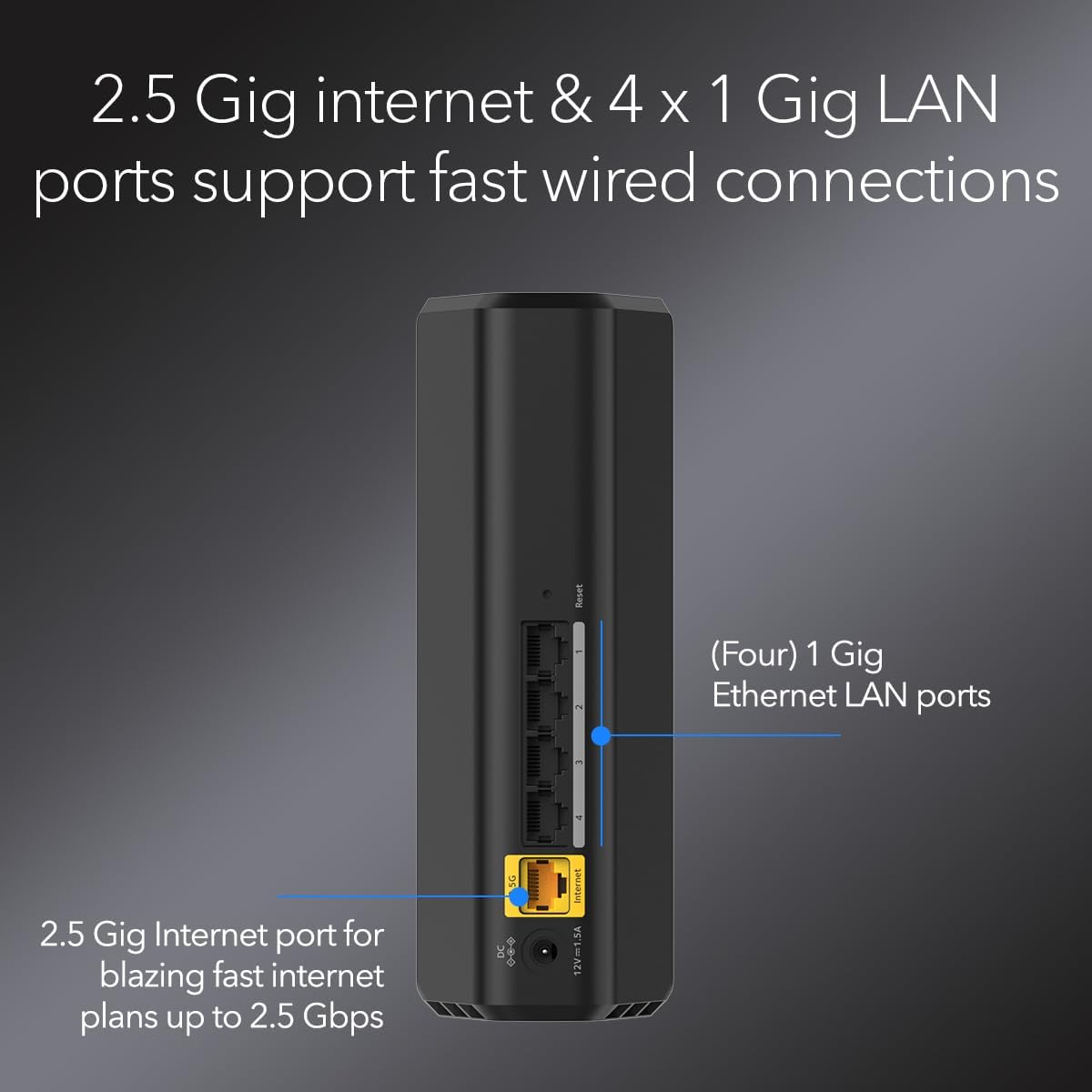
Figure 3: Rear ports of the Nighthawk RS100. This image illustrates the 2.5 Gig Internet port and the four 1 Gig Ethernet LAN ports for wired connections.

Figure 4: NETGEAR Armor security suite. This graphic details the cybersecurity, VPN, extended warranty, and priority support features offered by NETGEAR Armor.
Video 1: Overview of NETGEAR WiFi 7 Routers. This official video from Netgear Inc. explains the benefits and features of their WiFi 7 routers, including speed and connectivity.
What's in the Box
Upon unboxing your NETGEAR Nighthawk RS100, you should find the following items:
- One (1) WiFi 7 Dual-Band Router (RS100)
- One (1) 2m Ethernet cable
- One (1) 12V/1.5A power adapter
- Quick start guide
Setup Guide
Follow these steps to set up your NETGEAR Nighthawk RS100 router:
- Connect the Router:
- Power off your modem and remove any existing router.
- Connect your modem to the 2.5 Gig Internet port (yellow) on the RS100 router using the provided Ethernet cable.
- Connect the power adapter to the router and plug it into a power outlet.
- Power on your modem, then power on your router. Wait for the indicator lights to stabilize.
- Download the Nighthawk App:
- On your mobile device, scan the QR code on the quick start guide or search for "NETGEAR Nighthawk" in your app store.
- Download and install the Nighthawk app.
- Follow In-App Instructions:
- Open the Nighthawk app and follow the step-by-step instructions to complete the setup process. This includes creating your WiFi network name (SSID) and password.
- Connect Your Devices:
- Once setup is complete, connect your wireless devices (smartphones, laptops, smart home devices) to your new WiFi network using the SSID and password you created.
- For wired devices, use the 1 Gig Ethernet LAN ports on the back of the router.

Figure 5: Nighthawk app setup process. This image shows the three main steps for getting started with the Nighthawk app, including scanning a QR code, checking network security, and utilizing app features.
Operating Instructions
Your Nighthawk RS100 router is designed for optimal performance with minimal intervention. The Nighthawk app provides comprehensive control over your network:
- Device Manager: View all connected devices, pause internet access for specific devices, and prioritize bandwidth for gaming or streaming.
- Network Map: Get a visual overview of your network, including connected devices and their connection status.
- WiFi Settings: Easily change your WiFi name (SSID) and password, enable guest networks, and adjust security settings.
- Parental Controls: Set up content filters and time limits for internet access on your children's devices.
- Traffic Meter: Monitor your internet usage to avoid exceeding data caps.
Maintenance
To ensure the longevity and optimal performance of your router, consider the following maintenance tips:
- Firmware Updates: The router is designed to receive automatic firmware updates to enhance performance, add new features, and improve security. Ensure your router is connected to the internet for these updates.
- Placement: Place your router in a central location, away from obstructions and other electronic devices that may cause interference.
- Cleaning: Keep the router clean and free from dust buildup. Use a soft, dry cloth to wipe the exterior. Do not use liquid cleaners.
- Rebooting: While the router is designed for continuous operation, occasional reboots (e.g., once a month) can help clear temporary issues and refresh network performance. Note that a full reboot may take approximately 5 minutes.
Troubleshooting
If you encounter issues with your Nighthawk RS100 router, try the following common troubleshooting steps:
- No Internet Connection:
- Check all cable connections between your modem and router.
- Restart your modem and then your router.
- Verify your internet service provider (ISP) is not experiencing an outage.
- Slow WiFi Speed:
- Ensure your internet plan matches your usage needs.
- Check for interference from other electronic devices.
- Use the Nighthawk app to prioritize devices or applications.
- Consider moving the router to a more central location.
- Dropped Connections:
- Update the firmware via the Nighthawk app if an update is available.
- Check for physical obstructions or excessive distance from the router.
- Reduce the number of active devices if experiencing frequent drops.
- Nighthawk App Issues:
- Ensure your mobile device's operating system is up to date.
- Reinstall the Nighthawk app.
For further assistance, refer to the support section or contact NETGEAR customer support.
Specifications
| Feature | Detail |
|---|---|
| Model Number | RS100-100APS |
| WiFi Standard | WiFi 7 (802.11be) |
| WiFi Speed | Up to 3.6 Gbps (BE3600) |
| WiFi Coverage | Up to 2,000 sq. ft. |
| Device Capacity | Up to 50 devices |
| Internet Port | One (1) 2.5 Gig Internet Port |
| Ethernet LAN Ports | Four (4) 1 Gig Ethernet LAN Ports |
| Product Dimensions | 10.7 x 7 x 5.1 inches |
| Item Weight | 1.87 pounds |
| Security Features | NETGEAR Armor (30-day trial included) |
Warranty and Support
Your NETGEAR Nighthawk RS100 router comes with a manufacturer's warranty. Please refer to the quick start guide or the official NETGEAR website for detailed warranty information.
For technical support, setup assistance, or optimization tips, NETGEAR offers free expert help. You can contact them directly via the Nighthawk app or by calling the support number provided in your quick start guide.

Figure 6: Free expert help from NETGEAR. This image promotes the availability of free expert assistance for setting up and optimizing your NETGEAR router.
Ask a question about this manual
Ask about setup, troubleshooting, compatibility, parts, safety, or missing instructions. Manuals+ will review the question and use this page’s manual context to help answer it.