
1. Introduction
The iGPSPORT iGS520 GPS Cycle Computer is a versatile device designed to enhance your cycling experience by providing accurate data tracking, navigation, and smart features. This manual provides detailed instructions on how to set up, operate, maintain, and troubleshoot your iGS520 to ensure optimal performance and longevity.
The iGS520 features a 2.4-inch FSTN dot matrix display for clear visibility in various lighting conditions. It supports comprehensive data collection, including over 80 types of cycling data, and offers robust connectivity with external sensors via Bluetooth 5.0 and ANT+. With its long battery life and intuitive interface, the iGS520 is suitable for both training and recreational rides.
2. Package Contents
Before you begin, please verify that all items listed below are included in your package:
- iGPSPORT iGS520 Cycle Computer
- Standard Bike Mount
- Rubber Bands (2)
- Micro USB Cable
- Quick Start Manual
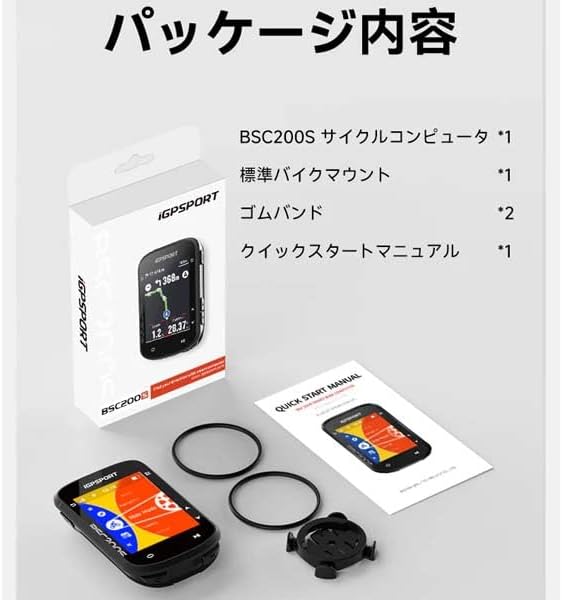
Image: Contents of the iGPSPORT iGS520 package, including the cycle computer, mount, rubber bands, and quick start guide.
3. Product Overview
3.1 Device Layout
The iGS520 features a compact design with a clear display and intuitive button controls on its sides.

Image: Front view of the iGPSPORT iGS520 displaying navigation and ride data.
3.2 Display and Interface
The 2.4-inch FSTN dot matrix display provides a clear view of your cycling data. The screen layout is customizable, allowing you to display up to 8 data items per screen or switch between 1-2 screens for different data views. The device is operated using 5 physical buttons located on the sides.
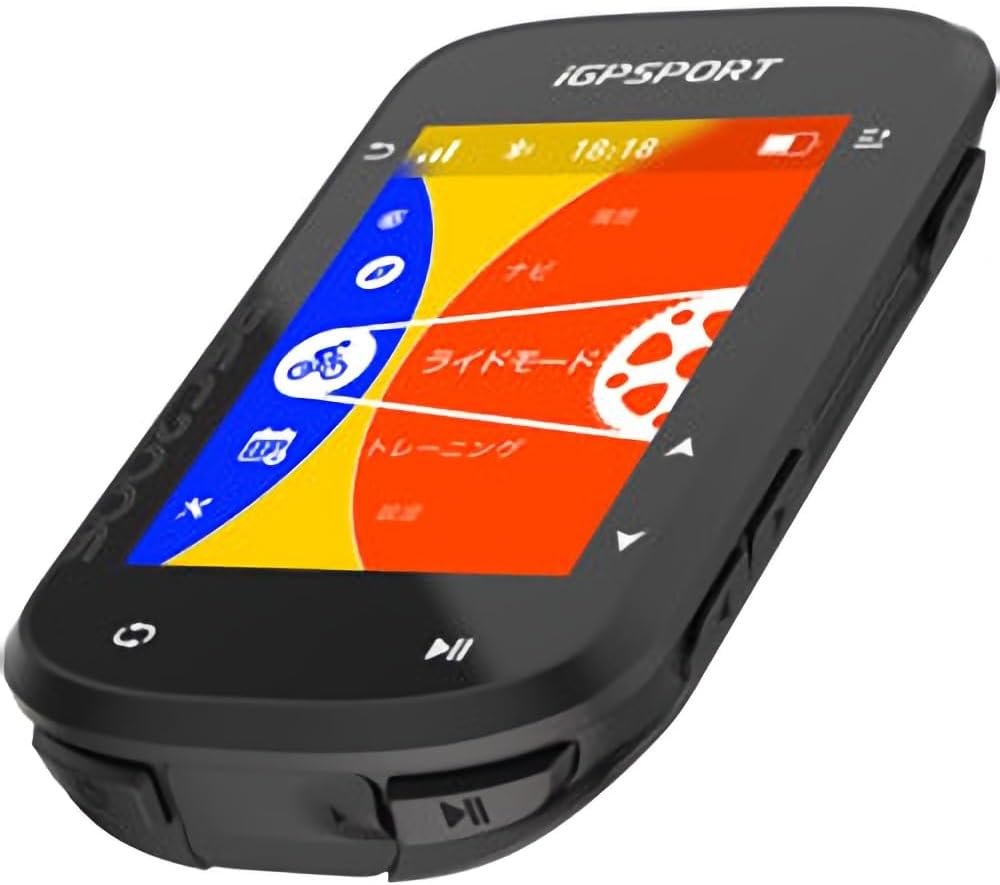
Image: The main menu screen of the iGPSPORT iGS520, showing options like navigation, ride mode, and training.
4. Setup
4.1 Charging the Device
Before first use, fully charge your iGS520. Connect the provided Micro USB cable to the charging port on the device and to a standard USB power adapter or computer USB port. A full charge provides approximately 45 hours of operation.
4.2 Mounting the Cycle Computer
Use the standard bike mount and rubber bands to securely attach the iGS520 to your bicycle's handlebar. The mount is compatible with Garmin-style quarter-turn mounts.
- Place the standard bike mount on your handlebar in a suitable position.
- Secure the mount using the two rubber bands, wrapping them around the handlebar and the mount hooks.
- Align the iGS520 with the mount and twist it clockwise until it locks securely into place.
4.3 Initial Power On and Language Settings
Press and hold the power button to turn on the device. Follow the on-screen prompts to select your preferred language. Japanese language is supported.
4.4 Pairing External Sensors
The iGS520 supports a wide range of external sensors via Bluetooth 5.0 and ANT+ for enhanced data collection. Compatible sensors include speed sensors, heart rate monitors, cadence sensors, power meters, smart trainers, electronic shifters (e.g., Di2), radar, and iGPSPORT bike lights.
- Navigate to the 'Sensor Pairing' menu on your iGS520.
- Ensure your external sensor is active and within range.
- Select the sensor type you wish to pair and follow the on-screen instructions to complete the pairing process.
5. Operating the Device
5.1 Basic Ride Functions and Data Recording
The iGS520 automatically detects when you start riding using its built-in accelerometer and can prompt you to begin recording data. It can store approximately 200 hours of ride data.
- Start/Stop Recording: Use the designated button (usually the bottom right button) to start and stop ride recording.
- Display Customization: Access the settings menu to customize the data fields displayed on each screen. You can configure up to 8 data items per screen.
- Ride Resume Function: For multi-day rides or interrupted sessions, the iGS520 features a ride resume function, allowing you to continue recording from where you left off.
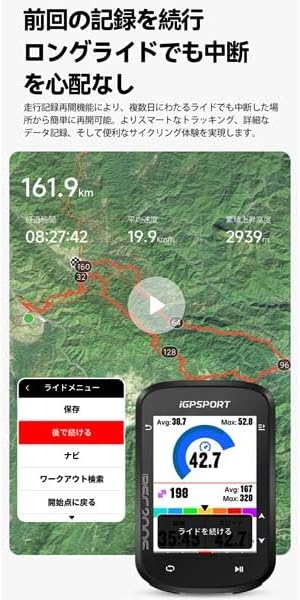
Image: The iGPSPORT iGS520 displaying ride recording data, including distance, time, speed, and elevation.
5.2 Navigation
The iGS520 provides reliable navigation capabilities, allowing you to follow pre-planned routes. While it uses a street map type, it focuses on turn-by-turn directions rather than detailed graphical maps.
- Route Planning: Routes can be planned and uploaded to the device via the iGPSPORT app.
- Starting Navigation: From the main menu, select 'Navigation' and choose your desired route. The device will guide you with clear directions.
- Map Display: The display shows your current position, route, and upcoming turns.

Image: The iGPSPORT iGS520 displaying a navigation route with turn-by-turn directions and distance to next turn.
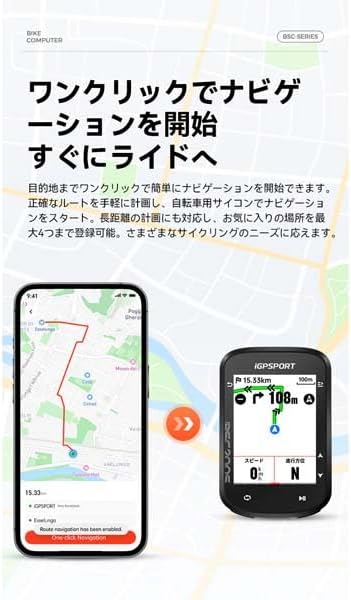
Image: A comparison showing route planning on a smartphone app and the corresponding navigation display on the iGPSPORT iGS520.
5.3 Smart Notifications
When paired with your smartphone via Bluetooth, the iGS520 can display notifications for incoming calls and SMS messages, allowing you to stay connected without needing to check your phone.
5.4 Data Management and Synchronization
After your ride, you can upload your recorded data to the iGPSPORT cloud platform for detailed analysis and management. The platform also supports synchronization with popular cycling apps like STRAVA.
6. Maintenance
6.1 Cleaning
Regularly clean your iGS520 with a soft, damp cloth. Avoid using harsh chemicals or abrasive materials that could damage the screen or casing. Ensure the charging port cover is properly sealed to maintain its IPX7 waterproof rating.
6.2 Battery Care
To maximize battery life, avoid fully discharging the device frequently. Store the device in a cool, dry place when not in use for extended periods. Recharge the battery periodically if stored for a long time.
7. Troubleshooting
This section addresses common issues you might encounter with your iGS520.
- Device not powering on: Ensure the device is fully charged. If the battery is completely depleted, it may take a few minutes of charging before it can power on.
- GPS signal not acquired: Ensure you are in an open area with a clear view of the sky. It may take a few minutes for the device to acquire a GPS signal, especially during the first use or after a long period of inactivity.
- Sensor not connecting: Check that the sensor's battery is not depleted and that it is active and within range of the iGS520. Re-attempt the pairing process from the device's settings.
- Data not syncing: Ensure your iGS520 is connected to the iGPSPORT app via Bluetooth and that you have an active internet connection on your smartphone for cloud synchronization.
- Screen unresponsive or frozen: Try performing a soft reset by holding down the power button for 10-15 seconds until the device restarts.
8. Specifications
| Feature | Specification |
|---|---|
| Brand | iGPSPORT |
| Model | iGS520 |
| Display Size | 2.4 inches |
| Display Type | FSTN Dot Matrix LCD (Black and White) |
| Display Resolution | 240x320 |
| Buttons | 5 physical buttons |
| Dimensions (L x W x H) | 82 x 53 x 14.1 mm |
| Device Weight | 66 grams |
| Battery Life | Up to 45 hours (typical use) |
| Internal Memory | 16M (approx. 200 hours of data recording) |
| Connectivity | Bluetooth 5.0, ANT+ |
| Charging Port | Micro USB |
| Operating Temperature | -10℃ to 50℃ |
| Waterproof Rating | IPX7 |
| GPS | Single-frequency 5-satellite system (GPS+BeiDou+GLONASS+Galileo+QZSS), AGPS support |
| Compatible External Devices | Speed sensor, Heart rate monitor, Cadence sensor, Power meter, Smart trainer, Electronic shifter (Di2), Radar, iGPSPORT bike light |
9. Warranty and Support
9.1 Warranty Information
The iGPSPORT iGS520 GPS Cycle Computer comes with a 2-year manufacturer's warranty from the date of purchase. This warranty covers defects in materials and workmanship under normal use. It does not cover damage caused by misuse, accidents, unauthorized modifications, or normal wear and tear.
Please retain your proof of purchase for warranty claims.
9.2 Customer Support
For technical assistance, troubleshooting, or warranty inquiries, please contact iGPSPORT customer support through their official website or the contact information provided in your quick start manual.
You can also visit the iGPSPORT Brand Store for additional product information and resources.


