
1. Introduction
This manual provides essential instructions for the installation, operation, and maintenance of your XFX Mercury AMD Radeon RX 9070XT OC Gaming White Edition RGB Graphics Card. Please read this guide thoroughly before proceeding with installation to ensure proper setup and optimal performance.
1.1 What's in the Box
- XFX Mercury AMD Radeon RX 9070XT OC Gaming White Edition RGB Graphics Card
- Quick Install Guide

Figure 1: XFX Mercury AMD Radeon RX 9070XT OC Gaming White Edition RGB Graphics Card and its retail packaging.
2. Setup
2.1 Pre-installation Checklist
Before installing your new graphics card, ensure your system meets the following requirements:
- Power Supply Unit (PSU): A minimum 750W power supply is recommended. Verify your PSU has the necessary 8-pin PCIe power connectors.
- Motherboard: A motherboard with an available PCIe x16 slot.
- Case Clearance: Ensure your PC case has sufficient space for the graphics card (dimensions: 14.17 x 6.3 x 0.04 inches).
- Operating System: Windows 10/11 64-bit or Linux 64-bit.
2.2 Physical Installation
- Power Off System: Completely shut down your computer and disconnect the power cable from the wall outlet.
- Open PC Case: Remove the side panel of your computer case to access the motherboard.
- Locate PCIe Slot: Identify an available PCIe x16 slot on your motherboard. If replacing an existing graphics card, carefully remove it.
- Remove Slot Covers: Remove the necessary expansion slot covers from the back of your PC case that align with the PCIe x16 slot.
- Insert Graphics Card: Align the graphics card with the PCIe x16 slot and press down firmly until it is securely seated. Ensure the retention clip on the PCIe slot locks into place.
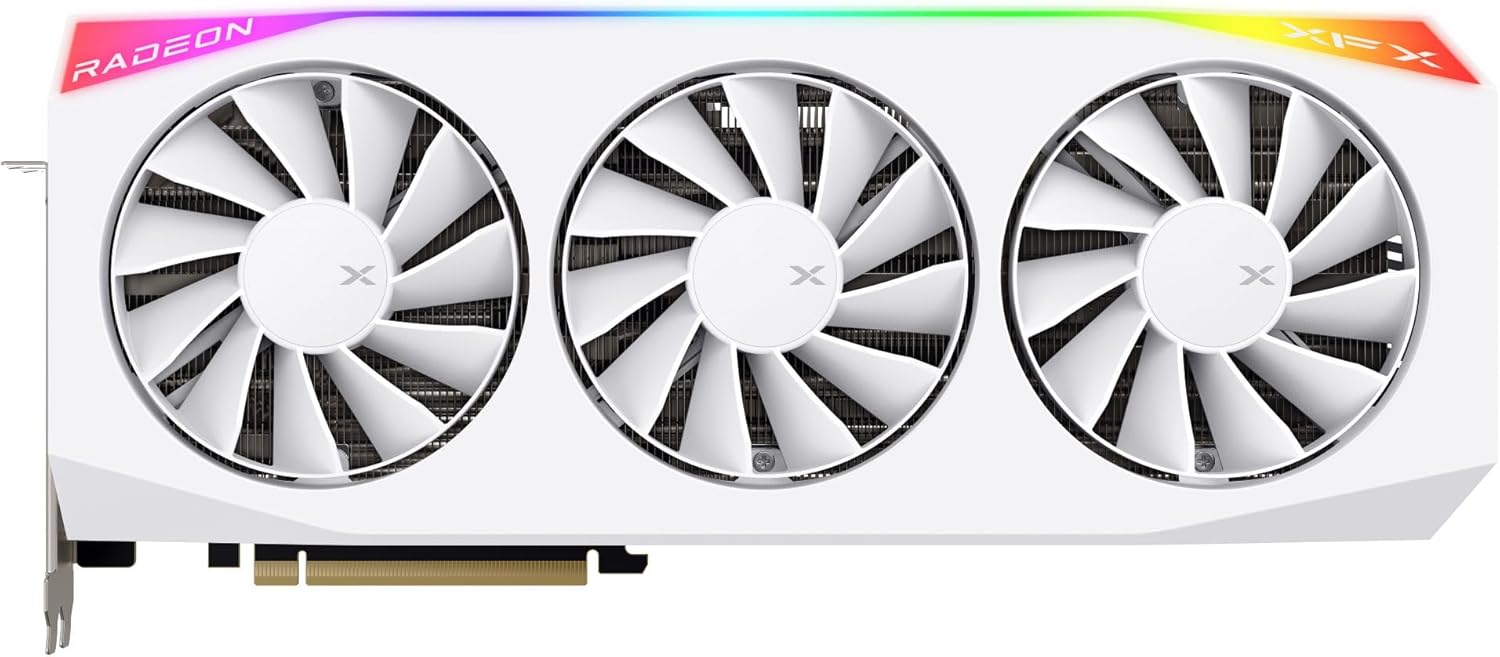
Figure 2: Front view of the graphics card, showing the triple fan cooling solution and RGB lighting.
- Secure Card: Use screws or the case's locking mechanism to secure the graphics card to the PC case.
- Connect Power Cables: Connect the required 8-pin PCIe power cables from your power supply to the corresponding ports on the graphics card. Ensure all connections are firm.

Figure 3: Side view illustrating the heatsink fins and backplate, where power connectors are typically located.
- Close PC Case: Replace the side panel of your computer case.
2.3 Driver Installation
- Connect Display: Connect your monitor to one of the display outputs (HDMI or DisplayPort) on the graphics card.
- Power On System: Reconnect the power cable and turn on your computer.
- Download Drivers: Navigate to the official AMD website (www.amd.com/en/support) and download the latest drivers for the AMD Radeon RX 9070XT series.
- Install Drivers: Run the downloaded driver installer and follow the on-screen instructions. A system restart may be required after installation.
3. Operating the Graphics Card
3.1 Display Connection
The graphics card supports multiple display outputs, including HDMI and DisplayPort. Connect your monitor(s) to the appropriate ports on the card. For optimal performance, use high-quality cables.
3.2 AMD Radeon Software Configuration
After driver installation, the AMD Radeon Software will be available. This software allows you to:
- Monitor GPU performance and temperatures.
- Adjust display settings and resolutions.
- Configure game-specific profiles for optimized performance.
- Control RGB lighting effects on the graphics card.

Figure 4: Top angled view of the graphics card, highlighting the RGB light strip and XFX branding.
4. Maintenance
4.1 Cleaning
Regular cleaning helps maintain optimal performance and longevity:
- Dust Removal: Periodically use compressed air to clear dust from the fans and heatsink fins. Ensure the system is powered off and unplugged before cleaning.
- Fan Cleaning: Gently hold the fan blades to prevent them from spinning rapidly while using compressed air.
4.2 Software Updates
Keep your graphics drivers updated to ensure compatibility with the latest games and applications, and to benefit from performance improvements and bug fixes. Check the AMD website regularly for new driver releases.
4.3 Temperature Monitoring
Utilize the AMD Radeon Software or third-party tools to monitor your GPU's temperature during operation. Maintain good airflow within your PC case to prevent overheating.
5. Troubleshooting
If you encounter issues, consider the following:
- No Display: Ensure the graphics card is fully seated in the PCIe slot and all power cables are connected. Verify your monitor is connected to the graphics card, not the motherboard's integrated graphics port.
- Driver Issues: If experiencing display artifacts or crashes, try reinstalling the latest drivers. Use a driver uninstaller utility to completely remove old drivers before installing new ones.
- Performance Problems: Check that your system meets the recommended specifications for the applications you are running. Ensure your drivers are up to date and that the graphics card is receiving adequate power.
- Overheating: Verify that your PC case has proper airflow and that the graphics card fans are spinning. Clean any dust accumulation from the heatsink and fans.
For further assistance, refer to the AMD support website or contact XFX customer support.
6. Specifications
| Feature | Detail |
|---|---|
| Brand | XFX |
| Series | RX 9070XT |
| Model Number | RX-97TRGBBW9 |
| Graphics Coprocessor | AMD RX 9070 XT |
| Chipset Brand | AMD |
| Graphics Card RAM Size | 16 GB GDDR6 |
| Memory Speed | 20 GHz |
| Max Screen Resolution | 3840x2160 |
| Video Output Interface | HDMI / DisplayPort (3xDP) |
| Color | White |
| Item Weight | 4.4 pounds |
| Product Dimensions (LxWxH) | 14.17 x 6.3 x 0.04 inches |
7. Warranty and Support
For detailed warranty information, please refer to the warranty card included with your product or visit the official XFX website. XFX provides technical support for its products. For assistance, please visit the XFX support page or contact their customer service department.
XFX Official Website: www.xfxforce.com


